
Introduction
Welcome to the instruction manual for your PDP Afterglow Nur PS4/PS3 Headset. This headset is designed to provide an immersive audio experience for your PlayStation 4 and PlayStation 3 consoles. It features a unique industrial design, a comfortable split cushion headband, boom-less microphone technology, and customizable audio modes. The included wireless transmitter and conductive charging dock offer convenient charging and connectivity. Please read this manual thoroughly to ensure proper setup and operation of your headset.

Image: The PDP Afterglow Nur Headset illuminated with blue lighting, showcasing its design.
Setup
Package Contents
- Afterglow Nur Wireless Headset
- Wireless Transmitter and Charging Dock
- USB Charging Cable
- Instruction Manual (this document)
Charging the Headset
Before initial use, fully charge your Afterglow Nur headset. The headset uses a conductive charging system via its included dock.
- Connect the USB charging cable to the charging dock and then to a powered USB port (e.g., on your console or a USB wall adapter).
- Place the headset onto the charging dock. Ensure the charging pins on the headset align with the contacts on the dock.
- The headset will begin charging. A voice cue will indicate charging status, and the headset's lighting may change to indicate charging.

Image: The Afterglow Nur Headset resting on its charging stand, illuminated with blue light.

Image: A close-up view of the charging pins located on the headset's headband, which connect to the charging dock.
The charging dock can be placed on a flat surface or mounted on a wall to save space.
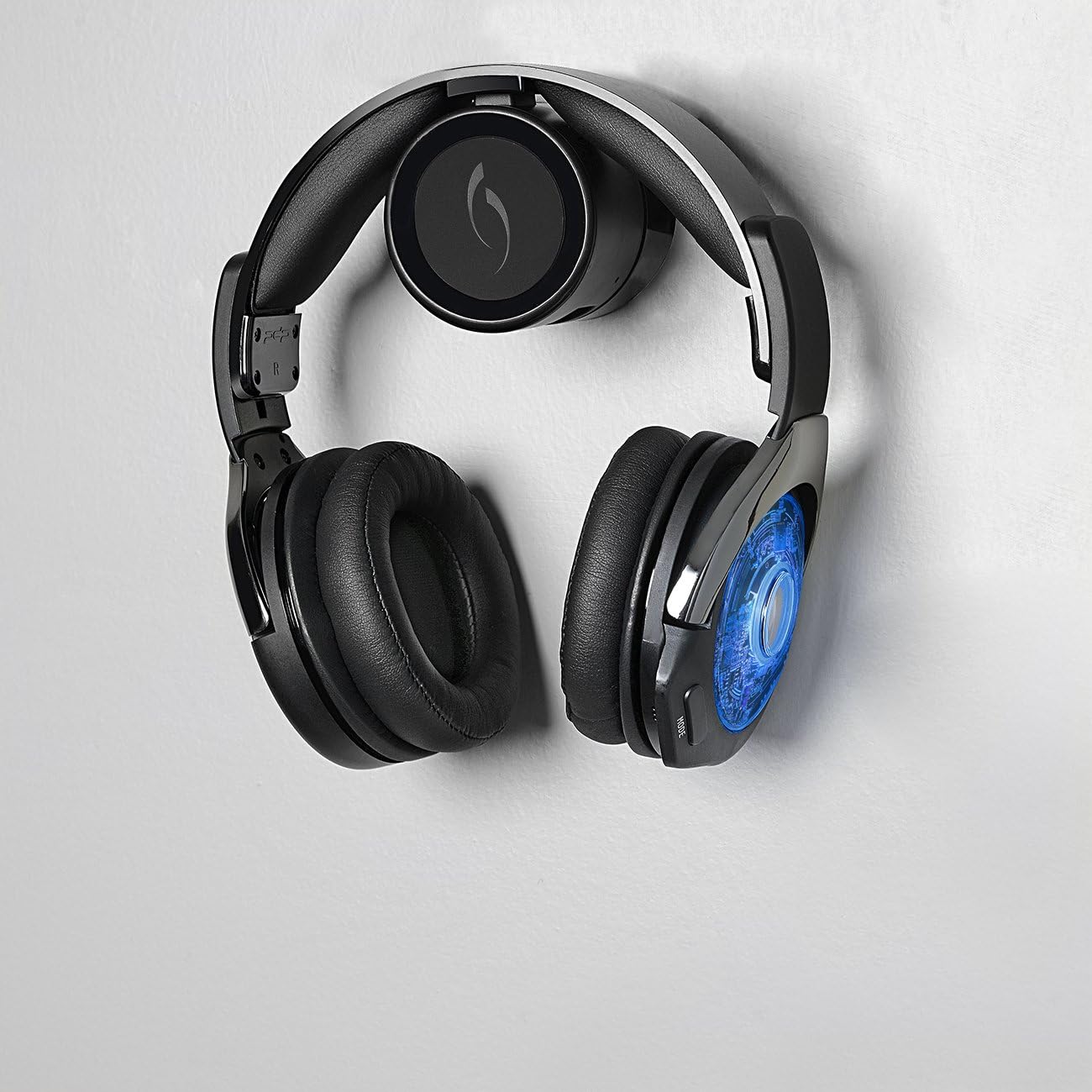
Image: The Afterglow Nur Headset conveniently mounted on a wall using its charging dock, demonstrating a space-saving setup.
Connecting to PlayStation 4 / PlayStation 3
The Afterglow Nur headset connects wirelessly to your console via the included transmitter.
- Plug the wireless transmitter (integrated into the charging dock) into an available USB port on your PlayStation 4 or PlayStation 3 console.
- Power on your console.
- Power on the Afterglow Nur headset by pressing and holding the power button (location detailed in the Operating section).
- The headset and transmitter should automatically pair. A voice cue will confirm successful connection. If pairing does not occur automatically, refer to the Troubleshooting section for manual pairing instructions.
Operating the Headset
Power On/Off
- To Power On: Press and hold the Power button located on the ear cup until you hear a power-on voice cue.
- To Power Off: Press and hold the Power button until you hear a power-off voice cue.
Audio Modes
The Afterglow Nur headset offers two distinct audio modes for customized sound.
- Bass Boost Mode: Enhances low-frequency sounds for a more impactful audio experience.
- Clarity Mode: Optimizes mid and high frequencies for clear dialogue and detailed sound.
To switch between audio modes, press the "MODE" button on the ear cup. A voice cue will announce the currently active audio mode.
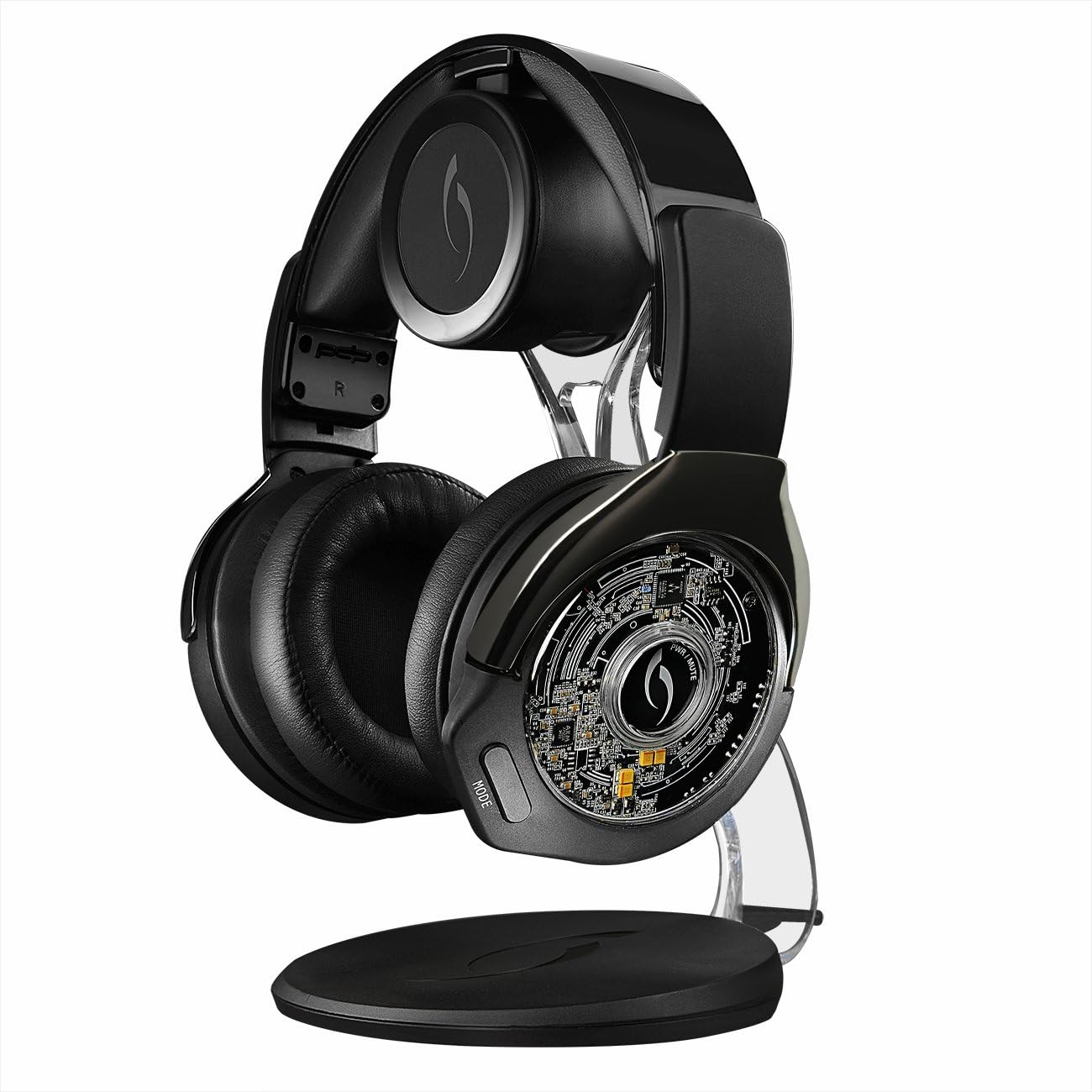
Image: A detailed view of the Afterglow Nur headset's earcups, highlighting the comfortable cushioning and potential control locations.
Boom-less Microphone Technology
The headset features integrated boom-less microphone technology for clear communication without an external boom mic. Ensure the microphone is enabled in your console's audio settings for in-game chat.
Volume Adjustment
Use the volume controls located on the ear cup to adjust the game audio and chat volume independently or simultaneously, depending on the specific control layout.
Voice Cue Interface
The headset provides voice cues to inform you about important statuses, including:
- Current audio mode (Bass Boost, Clarity)
- Remaining battery life (e.g., "Battery Low," "Battery Full")
- Power on/off status
- Connection status
Maintenance
Cleaning
- Wipe the headset and charging dock with a soft, dry cloth.
- Do not use abrasive cleaners, solvents, or harsh chemicals.
- Avoid getting moisture into any openings.
Battery Care
The headset contains a Lithium Ion battery. To prolong battery life:
- Avoid fully discharging the battery frequently.
- Charge the headset regularly, even if not in constant use.
- Store the headset in a cool, dry place away from extreme temperatures.
- Do not attempt to replace the battery yourself. Contact support if battery issues arise.
Storage
When not in use, store the headset on its charging dock or in a safe place to prevent damage. Avoid placing heavy objects on the headset.
Troubleshooting
No Audio / Disconnected Headset
- Ensure the wireless transmitter is securely plugged into a USB port on your console.
- Verify the headset is powered on and fully charged.
- Check your console's audio output settings to ensure audio is directed to the headset.
- Try re-pairing the headset:
- Power off the headset.
- Unplug the wireless transmitter from the console, wait 10 seconds, then plug it back in.
- Power on the headset. It should attempt to re-pair automatically.
Microphone Not Working
- Confirm the headset is connected to the console.
- Check your console's microphone input settings to ensure the headset is selected as the input device and the microphone volume is not muted or too low.
- Ensure the boom-less microphone is not obstructed.
Headset Not Charging
- Ensure the USB charging cable is securely connected to both the charging dock and a powered USB port.
- Verify the headset is correctly seated on the charging dock, with the charging pins making proper contact.
- Try a different USB port or charging cable.
Specifications
| Feature | Detail |
|---|---|
| Model Number | 051-003-BK |
| Compatibility | PlayStation 4, PlayStation 3 |
| Connectivity | Wireless (via USB transmitter) |
| Battery Type | 2 Lithium Ion batteries |
| Charging Method | Conductive charging dock |
| Dimensions (Product) | 21.41 x 16.69 x 27.89 cm |
| Weight (Product) | 1.32 kg |
| Release Date | December 20, 2014 |
Warranty Information
PDP products typically come with a limited manufacturer's warranty. For specific details regarding the warranty period and coverage for your Afterglow Nur PS4/PS3 Headset, please refer to the warranty card included with your product or visit the official PDP website. Keep your proof of purchase for warranty claims.
Customer Support
If you encounter any issues not covered in this manual or require further assistance, please contact PDP customer support.
- Online Support: Visit the official PDP website for FAQs, support articles, and contact forms.
- Contact Information: Refer to the product packaging or the PDP website for current customer service phone numbers or email addresses.