Introduction
This manual provides essential information for setting up, operating, and maintaining your Brother HL-L2300D Monochrome Laser Printer. Please read these instructions carefully before using the printer to ensure safe and efficient operation.
The Brother HL-L2300D is a reliable and affordable monochrome laser printer designed for personal or home office use. It features automatic duplex printing, a compact size, and a print speed of up to 27 pages per minute (ppm). The printer connects via a high-speed USB interface and delivers sharp, professional black and white pages at up to 2400 x 600 dpi resolution. Its automatic duplex printing capability helps save resources by printing on both sides of the paper. A manual feed slot is included for conveniently printing envelopes and letterheads.
What's in the Box
Upon unpacking, ensure all items are present:
- Brother HL-L2300D Monochrome Laser Printer
- Toner Cartridges (Starter toner cartridge included)
- Drum Unit (Pre-installed)
- AC Power Cord
- Quick Setup Guide
- Installation CD-ROM (for Windows/macOS drivers and software)
Note: A USB cable is not included and must be purchased separately for direct connection to a computer.
Setup Guide
1. Unpacking and Initial Preparation
- Remove Packing Materials: Carefully remove the printer from its packaging. Remove all orange protective tape and packing materials from the exterior and interior of the printer.
- Install Toner Cartridge and Drum Unit:
- Open the front cover of the printer.
- Remove the toner cartridge and drum unit assembly from the printer.
- Carefully remove the orange protective cover from the toner cartridge.
- Insert the toner cartridge firmly into the drum unit until it locks into place.
- Reinstall the toner cartridge and drum unit assembly back into the printer and close the front cover.
- Load Paper:
- Pull the paper tray completely out of the printer.
- Adjust the paper guides to fit the paper size you are using (e.g., Letter, A4).
- Load up to 250 sheets of paper into the tray. Ensure the paper is flat and not curled.
- Gently push the paper tray back into the printer until it clicks into place.
- Connect Power Cord: Plug the AC power cord into the printer and then into a wall outlet.
2. Driver and Software Installation
For optimal performance, install the latest drivers and software from the Brother support website or use the provided CD-ROM.
- Connect USB Cable: Connect one end of a USB 2.0 cable (not included) to the printer and the other end to your computer.
- Install Drivers:
- Using CD-ROM: Insert the installation CD-ROM into your computer's CD/DVD drive and follow the on-screen instructions.
- Downloading from Website: Visit support.brother.com, search for "HL-L2300D", and download the Full Driver & Software Package for your operating system. Run the installer and follow the prompts.
- Windows 10 Compatibility: If upgrading from Windows 7 or 8.1 to Windows 10, uninstall all previous drivers and software before upgrading, then install the Windows 10 compatible drivers.

Operating Instructions
Basic Printing
- Ensure the printer is powered on and connected to your computer.
- Open the document you wish to print on your computer.
- Select Print from the application's menu (e.g., File > Print).
- Choose your Brother HL-L2300D printer from the list of available printers.
- Adjust print settings as needed (e.g., number of copies, paper size, duplex printing).
- Click Print. The printer will begin printing.
Duplex Printing (Two-Sided)
The HL-L2300D supports automatic two-sided printing:
- In your application's print dialog, look for a "Two-sided" or "Duplex" option.
- Select the desired duplex setting (e.g., "Long-edge binding" for standard documents, "Short-edge binding" for calendars).
- Proceed with printing as usual. The printer will automatically flip the pages to print on both sides.
Using the Manual Feed Slot
For special media like envelopes or thicker paper:
- Open the manual feed slot cover located on the front of the printer.
- Adjust the paper guides in the manual feed slot to fit the width of your media.
- Insert one sheet of paper or envelope into the manual feed slot until the printer grips it.
- In your computer's print settings, select "Manual Feed" as the paper source and choose the correct media type and size.
- Send the print job.

Maintenance
Replacing the Toner Cartridge
When the "Toner Low" or "Replace Toner" message appears on the printer's display or status monitor:
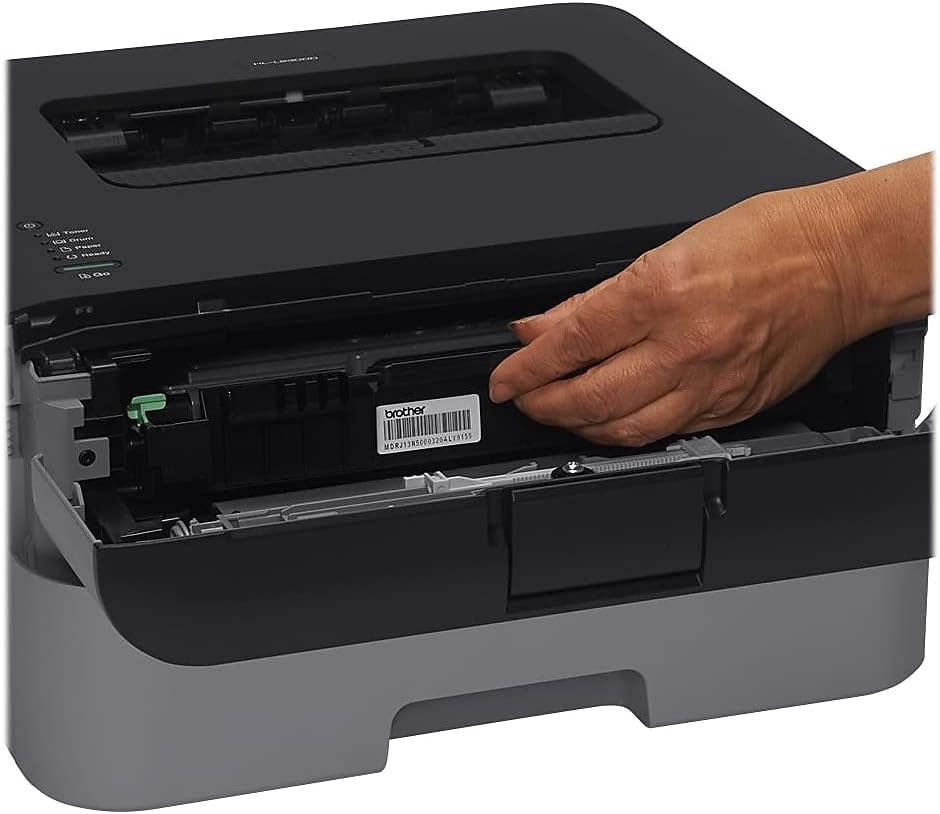
- Open the front cover of the printer.
- Remove the toner cartridge and drum unit assembly from the printer.
- Press the green lock lever on the drum unit and remove the old toner cartridge.
- Unpack the new toner cartridge and gently shake it horizontally several times to distribute the toner evenly.
- Insert the new toner cartridge firmly into the drum unit until it locks into place.
- Clean the corona wire inside the drum unit by gently sliding the green tab from left to right several times. Return the tab to its home position.
- Reinstall the toner cartridge and drum unit assembly back into the printer.
- Close the front cover.

Replacing the Drum Unit
The drum unit is a consumable item that needs to be replaced after a certain number of pages (approximately 12,000 pages). The printer will indicate when replacement is necessary.
- Follow steps 1-3 from "Replacing the Toner Cartridge" to remove the old toner cartridge from the old drum unit.
- Unpack the new drum unit.
- Insert the toner cartridge into the new drum unit until it locks into place.
- Reinstall the toner cartridge and new drum unit assembly back into the printer.
- Close the front cover.
- Reset the drum counter through the printer's menu or software as instructed in the full user guide.
Troubleshooting
| Problem | Possible Cause | Solution |
|---|---|---|
| Printer not printing |
|
|
| Poor print quality |
|
|
| Paper jams frequently |
|
|
For more detailed troubleshooting, refer to the comprehensive user manual available on the Brother support website.
Specifications
| Feature | Detail |
|---|---|
| Model Name | HL-L2300D |
| Printing Technology | Laser |
| Printer Output | Monochrome |
| Max Print Speed (Monochrome) | 27 ppm |
| Max Print Resolution | 2400 x 600 dpi |
| Duplex Printing | Automatic |
| Connectivity Technology | USB 2.0 (Cable not included) |
| Max Input Sheet Capacity | 250 sheets |
| Manual Feed Slot | Yes (for envelopes, labels, thicker paper) |
| Supported Operating Systems | Windows (8, 7, Vista, XP, Server 2012R2/2012/2008R2/2008/2003), OS X (10.7.5, 10.8.x, 10.9.x or greater), Linux (CUPS, LPD/LPRng) |
| Product Dimensions (DxWxH) | 14"D x 14.2"W x 7.2"H |
| Item Weight | 15 pounds |
| Memory Storage Capacity | 8 MB |
| Power Consumption | 15 Watts (Printing: 495W, Ready: 60W, Sleep: 6.4W, Deep Sleep: 1.1W) |
| Machine Noise (Ready/Printing) | 31dB/49dB |
| Maximum Monthly Duty Cycle | 10,000 pages |
| Recommended Monthly Volume | 250 to 2,000 pages |
Warranty and Support
Warranty Information
The Brother HL-L2300D Monochrome Laser Printer comes with a Limited Warranty. Please refer to the warranty card included with your product or visit the official Brother website for specific terms and conditions, including coverage duration and service procedures.
Customer Support
For technical assistance, driver downloads, FAQs, and additional resources, please visit the Brother support website:
You may also contact Brother customer service directly for personalized support.
Official Product Video
Video Description: This official video from Brother International Corporation provides an overview of the Brother HL-L2300D printer, highlighting its key features and benefits. It demonstrates the printer's functionality and ease of use.


