
1. Introduction
This manual provides essential information for the installation, operation, and maintenance of your HGST Ultrastar He8 HUH728080ALE604 8TB SATA Hard Drive. The Ultrastar He8 series utilizes HelioSeal technology, replacing air with helium inside the drive to reduce turbulence and enable a seven-disk design within a standard 3.5-inch form factor. This design contributes to industry-leading capacity, improved power efficiency, and enhanced performance for enterprise environments.

Figure 1: HGST Ultrastar He8 8TB SATA Hard Drive, top view.
2. Safety Information
Observe the following safety precautions to prevent damage to the drive and ensure safe operation:
- Electrostatic Discharge (ESD) Protection: Always handle the hard drive by its edges. Wear an anti-static wrist strap or frequently touch a grounded metal object before handling the drive to discharge static electricity.
- Physical Handling: Avoid dropping or subjecting the drive to sudden impacts. Hard drives are precision instruments and can be damaged by rough handling.
- Power Supply: Ensure your power supply unit (PSU) provides stable and sufficient power for the drive. Incorrect voltage or unstable power can damage the drive.
- Ventilation: Install the drive in a well-ventilated area to prevent overheating. Excessive heat can reduce the lifespan of the drive.
3. Package Contents
Verify that your package contains the following items:
- HGST Ultrastar He8 HUH728080ALE604 8TB SATA Hard Drive
- Documentation (this user manual, if provided in print)
Note: SATA data cables, power cables, and mounting screws are typically supplied with your computer system or enclosure and are not usually included with the bare drive.
4. Setup
4.1 Physical Installation
- Prepare Your System: Power off your computer and disconnect the power cord. Open the computer case to access the drive bays.
- Mount the Drive: Slide the HGST Ultrastar He8 drive into an available 3.5-inch drive bay. Secure the drive with appropriate mounting screws on both sides to prevent vibration.
- Connect Cables:
- Connect one end of a SATA data cable to the SATA port on the hard drive and the other end to an available SATA port on your motherboard.
- Connect a SATA power cable from your power supply unit (PSU) to the power connector on the hard drive.
- Close Case and Power On: Close your computer case, reconnect the power cord, and power on your system.
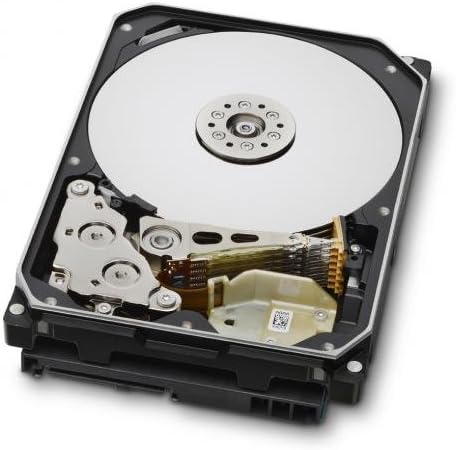
Figure 2: Internal components of the HGST Ultrastar He8, illustrating the platters and read/write head assembly.
4.2 Initial Configuration (Operating System)
After physical installation, the drive needs to be initialized, partitioned, and formatted by your operating system before it can be used for storage.
- Access Disk Management:
- Windows: Right-click on the Start button, then select "Disk Management."
- Linux: Use utilities like
fdisk,gparted, orDisks. - macOS: Use "Disk Utility."
- Initialize Disk: The new drive should appear as "Unallocated Space." You may be prompted to initialize the disk. Choose GPT (GUID Partition Table) for drives larger than 2TB.
- Create New Simple Volume (Partition): Right-click on the unallocated space and select "New Simple Volume." Follow the wizard to define the partition size, assign a drive letter, and format the volume.
- Format the Drive: Select a file system (e.g., NTFS for Windows, ext4 for Linux, APFS/HFS+ for macOS). Perform a quick format for faster setup, or a full format for a more thorough check (which takes significantly longer).
5. Operating
The HGST Ultrastar He8 is designed for continuous operation in enterprise environments, offering high capacity and reliable performance. Once configured, it functions like any other storage drive within your system.
- Data Transfer: Transfer files to and from the drive using your operating system's file explorer or command-line tools.
- Performance: The drive operates at 7200 RPM with a SATA 6Gb/s interface, providing fast data access and transfer speeds suitable for demanding applications.
- Power Management: Ensure your operating system's power settings are configured appropriately for hard drives, especially in server environments, to optimize power consumption and drive longevity.
6. Maintenance
Regular maintenance helps ensure the longevity and reliability of your hard drive and the data stored on it.
- Data Backup: Regularly back up critical data to another storage device or cloud service. No storage device is infallible.
- Monitor Drive Health: Use S.M.A.R.T. (Self-Monitoring, Analysis and Reporting Technology) tools to monitor the drive's health status. Many operating systems and third-party utilities offer this functionality.
- Environmental Conditions: Maintain a stable operating environment. Avoid extreme temperatures, high humidity, and excessive vibrations.
- Firmware Updates: Periodically check the Western Digital support website for firmware updates for your specific drive model. Firmware updates can improve performance, stability, or address known issues. Exercise caution when performing firmware updates, as an interrupted update can render the drive inoperable.
7. Troubleshooting
If you encounter issues with your HGST Ultrastar He8 drive, consider the following troubleshooting steps:
- Drive Not Detected:
- Check all cable connections (SATA data and power) to ensure they are secure.
- Verify that the SATA port on the motherboard is enabled in the system's BIOS/UEFI settings.
- Test the drive in a different SATA port or with different cables.
- Ensure the drive is initialized and formatted in Disk Management (Windows) or equivalent utility (Linux/macOS).
- Slow Performance:
- Check for background processes consuming disk resources.
- Ensure the drive is connected to a SATA 6Gb/s port and that the necessary drivers are installed.
- Monitor drive health using S.M.A.R.T. tools for potential issues.
- Ensure adequate ventilation to prevent thermal throttling.
- Unusual Noises:
- Clicking, grinding, or repetitive beeping sounds can indicate a mechanical failure. Immediately back up any accessible data and consider replacing the drive.
- A slight hum or whirring is normal for a spinning hard drive.
- Data Corruption:
- Run disk error checking utilities (e.g.,
chkdskon Windows,fsckon Linux). - Ensure proper system shutdowns to prevent data loss.
- Run disk error checking utilities (e.g.,
8. Specifications
| Feature | Specification |
|---|---|
| Model Numbers | HUH728080ALE604, 0F23668, 0F25721 |
| Capacity | 8 TB |
| Interface | SATA 6Gb/s (Serial ATA-600) |
| Form Factor | 3.5 Inches |
| Rotational Speed | 7200 RPM |
| Cache | 128 MB |
| Dimensions (LxWxH) | 5.79 x 4 x 1.03 inches |
| Weight | 1.43 pounds |
| Technology | HelioSeal |
| Reliability (MTBF) | 2+ Million Hours (typical) |
9. Warranty Information
The HGST Ultrastar He8 hard drive typically comes with a 3-year seller warranty, covering defects in materials and workmanship under normal use. For specific warranty terms and conditions, please refer to the documentation provided at the time of purchase or contact your seller directly.
Standard return policies usually allow for returns or replacements within 30 days of purchase, subject to the seller's terms.
10. Support
For further assistance, technical support, or warranty claims, please contact Western Digital customer support or visit their official website:
- Western Digital Support Website: https://support.wdc.com
- Western Digital Store: Western Digital Store on Amazon
When contacting support, please have your drive's model number (HUH728080ALE604 or 0F23668) and serial number ready.


