
Thermaltake KB-CHM-MBBLUS-01
Contents
Thermaltake Tt Esports Challenger Prime Gaming Keyboard User Manual
Model: KB-CHM-MBBLUS-01
Brand: Thermaltake
Introduction
The Thermaltake Tt Esports Challenger Prime Gaming Keyboard (KB-CHM-MBBLUS-01) is a membrane gaming keyboard designed with various features to enhance your gaming experience. This manual provides detailed instructions for setting up, operating, maintaining, and troubleshooting your keyboard.
Key features include 3-color LED backlighting, dedicated macro keys, multimedia controls, anti-spill design, and anti-ghosting capabilities.
Package Contents
- Thermaltake Tt Esports Challenger Prime Gaming Keyboard
- User Manual (this document)
Setup
Hardware Installation
- Connect the Keyboard: Plug the USB connector of the Challenger Prime keyboard into an available USB port on your computer.
- Automatic Driver Installation: Your operating system (Windows) should automatically detect and install the necessary drivers.
Software Installation (Optional, for advanced features)
To utilize advanced features such as macro programming and profile management, download and install the official Tt eSPORTS Challenger Prime software from the Thermaltake website.
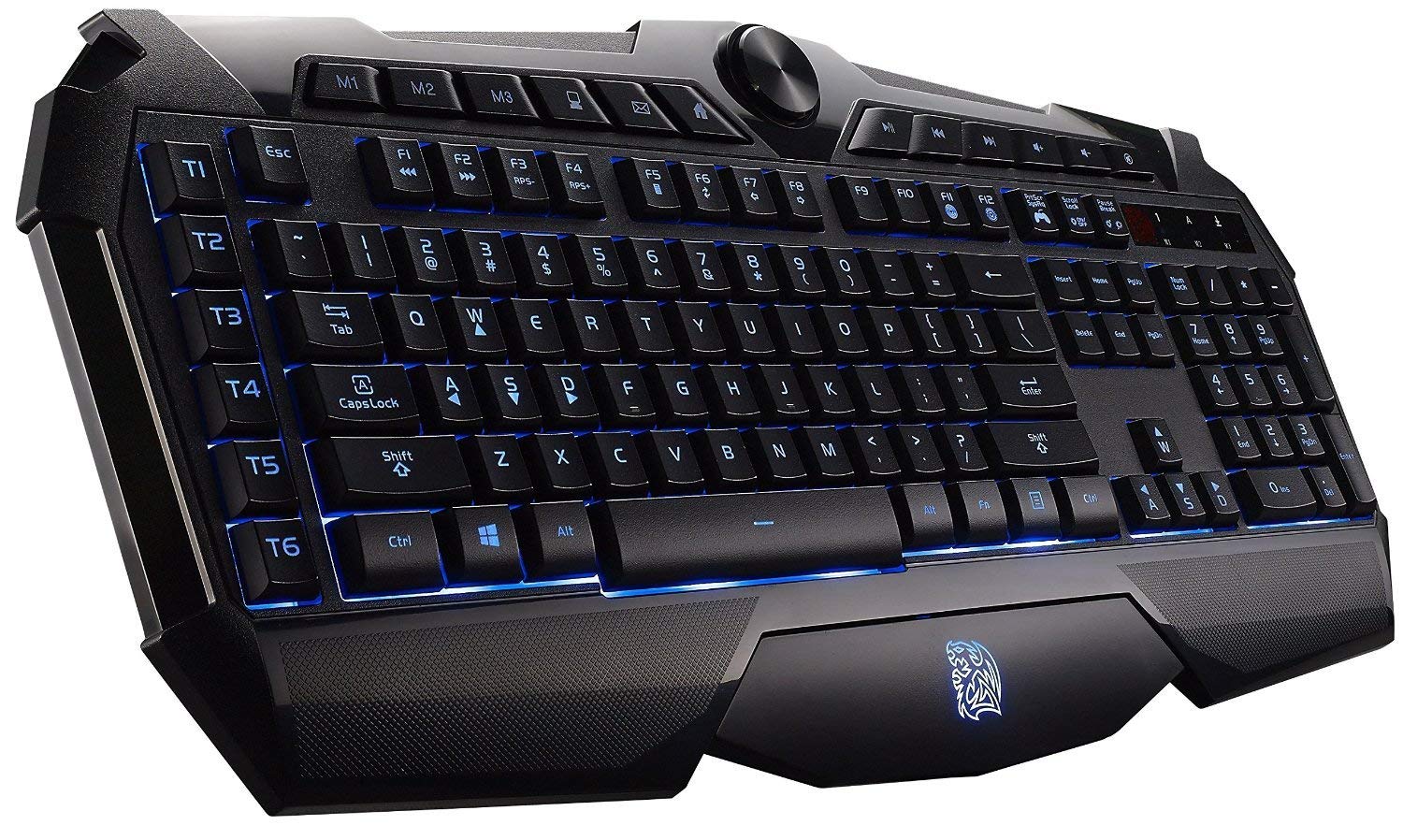
Figure 1: Thermaltake Tt Esports Challenger Prime Gaming Keyboard with blue backlighting.
Operating Instructions
Backlighting Control
- Color Selection: Press the Fn key + Scroll Lock key to cycle through the three available backlight colors: Blue, Purple, and Red.
- Brightness Adjustment: Use the dial located at the top center of the keyboard to adjust the backlight brightness. Turn the dial clockwise to increase brightness and counter-clockwise to decrease it.
- Lighting Effects: The backlighting supports static and pulse lighting effects.
Macro Keys and Profiles
- Dedicated Macro Keys: The keyboard features 6 dedicated macro keys (T1-T6) on the left side.
- Storable Profiles: Three storable profiles (M1, M2, M3) allow for up to 18 programmable macros (6 keys x 3 profiles).
- Profile Switching: Use the M1, M2, and M3 keys at the top of the keyboard to switch between profiles.
Functional Keyset
- Multimedia Keys: 9 dedicated multimedia keys are located along the top of the keyboard for quick access to media controls.
- Shortcut Keys: Additional shortcut keys are available for various functions.
- Game Mode Toggle: Press Fn + Print Screen to toggle Game Mode. In Game Mode, the Windows key is disabled to prevent accidental interruptions during gameplay.
- WASD/Arrow Key Swap: The WASD keys can be swapped with the arrow keys for different gaming preferences.
- Repeat Rate and Polling Rate: Adjustment keys are available for fine-tuning the keyboard's repeat rate and polling rate.
Anti-Ghosting
The Challenger Prime features N-key rollover, ensuring that multiple simultaneous key presses are registered accurately, preventing "ghosting" during intense gaming sessions.
Software UI Overview
The Tt eSPORTS Challenger Prime software allows for extensive customization of your keyboard. Below is an overview of its main functions:
Video 1: Official overview of the Thermaltake Tt eSPORTS Challenger Prime software user interface, demonstrating key remapping, macro settings, and advanced options.
- Main Control: This section allows you to remap any standard key on the keyboard to a different function. Keys that have been remapped will flash red on the virtual keyboard display.
- Macro Setting: Configure the T1-T6 macro keys. You can assign pre-recorded macros, multimedia functions (mute, volume up/down, next/previous track, play/pause, stop), Windows shortcuts (close window, home, search, minimize, maximize, show desktop, run command, email, my computer, calculator), or custom shortcuts (e.g., Ctrl+Shift+Alt combinations). Macro keys can also be turned off.
- Advanced Setting: Adjust performance and lighting options:
- Polling Rate: Select from 125Hz, 250Hz, 500Hz, or 1000Hz.
- Backlight: Choose between Blue, Purple, or Red.
- Response Time: Set the response time (e.g., 1ms, 2ms, 4ms, 8ms).
- Brightness: Adjust brightness levels (Off, 20%, 60%, 100%) or select a breathing effect.
- Gaming Profile Management:
- Create/Load/Save/Edit Profiles: Manage multiple gaming profiles. You can save profiles to your computer and load them as needed.
- Tie to Executable: Profiles can be linked to specific game executable files (.exe). When the linked game is launched, the keyboard will automatically load the corresponding profile from one of the three onboard slots.
- Macro Manager: Create and edit macro sequences. You can record key presses and releases, with an option to record delays between key commands for precise timing. Macros can also be set to loop a specified number of times.
- Apply Settings: After making any changes in the software, click "Apply" to save the settings to the keyboard.
Maintenance
Cleaning the Keyboard
- Use a soft, slightly damp cloth to wipe the surface of the keyboard.
- For dust and debris between keys, use compressed air.
- Avoid using harsh chemicals or abrasive materials, as these can damage the keyboard's finish.
Anti-Spill Design
The Challenger Prime keyboard features drainage holes at designated areas to help mitigate damage from accidental liquid spills. In case of a spill, immediately disconnect the keyboard from your computer and allow it to dry completely before reconnecting.

Figure 2: Close-up view of the membrane switches beneath the keycaps.
Troubleshooting
- Keyboard not responding:
- Ensure the USB cable is securely connected to both the keyboard and the computer.
- Try plugging the keyboard into a different USB port.
- Restart your computer.
- Backlighting not working or incorrect color:
- Check the brightness dial on the keyboard to ensure it's not set to minimum or off.
- Press Fn + Scroll Lock to cycle through colors and ensure the lighting is enabled.
- Verify backlight settings in the Tt eSPORTS software (Advanced Setting tab).
- Macro keys not functioning:
- Ensure the correct gaming profile (M1, M2, or M3) is active.
- Check macro assignments in the Tt eSPORTS software (Macro Setting tab) and ensure macros are properly recorded in the Macro Manager.
- If the software is freezing or macros are not saving, try reinstalling the software or checking for updated versions on the Thermaltake website.
- Windows key interfering with gameplay:
- Activate Game Mode by pressing Fn + Print Screen. This disables the Windows key.
Specifications
| Feature | Detail |
|---|---|
| Brand | Thermaltake |
| Model Number | KB-CHM-MBBLUS-01 |
| Connectivity Technology | USB |
| Keyboard Description | Gaming |
| Recommended Uses | Gaming |
| Special Feature | 3-Color LED Backlighting (Blue, Red, Purple) |
| Color | Black |
| Material | Acrylonitrile Butadiene Styrene |
| Included Components | Keyboard, User Manual |
| Power Source | DC power supply |
| Switch Type | Membrane |
| Keyboard Layout | QWERTY |
| Button Quantity | 24 (referring to macro/multimedia keys) |
| Water Resistance Level | Water Resistant (Anti-Spill Design) |
| Compatible Operating System | Windows |
| Item Weight | 1.8 Pounds |
| Dimensions | 20” x 9.41” x 0.95” |
Warranty Information
The Thermaltake Tt Esports Challenger Prime Gaming Keyboard comes with a 2-year warranty. For detailed terms and conditions, please refer to the official Thermaltake warranty policy available on their website or contact customer support.
Support
For technical assistance, driver downloads, or further information, please visit the official Thermaltake Tt eSPORTS website or contact their customer support team.
Website: www.thermaltake.com
Contact: Refer to the Thermaltake website for regional contact information.
Ask a question about this manual
Ask about setup, troubleshooting, compatibility, parts, safety, or missing instructions. Manuals+ will review the question and use this page’s manual context to help answer it.