1. Introduction and Overview
The havit HV-F2056 Laptop Cooler Cooling Pad is designed to provide efficient cooling for laptops ranging from 15.6 to 17 inches. Its slim and portable design makes it ideal for use anywhere, while its three ultra-quiet fans ensure a noise-free environment. The cooling pad also functions as an ergonomic stand with adjustable height settings, promoting comfortable use. Equipped with extra USB ports, it offers enhanced connectivity for your devices.
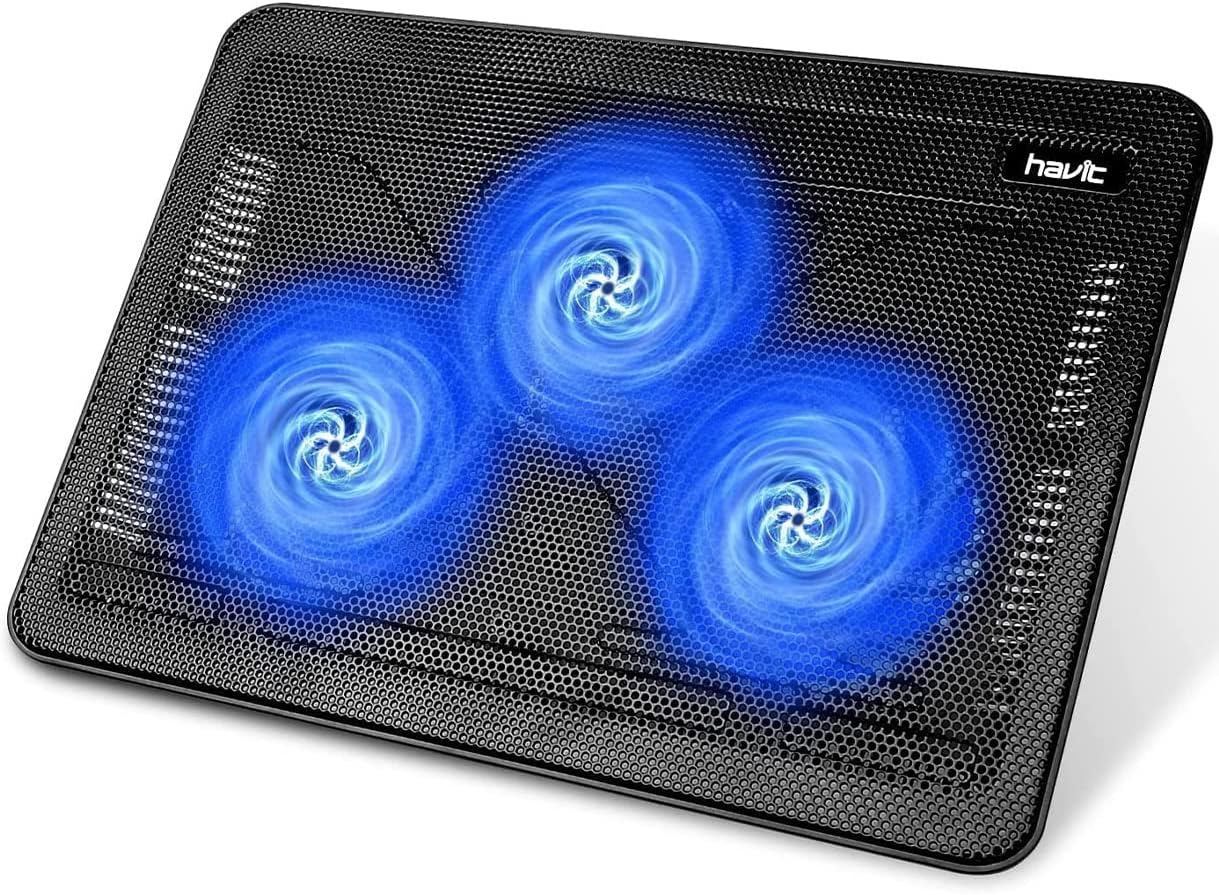
Image 1.1: The havit HV-F2056 Laptop Cooler, showcasing its three illuminated blue fans and sleek black design.
2. What's in the Box
Upon opening the package, please ensure all the following items are present:
- Havit HV-F2056 Laptop Cooling Pad (with integrated fans)
- USB Cable (for power connection)
- User Manual (this document)
3. Key Features
- Ultra-portable Design: Slim, lightweight, and easy to carry, protecting your investment on the go.
- Ergonomic Comfort: Doubles as a laptop stand with two adjustable height settings for improved posture and viewing angles.
- Optimized for Laptop Carrying: Features a high-quality multi-directional metal mesh surface, providing a wear-resistant and stable platform for your laptop.
- Ultra-quiet Fans: Three powerful yet quiet fans create a noise-free cooling environment.
- Extra USB Ports: Includes an additional USB port and a power switch. The built-in dual-USB hub allows for connecting more USB devices. Note: The packaged cable is USB to USB connection. Type-C connection devices may require a Type-C to USB adapter.

Image 3.1: Side view of the cooling pad demonstrating its adjustable height feature for ergonomic positioning.
4. Setup Guide
- Unpack: Carefully remove the cooling pad and USB cable from its packaging.
- Positioning: Place the cooling pad on a flat, stable surface.
- Adjust Height (Optional): If desired, extend the two adjustable feet located on the underside of the cooling pad to raise its angle for improved ergonomics.
- Connect Power: Insert the smaller end of the provided USB cable into the designated USB input port on the cooling pad. Insert the larger end of the USB cable into an available USB port on your laptop or a USB wall adapter (not included).
- Power On: Locate the power switch on the side of the cooling pad and switch it to the "ON" position. The blue LED lights on the fans will illuminate, indicating operation.
- Place Laptop: Carefully place your laptop on top of the cooling pad, ensuring it is centered over the fan areas for optimal airflow.

Image 4.1: A laptop positioned on the havit cooling pad, illustrating proper placement for effective cooling.
5. Operating Instructions
The havit HV-F2056 cooling pad operates simply once connected to a power source. The fans will begin to spin, drawing heat away from your laptop and improving air circulation.
- Power On/Off: Use the side switch to turn the cooling pad on or off. The blue LED lights indicate the power status.
- USB Hub Functionality: The additional USB port can be used to connect other USB-powered devices, such as a mouse, keyboard, or external hard drive.
- Optimal Placement: For best cooling performance, ensure your laptop's ventilation grilles align with the cooling pad's fans.
Video 5.1: A demonstration of the havit laptop cooling pad in operation, highlighting its quiet performance and the blue LED lights of the fans. The video also shows the USB power connection and the additional USB port.
6. Maintenance
To ensure the longevity and optimal performance of your havit HV-F2056 Laptop Cooler, follow these simple maintenance guidelines:
- Cleaning: Regularly wipe the surface of the cooling pad with a soft, dry cloth to remove dust. For stubborn dirt, a slightly damp cloth can be used, but ensure the pad is completely dry before reconnecting power.
- Fan Cleaning: Periodically inspect the fan blades for dust accumulation. Use compressed air or a soft brush to gently clear dust from the fan blades and mesh to maintain efficient airflow.
- Storage: When not in use for extended periods, store the cooling pad in a cool, dry place away from direct sunlight and extreme temperatures.
- Avoid Obstructions: Ensure that the intake and exhaust vents of the cooling pad are not blocked by objects, as this can impede airflow and reduce cooling efficiency.
7. Troubleshooting
| Problem | Possible Cause | Solution |
|---|---|---|
| Fans not spinning / No blue lights | No power connection or power switch is off. | Ensure the USB cable is securely connected to both the cooling pad and a powered USB port (laptop or wall adapter). Check if the power switch is in the "ON" position. Try a different USB port or power source. |
| Reduced cooling performance | Dust accumulation on fans or obstructed vents. Laptop not positioned correctly. | Clean the fans and mesh surface. Ensure no objects are blocking the cooling pad's vents. Reposition your laptop to align its vents with the cooling pad's fans. |
| Unusual noise from fans | Dust or debris interfering with fan blades. | Turn off the cooling pad and carefully inspect the fan blades for any obstructions. Gently remove any debris. If the noise persists, contact customer support. |
| USB passthrough port not working | Device connected requires more power than available. Cable issue. | Try connecting a lower-power device. Ensure the USB cable connecting the cooling pad to your laptop/power source is fully functional. |
8. Specifications
- Model: HV-F2056
- Dimensions (L x W x H): 14.96" x 11.02" x 1.18" (38 cm x 28 cm x 2.8 cm)
- Item Weight: 1.54 pounds (0.7 kg)
- Material: Acrylonitrile Butadiene Styrene (ABS)
- Fan Quantity: 3
- Fan Speed: 1300 RPM
- Compatibility: Laptops 15.6" - 17" (also compatible with PS4/PS5, routers, pads)
- Power Source: USB Powered
- USB Ports: 2 (1 input, 1 passthrough)

Image 8.1: Technical diagram illustrating the precise dimensions of the havit HV-F2056 Laptop Cooler.
9. Warranty and Support
For warranty information and customer support, please refer to the official havit website or contact the retailer from whom you purchased the product. Keep your proof of purchase for any warranty claims.
For further assistance, you may also refer to the digital user manual available at: User Manual (PDF)