
1. Introduction
This manual provides essential information for the installation, configuration, operation, and maintenance of the HP Smart Array P840/4GB with FBWC Storage Controller. The HP Smart Array P840 is a high-performance SAS RAID controller designed for HP ProLiant servers, offering advanced data protection and storage management capabilities. It features 4GB of Flash-Backed Write Cache (FBWC) to enhance performance and data integrity during power loss events.
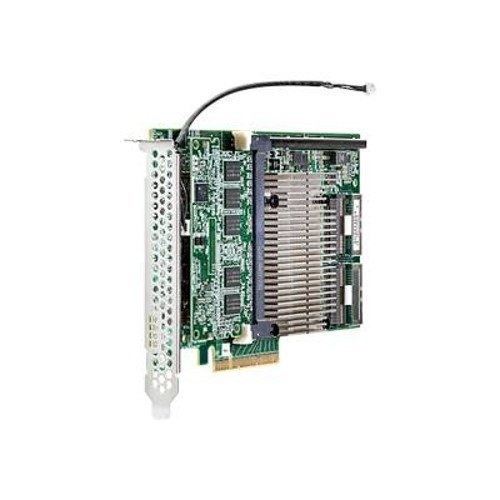
Figure 1: HP Smart Array P840/4GB with FBWC Storage Controller card. This image displays the physical RAID controller card, typically installed in a PCIe slot, showing its various components including the cache module and SAS ports.
2. Safety Information
Observe the following safety precautions to prevent injury and damage to the equipment:
- Always disconnect power from the server before installing or removing any components.
- Wear an anti-static wrist strap when handling the controller card to prevent electrostatic discharge (ESD) damage.
- Ensure proper ventilation around the server to prevent overheating.
- Do not expose the controller to moisture or extreme temperatures.
- Refer to your server's documentation for specific safety guidelines.
3. Package Contents
Verify that all components are present in the package:
- HP Smart Array P840/4GB with FBWC Storage Controller (1)
- Documentation (e.g., Quick Install Guide, Warranty Information) (May vary by region)
- SAS cables (Optional, may be sold separately or included with server)
4. Setup
4.1 Pre-installation Checklist
- Ensure the server is powered off and disconnected from all power sources.
- Gather necessary tools: Phillips screwdriver, anti-static wrist strap.
- Identify an available PCIe 3.0 x8 or x16 expansion slot in your server.
4.2 Physical Installation
- Open the server chassis according to the server's documentation.
- Locate an available PCIe expansion slot.
- Remove the slot cover.
- Carefully align the controller card with the PCIe slot and press firmly until it is seated securely.
- Secure the controller card with the retention clip or screw.
- Connect the SAS data cables from the controller to your SAS/SATA backplane or drives.
- Close the server chassis.
4.3 Driver Installation
After physical installation, power on the server. The operating system may automatically detect and install generic drivers. For optimal performance and full functionality, download and install the latest drivers and firmware from the official HP support website for your specific server model and operating system (Windows Server, Linux, VMware ESXi).
5. Operating
5.1 Initial Configuration (RAID Setup)
Upon server boot, access the Smart Array Configuration Utility. This is typically done by pressing a specific key combination (e.g., F8, F9, or F10) during the POST (Power-On Self-Test) sequence, as indicated on the screen. Within the utility, you can:
- Create new logical drives (RAID 0, 1, 5, 6, 10, 50, 60).
- Configure RAID levels and stripe sizes.
- Assign hot spares.
- Manage existing arrays.
5.2 Monitoring and Management
Use the HP Smart Storage Administrator (SSA) or the operating system's storage management tools to monitor the health and status of your RAID arrays and connected drives. This software allows you to:
- View logical drive status.
- Check physical drive health.
- Perform array rebuilds.
- Update controller firmware.
6. Maintenance
6.1 Firmware Updates
Regularly check the HP support website for firmware updates for your Smart Array P840 controller. Firmware updates can improve performance, add new features, and resolve known issues. Follow the instructions provided with the firmware update package carefully.
6.2 FBWC Battery Maintenance
The Flash-Backed Write Cache (FBWC) module includes a battery that provides power to protect data in cache during a power outage. Monitor the battery status through the Smart Storage Administrator. Replace the FBWC battery module if it indicates a failure or reaches its end-of-life, typically every 3-5 years, to ensure continued data protection.
6.3 Regular System Checks
Periodically review system logs and the status of your RAID arrays. Address any warnings or errors promptly to prevent data loss or system downtime.
7. Troubleshooting
7.1 Common Issues and Solutions
- Controller Not Detected: Ensure the card is fully seated in the PCIe slot. Verify server BIOS settings for PCIe slot enablement.
- Drives Not Detected: Check SAS cable connections to the backplane/drives. Ensure drives are properly seated and powered.
- RAID Array Degraded: A drive in the array has failed. Identify the failed drive using SSA and replace it. The array should automatically begin rebuilding.
- Performance Issues: Ensure the latest drivers and firmware are installed. Check for drive health issues. Verify RAID level and cache settings.
- FBWC Battery Warning: Replace the FBWC battery module.
7.2 LED Indicators
The Smart Array P840 controller typically has LEDs that indicate its status. Refer to the controller's specific documentation or the server's service manual for a detailed explanation of LED patterns and their meanings (e.g., green for normal operation, amber for errors).
8. Specifications
| Feature | Specification |
|---|---|
| Model Number | 766205-B21 |
| Brand | HEWLETT PACKARD |
| Cache Memory | 4GB FBWC (Flash-Backed Write Cache) |
| Interface | PCIe 3.0 x8 |
| Hardware Interface | SAS |
| RAID Levels Supported | RAID 0, 1, 5, 6, 10, 50, 60 |
| Operating System Support | Windows Server, Linux, VMware ESXi |
| Product Dimensions | Approximately 1.3 x 10.63 x 2.36 inches (3.3 x 27 x 6 cm) |
| Item Weight | Approximately 2 pounds (0.91 kg) |
9. Warranty and Support
The HP Smart Array P840/4GB with FBWC Storage Controller is covered by a standard HP warranty. For detailed warranty terms and conditions, please refer to the documentation included with your product or visit the official HP support website. HP provides technical support, driver downloads, firmware updates, and troubleshooting resources online.
For further assistance, visit www.hp.com/support and search for your product model (766205-B21) or server model.


