
1. Introduction
The HP H240 Smart Host Bus Adapter is designed to provide reliable and high-performing SAS connectivity for internal server drives. This low-profile, PCIe3 x8 standup form factor card delivers 12 Gb/s SAS performance through its eight internal physical links. It offers operational flexibility, supporting both Host Bus Adapter (HBA) mode and simple RAID mode. This manual provides essential information for the proper installation, configuration, and maintenance of your HP H240 adapter.
2. Key Features
- Model Number: 726907-B21
- Form Factor: Low profile, PCIe3 x8 standup card
- Connectivity: Eight internal physical links for SAS drives
- Performance: 12 Gb/s SAS data transfer rates
- Operating Modes: Supports HBA mode and simple RAID mode (RAID 0, RAID 1, and RAID 5)
- Encryption: Optional HP Secure Encryption capabilities in simple RAID mode
- Compatibility: Designed for internal server drives, compatible with various PC operating systems.
3. Setup and Installation
Follow these steps for proper installation of the HP H240 Smart Host Bus Adapter:
- Preparation: Power down your server and disconnect all power cables. Open the server chassis according to the manufacturer's instructions.
- Card Installation: Locate an available PCIe3 x8 slot. Carefully insert the HP H240 adapter into the slot, ensuring it is fully seated. Secure the card with the retaining mechanism or screw.
- Cable Connection: Connect the mini-SAS cables from your internal server drives or backplane to the mini-SAS connectors on the H240 adapter. Ensure connections are firm.
- Close Chassis: Close the server chassis and reconnect all power cables.
- Power On and BIOS/UEFI Configuration: Power on the server. During boot, you may need to access the server's BIOS/UEFI settings to ensure the PCIe slot is enabled or to adjust boot order if necessary. Some systems may require a BIOS update for full compatibility.
- Driver Installation: Once the operating system loads, install the appropriate drivers for the HP H240 adapter. For HP ProLiant Gen9 servers, the "Gen9 Service Pack for Proliant" typically includes all necessary drivers and firmware updates. For other systems, download drivers from the official HP support website.
- Configuration: Use the HP Smart Storage Administrator or similar utility to configure the adapter. This tool allows you to switch between HBA mode and simple RAID mode, and to create RAID arrays (RAID 0, 1, 5) if desired.
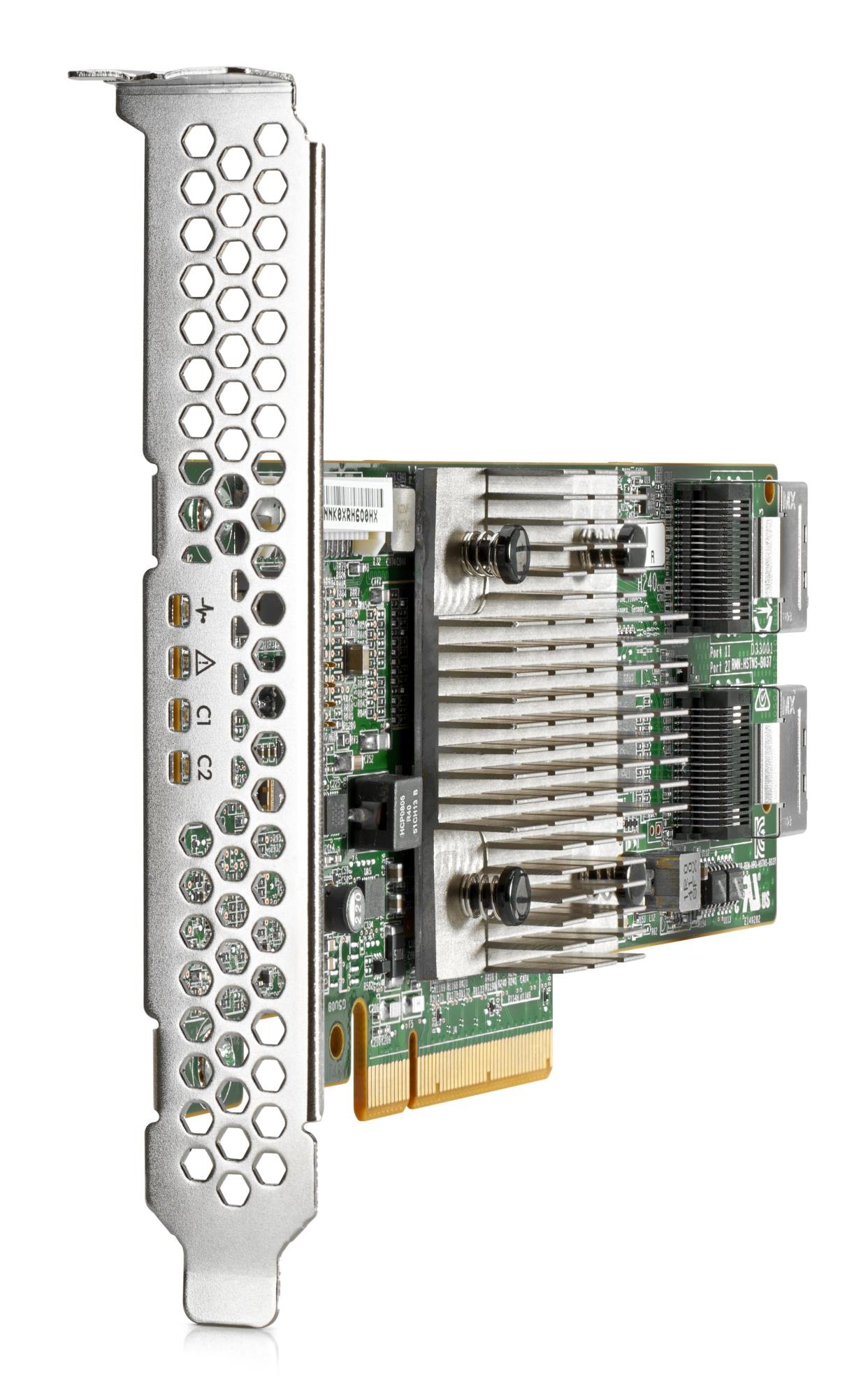
Image 1: The HP H240 Smart Host Bus Adapter, showing its low-profile design and mini-SAS connectors. This card is designed for installation into a PCIe slot within a server.
4. Operating Modes
The HP H240 adapter supports two primary operating modes:
4.1. HBA (Host Bus Adapter) Mode
In HBA mode, the adapter acts as a direct pass-through for the connected SAS drives to the operating system. This means the operating system directly manages the drives, and any software RAID configurations would be handled by the OS. This mode is often preferred for software-defined storage solutions or when direct access to individual drives is required.
4.2. Simple RAID Mode
The simple RAID mode allows the adapter to create hardware-assisted RAID arrays. The supported RAID levels are RAID 0 (striping), RAID 1 (mirroring), and RAID 5 (striping with parity). This mode offloads RAID processing from the main CPU, potentially improving performance and data protection. Configuration of RAID arrays is performed using the HP Smart Storage Administrator utility, typically accessible during server boot or through an OS-based management tool.
5. Maintenance
- Firmware Updates: Regularly check the HP support website for the latest firmware updates for the H240 adapter. Firmware updates can improve performance, stability, and compatibility.
- Driver Updates: Ensure your operating system drivers for the H240 are up-to-date. Outdated drivers can lead to performance issues or system instability.
- Temperature Monitoring: The H240 adapter can generate heat. Ensure adequate airflow within your server chassis to prevent overheating. In some cases, additional cooling (e.g., a small fan directed at the heatsink) may be beneficial, especially in environments with limited airflow or high ambient temperatures.
- Physical Inspection: Periodically inspect the card and its connections for any signs of damage, loose cables, or dust accumulation. Clean dust gently with compressed air.
6. Troubleshooting
- Card Not Detected:
- Ensure the card is fully seated in the PCIe slot.
- Verify the PCIe slot is enabled in the server's BIOS/UEFI settings.
- Check for server BIOS/UEFI updates, as older versions might not fully support newer hardware.
- Drives Not Recognized:
- Confirm that SAS cables are securely connected to both the H240 adapter and the drives/backplane.
- Ensure the correct drivers for the H240 are installed in your operating system.
- If using RAID mode, verify that arrays are properly configured in the HP Smart Storage Administrator.
- Slow Boot Times:
- The H240 adapter may have an initialization sequence during boot. This is normal.
- Ensure the server's boot order prioritizes the primary boot device over the H240 if it's not the boot controller.
- High Heat Output:
- Verify that the server chassis has adequate cooling and airflow.
- Consider adding a small fan to improve airflow over the card's heatsink if temperatures remain high.
- Performance Issues:
- Ensure all drivers and firmware are up-to-date.
- Check the health of connected drives.
- Verify that the operating mode (HBA or RAID) is appropriate for your workload.
7. Specifications
| Feature | Detail |
|---|---|
| Brand | HP |
| Model Number | 726907-B21 |
| Hardware Interface | SAS |
| PCIe Interface | PCIe3 x8 |
| Data Transfer Rate | 12 Gb/s SAS |
| Internal Connectors | 8 physical links (via mini-SAS connectors) |
| Supported RAID Levels | RAID 0, RAID 1, RAID 5 (Simple RAID Mode) |
| Operating Modes | HBA Mode, Simple RAID Mode |
| Product Dimensions (LxWxH) | 9.5 x 8.2 x 2.6 inches |
| Item Weight | 12 ounces (approximately 340 Grams) |
| Compatible Devices | Personal Computer (Server Systems) |
| Country of Origin | China |
8. Warranty and Support
For specific warranty information regarding your HP H240 Smart Host Bus Adapter, please refer to the documentation included with your purchase or contact your reseller. General product support, including driver downloads, firmware updates, and additional technical documentation, can be found on the official HP Support website.


