
Introduction
This manual provides instructions for the safe and efficient operation of your Reflecta 3-in-1 Slide, Negative, and Photo Scanner, Model 64220. Please read this manual thoroughly before using the device and keep it for future reference.
Safety Instructions
- Ensure the scanner is placed on a stable, flat surface.
- Do not expose the scanner to moisture or extreme temperatures.
- Use only the provided AC adapter and USB cable.
- Do not attempt to open or repair the scanner yourself. Refer all servicing to qualified personnel.
- Keep the scanner away from direct sunlight and heat sources.
- Unplug the scanner from the power source when not in use for extended periods or during cleaning.
- This device is intended for indoor use only.
Package Contents
Before first use, please check that all items are present in the package:
- Reflecta 3-in-1 Scanner Unit
- Slide Holder (for 4 slides)
- Negative Holder (for film strips up to 6 images)
- Photo Holder (for 9x13, 10x15, and 13x18 cm photos)
- AC Adapter
- USB Cable

Figure 1: Included Accessories
This image displays the various holders for slides, negatives, and photos, along with the power adapter and USB cable that come with the Reflecta 3-in-1 Scanner.
Product Overview
The Reflecta 3-in-1 Scanner is designed to digitize various types of media.
- Main Unit: Contains the scanning sensor, display, control buttons, and media input slots.
- Display Screen: A 2.4-inch screen for previewing scans and navigating menus.
- Control Buttons: Buttons for power, navigation, and scanning functions.
- Media Slots: Dedicated slots for slide, negative, and photo holders.
- USB Port: For connecting to a computer and power.
- SD Card Slot: For saving scanned images directly to an SD card.
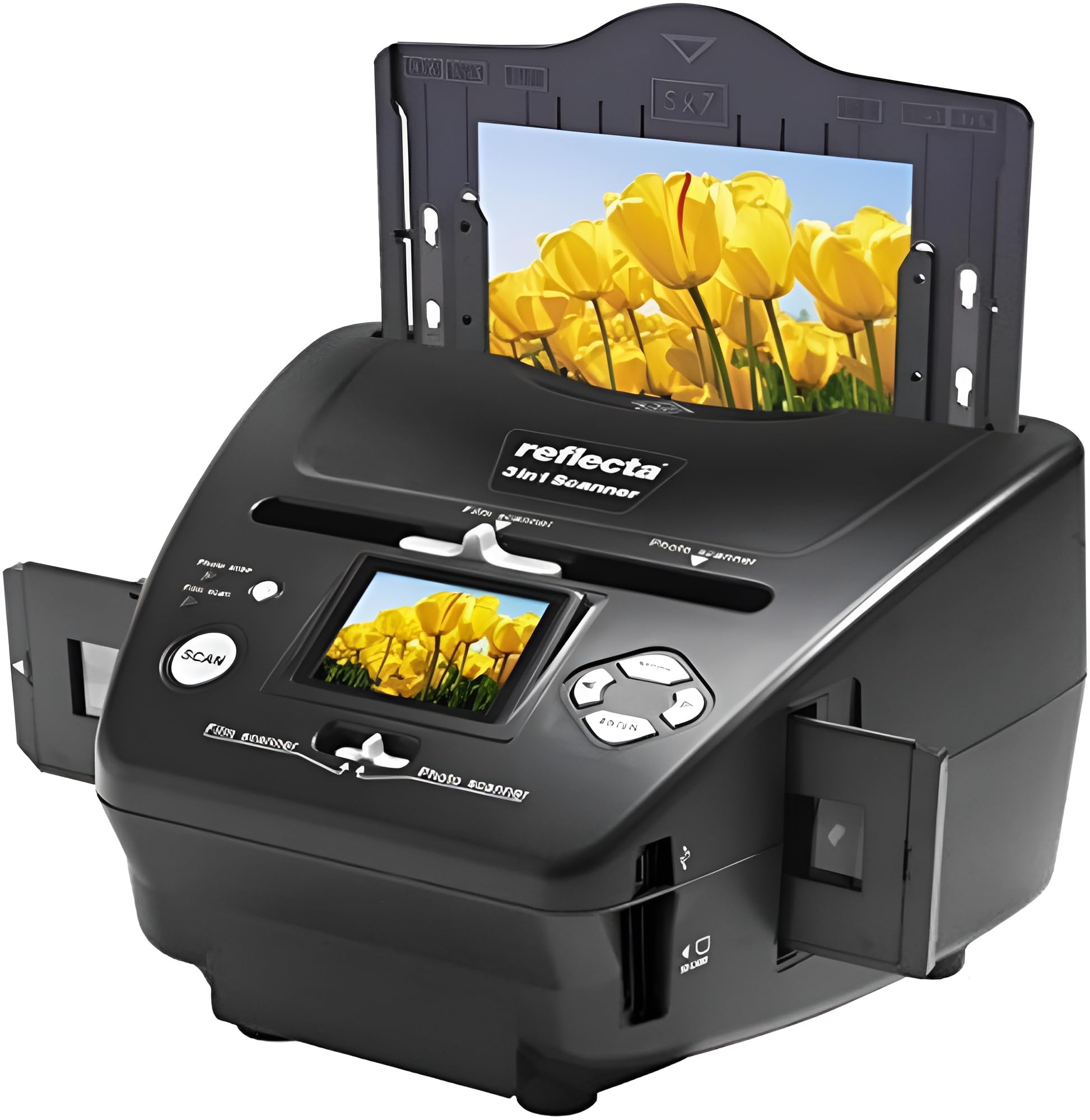
Figure 2: Reflecta 3-in-1 Scanner Front View
This image shows the main unit of the scanner, highlighting the central display screen, control buttons, and the slot for inserting media holders on the right side.
Setup
- Unpacking: Carefully remove all components from the packaging.
- Placement: Place the scanner on a stable, level surface.
- Power Connection:
- Connect the small end of the USB cable to the scanner's USB port.
- Connect the large end of the USB cable to the AC adapter.
- Plug the AC adapter into a standard electrical outlet.
- Alternatively, connect the large end of the USB cable directly to a powered USB port on your computer.
- SD Card Insertion (Optional): If you wish to save scans directly to an SD card, insert a compatible SD card into the SD card slot on the side of the scanner until it clicks into place. Ensure the card is inserted in the correct orientation.

Figure 3: Scanner Side Panel
This image illustrates the side of the scanner, clearly showing the USB port for power and data transfer, and the SD card slot for direct storage of scanned images.
Operating Instructions
Powering On/Off:
- Press the Power button to turn the scanner on.
- Press and hold the Power button to turn the scanner off.
Navigating Menus:
- Use the navigation buttons (Up, Down, Left, Right) to move through menu options on the 2.4-inch display.
- Press the 'OK' or 'Scan' button to select an option or confirm an action.
1. Scanning Slides
- Open the slide holder.
- Carefully place up to four mounted slides into the designated slots in the slide holder. Ensure the slides are oriented correctly (emulsion side facing down, or as indicated by the holder).
- Close the slide holder securely.
- Insert the loaded slide holder into the scanner's slide input slot.
- On the scanner's display, select "Slide Scan" mode (if applicable, menu options may vary).
- Use the navigation buttons to preview each slide on the display.
- Press the 'Scan' button to capture the image.
- Repeat for all slides.
- Remove the slide holder when finished.

Figure 4: Scanning Slides
This image shows the Reflecta scanner with a slide holder fully inserted into its designated slot, indicating readiness for slide scanning operations.
2. Scanning Negatives
- Open the negative holder.
- Carefully place a strip of negatives (up to 6 frames) into the designated channel in the negative holder. Ensure the negatives are flat and correctly aligned.
- Close the negative holder securely.
- Insert the loaded negative holder into the scanner's negative input slot.
- On the scanner's display, select "Negative Scan" mode (if applicable).
- Use the navigation buttons to preview each negative frame. The scanner will automatically convert the negative image to a positive on the display.
- Press the 'Scan' button to capture the image.
- Advance the film strip within the holder to the next frame and repeat.
- Remove the negative holder when finished.
3. Scanning Photos
- Open the photo holder.
- Place a photo (9x13 cm, 10x15 cm, or 13x18 cm) onto the photo holder's scanning area. Ensure the photo is flat and centered.
- Close the photo holder securely.
- Insert the loaded photo holder into the scanner's photo input slot.
- On the scanner's display, select "Photo Scan" mode (if applicable).
- Preview the photo on the display.
- Press the 'Scan' button to capture the image.
- Repeat for additional photos.
- Remove the photo holder when finished.
Saving Scans:
- Scanned images are typically saved to the inserted SD card.
- To transfer images to a computer, connect the scanner to your computer using the USB cable. The scanner should appear as a removable storage device.
- Alternatively, remove the SD card from the scanner and insert it into a compatible card reader connected to your computer.
Maintenance
- Cleaning the Scanner: Use a soft, dry, lint-free cloth to wipe the exterior of the scanner.
- Cleaning the Scanning Area: If dust or smudges appear on your scans, gently clean the glass scanning surface with a specialized lens cleaning cloth or air blower. Do not use abrasive cleaners or solvents.
- Holder Care: Keep the slide, negative, and photo holders clean and free of dust or debris to ensure optimal scanning quality.
Troubleshooting
- Scanner does not power on:
- Check if the AC adapter is securely connected to both the scanner and the power outlet.
- If using USB power, ensure the USB cable is connected to a powered USB port.
- Scans are blurry or dusty:
- Ensure the slides, negatives, or photos are clean and free of dust.
- Clean the scanner's glass scanning surface as described in the Maintenance section.
- Ensure the media is correctly seated in its holder and the holder is fully inserted into the scanner.
- Cannot save images to SD card:
- Check if an SD card is properly inserted.
- Ensure the SD card is not full.
- Verify the SD card is not write-protected.
- Try formatting the SD card (this will erase all data on the card).
- Scanner not recognized by computer:
- Ensure the USB cable is securely connected to both the scanner and the computer.
- Try a different USB port on your computer.
- Restart your computer and the scanner.
Specifications
| Brand | Reflecta |
| Manufacturer | Reflecta |
| Model Number | 64220 |
| Product Dimensions | 20.8 x 22 x 14.7 cm |
| Item Weight | 1.2 kg |
| Color | Black |
| Standing Screen Size | 2.4 Inches |
| Wattage | 3600 watts (Note: This value may be a misinterpretation from the source data.) |
| Power Source | USB |
| Lithium Battery Weight | 1200 Grams (Note: This device is USB-powered; this value may refer to internal components or be a data error.) |
| Scanner Type | Film (Slide, Negative, Photo) |
| Connectivity Technology | USB 2.0 |
| Resolution | 1800 dpi |
| Color Depth | 36 bpp |
| Standard Paper Capacity | 24 (Refers to media capacity, e.g., slides or negatives) |
Warranty and Support
- Warranty Information: For warranty details, please refer to the warranty card included with your product or visit the official Reflecta website.
- Software Updates: Guaranteed software updates until April 13, 2030.
- Customer Support: For technical assistance or service inquiries, please contact Reflecta customer support through their official website or the contact information provided in your product documentation.


