
Introduction
The Ambient Weather WS-110 is a wireless weather station designed to provide accurate indoor and outdoor environmental data. It features a colorful display with Ambient Hue backlighting that changes color based on temperature, making it easy to read from any distance. The station monitors indoor and outdoor temperature and humidity, dew point, barometric pressure, and moon phase. It also includes a detailed graph for viewing trends and supports up to 8 remote sensors.
This manual provides detailed instructions for setting up, operating, and maintaining your WS-110 Wireless Weather Station to ensure optimal performance and longevity.
Setup
Unboxing and Initial Power-Up
Upon unboxing, ensure all components are present: the display console, remote thermo-hygrometer sensor, AC power adapter, and user manual. It is recommended to power up the remote sensor first, followed by the display console.
Video: Unboxing and initial setup of the Ambient Weather WS-110, demonstrating battery installation for the remote sensor and powering the display console.
Battery Installation
- Remote Sensor: Requires 2 AAA batteries (not included). Use a small Phillips screwdriver to open the battery compartment, insert batteries according to polarity, and secure the cover.
- Display Console: Can be powered by 3 AAA batteries (not included) for backup or portability, or continuously by the included AC power adapter. For continuous backlight operation, use the AC adapter.
Sensor Placement
For accurate outdoor readings, place the remote sensor in a shaded, well-ventilated area, protected from direct sunlight and precipitation. Avoid placing it near heat sources or reflective surfaces. The maximum wireless range is approximately 300 feet (100 meters) line of sight. Ensure the sensor is mounted vertically for proper drainage.

Image: The Ambient Weather WS-110 display console showing indoor and outdoor temperature, humidity, and other data with a pink backlight.
Operating Instructions
Display Overview
The large LCD display shows the following information:
- Indoor Temperature & Humidity: Current readings for the console's location.
- Outdoor Temperature & Humidity: Current readings from the remote sensor.
- Dew Point: The temperature at which air becomes saturated with water vapor.
- Barometric Pressure: Current atmospheric pressure, with a trend graph.
- Moon Phase: Displays the current phase of the moon.
- Weather Forecast Icons: Provides a 12-24 hour forecast based on barometric pressure changes (Sunny, Partly Cloudy, Overcast, Rain, Thunderstorm, Snowfall).
- Time & Date: Current time and calendar date.
- High/Low Records: Daily high and low temperature and humidity readings.
Changing Temperature Units (°F/°C)
To switch between Fahrenheit (°F) and Celsius (°C), press and hold the 'INDEX' button on the back of the console for approximately 2 seconds. Press it again briefly to confirm the change.
Ambient Hue Backlighting
The display's backlight color changes with the outdoor temperature, providing a visual indication of current conditions. This feature is most prominent when the console is powered by the AC adapter.
Video: Demonstration of the Ambient Weather WS-110's color-changing backlight feature, illustrating how the display hue adapts to temperature variations.
Viewing Outdoor Index (Mold, Dew, Heat)
Press the 'INDEX' button on the back of the console to cycle through different outdoor index readings such as Mold, Dew Point, and Heat Index. Each press will display the next available index.
Setting Time and Date
Refer to the detailed instructions in the included user manual for setting the precise time and date, as this often involves a sequence of button presses (SET, UP/DOWN, etc.).
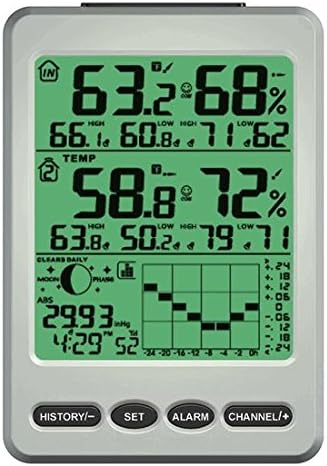
Image: The Ambient Weather WS-110 display console showing indoor and outdoor temperature, humidity, and other data with a green backlight.
Maintenance
Battery Replacement
Replace batteries in both the remote sensor and display console when the low battery indicator appears on the screen. For the remote sensor, use 2 fresh AAA batteries. For the console, use 3 fresh AAA batteries if not using the AC adapter.
Cleaning
Wipe the display console and remote sensor with a soft, damp cloth. Avoid using abrasive cleaners or solvents that may damage the plastic or screen.
Sensor Protection
Ensure the remote sensor is protected from extreme weather conditions, such as heavy rain, snow, or direct prolonged sunlight, to prolong its lifespan and maintain accuracy.
Troubleshooting
No Outdoor Data Displayed
- Check if the remote sensor batteries are correctly installed or need replacement.
- Ensure the remote sensor is within range of the display console and there are no major obstructions (e.g., thick walls, large metal objects) interfering with the signal.
- Try re-synchronizing the sensor by removing batteries from both units, then reinserting them into the remote sensor first, followed by the console.
Inaccurate Readings
- Verify the remote sensor is placed in a location free from direct sunlight, heat sources, or excessive moisture.
- Allow both units to acclimate to their respective environments for at least 30 minutes for stable readings.
- The console allows for calibration of temperature and humidity. Refer to the full user manual for detailed calibration procedures.
Display Issues
- If the display is dim or flickering, replace the console batteries or ensure the AC adapter is securely connected.
- If segments are missing or the display is frozen, try resetting the console by removing all power sources (batteries and AC adapter) for a few minutes, then re-powering.
Specifications
| Brand | Ambient Weather |
| Model Number | WS-110 |
| Material | Plastic |
| Display Type | LCD |
| Product Dimensions | 5.4 x 1.1 x 7.7 inches |
| Item Weight | 1.8 pounds |
| Console Batteries | 4 AA batteries required (not included) |
| Remote Sensor Batteries | 2 AAA batteries required (not included) |
| Special Feature | Ambient Hue Backlighting (color-changing with temperature) |
Warranty and Support
Warranty Information
This product comes with a one-year warranty from Ambient Weather. Please retain your proof of purchase for warranty claims.
Customer Support
For technical assistance, troubleshooting, or warranty inquiries, please contact Ambient Weather customer support. Refer to the product packaging or the official Ambient Weather website for the most current contact information.


