
1. Introduction
This manual provides detailed instructions for the ASUS Transformer Book T100TAM-C1-GM. This device functions as both a laptop and a tablet, offering versatility for various computing needs. Please read this manual thoroughly to ensure proper usage and to maximize the device's capabilities.

Image 1.1: The ASUS Transformer Book T100TAM-C1-GM in laptop configuration, showcasing its detachable design and the Windows 8.1 interface.
2. Product Overview
The ASUS Transformer Book T100TAM-C1-GM is a 10.1-inch convertible device designed for portability and productivity. It features a detachable keyboard dock, allowing seamless transition between laptop and tablet modes. The device runs on Windows 8.1 and is powered by an Intel Bay Trail-T Z3775 Quad-Core processor.
Key Features:
- Operating System: Windows 8.1 with 1-year of Microsoft Office 365 Personal.
- Processor: 1.46 GHz Intel Bay Trail-T Z3775 Quad-Core.
- Memory: 2 GB 1066 MHz LPDDR3 SDRAM.
- Storage: 64 GB Embedded MultiMediaCard (eMMC) storage.
- Display: 10.1-inch HD (1366 x 768) multi-touch IPS display.
- Connectivity: 802.11a/b/g/n WiFi and Bluetooth 4.0.
- Battery: 2-Cell Built-In Lithium-Polymer, providing up to 11 hours of usage.
- Camera: Front-facing 1.2 MP camera.
Ports and Connectors:
- 1x USB 3.0 (Type A) on the keyboard dock.
- 1x Micro USB 2.0 on the tablet.
- 1x Micro HDMI 1.4 on the tablet.
- 1x 3.5 mm Headphone/Microphone combo jack on the tablet.
- Integrated Speakers and Microphone.
- 1x microSD/microSDHC/microSDXC card slot on the tablet.

Image 2.1: Side profile of the device in laptop mode, illustrating the placement of ports such as USB and audio jacks.
3. Setup
3.1 Unpacking and Initial Inspection
Carefully remove all components from the packaging. Verify that the tablet and keyboard dock are present. Inspect the device for any signs of damage. If any damage is found, contact your retailer immediately.
3.2 Charging the Device
Before first use, fully charge your ASUS Transformer Book. Connect the power adapter to the Micro USB 2.0 port on the tablet and then to a power outlet. The charging indicator light will illuminate. A full charge can take approximately 4-6 hours, especially during initial charging or when the device is in use.
3.3 Attaching the Keyboard Dock
To use the device in laptop mode, align the tablet with the docking connector on the keyboard. Gently push the tablet down until it clicks securely into place. To detach, press the release button (if present) or gently pull the tablet upwards from the dock.
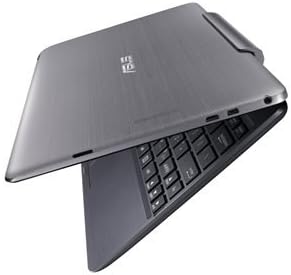
Image 3.1: The tablet separated from the keyboard dock, highlighting the connection interface.
3.4 Initial Power On and Windows Setup
Press and hold the power button until the ASUS logo appears. Follow the on-screen instructions to complete the Windows 8.1 setup process, including language selection, network connection, and user account creation.
4. Operating Instructions
4.1 Using Windows 8.1
Windows 8.1 features a touch-optimized interface with a Start screen composed of live tiles. You can switch between the Start screen and the traditional desktop. Familiarize yourself with gestures for navigation, such as swiping from the edges of the screen to access charms, switch apps, or view app commands.
4.2 Tablet Mode Operation
When detached from the keyboard, the device functions as a tablet. Use touch gestures for navigation, typing with the on-screen keyboard, and interacting with applications. The auto-rotate feature adjusts the screen orientation based on how you hold the tablet.
4.3 Laptop Mode Operation
With the keyboard dock attached, the device operates like a traditional laptop. Use the physical keyboard for typing and the integrated touchpad for cursor control. The touchpad supports multi-touch gestures for scrolling, zooming, and other functions.
4.4 Connecting Peripherals
Utilize the available ports to connect external devices:
- USB 3.0 (Keyboard Dock): For high-speed data transfer with external hard drives, USB flash drives, or other USB 3.0 compatible devices.
- Micro USB 2.0 (Tablet): Primarily for charging, but can also be used for data transfer with a compatible adapter.
- Micro HDMI (Tablet): Connect to an external display or TV using a Micro HDMI to HDMI cable for video and audio output.
- microSD Card Slot (Tablet): Insert a microSD, microSDHC, or microSDXC card to expand storage capacity.
5. Maintenance
5.1 Cleaning the Device
To clean the screen, use a soft, lint-free cloth specifically designed for electronics. For the body and keyboard, a slightly damp cloth can be used. Avoid harsh chemicals, abrasive cleaners, or excessive moisture. Ensure the device is powered off and unplugged before cleaning.
5.2 Battery Care
To prolong battery life, avoid exposing the device to extreme temperatures. It is recommended to fully discharge and recharge the battery periodically. If the device will not be used for an extended period, charge it to about 50% before storing.
5.3 Software Updates
Regularly check for and install Windows updates to ensure optimal performance, security, and compatibility. You can access Windows Update through the Control Panel or PC Settings.
6. Troubleshooting
This section addresses common issues you might encounter with your ASUS Transformer Book T100TAM-C1-GM.
6.1 Power and Charging Issues
- Device not turning on: Ensure the battery is charged. Connect the power adapter and wait a few minutes before attempting to power on again.
- Slow charging: Charging times can be longer when the device is in use. For fastest charging, power off the device completely while it is connected to the charger.
6.2 Display and Touchscreen Problems
- Touchscreen unresponsive: If the touchscreen stops responding after multiple shutdowns/startups with "Fast Startup" enabled, a full reboot often resolves the issue. Consider disabling "Fast Startup" in Power Options (Control Panel > All Control Panel Items > Power Options > System Settings) if this occurs frequently.
- Screen flickering or distortion: Ensure display drivers are up to date. Try restarting the device.
6.3 Keyboard and Touchpad Issues
- Keyboard/Touchpad not responding: Ensure the tablet is securely docked. Try detaching and reattaching the tablet.
- Touchpad unresponsive after typing: The touchpad has a built-in palm rejection feature. It may require a double-tap to reactivate after a period of typing. This is normal behavior.
- Loose dock attachment: Minor looseness in the dock attachment after extended use can occur. This typically does not affect the electrical connection.
6.4 Wireless Connectivity Issues
- Wi-Fi disconnects: If Wi-Fi occasionally disconnects while sleeping and does not reconnect upon waking, cycling Airplane mode (turning it on then off) can resolve the issue. Ensure Wi-Fi drivers are updated.
- Bluetooth device not connecting: Ensure Bluetooth is enabled on both devices and they are in pairing mode.
6.5 Camera Problems
- Camera not working: A Windows update for the Intel Imaging Signal Processor 2400 can sometimes cause the camera to malfunction. Rolling back this driver (via Device Manager under Imaging Devices) and hiding the problematic update may fix the issue.
- Poor image quality: The front camera is designed for basic video conferencing. Performance in low light conditions may be limited.
6.6 MicroSD Card Issues
- MicroSD card not recognized: Some UHS-I microSD cards, particularly lower-cost ones, may not work reliably due to chipset firmware limitations. If the card disconnects and requires a reboot, consider using a higher-quality microSD card (e.g., Samsung Pro series).
7. Specifications
Detailed technical specifications for the ASUS Transformer Book T100TAM-C1-GM:
| Feature | Specification |
|---|---|
| Model Name | Transformer Book T100TAM |
| Item Model Number | T100TAM-C1-GM |
| Operating System | Windows 8 |
| Processor | 1.46 GHz Intel Bay Trail-T Z3775 Quad-Core |
| RAM | 2 GB DDR3 (1066 MHz LPDDR3 SDRAM) |
| Hard Drive | 64 GB Flash (eMMC) |
| Screen Size | 10.1 Inches |
| Screen Resolution | 1366 x 768 pixels |
| Graphics Coprocessor | Intel HD Graphics (Integrated) |
| Wireless Type | 802.11a/b/g/n, Bluetooth 4.0 |
| USB 2.0 Ports | 1 (Micro USB on tablet) |
| USB 3.0 Ports | 1 (Type A on keyboard dock) |
| Average Battery Life | 11 Hours |
| Item Weight | 2.4 pounds |
| Product Dimensions | 20 x 23 x 6 inches |
| Color | Grey Metal |
8. Warranty Information
Specific warranty details for your ASUS Transformer Book T100TAM-C1-GM are typically provided with your purchase documentation. Please refer to the warranty card or contact ASUS support for the most accurate and up-to-date information regarding your device's warranty coverage.
9. Support
For further assistance, technical support, or service inquiries, please visit the official ASUS support website or contact their customer service. You can typically find support resources, driver downloads, and FAQs on the ASUS website.
- ASUS Support Website: https://www.asus.com/support/ (Please note: This link is for general ASUS support and may require navigation to find specific model information.)