1. Introduction
The Pentair 522104 Screenlogic2 Interface & Wireless Connection Kit provides advanced control and monitoring capabilities for your pool or spa system. This kit enables wireless communication between your Pentair IntelliTouch or EasyTouch control system and your home network, allowing you to manage various pool and spa functions remotely via a smartphone app or other smart devices like Amazon Echo.
This wireless connection kit is designed to simplify pool and spa management, offering convenience and flexibility. It utilizes powerful 2.4 GHz technology for robust wireless connections, extending up to a half-mile line of sight, which can eliminate the need for extensive wiring in certain installations.
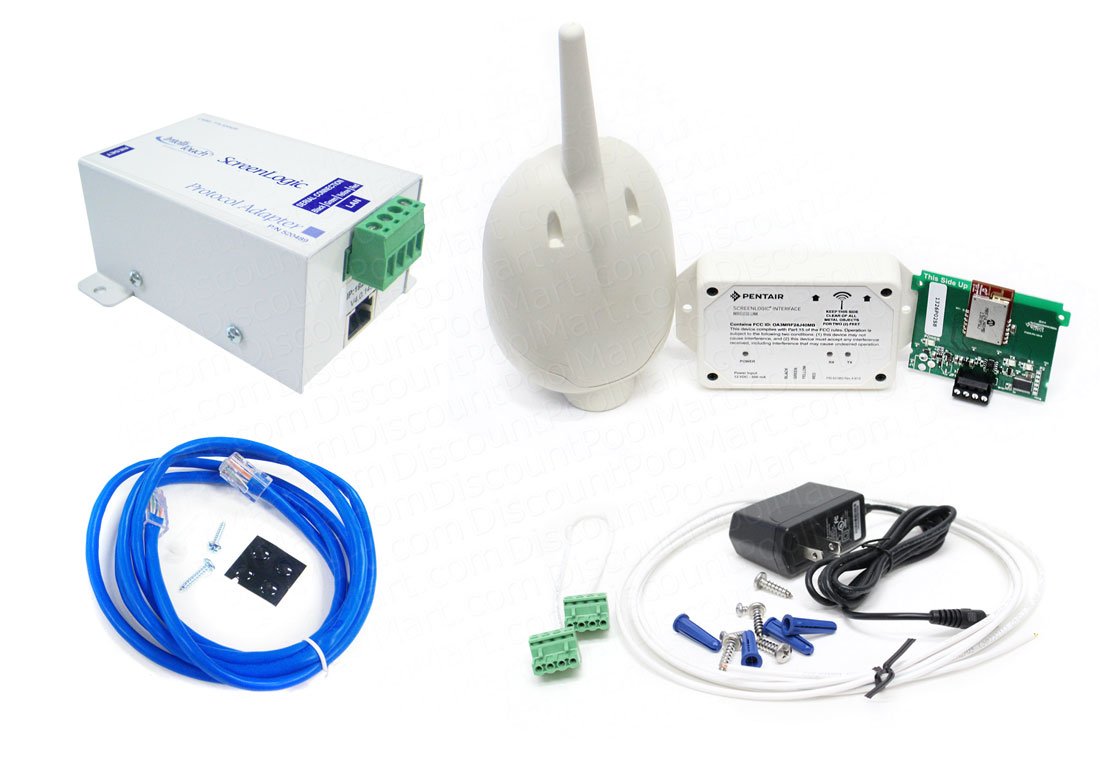
Image: Pentair 522104 Screenlogic2 Interface & Wireless Connection Kit components, showing the main control box and the wireless antenna.
2. Setup
The Screenlogic2 Interface & Wireless Connection Kit typically involves two main components: an outdoor unit that connects to your existing Pentair IntelliTouch or EasyTouch control panel, and an indoor unit that connects to your home's internet router. The wireless kit facilitates communication between these two units.
2.1. Component Overview
- Outdoor Protocol Adapter: This unit connects directly to the IntelliTouch or EasyTouch Controller Load Center COM port. It requires a 4-wire, 22-gauge wiring connection.
- Indoor Wireless Transceiver: This unit connects to your home's internet router via an Ethernet cable and requires a power source. It communicates wirelessly with the outdoor protocol adapter.
2.2. Installation Steps (General Guidance)
- Mount the Outdoor Protocol Adapter: Securely mount the outdoor unit near your pool/spa control panel, ensuring it is protected from direct weather exposure as per installation guidelines.
- Wire the Outdoor Unit: Connect the 4-wire, 22-gauge cable from the IntelliTouch or EasyTouch Controller Load Center COM port to the designated terminals on the outdoor protocol adapter. Refer to the detailed wiring diagram in the full installation manual for specific connections.
- Mount the Indoor Wireless Transceiver: Choose a suitable indoor location for the transceiver, ideally within the wireless range of the outdoor unit and close to your internet router and a power outlet.
- Connect to Router: Use an Ethernet cable to connect the indoor wireless transceiver to an available LAN port on your internet router.
- Power On: Connect the power adapter to the indoor wireless transceiver and plug it into a standard electrical outlet.
- System Pairing: Follow the instructions in the full installation manual to pair the outdoor and indoor units. This typically involves a sequence of button presses or a software-guided process.
- App Installation: Download the Pentair ScreenLogic app from your device's app store (iOS or Android) or install the desktop software for your computer.
- Network Configuration: Open the ScreenLogic app/software and follow the prompts to connect to your newly installed system. This may involve entering network credentials or scanning for the device.
Always consult the complete Pentair installation manual for detailed, model-specific instructions and safety warnings before attempting any installation or wiring.
3. Operating the System
Once installed and configured, the Pentair Screenlogic2 system allows you to control and monitor your pool or spa from virtually anywhere using the dedicated mobile app or desktop software.
3.1. Key Functions Accessible via App/Software
- Temperature Control: Adjust pool and spa water temperatures.
- Pump Operation: Turn pumps on/off, adjust speeds (for variable speed pumps).
- Lighting Control: Manage pool and spa lights, including color changes for LED systems.
- Feature Control: Activate and deactivate water features such as fountains, jets, and air blowers.
- Chemistry Monitoring: View real-time pH, ORP, and other chemical levels if your system includes compatible sensors and a chlorinator.
- Scheduling: Create and modify schedules for various pool and spa functions.
- System Status: Monitor the overall status of your pool/spa equipment.
3.2. Voice Control Integration
The ScreenLogic2 system supports integration with smart home assistants like Amazon Echo. By enabling the ScreenLogic skill, you can verbally interact with Alexa to request information (e.g., current temperature, pH level) or control various pool and spa functions (e.g., turn on the spa, activate a fountain).
4. Maintenance
Regular maintenance ensures the longevity and optimal performance of your Pentair Screenlogic2 Interface & Wireless Connection Kit.
- Keep Components Clean: Periodically wipe down the exterior of both the outdoor and indoor units to remove dust, dirt, and debris. Ensure ventilation openings are clear.
- Check Connections: Inspect all wired connections (power, Ethernet, and control panel wiring) for tightness and signs of wear or corrosion.
- Software Updates: Regularly check for and install updates for the ScreenLogic mobile app and desktop software to ensure you have the latest features and security enhancements.
- Wireless Signal Strength: Monitor the wireless signal strength between the outdoor and indoor units via the app. If signal strength is consistently low, consider repositioning the indoor unit or addressing potential obstructions.
5. Troubleshooting
If you encounter issues with your Screenlogic2 system, try the following troubleshooting steps:
- No Connection to Pool/Spa System:
- Verify the 4-wire connection between the outdoor protocol adapter and the IntelliTouch/EasyTouch control panel.
- Ensure the outdoor unit is receiving power.
- Check the wireless signal strength between the indoor and outdoor units.
- No Internet Connection:
- Confirm the Ethernet cable is securely connected to both the indoor transceiver and your router.
- Verify your home internet connection is active and working for other devices.
- Restart your internet router and the indoor wireless transceiver.
- App Not Responding/Crashing:
- Ensure your app is updated to the latest version.
- Restart the app or your mobile device.
- Clear the app's cache or reinstall it if necessary.
- Incorrect Readings/Commands:
- Verify that all sensors and actuators connected to your main pool/spa control system are functioning correctly.
- Ensure the ScreenLogic system is properly synchronized with your IntelliTouch/EasyTouch panel.
If these steps do not resolve the issue, contact Pentair Customer Support for further assistance.
6. Specifications
| Feature | Specification |
|---|---|
| Model Number | 522104 |
| Product Dimensions | 11 x 25 x 40 inches |
| Item Weight | 3.21 pounds |
| Wireless Technology | 2.4 GHz |
| Wireless Range | Up to a half-mile line of sight |
| Compatibility | Pentair IntelliTouch or EasyTouch Control Systems |
| Manufacturer | Pentair |
7. Warranty & Support
For detailed warranty information, please refer to the warranty card included with your product or visit the official Pentair website. If you require technical assistance, have questions about installation, operation, or troubleshooting, please contact Pentair Customer Support. Contact information can typically be found on the Pentair website or in your product packaging.


