
Introduction
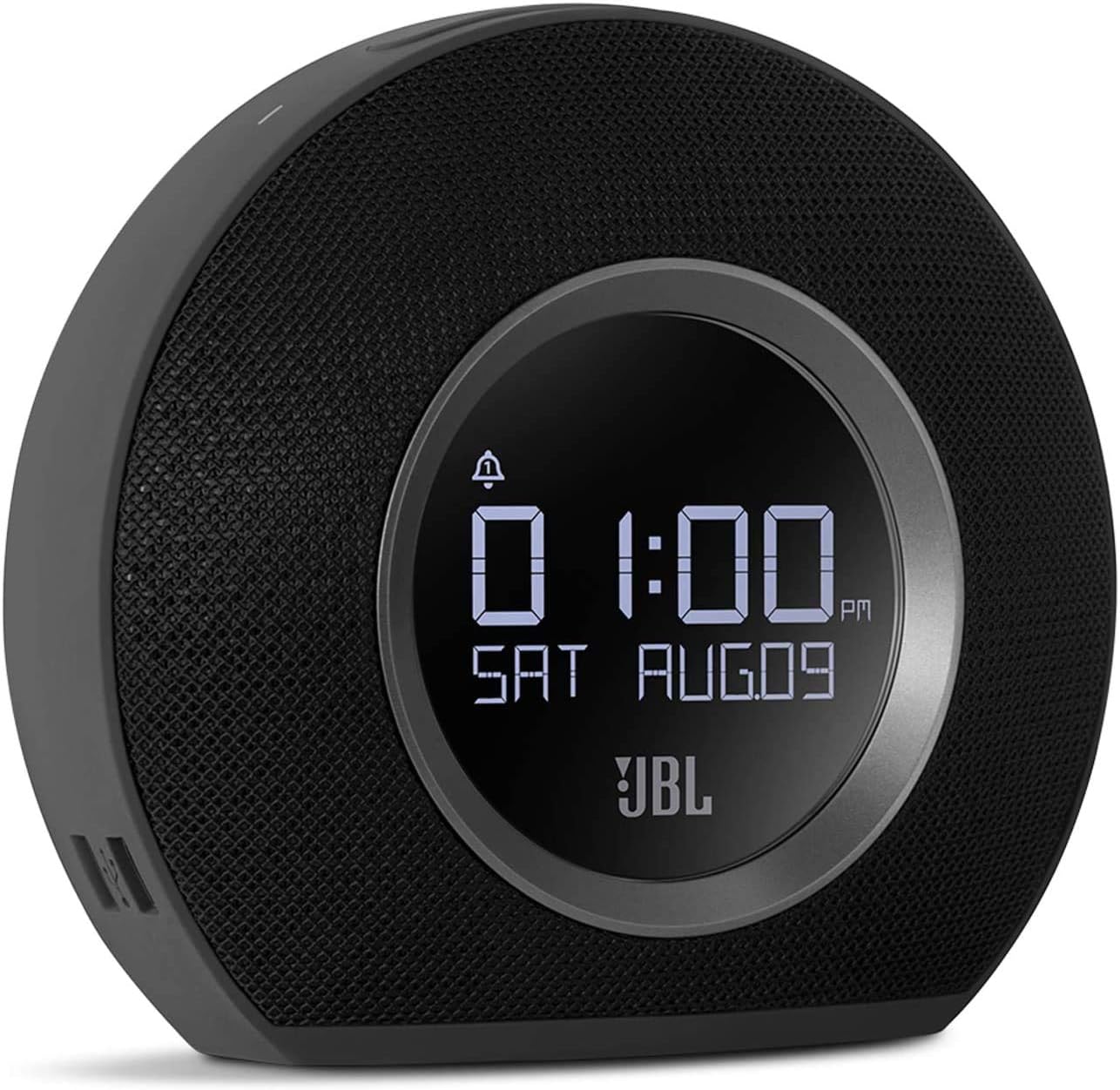
The JBL Horizon is a versatile alarm clock radio designed to enhance your morning routine. It combines a high-quality Bluetooth speaker with an FM radio, dual alarm system, ambient LED light, and convenient USB charging ports. This manual provides detailed instructions for setting up, operating, and maintaining your JBL Horizon.
Package Contents
- 1 x JBL Horizon Device
- 1 x Power Adapter
- 1 x User Manual
- 1 x Safety Sheet
- 1 x Quick Start Guide
- 1 x Radio Antenna
Setup
- Power Connection: Connect the power adapter to the JBL Horizon and then to a wall outlet. The device will power on automatically.
- Antenna Connection: For optimal FM radio reception, connect the included radio antenna to the FM antenna port on the back of the unit. Extend the antenna fully.
- Initial Time Setting: Upon first power-up, the device may prompt you to set the time. Use the control buttons (typically volume up/down or dedicated time set buttons) to adjust the hour and minute. Confirm your selection. The device also features a DST (Daylight Saving Time) button on the bottom for easy adjustment.
Operating Instructions
Setting Alarms
The JBL Horizon features two independent alarms. To set an alarm:
- Press the Alarm 1 or Alarm 2 button on the top of the unit.
- Use the volume buttons (+ / -) to adjust the alarm time. Press the alarm button again to switch between hour and minute settings.
- Select your desired alarm source: FM radio, Bluetooth audio, or one of the built-in digital alarm tones.
- Adjust the alarm volume.
- The ambient light can be set to gradually illuminate before the alarm sounds, providing a gentle wake-up experience.
- To temporarily silence an alarm (snooze), press the large SNOOZE/LIGHT button. To turn off an alarm, press the corresponding Alarm button.
FM Radio
To listen to FM radio:
- Press the FM button to switch to FM radio mode.
- Use the tuning buttons (often integrated with volume or separate arrow buttons) to scan for stations.
- To save a favorite station, press and hold one of the preset buttons (if available, typically 1-5).
Bluetooth Connectivity
To stream audio via Bluetooth:
- Press the Bluetooth button to enter pairing mode. The Bluetooth indicator will flash.
- On your mobile device (smartphone, tablet, laptop), enable Bluetooth and search for available devices.
- Select "JBL Horizon" from the list to pair. Once paired, the indicator will glow solid.
- You can now stream audio from your device to the JBL Horizon.
Ambient Light
The JBL Horizon features an ambient LED light ring on its rear. This light can be used as a gentle wake-up aid or as a soft night light. Its brightness automatically adjusts to the room's lighting conditions for optimal visibility without being disruptive.

USB Charging
Two USB charging ports are located on the side of the JBL Horizon. Connect your mobile devices using their respective USB cables to charge them overnight or during use.
Display Brightness
The display brightness automatically adjusts based on the ambient light in the room, ensuring readability during the day and preventing excessive brightness at night.
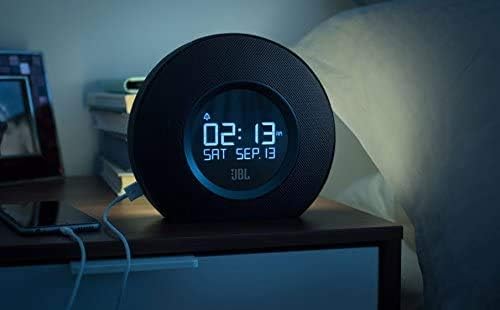

Video 1: This video provides a visual overview and demonstration of the JBL Horizon alarm clock radio. It showcases key features such as the dual alarm system, ambient light function for gentle wake-up, FM radio capabilities, Bluetooth connectivity for audio streaming, and the convenient USB charging ports for mobile devices. The video highlights the product's design and user interaction.
Maintenance
To ensure the longevity and optimal performance of your JBL Horizon:
- Clean the device with a soft, dry cloth. Avoid using abrasive cleaners or solvents.
- Keep the device away from direct sunlight, excessive heat, and moisture.
- Ensure proper ventilation around the unit.
Troubleshooting
- No Power: Ensure the power adapter is securely connected to both the device and a working wall outlet.
- Poor FM Reception: Extend the FM antenna fully and try repositioning it for better signal.
- Bluetooth Pairing Issues: Ensure the JBL Horizon is in pairing mode (flashing Bluetooth indicator) and your mobile device's Bluetooth is enabled and searching. Try unpairing and re-pairing if issues persist.
- Alarm Not Sounding/Too Quiet: Verify that the alarm is enabled, the volume is set appropriately, and the correct alarm source is selected. Check the backup battery status if a power outage occurred.
- Time Drift: If the time consistently drifts, ensure the device is connected to a stable power source. The backup battery helps maintain time during power interruptions.
Specifications
| Model Number | K951170 |
| Brand | JBL |
| Color | Black |
| Material | Acrylonitrile Butadiene Styrene (ABS) |
| Product Dimensions (D x W x H) | 8.6 cm x 18.3 cm x 16 cm |
| Item Weight | 890 Grams |
| Speaker Type | Bluetooth Portable Speaker |
| Speaker Size | 1 Inch |
| Max Speaker Output Power | 5 Watts |
| Audio Output Mode | Mono |
| Frequency Response (Upper Limit) | 20 KHz |
| Wireless Technology | Bluetooth |
| Compatible Devices | Laptop, Smartphone, Tablet |
| Power Source | AC Power (with battery backup for time/alarm) |
| Input Voltage | 13 Volts (DC) |
| Waterproof | No |
| Assembly Required | No |
| Batteries Required | Yes (1 A type for backup) |

Warranty and Support
The JBL Horizon comes with a 1-year manufacturer's limited warranty. Spare parts are available for a period of 2 years from the date of purchase.
For technical support, warranty claims, or further assistance, please visit the official JBL support website or contact their customer service department. Refer to the quick start guide or safety sheet for specific contact information in your region.
Important Safety Information
Always follow basic safety precautions when using this product to reduce the risk of fire, electric shock, and injury. Do not expose the device to rain or moisture. Do not disassemble the product. Refer to the included safety sheet for comprehensive safety guidelines.


