1. Introduction
This manual provides detailed instructions for the installation, operation, and maintenance of your ZOSI 3K Lite Security Camera System. This system is designed to provide comprehensive surveillance with advanced features such as AI human/vehicle detection, H.265+ video compression, and remote access capabilities. Please read this manual thoroughly before operating the system to ensure proper functionality and safety.
2. Package Contents
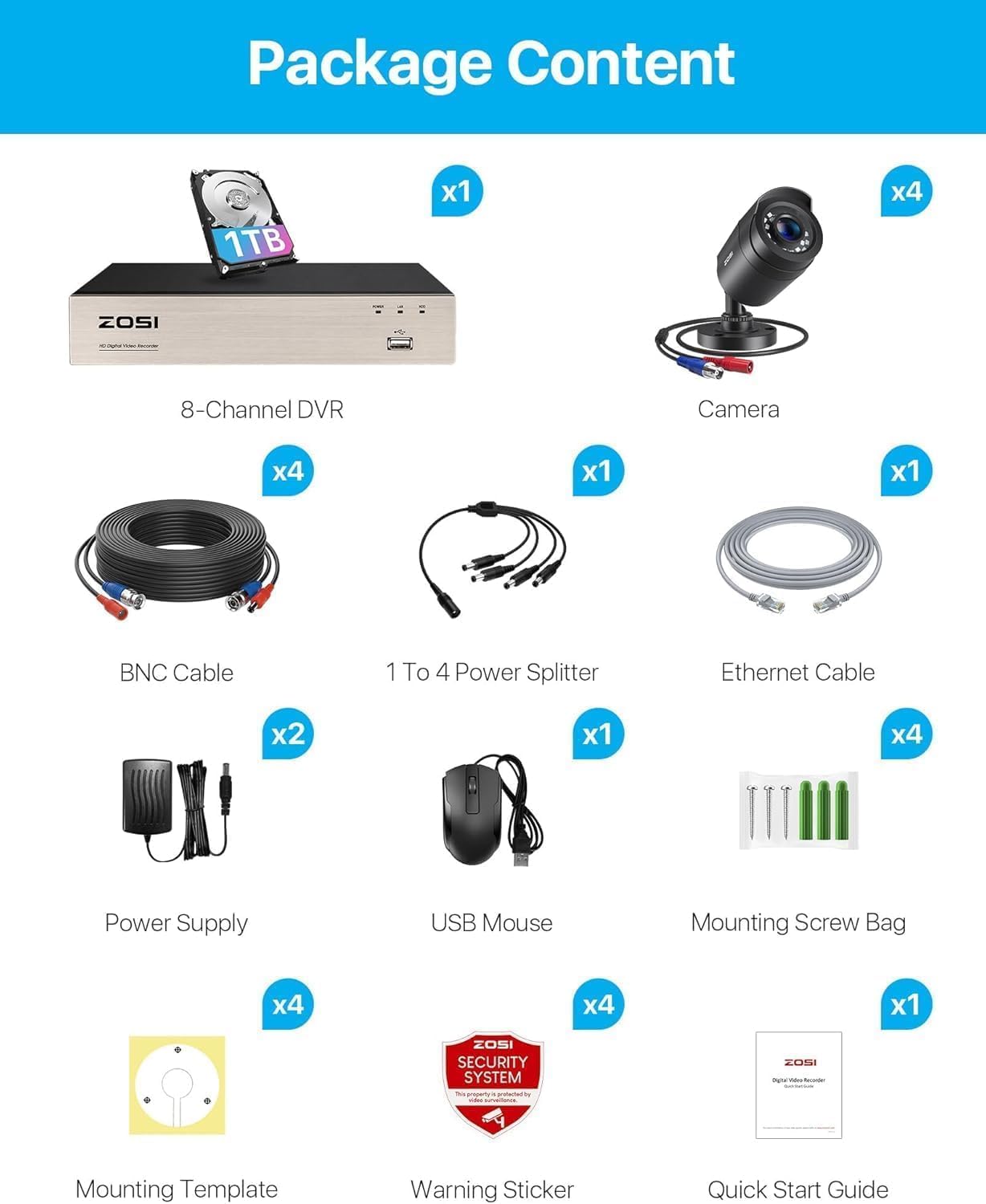
Verify that all items listed below are included in your package. If any items are missing or damaged, please contact ZOSI customer support.
- 1 x H.265+ 8-Channel 3K Lite DVR with 1TB Security Grade Hard Drive
- 4 x HD 1080P Weatherproof Security Cameras
- 1 x 1-to-4 Power Splitter
- 4 x 60ft BNC Video Cables
- 1 x Ethernet Cable
- 2 x Power Supplies (for DVR and cameras)
- 1 x USB Mouse
- 4 x Mounting Screw Bags
- 4 x Mounting Templates
- 4 x Warning Stickers
- 1 x Quick Start Guide
3. System Setup
3.1 Connecting the Hardware
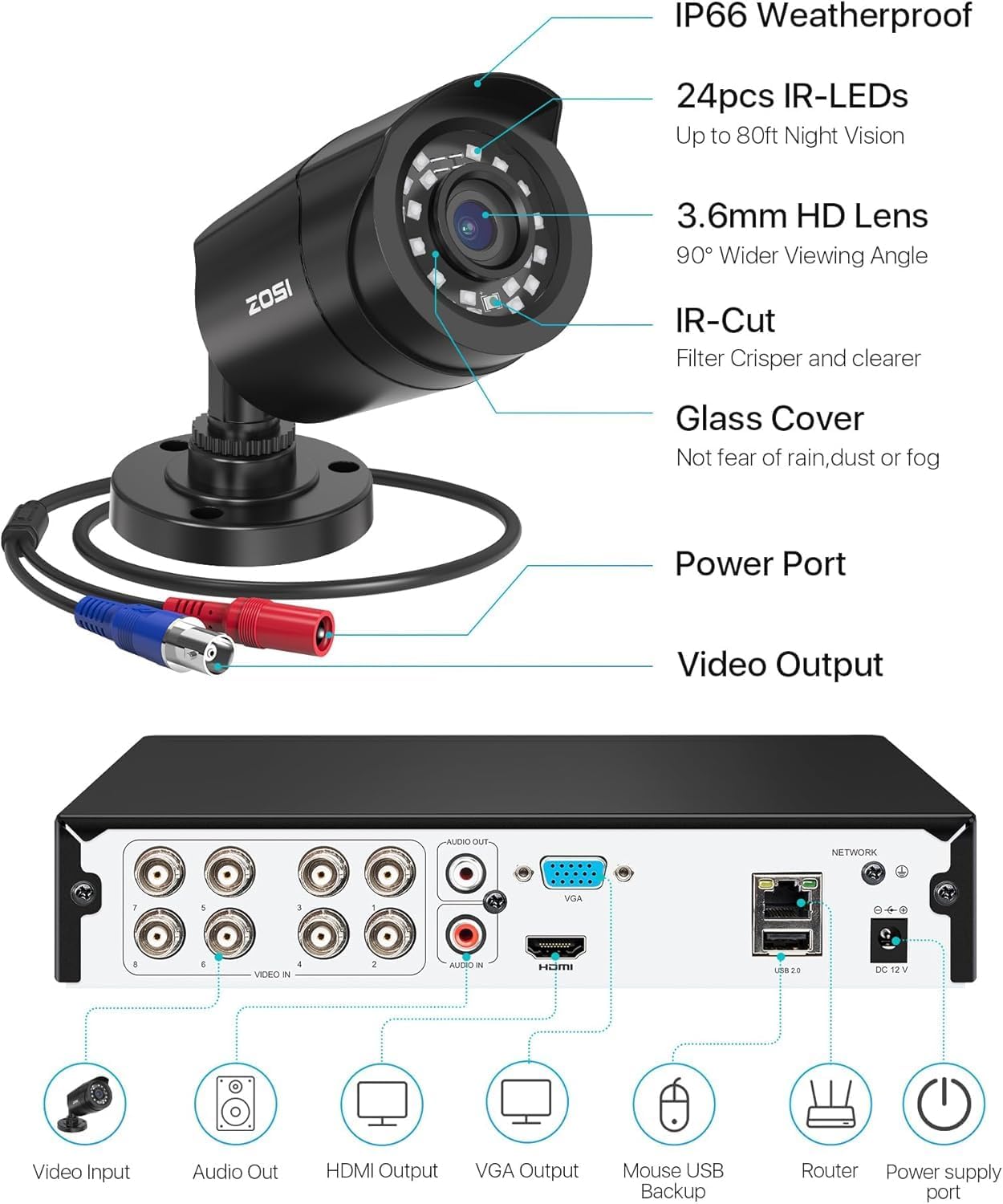
- Connect Cameras to DVR: Use the provided BNC cables to connect each camera to the 'VIDEO IN' ports on the back of the DVR.
- Power the Cameras: Connect the cameras to the 1-to-4 power splitter, then connect the splitter to one of the power supplies.
- Connect DVR to Monitor: Use an HDMI or VGA cable (not included) to connect the DVR to a monitor or TV.
- Connect DVR to Network: Use the Ethernet cable to connect the DVR to your router for remote access.
- Connect USB Mouse: Plug the USB mouse into one of the USB ports on the DVR.
- Power the DVR: Connect the DVR to its dedicated power supply and plug it into an electrical outlet. The system will power on automatically.
3.2 Initial Configuration & Remote Access
Upon first startup, the DVR will guide you through initial setup steps. It is crucial to set a strong password for your system. For remote access, follow these steps:
- Download the App: Download the 'ZOSI Smart' app from the App Store (iOS) or Google Play Store (Android). The 'Zosi View' app is obsolete.
- Register/Login: Register a new account or log in to your existing ZOSI account.
- Add Device: Scan the QR code displayed on your monitor (accessible via the DVR menu) using the ZOSI Smart app to add your DVR. This will provide the 'Super Password' for access.
- PC/Mac Client: For desktop viewing, download the 'ZOSI AVSS Client' from the official ZOSI website.

3.3 Camera Installation
The cameras are IP66 weatherproof and suitable for both indoor and outdoor installation. Use the provided mounting screw bags and templates for secure placement.

4. Operating the System
4.1 Live View and Playback
Access live camera feeds and review recorded footage through the connected monitor, ZOSI Smart app, or AVSS Client. The DVR supports 24/7 continuous recording to the built-in 1TB hard drive, which can be expanded up to 8TB via SATA.

4.2 AI Human/Vehicle Detection
The system utilizes AI to accurately detect human and vehicle movement, reducing false alarms. Configure alert settings to receive notifications via email, app push notifications, or an audible buzzer from the DVR.

4.3 H.265+ Video Compression
Advanced H.265+ video compression technology doubles the data compression ratio compared to H.264, maintaining high video quality at lower bit-rates. This maximizes storage space for ultra-long recording periods.

4.4 Night Vision
Equipped with 24 IR LEDs, the cameras provide up to 80ft of night vision in total darkness and 130ft in ambient light, ensuring clear images even in low-light conditions.

4.5 Privacy Zones
Configure privacy masks to block out specific areas within the camera's view that you do not wish to record, ensuring personal privacy.

5. Specifications
| Feature | Detail |
|---|---|
| Brand | ZOSI |
| Model Number | 8WN-211B4S-10-US |
| Connectivity Technology | Wired |
| Video Capture Resolution | 1080p |
| Special Features | App Control, Automatic Overwrite, Human Detection, Motion Sensor |
| Number of Channels | 8 |
| Memory Storage Capacity | 1 TB (expandable up to 8TB) |
| Power Source | Corded Electric |
| Operating System | Linux-Based Or Proprietary |
| Recommended Uses | Business, Home, Indoor/Outdoor |
| Compatible Devices | Laptops, Smartphones, TV, Tablets |
| Night Vision Range | 80 Feet |
| Frame Rate | 60 FPS |
| Recording Mode | Event, Schedule |
| Hardware Interface | HDMI, VGA, USB |
| Video Input | BNC |
| Viewing Angle | 355 Degrees |
6. Maintenance
6.1 Cleaning
- Regularly clean camera lenses with a soft, damp cloth to ensure clear image quality.
- Wipe down the DVR unit with a dry cloth. Avoid using harsh chemicals or abrasive cleaners.
6.2 Software Updates
Periodically check the ZOSI website or the ZOSI Smart app for firmware updates. Keeping your system updated ensures optimal performance, security, and access to new features.
6.3 Hard Drive Management
The DVR is configured to automatically overwrite the oldest footage when the 1TB hard drive is full. You can back up important video files to a USB memory stick or external hard drive via the DVR's USB ports.
7. Troubleshooting
This section addresses common issues you might encounter with your ZOSI Security Camera System.
7.1 No Video/Video Loss
- Check Power: Ensure all cameras and the DVR are properly powered. Verify power adapters are securely connected.
- Check Cables: Inspect BNC video cables for any damage or loose connections. Re-seat connections if necessary.
- Verify Input: On your monitor/TV, ensure the correct input source (HDMI/VGA) is selected.
7.2 Remote Access Issues
- Network Connection: Confirm the DVR is connected to your router via Ethernet and has internet access. Check network status in DVR settings.
- App Version: Ensure you are using the latest 'ZOSI Smart' app. Older versions like 'Zosi View' are no longer supported.
- Account Details: Double-check your app login credentials and the 'Super Password' for the DVR.
7.3 Forgotten Password
If you forget your DVR password, you may need to use the 'Super Password' feature. This typically involves scanning a QR code on the DVR's monitor using a specific ZOSI utility app (e.g., SPD app mentioned in user reviews) to generate a temporary password. Refer to the Quick Start Guide or ZOSI support for the exact procedure.
8. Warranty and Support
ZOSI provides after-sales support and services. For technical assistance, product inquiries, or warranty information, please visit the official ZOSI website or contact their support team. Many users report positive experiences with ZOSI's support via Facebook Messenger for prompt assistance.

You can also visit the ZOSI Store on Amazon for more product information and support resources.


