
ASA M1 Waveform Tools
ASA M1 Waveform Tools User Manual
Model: M1 Waveform Tools for Tektronix DPO5054
1. Introduction
The ASA M1 Waveform Tools software suite is a comprehensive solution designed for advanced waveform analysis across various oscilloscopes, digitizers, and EDA tools. It provides a platform-agnostic approach to waveform handling, supporting devices from multiple manufacturers, including older models.
This manual provides detailed instructions for the installation, operation, maintenance, and troubleshooting of the M1 Waveform Tools, specifically for use with the Tektronix DPO5054.
2. Key Features
- Extensive Measurement Library: Over 400 built-in measurements, signal decodes, and compliance tests (e.g., DDRx, PCIe, Gigabit Ethernet, HDMI, USB).
- Broad Compatibility: Works with real-time oscilloscopes, digitizers, and EDA simulation tools from all major brands, including devices up to 20 years old.
- Advanced Debugging: Includes unique debug tools, such as the patented Hidden Anomaly Location™.
- Automated Analysis: Features automated analysis capabilities and one-click reporting for enhanced productivity.
- Collaboration Tools: Built-in tools for sharing fully explorable waveform data with teams and partners.
- Customization: Ability to add custom measurements via Matlab or C/C++/C#.
- Offline Analysis: M1 Reader™ for offline analysis of waveforms saved by M1WT.
3. Setup and Installation
This section outlines the steps required to install and configure the ASA M1 Waveform Tools software on your system for use with the Tektronix DPO5054 oscilloscope.
3.1 System Requirements
- Compatible Operating System (e.g., Windows 7/8/10/11).
- Tektronix DPO5054 oscilloscope with necessary drivers installed.
- Sufficient hard disk space (minimum 8 ounces for software, additional for data).
- Internet connection for software activation and updates.
3.2 Installation Procedure
- Download Software: Obtain the M1 Waveform Tools installer from the official ASA website or the provided installation media.
- Run Installer: Double-click the installer executable and follow the on-screen prompts.
- Accept License Agreement: Read and accept the End User License Agreement.
- Select Installation Directory: Choose the desired installation path.
- Complete Installation: Allow the installer to complete the file copying process.
- Software Activation: Upon first launch, you will be prompted to activate the software using your subscription key. Ensure an active internet connection.
- Connect to Oscilloscope: Ensure your Tektronix DPO5054 is connected to your computer via the appropriate interface (e.g., USB, Ethernet) and powered on.
- Driver Verification: The M1 Waveform Tools will attempt to detect and connect to the DPO5054. Verify that the necessary Tektronix drivers are correctly installed on your system.
4. Operating Instructions
This section details the basic operation of the ASA M1 Waveform Tools for acquiring, analyzing, and managing waveform data from your Tektronix DPO5054.
4.1 User Interface Overview
The M1 Waveform Tools interface is designed for intuitive navigation and powerful analysis. It typically consists of a main menu bar, toolbars, waveform display areas, measurement panels, and data tables.
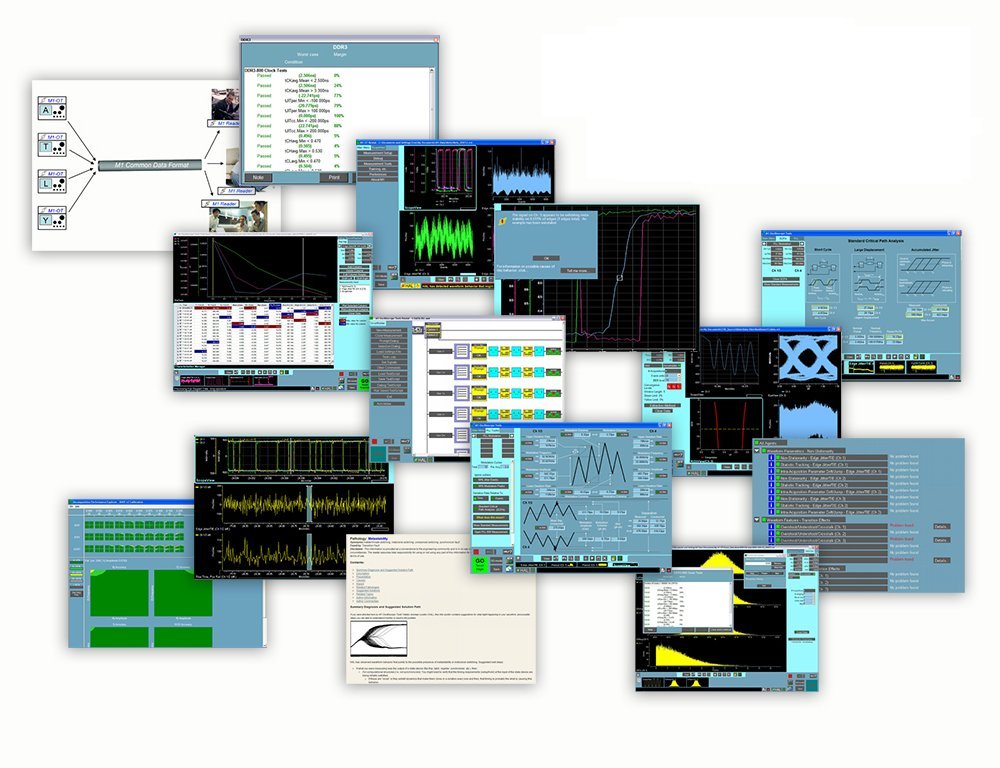
Figure 4.1: Overview of the M1 Waveform Tools user interface, displaying various analysis windows and data outputs. This image illustrates the comprehensive nature of the software, with multiple graphical representations of waveform data, measurement results, and configuration panels.
4.2 Acquiring Waveforms
- Launch Software: Open the M1 Waveform Tools application.
- Select Instrument: From the "Instrument" menu, select your connected Tektronix DPO5054. If not automatically detected, use the "Scan for Instruments" option.
- Configure Acquisition: Set up the desired acquisition parameters (e.g., sample rate, record length, trigger settings) within the software or directly on the oscilloscope.
- Start Acquisition: Click the "Acquire" or "Run" button to begin data capture from the DPO5054.
- View Waveforms: Acquired waveforms will be displayed in the designated waveform display areas.
4.3 Performing Measurements and Analysis
- Select Measurement: Navigate to the "Measurements" panel. Choose from the extensive library of built-in measurements (e.g., rise time, fall time, frequency, jitter).
- Apply Measurement: Drag and drop the selected measurement onto the desired waveform or use the context menu.
- View Results: Measurement results will be displayed in a dedicated results table or overlaid on the waveform graph.
- Compliance Testing: For compliance tests, select the relevant standard (e.g., DDRx, USB) and follow the guided steps to perform automated tests.
- Custom Analysis: Utilize the scripting interface (Matlab, C/C++/C#) to create and integrate custom analysis routines.
4.4 Data Management and Collaboration
- Saving Data: Save acquired waveforms and analysis results in various formats for future reference or sharing.
- Reporting: Generate automated reports with one-click functionality, including waveforms, measurements, and test results.
- Sharing: Use the built-in collaboration tools to share interactive waveform data with colleagues who have M1 Reader™ installed.
5. Maintenance
Regular maintenance ensures the optimal performance and longevity of your M1 Waveform Tools software.
5.1 Software Updates
- Check for Updates: Periodically check for software updates through the application's "Help" or "About" menu, or visit the ASA website.
- Install Updates: Install available updates to benefit from new features, bug fixes, and performance improvements. An active subscription is required for updates.
5.2 Data Backup
- Regular Backups: Regularly back up your waveform data, analysis projects, and custom configurations to prevent data loss.
- Storage: Store backups on external drives or cloud storage solutions.
5.3 System Optimization
- Disk Space: Ensure sufficient free disk space on your system drive for optimal software performance.
- System Resources: Close unnecessary applications when running M1 Waveform Tools, especially during intensive analysis tasks, to free up system memory and CPU resources.
6. Troubleshooting
This section provides solutions to common issues you might encounter while using the ASA M1 Waveform Tools.
| Problem | Possible Cause | Solution |
|---|---|---|
| Software fails to launch. | Corrupted installation, missing dependencies, or licensing issue. | Reinstall the software. Verify system requirements. Check license status. |
| Cannot connect to Tektronix DPO5054. | Incorrect cable connection, missing/outdated drivers, oscilloscope not powered on, or incorrect instrument selection. | Ensure USB/Ethernet cable is securely connected. Install/update Tektronix DPO5054 drivers. Power on the oscilloscope. Select the correct instrument in M1WT. |
| Waveforms not displaying correctly. | Incorrect acquisition settings, display settings, or corrupted data. | Review acquisition parameters. Reset display settings. Re-acquire data. |
| Measurements are inaccurate or not appearing. | Incorrect measurement setup, waveform quality issues, or software bug. | Verify measurement parameters. Ensure waveform quality is good. Check for software updates. |
| Software is slow or unresponsive. | Insufficient system resources, large data sets, or background processes. | Close other applications. Ensure sufficient RAM. Consider processing smaller data segments. |
If you encounter issues not listed here, please refer to the online help documentation or contact ASA Technical Support.
7. Specifications
The following are general specifications for the ASA M1 Waveform Tools software.
| Attribute | Detail |
|---|---|
| Product Name | M1 Waveform Tools with Subscription |
| Brand | ASA |
| Compatible Oscilloscope | Tektronix DPO5054 (and other major brands/models) |
| Software Type | Waveform Handling and Analysis Suite |
| Included Subscription | 1-year Software Subscription |
| Measurements | 400+ built-in measurements, signal decodes, compliance tests |
| Customization | Via Matlab, C/C++/C# |
| ASIN | B00MNKELC8 |
| Manufacturer | ASA Corp |
| First Available Date | August 12, 2014 |
8. Warranty Information
The ASA M1 Waveform Tools software includes a 1-year Software Subscription, which typically covers access to updates, new features, and technical support during the subscription period. For detailed warranty terms and conditions, please refer to the End User License Agreement (EULA) provided with the software or contact ASA directly.
Note: This product is a software license and subscription. Physical product warranties typically do not apply.
9. Technical Support
For technical assistance, troubleshooting, or inquiries regarding your M1 Waveform Tools software, please contact ASA Technical Support.
- Online Resources: Visit the official ASA website for FAQs, knowledge base articles, and user forums.
- Contact Support: Refer to the "Help" or "About" section within the M1 Waveform Tools application for direct contact information (phone, email, support portal).
- Subscription Status: Ensure your software subscription is active to receive full support benefits.
Ask a question about this manual
Ask about setup, troubleshooting, compatibility, parts, safety, or missing instructions. Manuals+ will review the question and use this page’s manual context to help answer it.