
1. Introduction
Thank you for purchasing the Inateck UA2001 USB 3.0 to IDE/SATA Adapter. This device provides a convenient solution for connecting 2.5-inch/3.5-inch SATA HDDs/SSDs, 2.5-inch/3.5-inch IDE HDDs, and 5.25-inch SATA CD/DVD drives to your computer via a USB 3.0 interface. It supports high-speed data transfer up to 5Gbps and includes a one-touch backup function for secure data management.
2. Safety Information
- Ensure the power adapter is correctly connected before operating the device.
- Do not expose the device to moisture or extreme temperatures.
- Handle hard drives with care to prevent damage.
- Disconnect the device from the power supply when not in use.
3. Package Contents
- 1 x Inateck UA2001 USB 3.0 to IDE/SATA Adapter
- 1 x USB 3.0 Cable
- 1 x 4-pin Power Cable
- 1 x Power Adapter (12V/2A)
- 1 x OTB Software CD
- 1 x User Manual

Image: The Inateck UA2001 adapter shown with its included accessories: USB 3.0 cable, 4-pin power cable, power adapter, OTB software CD, and user manual.
4. Product Overview
The Inateck UA2001 adapter features multiple ports to support various drive types. It includes a dual-head IDE connector for 2.5-inch and 3.5-inch IDE drives, and a SATA II connector for 2.5-inch/3.5-inch SATA HDDs/SSDs and 5.25-inch SATA optical drives. The device also has a power switch, a USB 3.0 port for computer connection, and a 4-pin Molex power input.
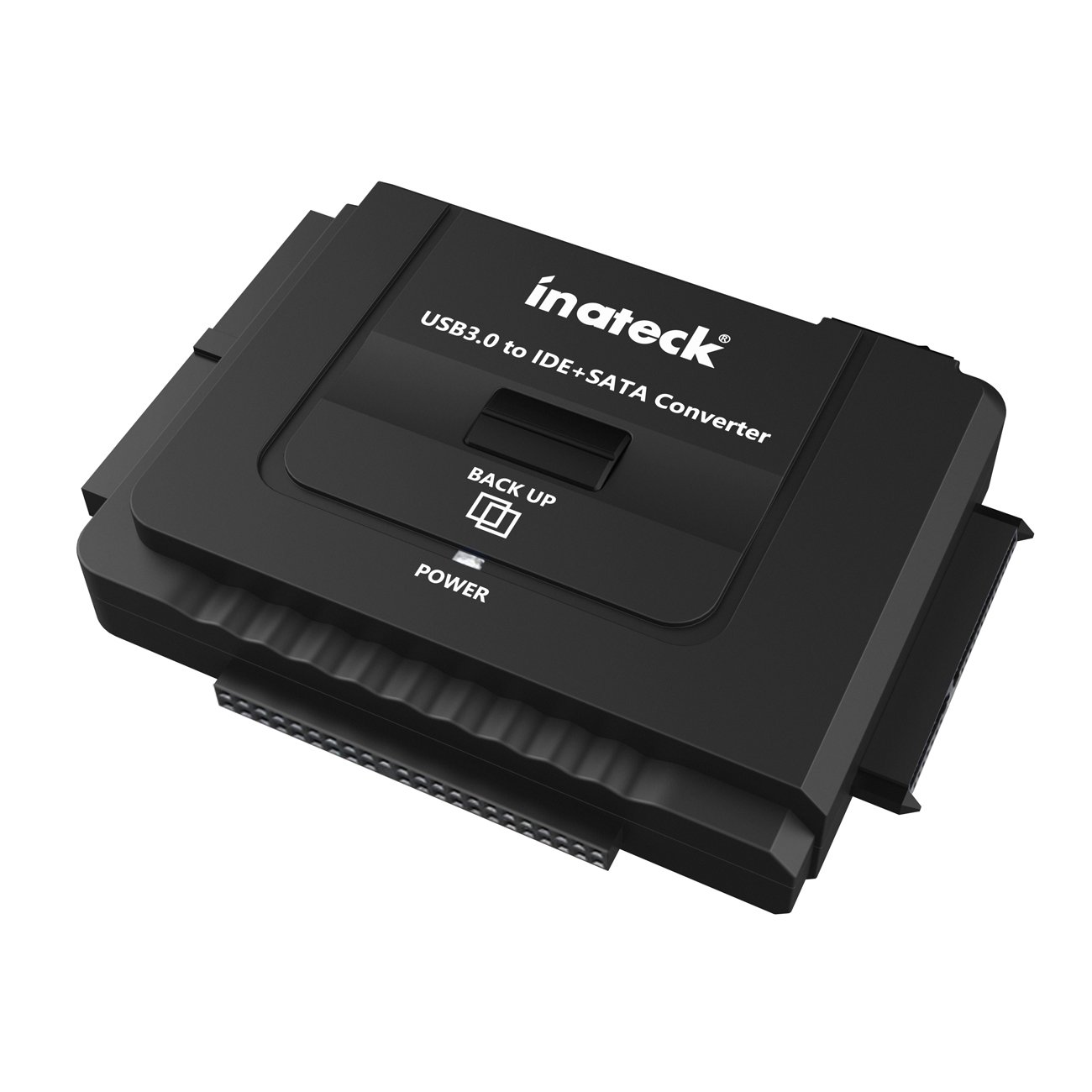
Image: Top-down view of the Inateck UA2001 adapter, highlighting its compact design and various connectors.

Image: Side view of the Inateck UA2001 adapter, showing the IDE and SATA connectors.
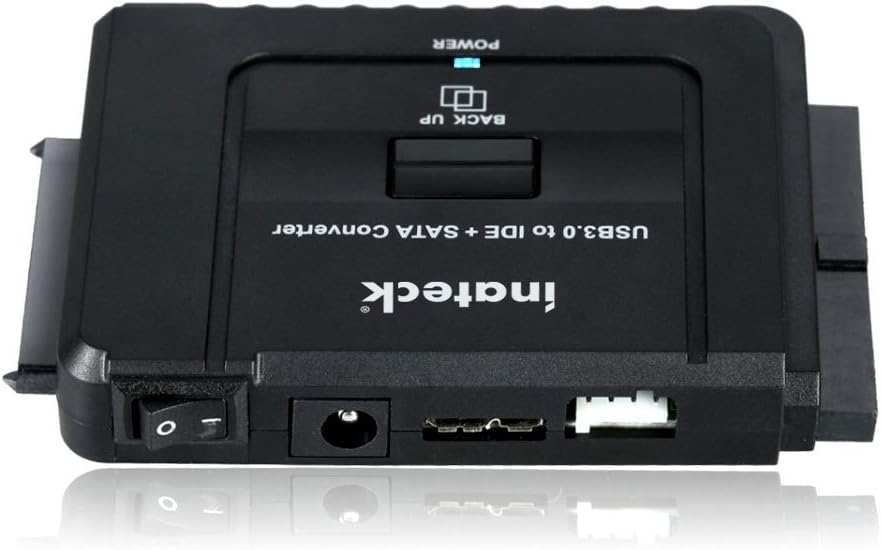
Image: Another side view of the Inateck UA2001 adapter, displaying the power switch, DC power input, USB 3.0 port, and 4-pin Molex connector.
5. Setup Instructions
Follow these steps to connect your hard drive or optical drive to your computer:
- Connect the Drive: Identify the correct connector on the Inateck UA2001 adapter for your drive (IDE or SATA). Carefully align and connect your 2.5-inch/3.5-inch HDD/SSD or 5.25-inch optical drive to the adapter.
- Connect Power: For 3.5-inch IDE/SATA drives and 5.25-inch optical drives, connect the included 12V/2A power adapter to the DC power input on the Inateck UA2001. If using a 3.5-inch IDE drive, also connect the 4-pin power cable from the adapter to the drive. 2.5-inch drives typically draw power directly from the USB connection and may not require the external power adapter.
- Connect to Computer: Plug the USB 3.0 cable into the Inateck UA2001 adapter and then connect the other end to an available USB 3.0 port on your computer.
- Power On: Flip the ON/OFF switch on the adapter to the 'ON' position. The LED indicator will light up, signifying power and activity.
- Driver Installation: For Windows XP/Vista/7/8/10 and Mac OS 10.X, the device is typically plug-and-play, requiring no additional drivers. If prompted, allow your operating system to install necessary drivers automatically.
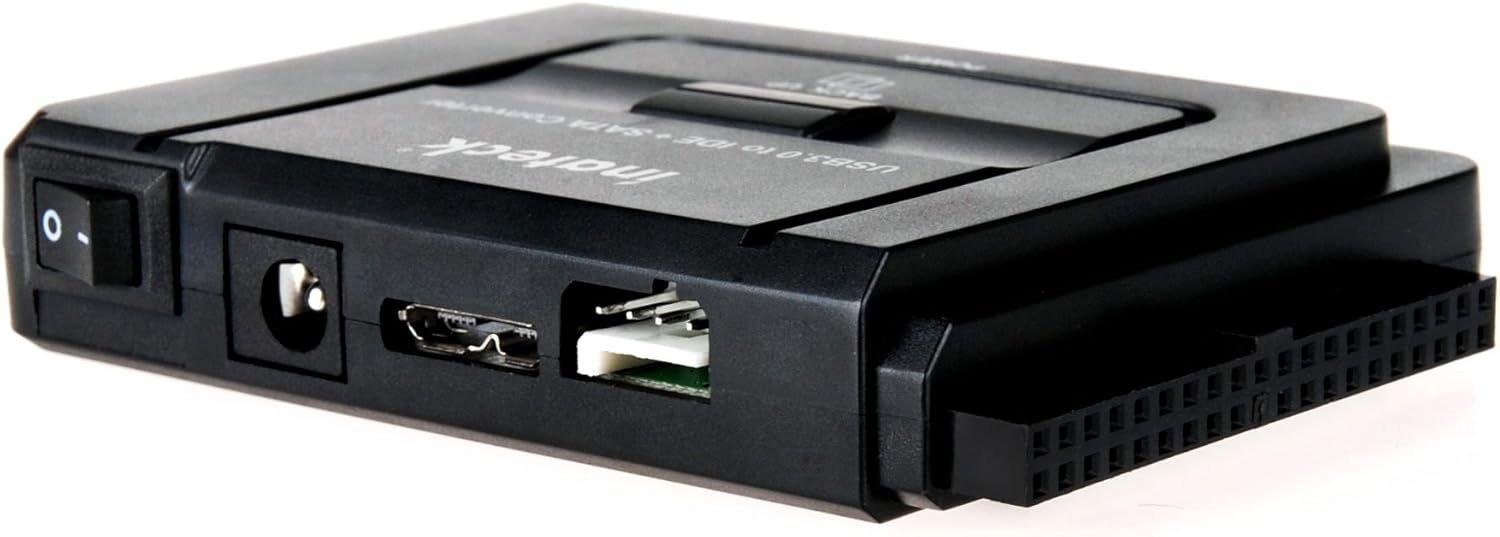
Image: The Inateck UA2001 adapter shown connected to various hard drives, demonstrating its versatility with different drive types.
6. Operating Instructions (One-Touch Backup)
The Inateck UA2001 features a convenient One-Touch Backup (OTB) function. To use this feature:
- Install OTB Software: Insert the included OTB Software CD into your computer's optical drive and follow the on-screen instructions to install the 'AI-OTB' software.
- Launch Software: Once installed, launch the AI-OTB software.
- Set Backup Path: In the software, navigate to the 'OTB Path' tab. Select the folders on your computer that you wish to back up.
- Configure Options: In the 'Option' tab, you can choose settings such as 'Confirm Before Backup' or 'Shutdown After Backup Completed'.
- Perform Backup: With the external drive connected and powered on, press the 'BACK UP' button on the Inateck UA2001 adapter. The software will prompt you to confirm the backup operation. Click 'OK' to start.
- Backup Completion: Once the backup is completed, a notification will appear. Your backed-up files will be stored in the designated folder on the external drive.
Note: OTB mode may not be applicable for Windows 8 and Mac OS. Refer to the software documentation for specific compatibility details.
7. Maintenance
- Keep the adapter and connected drives clean and free from dust. Use a soft, dry cloth for cleaning.
- Store the device in a cool, dry place away from direct sunlight and moisture.
- Avoid dropping or subjecting the device to strong impacts.
8. Troubleshooting
- Drive not recognized:
- Ensure all cables (USB, power, 4-pin Molex if needed) are securely connected.
- Verify the drive is properly seated in the adapter's connector.
- Check if the external power adapter is plugged into a working outlet and the device's power switch is ON.
- For IDE drives, ensure the jumper settings (Master/Slave/Cable Select) are correctly configured for single-drive operation.
- Try connecting the device to a different USB port on your computer.
- Ensure the drive is formatted and has a drive letter assigned in Disk Management (Windows) or Disk Utility (Mac).
- Slow transfer speeds:
- Ensure the adapter is connected to a USB 3.0 port on your computer. USB 2.0 ports will limit speeds.
- The actual transfer speed depends on the speed of the connected hard drive.
- OTB software issues:
- Ensure the OTB software is installed correctly.
- OTB functionality may vary or not be supported on certain operating systems (e.g., Windows 8/10, Mac). Manual drag-and-drop backup is always an option.
9. Specifications
| Model | UA2001 |
| Interface | USB 3.0, SATA, IDE |
| Compatibility | 2.5"/3.5" SATA HDD/SSD, 2.5"/3.5" IDE HDD, 5.25" SATA CD/DVD drives |
| Data Transfer Rate | Up to 5 Gbps (USB 3.0) |
| Max Supported Capacity | 6 TB |
| Operating System Support | Windows XP/Vista/7/8/10 (32bit and 64bit), Mac OS 10.X |
| Dimensions (LxWxH) | 3.86 x 2.95 x 0.71 inches |
| Item Weight | 2.08 ounces |
10. Warranty Information
Inateck products are covered by a limited warranty from the date of purchase. Please refer to the official Inateck website or contact customer support for detailed warranty terms and conditions.
11. Support
For technical support, troubleshooting assistance, or product inquiries, please visit the official Inateck website or contact their customer service team. Contact information can typically be found on the product packaging or the Inateck website.
Official Inateck Website: www.inateck.com
