
SKYLINK SK-200
SK-200 SkylinkNet Connected Wireless Alarm System
User Manual
Model: SK-200 | Brand: SKYLINK
1. Introduction
The SK-200 SkylinkNet Connected Wireless Alarm System is an all-in-one solution designed to protect your home with alarm, home control, and video monitoring functions. This system allows you to control and monitor your home remotely via a smartphone application without monthly fees or contracts. It is expandable, supporting over 100 devices, and features easy plug-and-play installation.

Figure 1.1: Overview of the SkylinkNet SK-200 system, including the Internet Hub, sensors, keychain remote, and the smartphone application interface.
2. Package Contents
Verify that all components are present in your SK-200 SkylinkNet kit:
- Internet Hub (1 unit)
- Door/Window Sensors (2 units)
- Motion Sensor (1 unit)
- Keychain Remote (1 unit)
- Power Adapter
- Ethernet Cable
- Mounting Accessories

Figure 2.1: Visual representation of the components included in the SkylinkNet SK-200 starter kit.
3. Setup and Installation
3.1 Initial Hub Connection
Follow these steps for the initial setup of your Internet Hub:
- Connect to Router: Use the provided Ethernet cable to connect the Internet Hub to your home router.
- Connect to Power: Plug the power adapter into the Internet Hub and then into a standard wall outlet.

Figure 3.1: Diagram illustrating the two simple steps for connecting the SkylinkNet Internet Hub to your router and power source.
3.2 Smartphone App Installation
The SkylinkNet system is controlled via a dedicated smartphone application. Download the app for your device:
- For iOS devices (iPhone, iPad): Search for "SkylinkNet" in the Apple App Store.
- For Android devices: Search for "SkylinkNet" in the Google Play Store.
Once downloaded, open the app and follow the on-screen instructions to create an account and link it to your Internet Hub.

Figure 3.2: A smartphone displaying the SkylinkNet app interface, indicating its availability on the App Store.
3.3 Device Pairing
After setting up the Internet Hub and the app, you can pair the included sensors and remote. Refer to the specific instructions provided with each sensor for detailed pairing procedures. Generally, this involves activating a pairing mode on the sensor and then adding it through the SkylinkNet app.
4. Operating the System
4.1 Using the SkylinkNet App
The SkylinkNet app provides comprehensive control and monitoring capabilities:
- Arm/Disarm: Easily arm or disarm your system from anywhere.
- Sensor Status: View the real-time status of all connected sensors (door/window, motion, etc.).
- Notifications: Receive push notifications for any activity detected by your sensors.
- Home Control: Manage connected smart home devices (lights, appliances, garage door, etc.).
- Video Monitoring: Access live camera feeds and recorded images if compatible cameras are integrated.

Figure 4.1: Screenshots of the SkylinkNet app, showing the Home Screen with device status, Camera Screen for live feeds, and Alarm Screen for system control.
4.2 Keychain Remote Functions
The included keychain remote provides quick access to essential system functions:
- Lock Button: Arms the system.
- Unlock Button: Disarms the system.
- Home Button: Arms the system in 'Home' mode (e.g., perimeter protection only).
- Panic Button: Activates an immediate alarm.
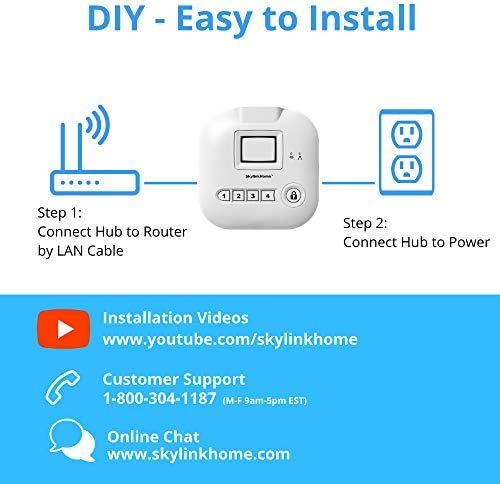
Figure 4.2: The SkylinkNet keychain remote, showing its four primary function buttons.
4.3 Smart Home Integration (Alexa)
The SkylinkNet system is IFTTT compatible, allowing integration with various smart home devices, including Amazon Alexa. You can use voice commands to control your system:
- Enable the SkylinkNet skill in your Alexa app.
- Use commands like "Alexa, ask SkylinkNet to Arm Away" or "Alexa, ask SkylinkNet to turn on kitchen light."

Figure 4.3: An illustration demonstrating how the SkylinkNet Internet Hub integrates with Amazon Alexa for voice control of the system and connected devices.
5. Maintenance
5.1 Battery Replacement
Sensors in the SK-200 system typically require 3 AAA batteries. When a sensor's battery is low, you will receive a notification via the SkylinkNet app. To replace batteries:
- Carefully open the sensor casing.
- Remove the old batteries and dispose of them properly.
- Insert new AAA batteries, ensuring correct polarity.
- Close the sensor casing securely.
5.2 Sensor Care
To ensure optimal performance, keep sensors clean and free from dust. Avoid placing sensors in direct sunlight or areas with extreme temperature fluctuations, as this can affect their operation and battery life.
6. Troubleshooting
If you encounter issues with your SkylinkNet system, consider the following common solutions:
- No App Connection: Ensure your Internet Hub is properly connected to your router and power. Check your home internet connection.
- Sensor Not Responding: Verify the sensor's battery level. Re-pair the sensor with the Internet Hub if necessary. Ensure the sensor is within range of the hub.
- False Alarms: Check sensor placement to avoid accidental triggers (e.g., motion sensor facing a window with moving curtains). Adjust sensitivity settings if available.
- Notifications Not Received: Check your smartphone's notification settings for the SkylinkNet app. Ensure the app is running in the background or has necessary permissions.
- System Not Arming/Disarming: Confirm the command is registered by the app or remote. Check the system status in the app for any error messages.
For persistent issues, refer to the customer support section.
7. Specifications
| Feature | Detail |
|---|---|
| Model Number | SK-200 |
| Brand | SKYLINK |
| Connectivity Technology | Wireless |
| Compatible Devices | Smartphone (iOS, Android) |
| Power Source | Battery Powered (Sensors), AC Adapter (Hub) |
| Item Dimensions (L x W x H) | 4.2 x 5 x 4.8 inches |
| Item Weight | 16 ounces (1 pound) |
| Battery Type (Sensors) | 3 AAA batteries required |
| Battery Life | Up to 4320 Hours (Sensors) |
| Maximum Range | 300 Feet |
| Installation Type | Self-Adhesive |
| Control Method | App, Keychain Remote |
| Certification | UL Listed |
8. Warranty Information
The SK-200 SkylinkNet Connected Wireless Alarm System comes with a 1-Year Limited Warranty from the date of purchase. This warranty covers defects in materials and workmanship under normal use. Please retain your proof of purchase for warranty claims. For full details regarding warranty terms and conditions, please contact Skylink customer support.
9. Customer Support
For technical assistance, troubleshooting, or general inquiries regarding your SkylinkNet system, please use the following contact methods:
- Phone Support: 1-800-304-1187 (Monday - Friday, 9 AM - 5 PM EST)
- Online Chat: Visit www.skylinkhome.com
- Installation Videos: Find helpful guides on www.youtube.com/skylinkhome
Related documentsSK-200


Ask a question about this manual
Ask about setup, troubleshooting, compatibility, parts, safety, or missing instructions. Manuals+ will review the question and use this page’s manual context to help answer it.