
Mastech MS8260A
Mastech MS8260A Digital Multimeter User Manual
1. Introduction
This manual provides detailed instructions for the safe and effective operation of the Mastech MS8260A Digital Multimeter. The MS8260A is a versatile instrument designed for various electrical measurements, including AC/DC voltage, AC/DC current, resistance, diode check, continuity test, and transistor check. It also features a non-contact voltage detection function.
Key features of the MS8260A include:
- Non-contact voltage detection
- Automatic power-off function to conserve battery life
- Low battery indication
2. Safety Information
To ensure safe operation and service of the meter, please read all instructions carefully before use. Failure to observe safety warnings can result in electric shock, fire, or damage to the meter.
- Always disconnect test leads from the circuit before changing functions.
- Do not apply more than the rated voltage, as marked on the meter, between terminals or between any terminal and earth ground.
- Use caution when working with voltages above 30V AC RMS, 42V peak, or 60V DC. These voltages pose a shock hazard.
- Before measuring current, ensure the meter's fuses are intact and the test leads are connected correctly.
- Replace the battery immediately when the low battery indicator appears to ensure accurate readings.
- Do not operate the meter if it appears damaged or if the case is open.
- Adhere to local and national safety codes.
3. Product Components
The Mastech MS8260A Digital Multimeter consists of the main unit and essential accessories.
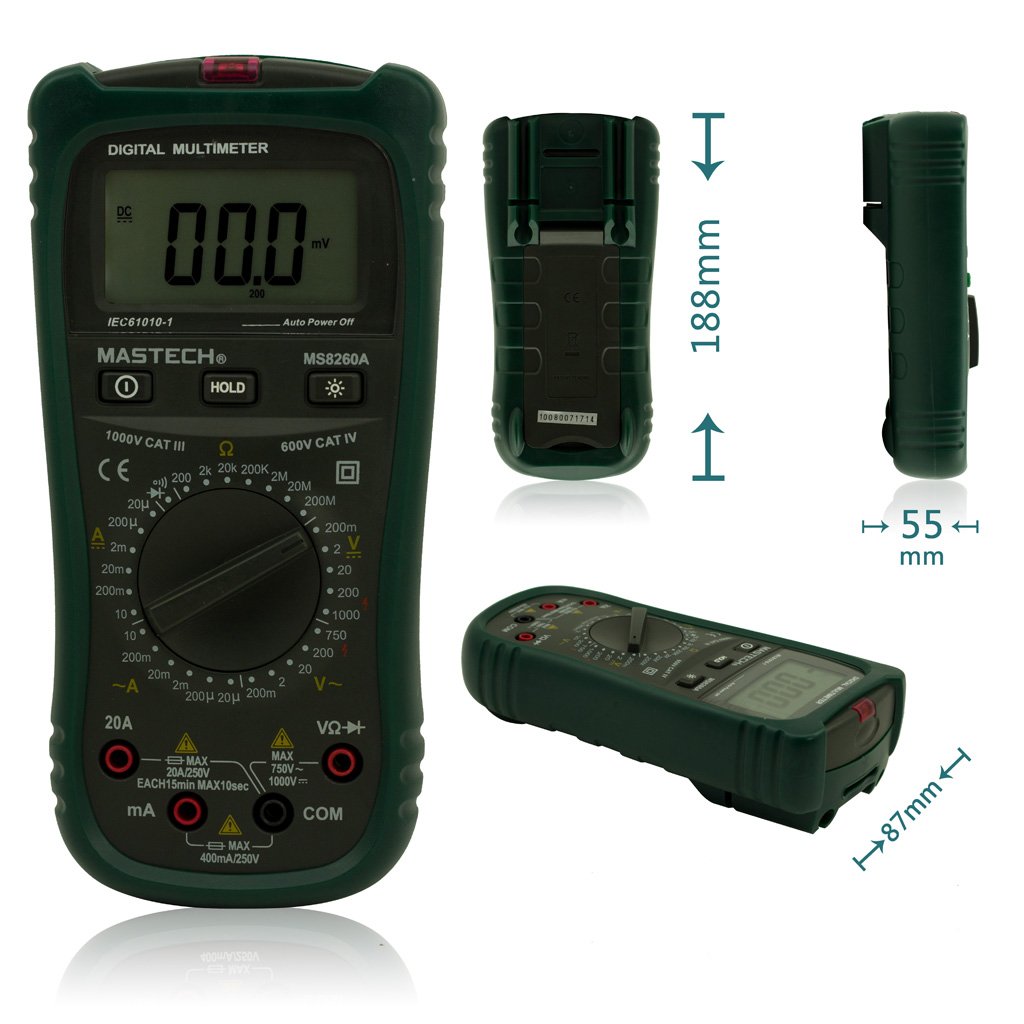
Figure 1: Front View of Mastech MS8260A Digital Multimeter with Dimensions
This image displays the Mastech MS8260A Digital Multimeter from the front, highlighting its LCD screen, rotary function switch, and input terminals. Key dimensions are indicated: 188mm height, 87mm depth, and 55mm width. The display shows '00.0 mV' and 'Auto Power Off' text. The rotary switch is set to 'mV' range. The input jacks are labeled 'VΩHz', 'mA', and 'COM'.
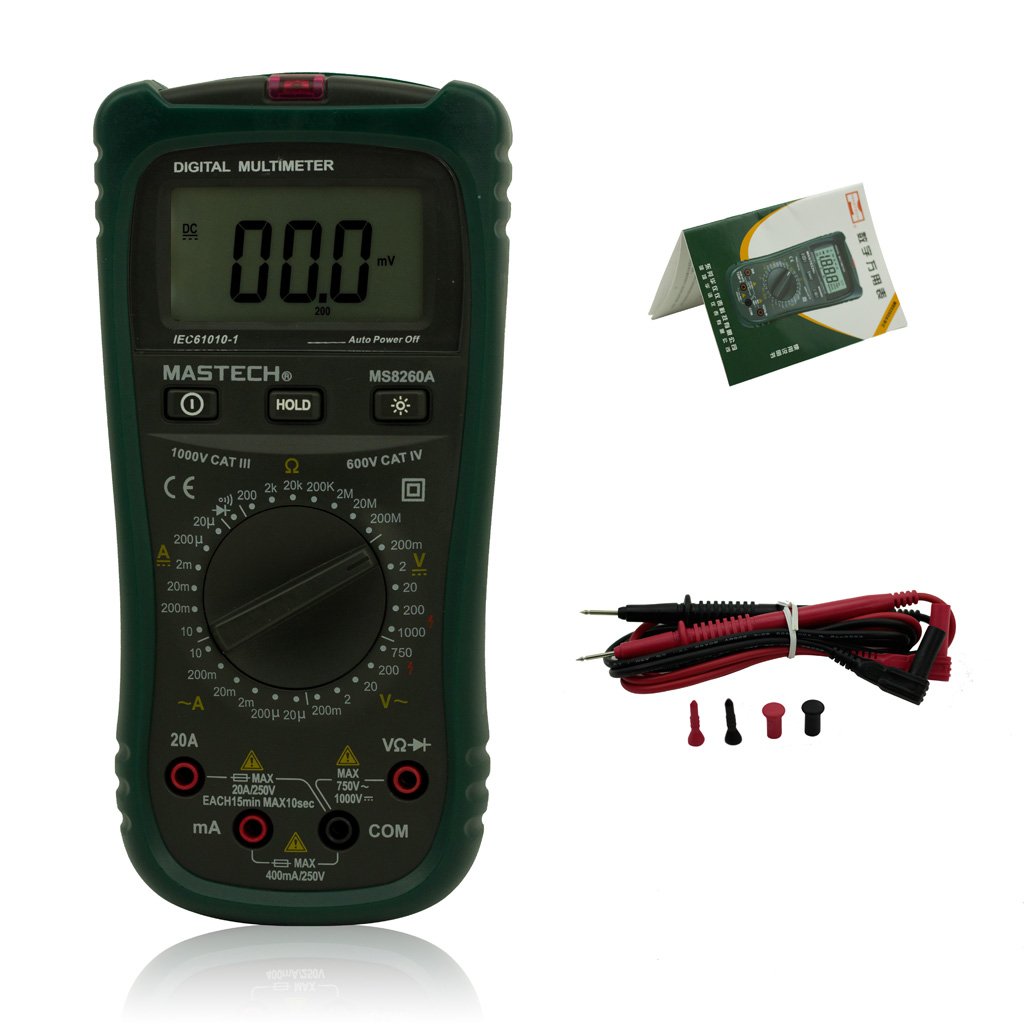
Figure 2: Mastech MS8260A Digital Multimeter and Accessories
This image shows the Mastech MS8260A Digital Multimeter accompanied by its standard accessories. These include a pair of red and black test leads with protective caps, and a printed user manual. The multimeter itself is shown from the front, similar to the main product view.
3.1 Main Unit Features
- LCD Display: Shows measurement readings, units, and function indicators.
- Rotary Switch: Selects the desired measurement function and range.
- Input Jacks: Terminals for connecting test leads (VΩHz, mA, COM).
- HOLD Button: Freezes the current display reading.
- Backlight Button: Activates the display backlight for improved visibility in low light.
- Non-Contact Voltage (NCV) Sensor: Detects AC voltage without direct contact.
3.2 Included Accessories
- Test Leads (Red and Black)
- User Manual
4. Initial Setup
4.1 Battery Installation
The Mastech MS8260A Digital Multimeter requires one 9V 6F22 battery for operation. Batteries are not included with the product.
- Ensure the multimeter is turned off and disconnect any test leads.
- Locate the battery compartment cover on the back of the unit.
- Use a screwdriver to remove the screw securing the battery cover.
- Carefully remove the cover.
- Connect a new 9V 6F22 battery to the battery clips, observing correct polarity.
- Place the battery into the compartment.
- Replace the battery compartment cover and secure it with the screw.
5. Operating Instructions
Before taking any measurements, ensure the test leads are properly connected to the meter and the circuit under test.
5.1 Connecting Test Leads
- Always connect the black test lead to the COM (common) input jack.
- For voltage, resistance, diode, continuity, and transistor measurements, connect the red test lead to the VΩHz input jack.
- For current measurements (mA or 20A), connect the red test lead to the appropriate current input jack (mA or 20A).
5.2 Function Selection
Turn the rotary switch to the desired measurement function and range. The meter will display the reading on the LCD.
5.2.1 DC Voltage Measurement (V–)
- Set the rotary switch to the desired DC Voltage range (e.g., 200mV, 2V, 20V, 200V, 1000V).
- Connect the test leads in parallel to the circuit or component to be measured.
- Read the voltage value on the display.
5.2.2 AC Voltage Measurement (V∼)
- Set the rotary switch to the desired AC Voltage range (e.g., 2V, 20V, 200V, 750V).
- Connect the test leads in parallel to the AC voltage source.
- Read the voltage value on the display.
5.2.3 DC Current Measurement (A–)
- Set the rotary switch to the desired DC Current range (e.g., 20µA, 200µA, 2mA, 20mA, 200mA, 20A).
- Important: Disconnect power to the circuit. Break the circuit and connect the meter in series with the load.
- Apply power to the circuit.
- Read the current value on the display.
5.2.4 AC Current Measurement (A∼)
- Set the rotary switch to the desired AC Current range (e.g., 20µA, 200µA, 2mA, 20mA, 200mA, 20A).
- Important: Disconnect power to the circuit. Break the circuit and connect the meter in series with the load.
- Apply power to the circuit.
- Read the current value on the display.
5.2.5 Resistance Measurement (Ω)
- Set the rotary switch to the desired Resistance range (e.g., 200Ω, 2kΩ, 20kΩ, 200kΩ, 2MΩ, 20MΩ).
- Ensure the circuit is de-energized before measuring resistance.
- Connect the test leads across the component to be measured.
- Read the resistance value on the display.
5.2.6 Diode Test (→|)
- Set the rotary switch to the Diode Test position.
- Connect the red test lead to the anode and the black test lead to the cathode of the diode.
- The display will show the forward voltage drop. Reverse the leads; the display should show 'OL' (Open Loop) for a good diode.
5.2.7 Continuity Test (♫)
- Set the rotary switch to the Continuity Test position.
- Connect the test leads across the circuit or component.
- If the resistance is below approximately 50Ω, the buzzer will sound, indicating continuity.
5.2.8 Transistor Test (hFE)
- Set the rotary switch to the hFE position.
- Insert the transistor's emitter, base, and collector leads into the appropriate sockets on the meter's hFE test socket.
- The display will show the hFE value (DC current gain).
5.2.9 Non-Contact Voltage (NCV) Detection
- Set the rotary switch to the NCV position.
- Move the top front part of the meter (where the NCV sensor is located) close to the conductor suspected of having AC voltage.
- If AC voltage greater than 110V is detected, the meter will emit an audible beep and the NCV indicator light will illuminate.
6. Maintenance
6.1 Cleaning
Wipe the case with a damp cloth and mild detergent. Do not use abrasives or solvents. Ensure the meter is completely dry before use.
6.2 Battery Replacement
When the low battery indicator appears on the display, replace the 9V 6F22 battery as described in Section 4.1. Prompt battery replacement ensures accurate measurements and proper meter function.
6.3 Fuse Replacement
If the meter fails to measure current, the fuse may be blown. Refer to the specifications for the correct fuse type and rating. Fuse replacement should only be performed by qualified personnel.
7. Troubleshooting
- No display or faint display: Check battery installation and replace if necessary.
- Incorrect readings: Ensure test leads are properly connected, the correct function/range is selected, and the battery is not low.
- No current measurement: Check the fuse. Ensure the meter is connected in series with the circuit.
- 'OL' (Overload) displayed: The measured value exceeds the selected range. Select a higher range.
8. Specifications
| Specification | Value |
|---|---|
| Brand | Mastech |
| Model Number | MS8260A |
| Measurement Type | Digital Multimeter |
| Power Source | 9V 6F22 Battery |
| Item Weight | 454 g |
| Certification | CE |
| Batteries Included | No |
9. Warranty Information
Please refer to the warranty card included with your product or contact Mastech customer support for detailed warranty terms and conditions. Warranty coverage typically applies to defects in materials and workmanship under normal use.
10. Customer Support
For technical assistance, troubleshooting, or service inquiries, please contact Mastech customer support. Refer to the official Mastech website or the product packaging for the most current contact information.
You can visit the Mastech Store on Amazon for more product information.
Related documentsMS8260A


Ask a question about this manual
Ask about setup, troubleshooting, compatibility, parts, safety, or missing instructions. Manuals+ will review the question and use this page’s manual context to help answer it.