
Introduction
This manual provides detailed instructions for the setup, operation, and maintenance of your JETech 2.4GHz Wireless Optical Mouse. Please read this guide thoroughly before using the product to ensure optimal performance and longevity.
Package Contents
Verify that all items are present in your package:
- 1 x JETech 2.4GHz Wireless Optical Mouse
- 1 x Nano USB Receiver
- 1 x Instruction Manual (this document)
- 1 x Customer Service Card
Product Overview
The JETech 2.4GHz Wireless Optical Mouse is designed for comfortable and precise navigation. It features an ergonomic design with a soft rubber grip and multiple buttons for enhanced functionality.

The mouse includes:
- Left Click Button
- Right Click Button
- Scroll Wheel (also functions as a middle click button)
- CPI Adjustment Button
- Two Side Buttons (typically for forward/backward navigation)
Setup
1. Install Battery
The mouse requires one AA battery (not included). To install:
- Locate the battery compartment cover on the underside of the mouse.
- Slide the cover open.
- Insert one AA battery, ensuring correct polarity (+/-).
- Close the battery compartment cover securely.
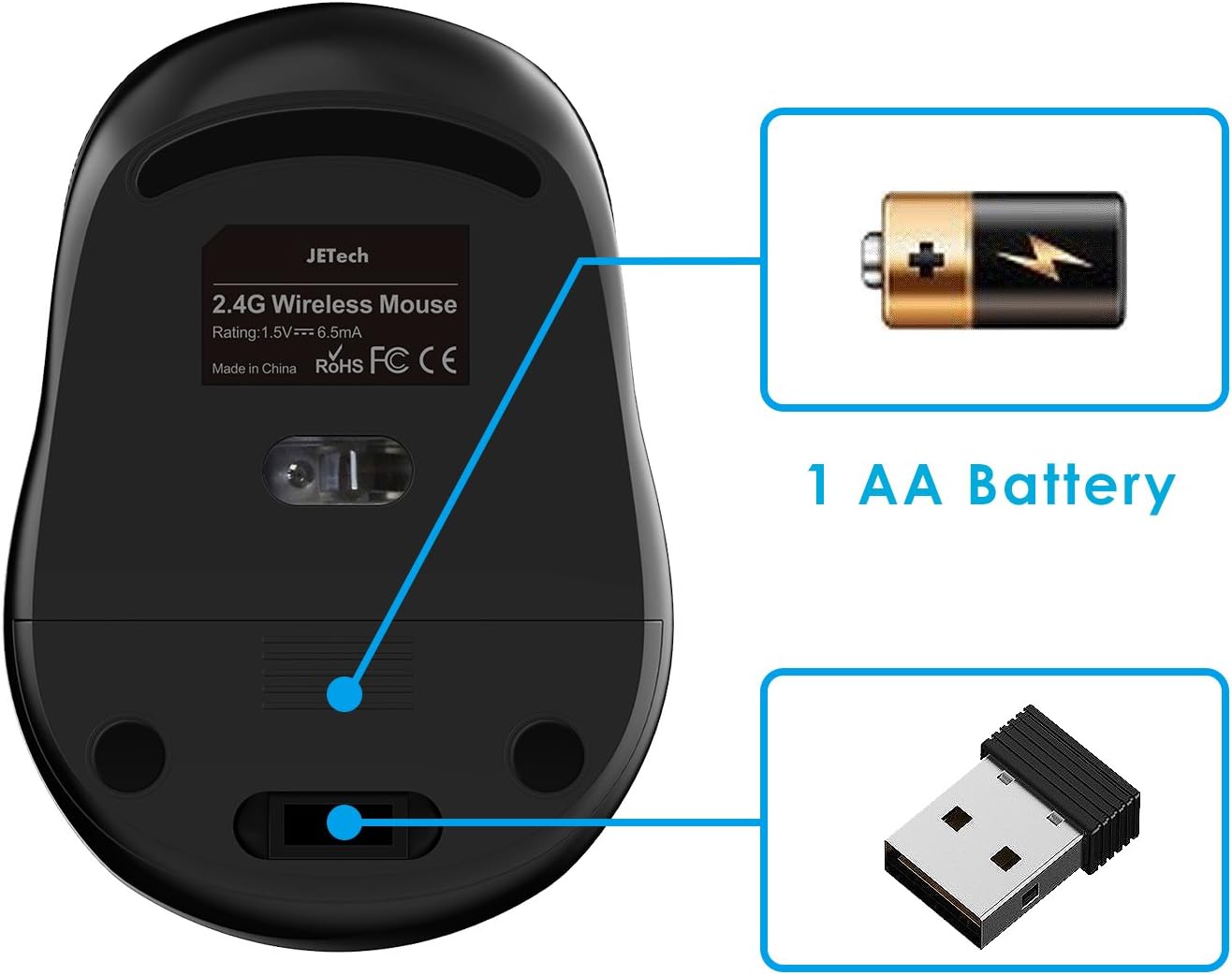
2. Connect USB Receiver
The nano USB receiver is stored inside the mouse's battery compartment for convenience. To connect:
- Remove the nano USB receiver from its storage slot.
- Plug the USB receiver into an available USB port on your computer (PC or laptop).
- Your computer will automatically detect and install the necessary drivers. This is a plug-and-play device, so no manual driver installation is required.

3. Power On
The mouse does not have a manual power switch. It automatically powers on when the battery is installed and the receiver is connected. If the mouse enters sleep mode, simply click any button to wake it up.
Operating Instructions
Basic Functions
- Left Click: Primary selection and activation.
- Right Click: Accesses contextual menus.
- Scroll Wheel: Scrolls documents and web pages vertically. Pressing the scroll wheel acts as a middle click.
- Side Buttons: The two side buttons typically function as 'Forward' and 'Backward' for web browsing or file navigation.
CPI Adjustment
The mouse features a dedicated CPI (Counts Per Inch) button to adjust cursor sensitivity. Press the CPI button located behind the scroll wheel to cycle through the three available sensitivity levels:
- 800 CPI: Lower sensitivity for precise tasks.
- 1200 CPI: Standard sensitivity for general use.
- 1600 CPI: Higher sensitivity for faster cursor movement.
Choose the CPI setting that best suits your preference and task requirements.
Power Saving Feature
To conserve battery life, the mouse is equipped with an automatic sleep mode. If the mouse is inactive for a period, it will enter a low-power sleep state. To wake the mouse, simply click any button. This feature helps extend the battery life up to 12 months, though actual battery life may vary based on usage.
Maintenance
To ensure the longevity and optimal performance of your mouse:
- Keep the mouse and receiver clean. Use a soft, dry cloth to wipe surfaces.
- Avoid exposing the mouse to extreme temperatures, direct sunlight, or liquids.
- If the mouse will not be used for an extended period, remove the AA battery to prevent potential leakage.
Troubleshooting
Mouse Not Responding / Cursor Not Moving
- Check Battery: Ensure the AA battery is correctly installed and has sufficient charge. Replace if necessary.
- Check Receiver Connection: Make sure the nano USB receiver is securely plugged into a working USB port on your computer. Try a different USB port.
- Wake Mouse: If the mouse has entered sleep mode, click any button to reactivate it.
- Distance: Ensure the mouse is within the 8-10 meter (26-33 feet) operating range of the receiver.
- Interference: Move the mouse closer to the receiver and away from other wireless devices that might cause interference.
- Surface: Ensure you are using the mouse on a suitable surface. Infrared tracking works on most surfaces, but highly reflective or transparent surfaces may affect performance.
Lag or Intermittent Connection
- Re-plug Receiver: Unplug the USB receiver and plug it back into the USB port.
- Change USB Port: Try connecting the receiver to a different USB port, preferably one directly on the computer rather than a hub.
- Reduce Obstacles: Minimize physical obstructions between the mouse and the receiver.
Specifications
| Brand | JETech |
| Model Number | 0770- |
| Connectivity Technology | 2.4GHz Wireless (USB Receiver) |
| Movement Detection | Optical (Infrared Tracking) |
| Adjustable CPI | 800 / 1200 / 1600 DPI |
| Number of Buttons | 6 (Left, Right, Scroll Wheel, CPI, 2 Side Buttons) |
| Hand Orientation | Ambidextrous |
| Operating Range | 8-10 meters (26-33 feet) |
| Power Source | 1 x AA Battery (not included) |
| Estimated Battery Life | Up to 12 months (varies by usage) |
| Compatible Operating Systems | Windows 98/2000/NT/ME/XP/7/8/10, Linux |
| Product Dimensions | 9.65 x 3.75 x 6.4 cm (approx. 3.8 x 1.5 x 2.5 inches) |
| Item Weight | 45.4 g (approx. 1.6 oz) |
| Color | Dark Grey |

Safety Information
- Do not disassemble or attempt to repair the device.
- Keep the device away from water, fire, and high temperatures.
- Dispose of batteries according to local regulations.
- Keep out of reach of children.
Warranty and Support
Your JETech Wireless Optical Mouse comes with a customer service card. For warranty information, technical support, or any inquiries, please refer to the contact details provided on the customer service card or visit the official JETech website.