
1. Introduction
The Speedlink Phantom Hawk Flightstick is an ergonomically designed controller for flight simulation games on PC. It features a hand rest for right-handed use, a throttle controller, three control axes, and an eight-way coolie hat for comprehensive control during various flight scenarios, including races, dogfights, and rescue missions. This manual provides essential information for setting up, operating, maintaining, and troubleshooting your flightstick to ensure an optimal gaming experience.
2. Package Contents
Please verify that all items are present in the package:
- Speedlink Phantom Hawk Flightstick
- User Manual (this document)

Image: The Speedlink Phantom Hawk Flightstick packaging, showing the flightstick and key features.
3. Product Overview
Familiarize yourself with the various components and controls of your Phantom Hawk Flightstick.

Image: Front view of the Speedlink Phantom Hawk Flightstick, highlighting the main stick, buttons, and base.
- Flight Stick: Main control for pitch and roll (X/Y axes). Features a rotatable Z-axis for rudder control.
- Hand Rest: Ergonomically designed for comfortable right-handed use.
- Throttle Controller: Progressive slider for precise speed control.
- Coolie Hat (POV Hat): Eight-way switch for all-round visibility or menu navigation.
- Fire Buttons: Twelve freely assignable digital buttons for various in-game actions.
- Suction Discs: Located on the base for secure placement on surfaces.

Image: Side view of the flightstick, illustrating the position of the progressive throttle controller.

Image: Another side view, emphasizing the ergonomic hand rest for right-handed users.
4. Setup
Follow these steps to set up your Speedlink Phantom Hawk Flightstick:
- Connect to PC: Plug the USB connector of the flightstick into an available USB port on your computer.
- Driver Installation: Your operating system (Windows) should automatically detect and install the necessary drivers. If prompted, follow the on-screen instructions. If automatic installation fails, you may need to download drivers from the official Speedlink website.
- Secure Placement: Place the flightstick on a flat, stable surface. The integrated suction discs on the base will help secure it in place, preventing movement during intense gameplay.
- Calibration (Windows): For optimal performance, especially if you experience axis drifting, calibrate the flightstick through Windows settings.
To calibrate in Windows:
- Open the Windows Control Panel.
- Navigate to 'Devices and Printers' or 'Hardware and Sound' > 'Devices and Printers'.
- Locate the 'Speedlink Phantom Hawk Flightstick' (or similar name), right-click, and select 'Game Controller Settings' or 'Properties'.
- In the properties window, go to the 'Settings' or 'Calibrate' tab and follow the on-screen instructions to calibrate the X/Y axes, Z-axis (rudder), and throttle.
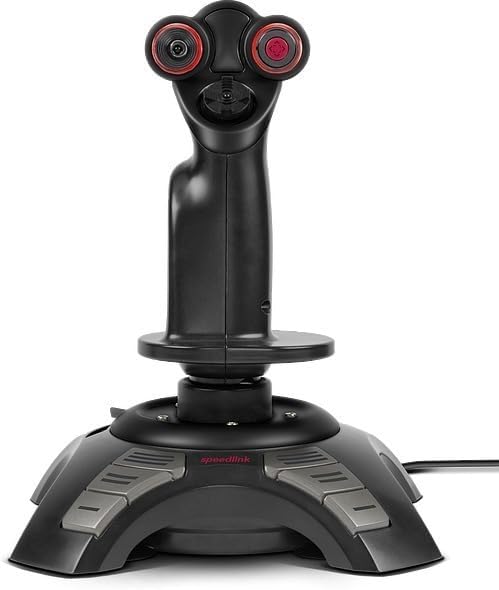
Image: Screenshot of the Windows Game Controller Properties window, showing axis and button test areas for calibration.
5. Operating Instructions
Once connected and calibrated, your flightstick is ready for use in compatible flight simulation games.
- Main Stick Control: Move the main stick forward/backward for pitch control and left/right for roll control.
- Z-Axis (Rudder): Rotate the main stick left or right to control the rudder function, allowing for yaw movements.
- Throttle Control: Use the progressive throttle slider on the base to adjust engine thrust or speed.
- Coolie Hat: Use the eight-way coolie hat for camera views, target selection, or other assigned functions within your game.
- Fire Buttons: Utilize the twelve digital buttons for firing weapons, deploying countermeasures, or executing other commands as configured in your game's control settings.
- Force Vibration: The flightstick supports force vibration feedback, enhancing realism in games that support this feature.
6. Maintenance
Proper care will extend the life of your flightstick.
- Cleaning: Use a soft, dry cloth to clean the surface of the flightstick. For stubborn dirt, a slightly damp cloth with mild soap can be used, ensuring no liquid enters the internal components.
- Avoid Liquids: Do not expose the flightstick to water or other liquids.
- Storage: Store the flightstick in a cool, dry place away from direct sunlight and extreme temperatures.
- Cable Care: Avoid sharp bends or kinks in the USB cable. Do not pull the cable to disconnect the device.
7. Troubleshooting
If you encounter issues with your Speedlink Phantom Hawk Flightstick, refer to the following common problems and solutions:
| Problem | Possible Cause | Solution |
|---|---|---|
| Flightstick not recognized by PC. | Loose USB connection, faulty USB port, driver issue. | Ensure the USB cable is securely connected. Try a different USB port. Reinstall drivers or update them from the Speedlink website. Restart your PC. |
| Axis drifting or incorrect centering (X/Y or Z-axis). | Calibration required, physical wear. | Perform a calibration through Windows Game Controller Settings (refer to Section 4). Increase dead zones in game settings if minor drifting persists. |
| Buttons not responding. | Incorrect game configuration, driver issue. | Check in-game control settings to ensure buttons are correctly mapped. Verify button functionality in Windows Game Controller Settings. Reinstall drivers. |
| No force vibration feedback. | Game does not support force feedback, feature disabled. | Ensure the game supports force feedback. Check in-game options to enable force vibration. |
8. Specifications
Key technical specifications for the Speedlink Phantom Hawk Flightstick:
- Brand: Speedlink
- Model Name: SL-6638-BK
- Compatible Devices: Windows PC
- Controller Type: Joystick
- Connectivity Technology: USB
- Additional Features: Ergonomic design, Force Vibration
- Button Quantity: 12 digital fire buttons
- Axes: X, Y, Z (rotatable stick), Throttle
- Power Source: Corded Electric (USB powered)
- Item Weight: Approximately 1.5 Pounds (0.68 kg)
- Item Dimensions (L x W x H): Approximately 9.44 x 7.28 x 7.28 inches (24 x 18.5 x 18.5 cm)
9. Warranty and Support
For warranty information and technical support, please refer to the official Speedlink website or contact their customer service department. Keep your proof of purchase for any warranty claims.
Website: www.speedlink.com

