1. Introduction
Thank you for choosing the Philips AE5020 Portable Radio. This manual provides essential information for setting up, operating, and maintaining your radio. Designed for clear and reliable reception, this radio supports both DAB+ (Digital Audio Broadcasting Plus) and traditional FM (Frequency Modulation) bands, offering a wide range of listening options. Its versatile power options allow for both mains and battery operation, providing flexibility for use at home or on the go.
2. Safety Information
Please read all safety warnings and instructions before using this product to prevent injury or damage. Keep this manual for future reference.
- Power Source: Use only the power adapter supplied with the unit. Ensure the voltage matches your local power supply.
- Batteries: Do not mix old and new batteries, or different types of batteries. Insert batteries with correct polarity. Remove batteries if the unit is not used for a long period.
- Water and Moisture: Do not expose the unit to dripping or splashing. Do not place objects filled with liquids, such as vases, on the unit.
- Heat: Do not place the unit near heat sources such as radiators, heat registers, stoves, or other apparatus (including amplifiers) that produce heat.
- Ventilation: Ensure adequate ventilation. Do not block any ventilation openings.
- Cleaning: Unplug the unit from the power outlet before cleaning. Use a soft, dry cloth. Do not use liquid cleaners or aerosol cleaners.
- Servicing: Do not attempt to service this product yourself. Refer all servicing to qualified service personnel.
3. Package Contents
Verify that all items are present in your package:
- Philips AE5020 Portable Radio
- Power Supply Adapter
- Quick Start Guide
- Quick Guide
Note: 4 x C-size batteries are required for battery operation and are not included.
4. Product Overview
Familiarize yourself with the components and controls of your Philips AE5020 Portable Radio.

Figure 4.1: Front View of Philips AE5020 Portable Radio
This image displays the front of the Philips AE5020 Portable Radio, highlighting its speaker grille, the digital display panel, and the various control buttons and tuning knob. The integrated carrying handle and extended telescopic antenna are also visible, showcasing the radio's portable design.
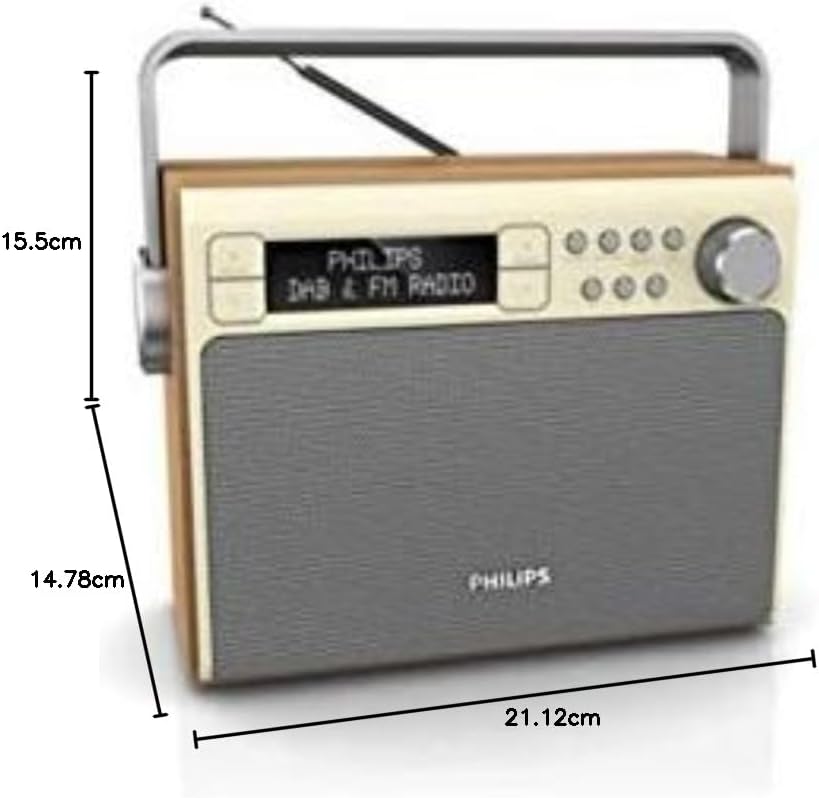
Figure 4.2: Dimensions of Philips AE5020 Portable Radio
This image provides a side perspective of the Philips AE5020 Portable Radio, clearly illustrating its physical dimensions. The height is approximately 15.5 cm, the depth is 14.78 cm, and the width is 21.12 cm, offering a clear understanding of its compact size.
Controls and Indicators:
- Display: Shows station information, time, and menu options.
- Power/Volume Knob: Turns the radio on/off and adjusts the volume.
- Tuning/Select Knob: Used for tuning stations and navigating menus.
- Preset Buttons (1, 2, 3): Quick access to your favorite stations.
- Menu Button: Accesses the radio's settings menu.
- Info Button: Displays additional information about the current broadcast.
- Back Button: Returns to the previous menu or screen.
- Telescopic Antenna: For optimal radio signal reception.
- DC IN Jack: For connecting the power adapter.
- Battery Compartment: Located on the bottom, for C-size batteries.
5. Setup
5.1 Powering Your Radio
Your Philips AE5020 radio can be powered by either mains electricity or batteries.
Mains Operation:
- Connect the supplied power adapter to the DC IN jack on the back of the radio.
- Plug the power adapter into a wall outlet.
Battery Operation:
- Open the battery compartment cover located on the bottom of the radio.
- Insert four (4) C-size (LR14) batteries, ensuring correct polarity (+/-) as indicated inside the compartment.
- Close the battery compartment cover securely.
5.2 Antenna Adjustment
For optimal reception, fully extend the telescopic antenna. You may need to adjust its position and angle to achieve the best signal quality, especially for FM and DAB+ broadcasts.
6. Operating Instructions
6.1 Turning On/Off
Rotate the Power/Volume knob clockwise to turn the radio on. Rotate it counter-clockwise until it clicks to turn the radio off.
6.2 Selecting Radio Mode (DAB+/FM)
Upon turning on, the radio will typically resume the last listened mode. To switch between DAB+ and FM modes, press the 'Mode' or 'Band' button (if available, otherwise navigate through the menu using the Menu button and Tuning/Select knob).
6.3 DAB+ Radio Operation
- Ensure the radio is in DAB+ mode.
- The radio will automatically scan for available DAB+ stations upon first use or if no stations are found.
- To manually scan, press the Menu button, navigate to 'Scan' or 'Full Scan', and press the Tuning/Select knob to confirm.
- Rotate the Tuning/Select knob to browse through the list of available stations. Press the knob to select a station.
6.4 FM Radio Operation
- Ensure the radio is in FM mode.
- Rotate the Tuning/Select knob to manually tune to an FM frequency.
- To auto-scan for the next available station, press and hold the Tuning/Select knob briefly.
6.5 Saving and Recalling Presets
You can store your favorite stations for quick access.
To Save a Preset:
- Tune to the desired DAB+ or FM station.
- Press and hold one of the Preset buttons (1, 2, or 3) until the display confirms the station has been saved to that preset number.
- For additional presets (up to 20), press the 'Preset' button (if available) or navigate through the menu to 'Store Preset', then select an empty slot and confirm.
To Recall a Preset:
- Simply press the corresponding Preset button (1, 2, or 3) to instantly tune to the saved station.
- For other presets, press the 'Preset' button (if available) or navigate through the menu to 'Recall Preset', then select the desired preset number and confirm.
6.6 Adjusting Volume
Rotate the Power/Volume knob to increase or decrease the listening volume.
6.7 Display Information
Press the 'Info' button repeatedly to cycle through various information displays, such as program type, station name, signal strength, time, date, and scrolling text messages (DAB+ only).
7. Maintenance
7.1 Cleaning
To keep your radio in good condition:
- Always unplug the radio from the power outlet before cleaning.
- Use a soft, dry, lint-free cloth to wipe the exterior surfaces.
- Do not use abrasive cleaners, waxes, or solvents as they may damage the finish.
7.2 Battery Care
- Remove batteries if the radio will not be used for an extended period to prevent leakage.
- Dispose of used batteries responsibly according to local regulations.
7.3 Storage
If storing the radio for a long time, ensure it is clean, dry, and batteries are removed. Store in a cool, dry place away from direct sunlight and extreme temperatures.
8. Troubleshooting
If you encounter issues with your radio, refer to the following common problems and solutions:
| Problem | Possible Cause | Solution |
|---|---|---|
| No power | Power adapter not connected properly; Batteries depleted or incorrectly inserted. | Check power adapter connection and wall outlet. Replace batteries or ensure correct polarity. |
| Poor reception (DAB+/FM) | Antenna not extended or positioned correctly; Weak signal area. | Fully extend and adjust the telescopic antenna. Try moving the radio to a different location. Perform a full scan for DAB+ stations. |
| No sound | Volume too low; Mute function active (if applicable); Station not tuned properly. | Increase the volume. Ensure a station is properly tuned and receiving a strong signal. |
| Display shows "No Service" (DAB+) | No DAB+ signal available in your area; Antenna issue. | Perform a full scan. Adjust antenna. Try moving the radio to an area known for DAB+ coverage. |
If the problem persists after trying these solutions, please contact Philips customer support.
9. Specifications
| Brand | Philips Audio |
| Model | AE5020/12 |
| Dimensions (L x W x H) | 21.12 x 14.78 x 15.5 cm |
| Weight | 970 g |
| Output Power | 3 Watts RMS |
| Tuner Technology | DAB |
| Radio Bands Supported | DAB+, FM |
| Display Type | Digital LCD |
| Power Source | Battery Powered / Mains Operation |
| Battery Type | 4 x C-size (LR14) batteries (not included) |
| Special Features | Automatic Digital Tuning, Built-in Speakers, Display Backlight, PLL Synthesizer |
10. Warranty and Support
Philips products are designed and manufactured to the highest standards. This product is covered by a standard manufacturer's warranty. For detailed warranty information, please refer to the warranty card included in your package or visit the official Philips Audio website.
For technical support, frequently asked questions, or to register your product, please visit the Philips Audio support page or contact their customer service directly. Keep your proof of purchase for warranty claims.
Online Support: www.philips.com/support


