
Amazon Fire HD 6
Contents
Amazon Fire HD 6 Tablet User Manual
Model: Fire HD 6 (4th Generation)
Introduction
This manual provides essential information for setting up, operating, and maintaining your Amazon Fire HD 6 Tablet. Please read this guide thoroughly to ensure proper use and to maximize your device's capabilities.
1. Getting Started
1.1 Package Contents
- Amazon Fire HD 6 Tablet
- USB 2.0 Cable
- Power Adapter
- Quick Start Guide
1.2 Charging Your Tablet
Before first use, fully charge your Fire HD 6 Tablet. Connect the USB cable to the tablet's micro-USB port and the power adapter, then plug the adapter into a wall outlet. The charging indicator light will illuminate.

Image: Front and back view of the Amazon Fire HD 6 Tablet in Citron. The front displays the home screen with various app icons, while the back shows the smooth, colored casing.
1.3 Powering On and Initial Setup
- Press and hold the power button until the Amazon logo appears.
- Follow the on-screen instructions to select your language, connect to a Wi-Fi network, and register your device to an Amazon account.
- If you do not have an Amazon account, you will be prompted to create one.
2. Operating Your Fire HD 6
2.1 Navigating the Interface
The Fire HD 6 features a touch-sensitive display. Use the following gestures:
- Tap: Select an item or open an app.
- Swipe: Scroll through pages or content.
- Pinch-to-zoom: Enlarge or reduce images and web pages.
- Drag: Move items on the home screen.

Image: A hand interacting with the touch screen of the Fire HD 6 Tablet, demonstrating typical usage for navigating apps and content.
2.2 Accessing Content and Apps
Your Fire HD 6 organizes content into categories such as Home, Books, Video, Shop, Apps, and Games. Tap on the desired category to browse or search for content.

Image: The Fire HD 6 Tablet screen showing a grid of popular application icons, including Netflix, Pinterest, HBO NOW, and Spotify, indicating its multimedia capabilities.

Image: A hand holding the Amazon Fire HD 6 Tablet horizontally, demonstrating its comfortable grip for media consumption or gaming.
2.3 Camera Functionality
The Fire HD 6 includes a rear-facing HD camera and a front-facing VGA camera. To access the camera, tap the Camera app icon. You can switch between front and rear cameras, take photos, and record videos.
3. Key Features
- Display: 6-inch HD display with 1280 x 800 resolution (252 ppi).
- Processor: Fast quad-core processor up to 1.5 GHz for responsive performance.
- Storage: Available in 8 GB or 16 GB internal storage, with free unlimited cloud storage for Amazon content and photos.
- Cameras: Rear-facing HD camera and front-facing VGA camera.
- Connectivity: Wi-Fi for internet access.
- Content Ecosystem: Access to millions of movies, TV shows, songs, books, Android apps, and games.
- Family Features: Create personal profiles and set device usage limits for children.
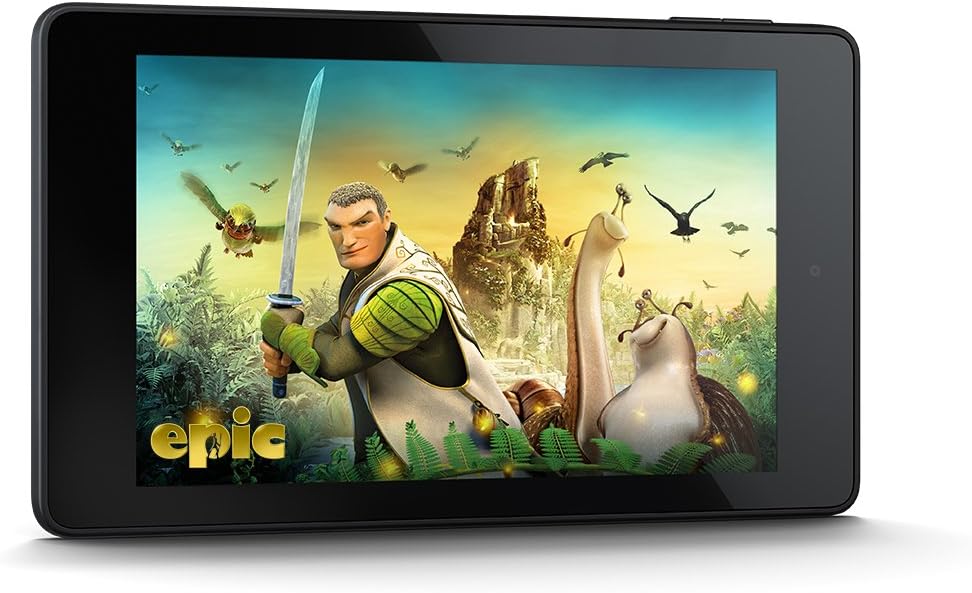
Image: The Fire HD 6 Tablet displaying a vibrant movie scene, highlighting its high-definition display capabilities for entertainment.

Image: A collection of Amazon Fire HD 6 Tablets, showcasing the range of available colors for the device's back casing.
4. Maintenance
4.1 Battery Care
- Avoid exposing the tablet to extreme temperatures.
- For optimal battery life, charge the device regularly and avoid letting it fully discharge frequently.
4.2 Cleaning Your Tablet
Use a soft, lint-free cloth to clean the screen and exterior of your Fire HD 6. Do not use abrasive cleaners or solvents.
4.3 Software Updates
Your Fire HD 6 will periodically receive software updates to improve performance and add new features. Ensure your tablet is connected to Wi-Fi to receive these updates automatically.
5. Troubleshooting
5.1 Device Not Responding
If your tablet becomes unresponsive, press and hold the power button for 20 seconds to perform a hard reset. The device should restart.
5.2 Wi-Fi Connection Issues
- Ensure Wi-Fi is enabled in Settings.
- Restart your Wi-Fi router.
- Forget the network and reconnect, entering the password again.
5.3 Apps Not Loading or Crashing
- Restart the tablet.
- Clear the app's cache in Settings > Apps & Games > Manage All Applications.
- Ensure the tablet's software is up to date.
6. Specifications
| Display | 6-inch HD, 1280 x 800 resolution (252 ppi) |
| Processor | Quad-core up to 1.5 GHz |
| Storage | 8 GB or 16 GB internal, unlimited cloud storage for Amazon content |
| Cameras | Rear-facing HD, Front-facing VGA |
| Connectivity | Wi-Fi (802.11b/g/n) |
| Audio | Integrated speaker, 3.5 mm stereo jack |
| Ports | Micro-USB 2.0 |
7. Safety Information
Please observe the following safety precautions:
- Do not expose the device to water or excessive moisture.
- Avoid dropping or subjecting the device to severe impact.
- Use only approved accessories and power adapters.
- Do not attempt to disassemble or repair the device yourself.
8. Support and Warranty
For additional support, visit the Amazon Device Support website or contact Amazon Customer Service. Information regarding your device's limited warranty can be found on the Amazon website or within the device's settings under Legal & Compliance.
Online Support: amazon.com/devicesupport
Ask a question about this manual
Ask about setup, troubleshooting, compatibility, parts, safety, or missing instructions. Manuals+ will review the question and use this page’s manual context to help answer it.