
Introduction
This manual provides essential information for setting up, operating, maintaining, and troubleshooting your Acer Aspire ATC-605-UB11 Desktop PC. Please read this guide thoroughly before using your computer to ensure proper function and longevity.
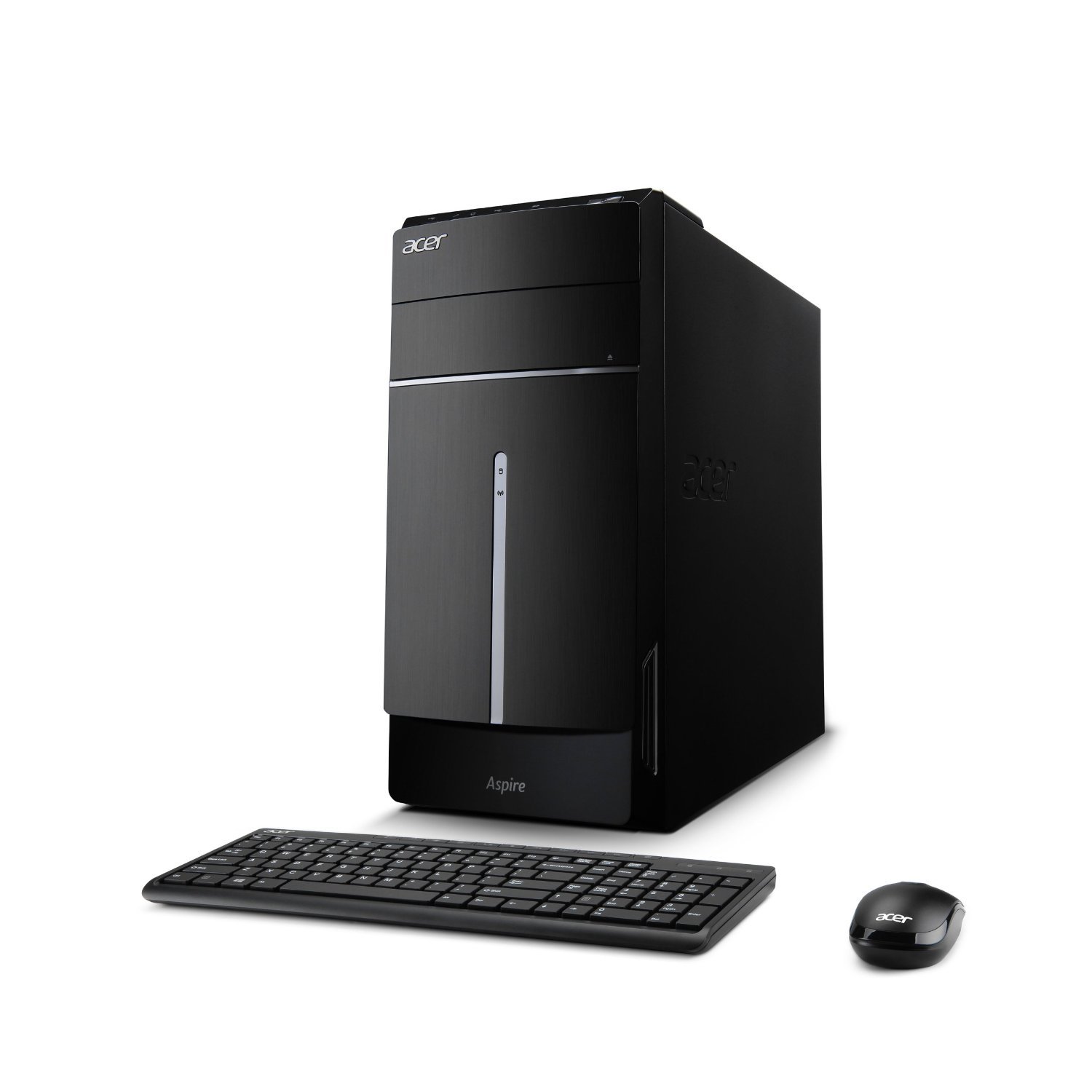
Figure 1: Acer Aspire ATC-605-UB11 Desktop PC, shown with included keyboard and mouse.
Setup
1. Unpacking the System
Carefully remove all components from the packaging. Ensure all items listed in the packing list are present. Retain the packaging materials for future transport or service needs.

Figure 2: Contents of the Acer Aspire ATC-605-UB11 Desktop PC packaging, including the desktop unit and keyboard.
2. Connecting Peripherals
- Monitor: Connect your monitor to the appropriate video output port (e.g., HDMI, VGA) on the back of the desktop.
- Keyboard and Mouse: Connect the keyboard and mouse to the available USB ports.
- Power: Connect the power cord to the desktop and then to a grounded electrical outlet.
- Network (Optional): For a wired internet connection, connect an Ethernet cable from your router or modem to the LAN port on the back of the desktop. For wireless, ensure the Wi-Fi antenna (if external) is connected.
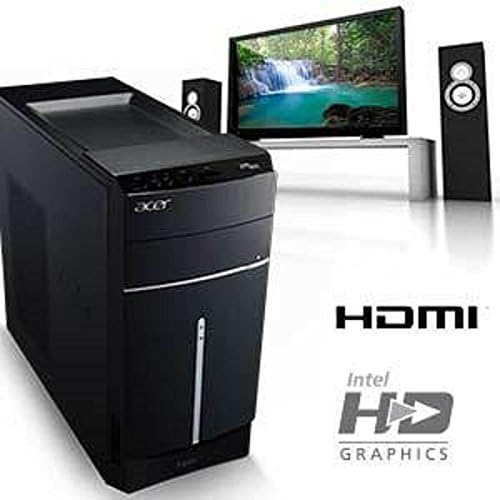
Figure 3: Rear panel connectivity, showing HDMI port and indicating Intel HD Graphics support.
3. Initial Power-On
Press the power button on the front of the desktop. The system will boot up, and you may be guided through the initial Windows 8.1 setup process.
Operating Your Desktop PC
Windows 8.1 Operating System
Your Acer Aspire ATC-605-UB11 comes pre-installed with Microsoft Windows 8.1. Familiarize yourself with the Windows 8.1 interface for optimal use. Microsoft provides extensive online resources and tutorials for navigating and customizing Windows 8.1.
Front Panel Features
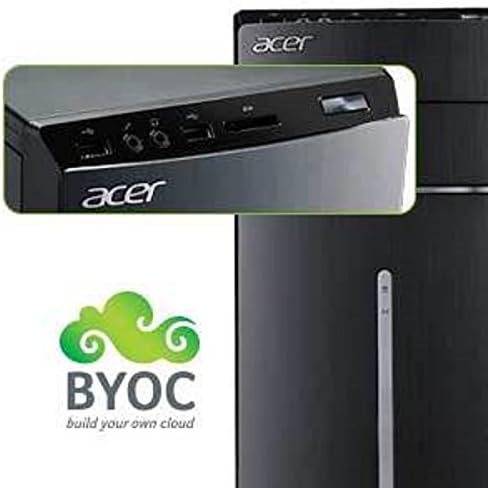
Figure 4: Top front panel with various ports and card reader.
- Optical Drive: For reading and writing CDs/DVDs.
- USB Ports: Connect USB devices such as external drives, printers, or other peripherals.
- Audio Jacks: Headphone and microphone ports for audio input/output.
- Card Reader: For reading various memory card formats.
- Power Button: To turn the computer on or off.
Maintenance
1. Cleaning
- Keep the desktop clean and free of dust. Use a soft, dry cloth for exterior surfaces.
- Periodically clean air vents to prevent dust buildup, which can affect cooling.
- Do not use liquid cleaners directly on the computer.
2. Software Updates
Regularly check for and install updates for Windows 8.1 and your installed applications. This ensures system stability, security, and optimal performance.
3. Data Backup
It is highly recommended to regularly back up your important data to an external drive or cloud storage to prevent data loss.
Troubleshooting
- No Power: Ensure the power cord is securely connected to both the desktop and the electrical outlet. Verify the outlet is functional.
- No Display: Check that the monitor is properly connected to the desktop and its power cable is plugged in. Ensure the monitor is turned on and set to the correct input source.
- System Slowdown: Close unnecessary applications. Check for background processes consuming high resources using Task Manager. Consider running a disk cleanup and defragmentation (for HDD).
- Peripheral Not Working: Ensure the peripheral is correctly connected to the appropriate port. Try connecting it to a different port or restarting the computer. Check for updated drivers.
- Software Issues: Try restarting the problematic application or the entire system. If an application consistently crashes, consider reinstalling it.
For more complex issues, refer to the Acer support website or contact customer service.
Specifications
| Feature | Detail |
|---|---|
| Model Name | ATC-605-UB11 |
| Processor | Intel Quad Core i5-4440 (3.1 GHz) |
| RAM | 8 GB DDR3 SDRAM |
| Hard Drive | 1 TB |
| Graphics | Intel HD Graphics 4600 (Integrated) |
| Operating System | Windows 8.1 |
| Connectivity | Built-in Wi-Fi, Ethernet, USB ports, HDMI |
| Dimensions (LxWxH) | 16.3 x 15 x 6.9 inches |
| Weight | 16.5 pounds |
Warranty and Support
For detailed warranty information, please refer to the warranty card included with your product or visit the official Acer support website. Technical support and driver downloads are also available through the Acer support portal.
Acer Support Website: www.acer.com/us-en/support


