
1. Introduction
This manual provides essential information for setting up, operating, and maintaining your Microsoft Xbox 360 4GB Slim Console. Please read this guide thoroughly to ensure proper use and to maximize your gaming experience. This console is a pre-owned or refurbished product that has been professionally inspected and tested to function correctly.
2. Package Contents
Please verify that all items listed below are included in your package:
- Xbox 360 Slim Console (with built-in 4GB internal memory storage)
- OEM Controller
- Power Cable
- HDMI Cable
3. Console Overview
Familiarize yourself with the various parts of your Xbox 360 Slim console.

Figure 3.1: Front and side view of the Xbox 360 Slim console, showing the disc drive, power button, and Xbox 360 branding.

Figure 3.2: Rear and side view of the Xbox 360 Slim console, displaying the various input/output ports.

Figure 3.3: Top view of the Xbox 360 Slim console, highlighting the ventilation grilles for heat dissipation.

Figure 3.4: Close-up of the rear ports on the Xbox 360 Slim, including HDMI, USB, Ethernet, and the power input.
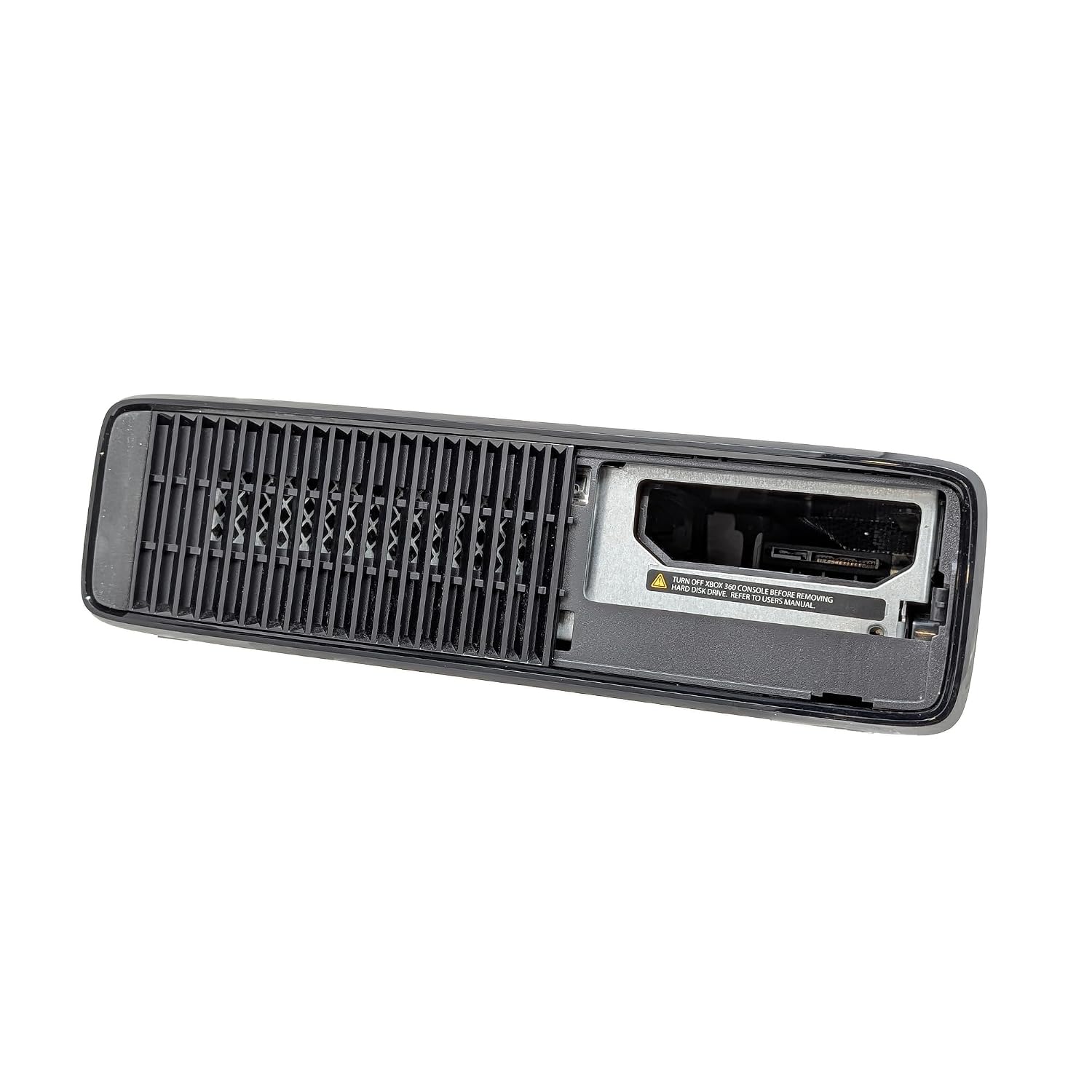
Figure 3.5: Side view of the Xbox 360 Slim console, showing the removable cover for the internal hard drive bay (note: this console has 4GB internal memory, no external hard drive is included).

Figure 3.6: Bottom view of the Xbox 360 Slim console, showing rubber feet for stability and additional ventilation.
4. Setup
- Connect to TV: Connect one end of the HDMI cable to the HDMI port on the back of your Xbox 360 Slim console and the other end to an available HDMI input on your television.
- Connect Power: Plug the power cable into the power input on the back of the console, then plug the other end into a wall outlet.
- Prepare Controller: Insert AA batteries (not included) into the OEM controller if it is wireless.
- Power On: Press the power button on the front of the Xbox 360 Slim console. The power indicator will illuminate.
- Sync Controller (if needed): If your controller does not connect automatically, press the small sync button on the console (near the USB ports) and then the sync button on the controller (usually near the top, between the shoulder buttons). The lights around the Xbox Guide button on the controller will spin and then settle on one quadrant when connected.
5. Operating Instructions
5.1 Power On/Off
- To turn on the console, press the power button on the front of the console or the Xbox Guide button on your connected controller.
- To turn off the console, press and hold the Xbox Guide button on your controller and select 'Turn Off Console', or press the power button on the console.
5.2 Inserting and Ejecting Discs
- To open the disc tray, press the eject button located next to the disc drive slot on the front of the console.
- Place a game disc or movie disc into the tray with the label side facing up.
- Press the eject button again or gently push the tray to close it.
- To eject a disc, press the eject button.
5.3 Connecting to Xbox Live
The Xbox 360 Slim console supports Wi-Fi connectivity. To connect to Xbox Live, navigate to the System Settings on your console and select 'Network Settings'. Follow the on-screen prompts to connect to your wireless network.
Important Note: Creating a new Microsoft account for Xbox 360 may require specific steps due to changes in Microsoft's account management policies. Please research the current process for creating or linking accounts for older Xbox consoles if you encounter difficulties, as this is a Microsoft-specific procedure.
6. Maintenance
- Cleaning: Use a soft, dry, lint-free cloth to clean the exterior of the console. Do not use liquid cleaners or abrasive materials.
- Ventilation: Ensure that the console's ventilation openings are not blocked. Place the console in a well-ventilated area to prevent overheating. Avoid placing it on carpet or in enclosed cabinets.
- Storage: Store the console in a cool, dry place away from direct sunlight, heat sources, and excessive dust.
- Disc Care: Handle game discs by the edges. Keep them clean and free of scratches to ensure optimal performance.
7. Troubleshooting
- No Power:
- Check if the power cable is securely connected to both the console and the wall outlet.
- Try plugging the console into a different power outlet.
- No Video/Audio:
- Ensure the HDMI cable is securely connected to both the console and the TV.
- Verify that your TV is set to the correct HDMI input source.
- Try a different HDMI cable or TV input port.
- Controller Not Connecting:
- Check the batteries in the controller and replace them if necessary.
- Ensure the controller is synced with the console (refer to Section 4, Step 5).
- Disc Read Errors:
- Clean the disc with a soft, lint-free cloth, wiping from the center outwards.
- Try a different game or movie disc to determine if the issue is with the disc or the console.
8. Specifications
| Feature | Description |
|---|---|
| Platform | Xbox 360 |
| Model Name | Xbox 360 |
| Model Number | Xbox 360 Slim |
| Memory Storage Capacity | 4 GB (Internal) |
| Input Device | Gamepad |
| Connectivity Technology | HDMI, Wi-Fi |
| Resolution | 4K (Output capability, actual game resolution may vary) |
| Color | Black |
| Brand | Microsoft |
9. Warranty and Support
This Xbox 360 4GB Slim Console comes with a 90-day limited warranty. Please refer to your purchase documentation for specific terms and conditions regarding returns, replacements, or repairs within this period.
For further assistance or technical support, please contact the seller or refer to the official Microsoft Xbox support website for general troubleshooting and information related to the Xbox 360 console.