
Argox AS-8000URG
Argox AS-8000URG Barcode Scanner User Manual
Model: AS-8000URG
Introduction
The Argox AS-8000URG is a lightweight and easy-to-handle barcode scanner designed for retail applications. It offers intuitive operation, allowing users to simply point and scan without warm-up time. This scanner is capable of reading all commonly used barcode symbologies from contact up to a distance of 125mm. Its plug-and-play installation ensures quick setup for various retail and similar environments.

Figure 1: Argox AS-8000URG Barcode Scanner, showing its ergonomic design and cable connection.
Package Contents
Please verify that all items are present and in good condition upon opening the package:
- Argox AS-8000URG Barcode Scanner
- USB Connection Cable
- User Manual (this document)
Safety Information
To ensure safe operation and prolong the life of your scanner, please observe the following:
- Do not expose the scanner to extreme temperatures, humidity, or direct sunlight.
- Avoid dropping the scanner or subjecting it to strong impacts.
- Do not attempt to disassemble or modify the scanner. This will void the warranty.
- Keep the scanner away from strong magnetic fields.
- Use only the provided USB cable for connection.
Setup
The Argox AS-8000URG is designed for easy plug-and-play installation. Follow these steps to set up your scanner:
- Connect the USB Cable: Locate the USB port on the scanner and firmly insert one end of the provided USB cable.
- Connect to Computer: Insert the other end of the USB cable into an available USB port on your computer (Laptop or Desktop).
- Driver Installation: For most operating systems (Windows, macOS, Linux), the scanner will be automatically detected and the necessary drivers installed. No manual driver installation is typically required.
- Ready for Use: Once the operating system confirms the device is ready, the scanner is prepared for operation.
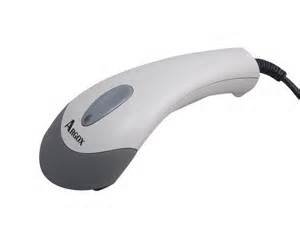
Figure 2: Top view of the Argox AS-8000URG Barcode Scanner, highlighting the scanning window and brand logo.
Operating Instructions
Using the Argox AS-8000URG Barcode Scanner is straightforward:
- Power On: The scanner receives power directly from the USB connection. There is no separate power button.
- Positioning: Hold the scanner with the scanning window facing the barcode.
- Scanning: Press the trigger button located on the top of the scanner. A red scanning line will project from the window. Aim this line across the entire barcode.
- Confirmation: Upon successful scan, the scanner will typically emit an audible beep and/or a visual indicator (e.g., LED light change). The scanned data will be transmitted to your connected computer as if typed from a keyboard.
The scanning width of the AS-8000URG is approximately 95mm wide at a distance of 55mm, and 50mm wide at a distance of 10mm. This allows for efficient scanning of various barcode sizes.
Maintenance
Proper maintenance ensures the longevity and optimal performance of your barcode scanner:
- Cleaning the Scanning Window: Use a soft, lint-free cloth lightly dampened with water or a mild, non-abrasive cleaner. Do not use harsh chemicals or abrasive materials, as they can scratch the window and impair scanning performance.
- General Cleaning: Wipe the exterior of the scanner with a soft, dry cloth to remove dust and dirt.
- Storage: When not in use, store the scanner in a clean, dry environment, away from direct sunlight and extreme temperatures.
- Cable Care: Avoid bending or twisting the USB cable excessively, as this can damage the internal wires.
Troubleshooting
If you encounter issues with your Argox AS-8000URG scanner, refer to the following common problems and solutions:
| Problem | Possible Cause | Solution |
|---|---|---|
| Scanner does not power on / No light | USB cable not properly connected or faulty USB port. | Ensure the USB cable is securely connected to both the scanner and the computer. Try a different USB port on your computer. |
| Scanner does not read barcodes | Barcode damaged, scanning window dirty, incorrect aiming, or unsupported barcode symbology. | Ensure the barcode is clear and undamaged. Clean the scanning window. Aim the red line directly across the entire barcode. Verify the barcode type is supported. |
| Scanned data is incorrect or incomplete | Partial scan, software configuration issue. | Ensure the entire barcode is covered by the scanning line. Check your application or software settings for correct input. |
| Scanner beeps continuously | Indicates an error or configuration mode. | Disconnect and reconnect the USB cable. Refer to advanced programming guides (if available) for specific beep codes. |
Specifications
Key technical specifications for the Argox AS-8000URG Barcode Scanner:
| Feature | Detail |
|---|---|
| Brand | Argox |
| Model Number | AS8000 |
| Connectivity Technology | USB Cable |
| Power Source | Corded Electric |
| Compatible Devices | Laptop, Desktop |
| Item Weight | 310 g |
| Product Dimensions (LxWxH) | 15 x 5 x 4 cm |
| Scanning Width | 95mm wide @ 55mm distance, 50mm wide @ 10mm |
| Color | SHITE GREY |
Warranty and Support
For warranty information or technical support, please contact your local Argox distributor or visit the official Argox website. Keep your purchase receipt as proof of purchase for any warranty claims.
For further assistance, you may also refer to the product page on Amazon.in.
Related documentsAS-8000URG


Ask a question about this manual
Ask about setup, troubleshooting, compatibility, parts, safety, or missing instructions. Manuals+ will review the question and use this page’s manual context to help answer it.