
1. Introduction
The Aruba AP-205 is a compact and cost-effective dual-radio wireless access point designed to deliver high-performance 802.11ac Wi-Fi connectivity. It supports data rates of up to 867 Mbps on the 5-GHz band and up to 300 Mbps on the 2.4-GHz band, leveraging 2x2 MIMO technology and four integrated omni-directional downtilt antennas. This access point is ideal for environments requiring robust and reliable wireless access. Please note that the AP-205 is not an Instant Access Point (IAP) model and requires an Aruba controller for operation and management.
2. Product Features
- Dual-Radio Operation: Supports simultaneous 2.4-GHz (300 Mbps max rate) and 5-GHz (867 Mbps max rate) for flexible client connectivity.
- 2x2 MIMO: Utilizes 2x2 Multiple-Input Multiple-Output technology for enhanced wireless performance.
- Integrated Antennas: Features four integrated omni-directional downtilt antennas for optimized coverage.
- 802.3az Energy Efficient Ethernet (EEE): Reduces power consumption during periods of low data activity.
- Aruba Controller Required: Operates exclusively with an Aruba controller for centralized management and configuration.
3. Package Contents
Verify that your package contains the following items:
- Aruba AP-205 Wireless Access Point
- 2 Mounting Brackets
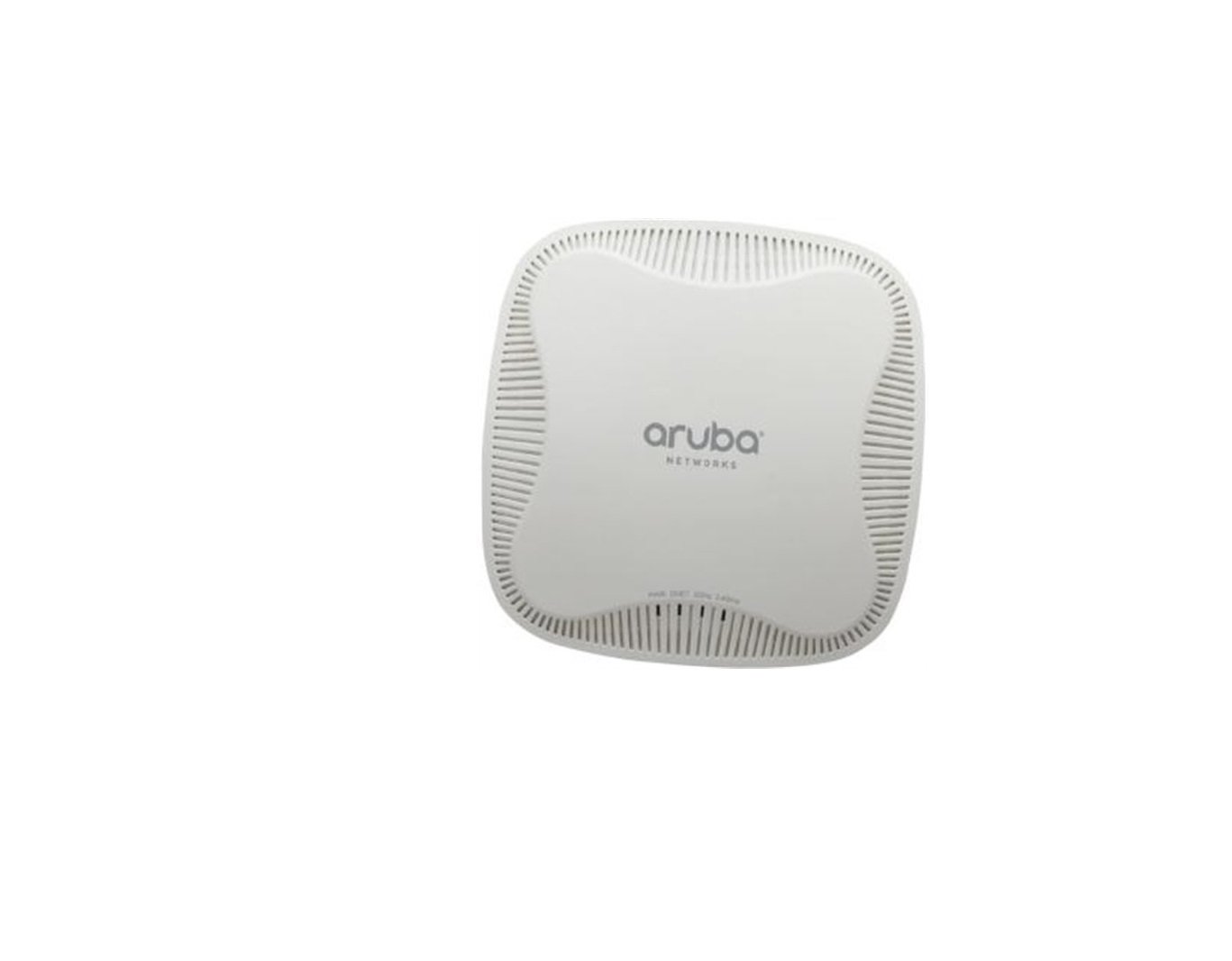
Figure 1: Aruba AP-205 Wireless Access Point. This image shows the compact, white, square-shaped access point with rounded corners.
4. Setup
4.1. Before You Begin
- Ensure you have an operational Aruba controller (not an Instant On model) properly configured on your network.
- Prepare an Ethernet cable (Cat5e or higher) for network connectivity and Power over Ethernet (PoE).
- Identify a suitable mounting location (wall or ceiling) for optimal wireless coverage.
4.2. Physical Installation
The AP-205 can be mounted on a wall or ceiling using the provided mounting brackets. Choose a location that provides clear line-of-sight to the areas requiring wireless coverage and is free from obstructions.
- Attach the appropriate mounting bracket to your chosen surface using suitable screws (not included, as requirements vary by surface type).
- Align the access point with the mounted bracket and twist it gently until it locks securely into place.
4.3. Powering On
The AP-205 is powered via Power over Ethernet (PoE). No separate power adapter is required if connecting to a PoE-enabled switch or injector.
- Connect one end of the Ethernet cable to the Ethernet port on the AP-205.
- Connect the other end of the Ethernet cable to a PoE-enabled port on your network switch or a PoE injector.
- The access point will power on automatically. Observe the LED indicators for power and network status.
4.4. Initial Configuration
The Aruba AP-205 requires an Aruba controller for initial configuration and ongoing management. Follow the instructions provided in your Aruba controller's documentation to discover, provision, and configure the AP-205 on your network. This typically involves:
- Adding the AP to your controller's inventory.
- Assigning it to a specific AP group or profile.
- Configuring wireless networks (SSIDs), security settings, and other network parameters.
5. Operating Instructions
Once successfully configured and provisioned by your Aruba controller, the AP-205 will begin broadcasting the defined wireless networks.
5.1. Connecting Client Devices
- On your wireless client device (laptop, smartphone, tablet), scan for available Wi-Fi networks.
- Select the desired SSID (wireless network name) broadcast by the AP-205.
- Enter the network password (Pre-Shared Key) or complete the required enterprise authentication steps.
- Your device should now be connected to the wireless network.
5.2. Dual-Band Functionality
The AP-205 supports both 2.4 GHz and 5 GHz wireless bands. Modern client devices are typically capable of utilizing both bands. The Aruba controller's configuration will manage client steering to ensure devices connect to the optimal band for performance and coverage, often preferring the faster 5 GHz band when signal conditions allow.
6. Maintenance
- Firmware Updates: Regularly check for and apply firmware updates for both the AP-205 and your Aruba controller. These updates often include security patches, bug fixes, and performance improvements. Manage updates through your Aruba controller.
- Physical Cleaning: Keep the access point clean and free of dust. Use a dry, soft cloth to wipe the exterior. Do not use liquid or aerosol cleaners directly on the device.
- Environmental Monitoring: Ensure the AP operates within its specified environmental conditions (temperature, humidity) to prevent damage and ensure optimal performance.
- Cable Integrity: Periodically inspect Ethernet cables for any signs of wear or damage.
7. Troubleshooting
- AP Not Powering On:
- Verify the Ethernet cable is securely connected to both the AP and a PoE-enabled port/injector.
- Ensure the PoE source is active and providing power.
- No Wireless Signal:
- Check the AP's LED indicators to confirm it is powered on and operating normally.
- Log into your Aruba controller to verify the AP's status and ensure wireless networks are configured and enabled.
- Ensure client devices are within the AP's coverage area.
- Slow Wireless Performance:
- Confirm client devices are connecting to the 5 GHz band if supported, as it offers higher speeds.
- Check for potential sources of interference (e.g., other wireless devices, microwaves) near the AP.
- Review channel utilization and power settings on your Aruba controller for optimization.
- Client Connectivity Issues:
- Restart the problematic client device.
- Reboot the AP-205 (via the Aruba controller or by power cycling).
- Verify wireless network security settings and credentials on both the controller and client device.
8. Specifications
| Feature | Description |
|---|---|
| Model Name | AP-205 |
| Wireless Type | 802.11ac |
| Frequency Band Class | Dual-Band (2.4 GHz and 5 GHz) |
| Data Rates | 2.4-GHz (300 Mbps max), 5-GHz (867 Mbps max) |
| Antenna Type | Internal omni-directional downtilt antenna (4 total) |
| Connectivity Technology | 802.11ac, Ethernet |
| Item Weight | 1.25 pounds (approx. 0.57 kg) |
| Product Dimensions (LxWxH) | 7.6 x 7.5 x 2.3 inches (approx. 19.3 x 19.05 x 5.84 cm) |
| Compatible Devices | Laptop, Personal Computer, Smartphone, Tablet |
| Special Feature | 802.11ac dual-radio, 2x2 MIMO, Energy Efficient Ethernet |
9. Warranty and Support
For detailed warranty information, technical support, and access to the latest documentation and software downloads, please visit the official Aruba support website or contact your authorized Aruba reseller. Ensure you have your product's serial number available when seeking support.
Aruba Support Website: www.arubanetworks.com/support/


