
1. Introduction
This manual provides detailed instructions for the installation, configuration, and maintenance of your GIGABYTE GA-H97N-WIFI Mini-ITX motherboard. Designed for compact systems, this motherboard supports 4th and 5th Generation Intel Core processors and features integrated Wi-Fi, Bluetooth, and a robust set of connectivity options.
Please read this manual thoroughly before beginning the installation process to ensure proper setup and optimal performance.
2. Key Features
- Supports 4th and 5th Generation Intel Core processors (LGA1150 socket).
- Intel H97 Express Chipset.
- Integrated Intel and Qualcomm Atheros networking for reliable connectivity.
- Built-in Bluetooth 4.0 and 802.11ac dual-band Wi-Fi (up to 867Mbps).
- High Definition Audio support.
- Durable design with highly efficient MOSFETs and long-lifespan solid capacitors.
- Dual Gigabit Ethernet (GbE) LAN with high ESD Protection.
- GIGABYTE UEFI Dual BIOS for enhanced system stability and recovery.
- Memory: 2x DDR3 DIMM slots, supporting up to 16GB of DDR3 1600/1333 MHz non-ECC memory in dual channel configuration.
- Onboard Graphics: 1x DVI-I port and 2x HDMI ports, supporting up to 3 displays simultaneously.
- Storage: 6x SATA 6Gb/s connectors.
- USB 3.0 support.
- GIGABYTE APP Center with utilities like EasyTune and Cloud Station.

3. Setup and Installation
Before installing the motherboard, ensure your system components are compatible and that you have a static-free environment. Always disconnect the power supply from the wall outlet before handling internal components.
3.1. Package Contents
Verify that all items are present in the motherboard package:
- GIGABYTE GA-H97N-WIFI Motherboard
- I/O Shield
- SATA Cables
- Wi-Fi Antenna
- User Manual and Driver CD (or download instructions)

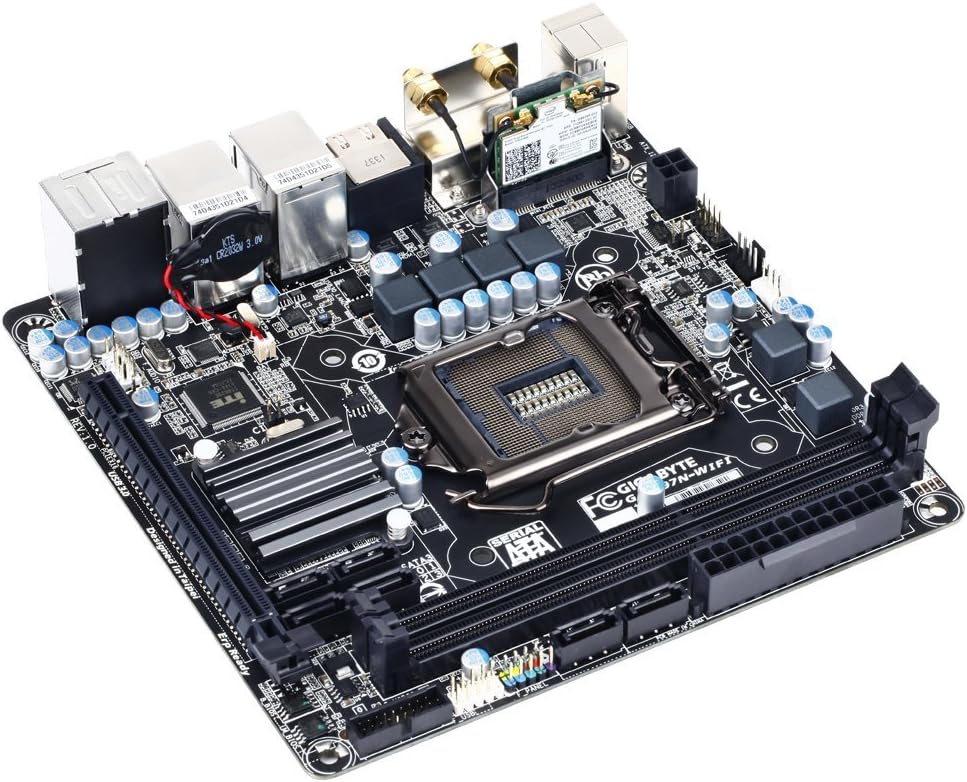
3.2. Motherboard Layout
Familiarize yourself with the various connectors and components on the motherboard.

3.3. Component Installation Order
- CPU Installation: Carefully open the CPU socket lever, align the CPU with the socket (match the golden triangle on the CPU to the triangle on the socket), gently place the CPU into the socket, and close the lever. Do not force the CPU.
- CPU Cooler Installation: Install the CPU cooler according to its manufacturer's instructions. Ensure proper thermal paste application.
- Memory (RAM) Installation: Open the clips on the DDR3 DIMM slots. Align the memory module with the slot key and press down firmly on both ends until the clips snap into place.
- Motherboard Mounting: Install the I/O shield into your computer case. Carefully place the motherboard into the case, aligning it with the standoffs. Secure the motherboard with screws.
- Storage Device Installation: Connect your SATA storage devices (HDDs/SSDs) to the SATA 6Gb/s ports on the motherboard using SATA data cables.
- Power Supply Connections: Connect the 24-pin ATX main power connector and the 8-pin (or 4-pin) ATX 12V CPU power connector from your power supply to the motherboard. Connect power to SATA devices.
- Front Panel Connections: Connect the case's front panel headers (power button, reset button, HDD LED, power LED, USB ports, audio jacks) to the corresponding pins on the motherboard. Refer to the motherboard's detailed diagram for correct pin assignments.
- Expansion Cards (Optional): If using a dedicated graphics card or other PCIe expansion cards, install them into the available PCIe slot and secure them.
- Wi-Fi Antenna: Connect the included Wi-Fi antenna to the connectors on the rear I/O panel.

4. Operating Your Motherboard
4.1. Initial Boot and BIOS Setup
After assembling your system, connect a monitor, keyboard, and mouse. Power on the system. During startup, press the DEL key to enter the BIOS Setup Utility. The BIOS allows you to configure system settings such as boot order, date/time, and hardware parameters.
- Boot Order: Set your preferred boot device (e.g., USB drive for OS installation, SSD/HDD).
- System Information: Verify detected CPU, memory, and storage devices.
- Peripherals: Configure integrated devices like LAN, Wi-Fi, and audio.
- Save & Exit: Always save changes before exiting the BIOS.
4.2. Operating System and Driver Installation
Install your preferred operating system (e.g., Windows, Linux) from a bootable USB drive or optical media. After OS installation, install the necessary drivers for your motherboard components. Drivers can be found on the GIGABYTE support website for your specific model (GA-H97N-WIFI).
- Chipset Drivers
- LAN Drivers
- Audio Drivers
- Wi-Fi and Bluetooth Drivers
- Graphics Drivers (for integrated graphics or dedicated GPU)
4.3. GIGABYTE Utilities
GIGABYTE provides a suite of software utilities through its APP Center, including EasyTune for system monitoring and optimization, and Cloud Station for remote control and file sharing. These can be downloaded from the official GIGABYTE website.
5. Maintenance
Regular maintenance helps ensure the longevity and stable operation of your motherboard and system.
- Dust Removal: Periodically clean dust from inside your computer case, especially from fans and heatsinks, using compressed air. Ensure the system is powered off and unplugged.
- Driver Updates: Keep your motherboard drivers and BIOS updated. Check the GIGABYTE website regularly for the latest versions.
- BIOS Updates: Exercise caution when updating the BIOS. Follow GIGABYTE's instructions precisely to avoid system instability.
- Cable Management: Ensure internal cables are neatly routed to promote airflow and prevent interference.
6. Troubleshooting
If you encounter issues, refer to the following common troubleshooting steps:
- No Power/No Boot:
- Check all power connections (24-pin ATX, 8-pin CPU, GPU if applicable).
- Ensure the power supply is switched on.
- Verify front panel power button connection.
- Try booting with minimal components (CPU, one RAM stick, CPU cooler, PSU).
- No Display:
- Ensure monitor is connected to the correct video output (motherboard or dedicated GPU).
- Reseat RAM modules.
- If using a dedicated GPU, ensure it is properly seated and has power.
- Try clearing CMOS (refer to motherboard manual for jumper location).
- System Instability/Crashes:
- Check CPU and GPU temperatures.
- Run memory diagnostic tools to check RAM integrity.
- Ensure all drivers are up to date.
- Verify power supply is sufficient for all components.
- Network Connectivity Issues (Wi-Fi/LAN):
- Ensure Wi-Fi antenna is securely connected.
- Install or update Wi-Fi/LAN drivers.
- Check network cable connections.
- Verify network settings in your operating system.
7. Specifications
| Feature | Specification |
|---|---|
| Brand | GIGABYTE |
| Model Name | GA-H97N-WIFI |
| CPU Socket | LGA 1150 |
| Compatible Processors | Intel Core 4th Gen, Intel Core 5th Gen |
| Chipset Type | Intel H97 Express |
| RAM Memory Technology | DDR3 |
| Memory Slots | 2 x DDR3 DIMM |
| Max Memory Capacity | 16GB |
| Memory Clock Speed | 1600 MHz / 1333 MHz |
| Onboard Graphics | 1 x DVI-I, 2 x HDMI (supports up to 3 displays) |
| LAN | 2 x Gigabit Ethernet |
| Wireless Type | 802.11a/b/g/n/ac (Dual Band Wi-Fi) |
| Bluetooth | Bluetooth 4.0 |
| SATA Ports | 6 x SATA 6Gb/s |
| USB 2.0 Ports | 1 (internal header) |
| USB 3.0 Ports | 4 (rear panel) |
| Form Factor | Mini-ITX |
| Product Dimensions | 9 x 4 x 8 inches |
| Item Weight | 1.35 pounds |
8. Warranty and Support
For detailed warranty information, please refer to the warranty card included with your product or visit the official GIGABYTE website. GIGABYTE provides technical support and resources for their products.
Online Resources:
- Official GIGABYTE Website: www.gigabyte.com
- Product Support Page: Search for GA-H97N-WIFI on the GIGABYTE support portal for drivers, BIOS updates, and FAQs.
If you require further assistance, please contact GIGABYTE customer support through their official channels.
9. Official Product Videos
There are no official product videos provided by the seller for this model in the available data. Please check the GIGABYTE official website or YouTube channel for any relevant video content.


