
Introduction
This manual provides essential information for setting up, operating, maintaining, and troubleshooting your Lenovo Flex 2 15.6-Inch Touchscreen Laptop. The Lenovo Flex 2 is designed for versatility, featuring a 300-degree hinge that allows it to function as both a traditional laptop and a stand-mode device, optimizing it for various tasks from productivity to entertainment.

Image: The Lenovo Flex 2 laptop in its closed position, highlighting its compact and portable design.
Setup
1. Initial Power On
- Connect the power adapter to the laptop and a power outlet.
- Press the power button, typically located on the side or top right of the keyboard deck.
- Follow the on-screen instructions to complete the initial setup of the Windows 8.1 operating system. This includes selecting your language, region, and creating a user account.
2. Connecting Peripherals
Utilize the available ports to connect external devices:
- USB 2.0 Ports (x2): For connecting standard USB devices like mice, keyboards, or external storage.
- USB 3.0 Port (x1): For faster data transfer with compatible USB 3.0 devices.
- HDMI-Out: Connect to an external monitor or TV for a larger display.
- Card Reader: Insert compatible memory cards for data transfer.

Image: The side profile of the laptop, illustrating the placement of its connectivity ports.
Operating the Laptop
1. Keyboard and Touchpad
The Lenovo Flex 2 features an AccuType keyboard designed for comfortable typing. The integrated multi-touch touchpad allows for smooth navigation and gesture control.
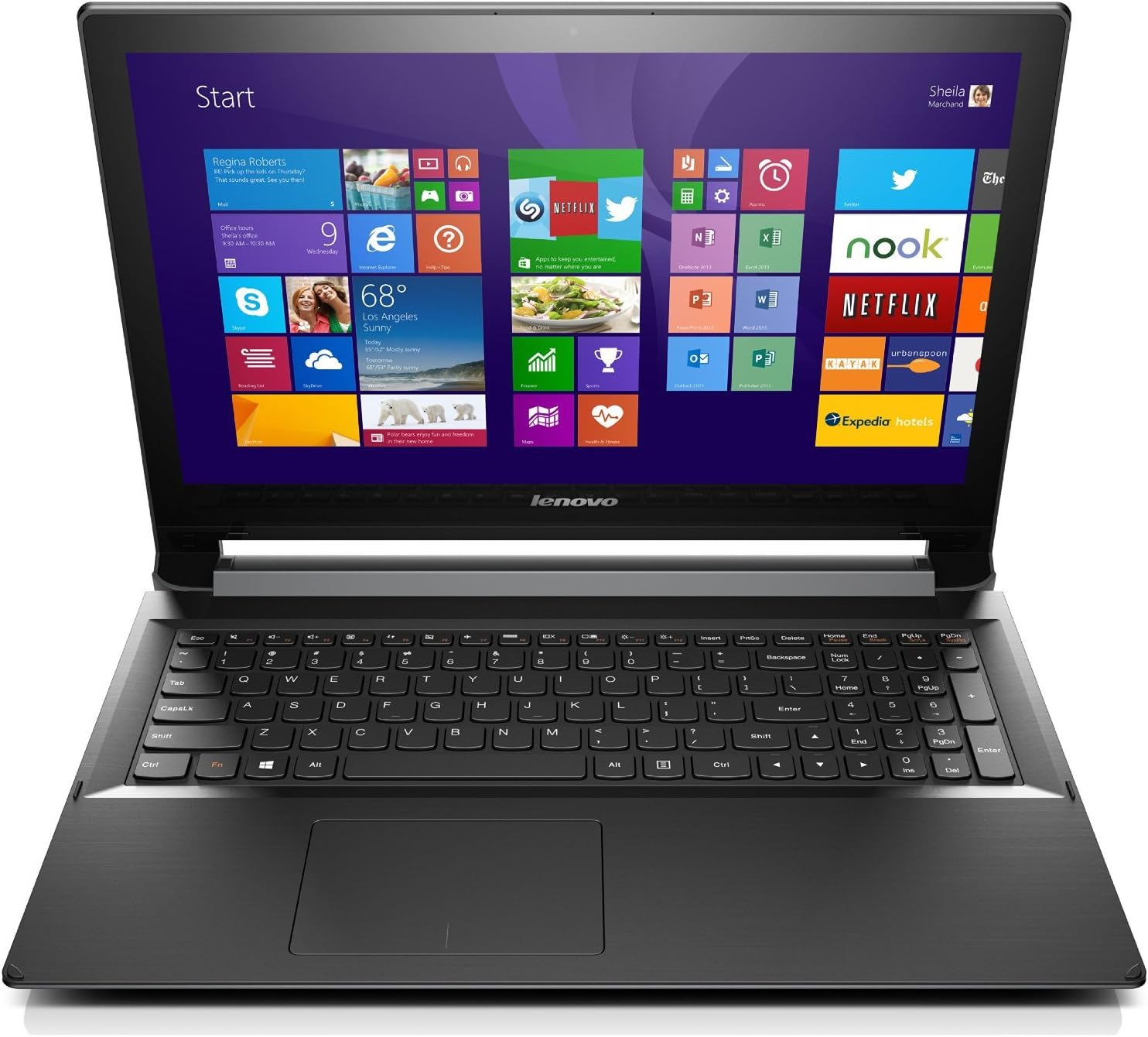
Image: Close-up of the laptop's keyboard and touchpad, showing the layout and design.
2. Touchscreen Functionality
The 15.6-inch Full HD (1920 x 1080) IPS LED Backlight Display supports 10-point multi-touch, enabling intuitive interaction with the Windows 8.1 operating system. You can tap, swipe, pinch, and zoom directly on the screen.

Image: The laptop screen showing the Windows 8.1 interface, demonstrating its touch capabilities.
3. Dual-Mode Operation
The Flex 2's 300-degree hinge allows for two primary modes of operation:
- Laptop Mode: Traditional laptop configuration for typing and productivity.
- Stand Mode: Fold the screen back to position the display closer for touch interaction, ideal for presentations or media consumption.

Image: The Lenovo Flex 2 configured in stand mode, showcasing its flexible design.
4. Audio and Webcam
Experience clear audio with Dolby Advanced Stereo Speakers. The integrated 720p HD webcam facilitates video calls and online meetings.
Video: An overview of the Lenovo Flex series, demonstrating its dual-mode functionality, keyboard, touchpad, ports, and webcam features. This video highlights the laptop's adaptability for various user scenarios.
Maintenance
1. General Care
- Keep the laptop clean by regularly wiping the screen and keyboard with a soft, lint-free cloth.
- Avoid exposing the laptop to extreme temperatures, direct sunlight, or excessive moisture.
- Ensure proper ventilation by not blocking the air vents.
2. Battery Life
The laptop offers an average battery life of 7 hours. To optimize battery longevity:
- Adjust screen brightness to a comfortable but not excessively high level.
- Close unused applications and browser tabs.
- Utilize power-saving modes available in the operating system.
3. Software Updates
Regularly check for and install operating system and driver updates to ensure optimal performance and security.
Troubleshooting
Common Issues and Solutions
- Laptop not powering on: Ensure the power adapter is securely connected and the battery is charged. Try a different power outlet.
- Touchscreen unresponsive: Restart the laptop. Check for any pending system updates or driver issues.
- Optical Drive issues (e.g., unable to burn blank discs): Some users have reported issues with the optical drive's ability to recognize or burn blank discs. Ensure the disc is clean and compatible. If issues persist, consult Lenovo's support resources for potential driver updates or troubleshooting steps.
- Slow performance: Close unnecessary programs, check for malware, or consider upgrading RAM if frequently running demanding applications.
Specifications
| Feature | Specification |
|---|---|
| Processor | Intel Core i5-4210U 1.7 GHz |
| RAM | 6 GB DDR3 (1600 MHz) |
| Hard Drive | 1 TB 5400 rpm Hard Drive (Serial ATA) |
| Display | 15.6-Inch FHD (1920 x 1080) IPS LED Backlight Display with 10-Point Multi-Touch |
| Graphics Coprocessor | Intel Graphic Coprocessor (Integrated) |
| Operating System | Windows 8.1 (Note: Some models may ship with Windows 7 as per specifications) |
| Wireless Type | 802.11bgn |
| USB Ports | 2x USB 2.0, 1x USB 3.0 |
| Optical Drive Type | DVDRW |
| Average Battery Life | 7 Hours |
| Item Weight | 5.51 pounds |
| Product Dimensions | 10.87 x 1.06 x 15.04 inches |
| Color | Black |
Warranty and Support
For detailed warranty information and technical support, please refer to the documentation included with your product or visit the official Lenovo support website. You can find additional resources and contact information at www.lenovo.com/support.
Please review the notes for the exact specifications before making a purchase. Feel free to contact us with any questions before making a purchase.