
1. Product Overview
The VICTSING VGA to HDMI Converter Cable is designed to convert analog VGA video and audio signals into a digital HDMI output. This compact and portable device enables you to connect older devices with VGA output, such as desktop computers, laptops, and DVD players, to modern HDMI-enabled displays like HDTVs, monitors, and projectors. It supports Full HD 1080P resolution for a clear visual experience.
Key Features:
- Converts VGA video and 3.5mm audio to HDMI output.
- Supports resolutions up to 1080P Full HD.
- Compact and portable design.
- Includes USB power cable for stable performance.
- Plug and Play functionality, no drivers required.
2. Package Contents
Please check the package contents upon opening to ensure all items are present:
- 1 x VICTSING VGA to HDMI 1080P HD Converter Cable
- 1 x USB Power Cable
3. Setup Instructions
Follow these steps to connect your VGA device to an HDMI display:
- Connect VGA Input: Insert the VGA connector of the converter cable into the VGA output port of your source device (e.g., computer, laptop, DVD player).
- Connect Audio Input: Plug the 3.5mm audio jack of the converter into the audio output port of your source device.
- Connect USB Power: Connect the USB power cable to the converter and then to a USB power source (e.g., a USB port on your computer, a USB wall adapter). This provides necessary power for the conversion.
- Connect HDMI Output: Connect an HDMI cable (not included) to the HDMI output port of the converter. Then, connect the other end of the HDMI cable to an HDMI input port on your display device (e.g., HDTV, monitor, projector).
- Select Input Source: On your display device, select the correct HDMI input source using your TV/monitor remote or menu.
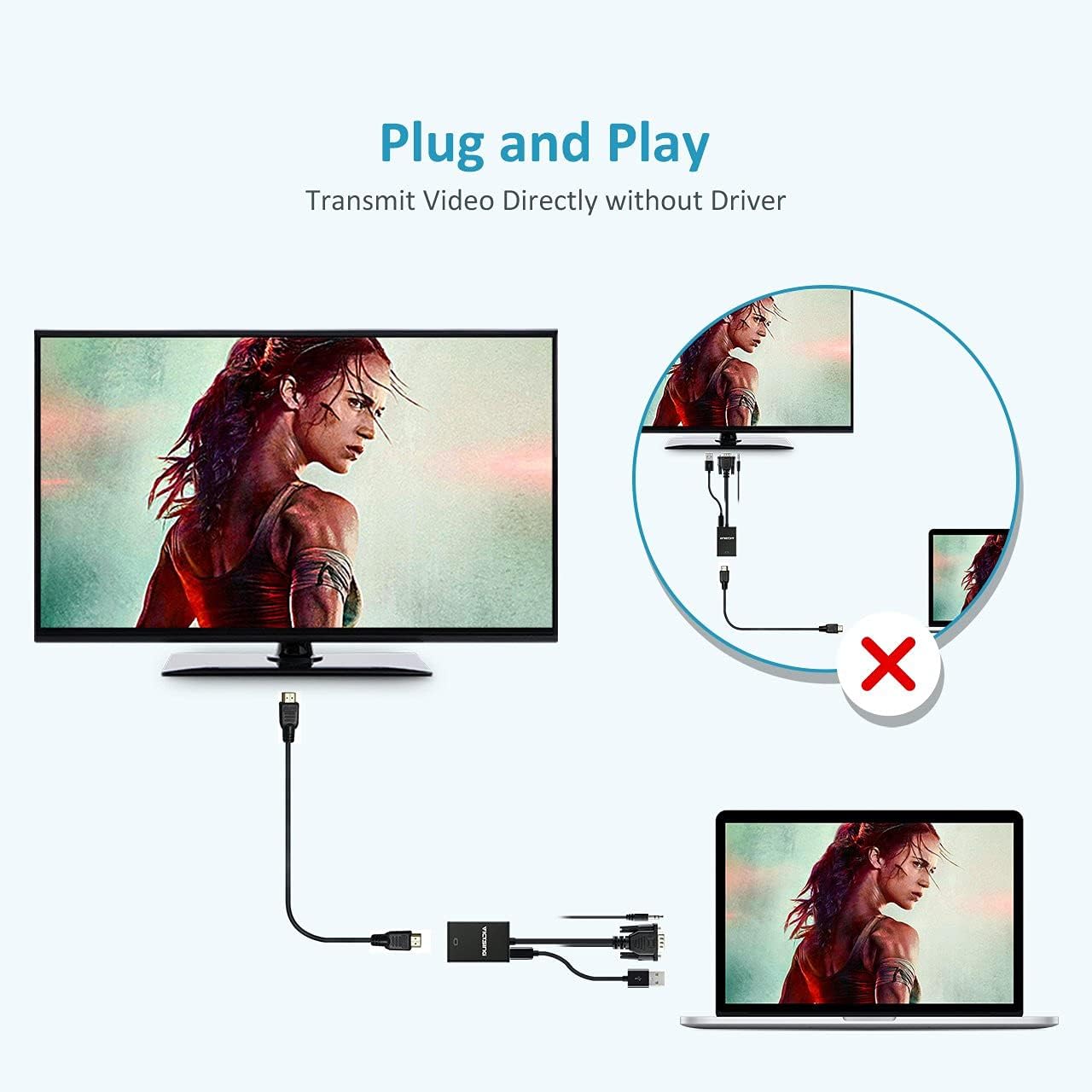
Image: Connection diagram illustrating how to connect the VGA source, audio, USB power, and HDMI output to a display.
4. Operating Instructions
Once connected, the converter operates automatically. No additional drivers are required for most operating systems.
- Ensure all cables are securely connected as per the setup instructions.
- Power on your source device and your HDMI display.
- Select the correct HDMI input on your display.
- The video and audio from your VGA source device should now be displayed on your HDMI screen.
Display Modes:
- Mirror Mode: Duplicates your computer's display on the HDMI screen.
- Extend Mode: Extends your computer's desktop, allowing for a split-screen display to improve working efficiency.

Image: Explanation of Mirror Mode, where the display is duplicated, and Extend Mode, where the display is extended across two screens.

Image: A television displaying a high-definition image, demonstrating the 1080p Full HD visual experience provided by the converter.
5. Compatible Devices and Applications
This converter is compatible with a wide range of devices and applications:
- VGA Input Sources: Desktop PCs, Laptops, DVD Players, Set-top Boxes, and other devices with a VGA output port.
- HDMI Output Displays: HDTVs, Monitors, Projectors, and other devices with an HDMI input port.
- Operating Systems: Compatible with Windows 7, Windows 8, and newer versions.

Image: An illustration demonstrating the wide application of the VGA to HDMI converter, showing connections from PCs, laptops, and TV boxes to monitors, HDTVs, and projectors.

Image: Details on USB power supply and universal compatibility, showing the converter's ability to work with various low-voltage devices and support audio transmission.
6. Troubleshooting
If you encounter issues, please refer to the following common solutions:
- No Video Output:
- Ensure all cables (VGA, USB power, HDMI) are securely connected.
- Verify that the USB power cable is connected to a working USB port or power adapter.
- Check if the correct HDMI input source is selected on your display device.
- Try restarting both the source device and the display.
- Test with a different HDMI cable if possible.
- No Audio Output:
- Ensure the 3.5mm audio jack is fully inserted into both the source device and the converter.
- Check the audio settings on your source device to ensure audio is being outputted through the 3.5mm jack.
- Verify the volume levels on both your source device and the HDMI display.
- Poor Picture Quality:
- Ensure your source device's resolution is set to a compatible output (e.g., 1080P).
- Check cable connections for any looseness.
7. Specifications
| Brand | VICTSING |
| Model Number | VS1-CL12VT-VD |
| Input | VGA, 3.5mm Audio, USB Power |
| Output | HDMI |
| Supported Resolution | Up to 1080P Full HD |
| Compatible Systems | Windows 7, Windows 8, and newer |
| Cable Length (Converter) | 24.5 cm |
| USB Cable Length | 100 cm |
| Color | Black |
| Item Dimensions | 16.5 x 10.2 x 2.8 cm |
| Input Voltage | 12 Volts |
| UPC | 635648725659, 632423321280 |

Image: A detailed view of the converter's components, including the HDMI output, VGA input, and 3.5mm audio input.
8. Maintenance
To ensure the longevity and optimal performance of your converter cable:
- Keep the device in a dry environment, away from moisture and extreme temperatures.
- Avoid bending or twisting the cables excessively.
- Clean the connectors periodically with a soft, dry cloth to prevent dust buildup.
- Do not attempt to disassemble or repair the device yourself.
9. Warranty and Support
For warranty information or technical support, please refer to the documentation provided with your purchase or contact the manufacturer directly. Keep your purchase receipt for warranty claims.