
AULA Dragon Abyss SI-863
AULA Wired Gaming Keyboard Instruction Manual
Model: Dragon Abyss SI-863 (110 keys)
Brand: AULA
Introduction
This manual provides comprehensive instructions for the setup, operation, maintenance, and troubleshooting of your AULA Dragon Abyss SI-863 Wired Gaming Keyboard. Please read this manual carefully before using the product to ensure optimal performance and longevity.

Figure 1: AULA Dragon Abyss SI-863 Wired Gaming Keyboard. This image shows the full keyboard layout with its distinctive design and blue backlighting active.
Setup
System Requirements
- Operating System: Windows 98SE / ME / 2000 / XP / Vista / 7 / 8
- Available USB 2.0 or 3.0 port
Connecting the Keyboard
- Unpack the keyboard and ensure all components are present. The package includes the AULA Dragon Abyss SI-863 keyboard with an integrated USB cable.
- Locate an available USB port on your computer.
- Insert the USB connector of the keyboard into the USB port.
- The operating system will automatically detect and install the necessary drivers. Allow a few moments for the installation to complete.
- The keyboard's backlight will illuminate upon successful connection.

Figure 2: Keyboard Dimensions. This diagram illustrates the physical dimensions of the keyboard, measuring 19.42 inches (493.3mm) in length and 8.33 inches (211.5mm) in width.
Operating Instructions
Backlight Control
The AULA Dragon Abyss SI-863 features a full keyboard backlight with adjustable levels and a sleep function for convenience during nighttime use. The logo indicator lights can be controlled separately.
- Adjusting Brightness: The keyboard offers four levels of adjustable backlighting. Specific key combinations (often involving the 'Fn' key and arrow keys or dedicated backlight keys) are used to cycle through brightness levels. Refer to the keyboard's keycap legends for exact combinations.
- Backlight Dormancy: A backlight sleep function is integrated, which can be activated or configured for energy saving.

Figure 3: Blue Backlight. This image highlights the blue backlighting of the AULA keyboard, emphasizing its visual appeal.

Figure 4: Backlight Mechanical Keyboard. An angled view showcasing the illuminated keys and the overall design of the keyboard with its blue backlight.

Figure 5: Backlight Effects. This close-up demonstrates the powerful and unique design of the keyboard with its elegant appearance and blue backlight effects.
Programmable Keys and Profiles
The keyboard features 5 self-defined keys (G1-G5) and 1 mode switching key, allowing for extensive customization. There are 5 configuration files (profiles) that can be switched between, each with corresponding indicator lights on the logo.
- User-Defined Keys: Total of 25 user-defined keys in 5 groups (5 keys per group). With the accompanying software/driver, each custom key can be assigned over 40 different functions.
- Profile Switching: Use the dedicated mode switching key (often labeled with a logo or specific icon) to cycle through the 5 stored profiles. The logo light will change color to indicate the active profile.
- Onboard Memory: The keyboard is equipped with plate-load memory, allowing user-defined functions and settings to be saved directly to the keyboard, making them accessible on different computers without re-installation of software.
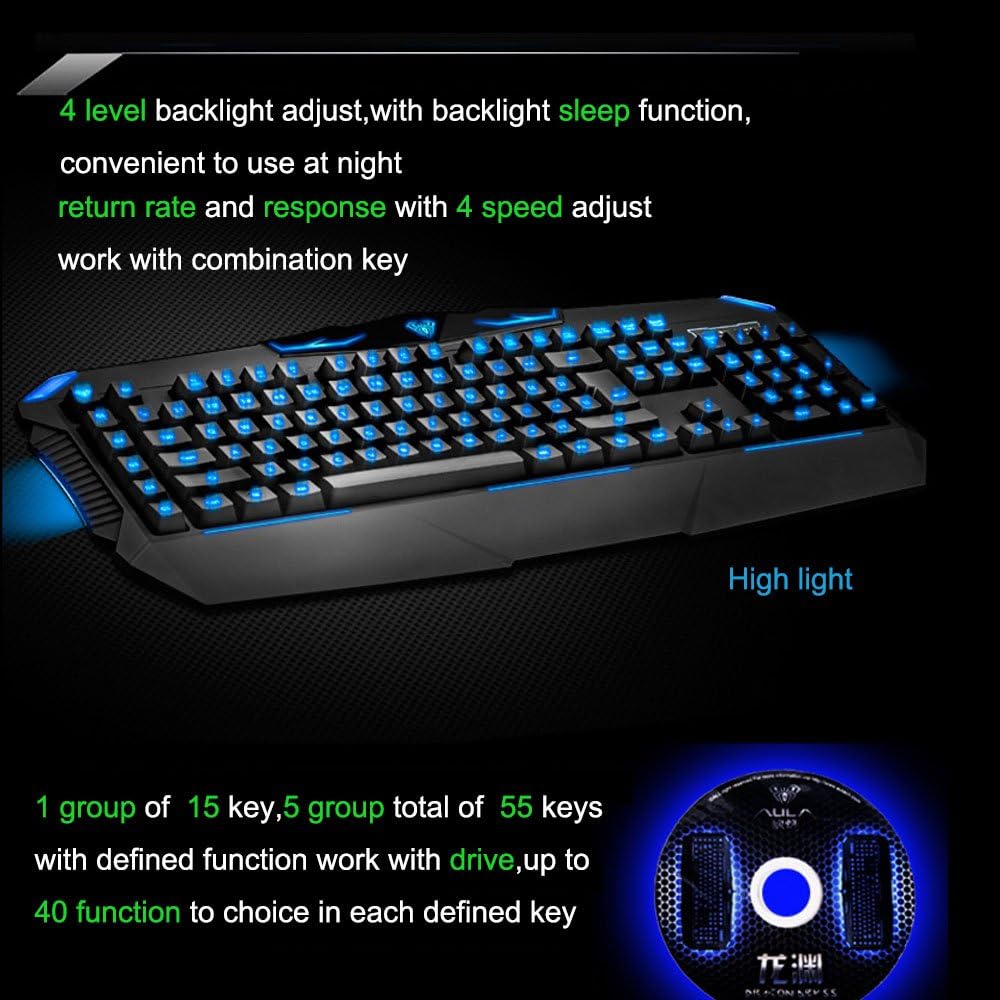
Figure 6: Advanced Features. This image highlights the keyboard's capabilities, including 4-level backlight adjustment, backlight sleep function, and the programmable keys system (1 group of 15 keys, 5 groups total of 55 keys with defined functions, offering up to 40 functions per key).
WIN Key Lock Function
The keyboard includes a unique lockable/un-lockable WIN key function, preventing accidental presses of the Windows key during gaming. A corresponding LED light indicator (located at the rightmost of the keyboard) shows the status of the WIN key lock.
- Activating/Deactivating WIN Lock: Use the designated key combination (e.g., Fn + WIN key) to toggle the WIN key lock.
- Indicator Lights: Five indicating lights are present: Number Lock, Caps Lock, Scroll Lock, WIN Lock, and REC (for macro recording).
Macro Recording
The keyboard supports micro record functions, allowing users to record and assign complex sequences of keystrokes to the programmable keys.
- Recording Macros: Consult the accompanying software or the keyboard's quick start guide for detailed instructions on initiating and saving macro recordings. The REC indicator light will typically illuminate during recording.
Maintenance
Cleaning the Keyboard
- Disconnect the keyboard from your computer before cleaning.
- Use a soft, lint-free cloth slightly dampened with water or a mild cleaning solution to wipe the surface of the keyboard.
- For dust and debris between keys, use compressed air or a small brush.
- Do not use harsh chemicals, abrasive cleaners, or immerse the keyboard in liquid.
- Ensure the keyboard is completely dry before reconnecting it to your computer.
Storage
When not in use for extended periods, store the keyboard in a cool, dry place away from direct sunlight and extreme temperatures.
Troubleshooting
If you encounter issues with your AULA Dragon Abyss SI-863 keyboard, please refer to the following common solutions:
| Problem | Possible Cause | Solution |
|---|---|---|
| Keyboard not responding | Loose USB connection; Incorrect USB port; Driver issue. | Ensure the USB cable is securely plugged into a working USB port. Try a different USB port. Restart your computer. |
| Backlight not illuminating or flickering | Backlight brightness set to minimum; Backlight sleep mode active; Power issue. | Adjust backlight brightness using the designated key combinations. Check if the backlight sleep function is enabled. Ensure the USB port provides sufficient power. |
| Programmable keys not working | Incorrect profile selected; Software/driver not installed or corrupted; Macro not recorded correctly. | Switch to the correct profile. Ensure the keyboard's accompanying software/driver is installed and up-to-date. Re-record the macro if necessary. |
| WIN key is locked/unlocked unexpectedly | Accidental activation of WIN lock function. | Press the WIN lock key combination (e.g., Fn + WIN) to toggle its status. Observe the WIN Lock indicator light. |
| Keyboard not working with KVM switch | Compatibility issue with specific KVM models. | This keyboard may not be compatible with all KVM switches. If possible, try connecting the keyboard directly to the computer to confirm functionality. Using a powered USB hub between the keyboard and KVM might resolve some compatibility issues, but is not guaranteed. |
Specifications
| Feature | Detail |
|---|---|
| Model | Dragon Abyss SI-863 |
| Key Number | 110 (including 104 normal keys, 5 self-defined keys, 1 mode switching key) |
| Key Route | 4.0mm |
| Pre-travel | 2.0mm |
| Key Force (Black Axis) | 58.9 +/- 14.7g |
| Key Force (Red Axis) | 44.1 +/- 14.7g |
| Key Force (Tea Axis) | 44.1 +/- 14.7g |
| Key Force (Cyan Axis) | 58.9 +/- 14.7g |
| Connector | USB |
| Working Voltage/Current | DC 5V / <300mA |
| System Support | Windows 98SE / ME / 2000 / XP / Vista / 7 / 8 |
| Keyboard Dimensions (L x W x H) | 19.42 x 8.33 x 1.37 inches (493.3 x 211.5 x 34.8 mm) |
| Keyboard Weight | 3.10 lbs (1.41 kg) |
| Cable Length | 6 feet |
| Key Life | Up to 50 million times |
| Certification | FCC / CE |

Figure 7: Ergonomic Design. This image highlights the wide, comfortable palm rest design and the tactile feel of the keys, engineered for over 50 million keystrokes.
Warranty and Support
Information regarding specific warranty terms and conditions for the AULA Dragon Abyss SI-863 keyboard is not provided within this manual. For warranty claims or technical support, please refer to the retailer where the product was purchased or check the official AULA website for any available support channels.
Please note that some users have reported difficulty in contacting direct manufacturer support for this product. It is recommended to retain your proof of purchase for any potential warranty inquiries.
Ask a question about this manual
Ask about setup, troubleshooting, compatibility, parts, safety, or missing instructions. Manuals+ will review the question and use this page’s manual context to help answer it.