1. Introduction
This manual provides essential information for setting up, operating, and maintaining your Dell E1715S E Series 17-inch LED-Backlit LCD Monitor. This monitor is designed for reliability and essential features to enhance productivity. It offers HD quality viewing, easy connectivity, and compatibility with legacy custom applications. The E1715S minimizes power consumption with an efficient LED backlight and PowerNap technology.
2. What's in the Box
Verify that all components are present in the package:
- LED-backlit LCD monitor - 17"
- VGA cable
- Stand
- VESA screw cover
- Software
3. Setup Instructions
3.1. Attaching the Stand
- Place the monitor face down on a soft, clean surface to prevent scratches.
- Align the stand base with the monitor's mounting area and gently push until it clicks into place.

Figure 1: Front view of the Dell E1715S monitor. The screen is black, and the Dell logo is visible at the bottom center.
3.2. Connecting Cables
- Connect the power cable to the monitor's power port and then to a power outlet.
- Connect the VGA cable from your computer's video output port to the VGA input port on the monitor.
- Alternatively, connect a DisplayPort cable from your computer's DisplayPort output to the DisplayPort input on the monitor for digital video.

Figure 2: Rear view of the Dell E1715S monitor showing the power input, DisplayPort, and VGA ports.
3.3. Initial Power On
- Press the power button on the monitor to turn it on.
- Ensure your computer is powered on. The monitor should automatically detect the input signal.
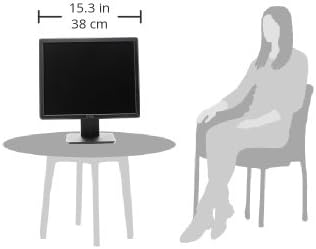
Figure 3: Diagram illustrating the dimensions of the Dell E1715S monitor, showing a width of 15.3 inches (38 cm).

Figure 4: Rear view of the Dell E1715S monitor, displaying the Dell logo and the stand attachment area.

Figure 5: Side view of the Dell E1715S monitor, showing its slim profile and the tilt capability of the stand.
4. Operating the Monitor
4.1. On-Screen Display (OSD) Menu
The monitor features an On-Screen Display (OSD) menu for adjusting various settings. The control buttons are typically located on the front or bottom bezel of the monitor.
- Power Button: Turns the monitor on or off.
- Menu Button: Accesses the main OSD menu.
- Navigation Buttons: Used to navigate through menu options (up, down, left, right).
- Select/Confirm Button: Confirms a selection or enters a sub-menu.
4.2. Common Adjustments
- Brightness/Contrast: Adjusts the overall luminance and difference between light and dark areas.
- Input Source: Manually selects between VGA and DisplayPort inputs.
- Color Settings: Modifies color temperature, hue, and saturation.
- Display Settings: Adjusts resolution, aspect ratio, and sharpness.
5. Maintenance
5.1. Cleaning the Monitor
- Always unplug the monitor before cleaning.
- Use a soft, lint-free cloth lightly dampened with water or a mild screen cleaner.
- Avoid using abrasive cleaners, solvents, or ammonia-based products.
5.2. Power Management
The Dell E1715S monitor features PowerNap technology to help minimize power consumption. Ensure this feature is enabled in your monitor settings for energy efficiency.
6. Troubleshooting
6.1. No Image on Screen
- Check if the power cable is securely connected to both the monitor and the power outlet.
- Verify that the video cable (VGA or DisplayPort) is properly connected to both the monitor and the computer.
- Ensure the computer is powered on and not in sleep mode.
- Use the monitor's OSD menu to manually select the correct input source.
6.2. Poor Display Quality
- Adjust the brightness and contrast settings via the OSD menu.
- Ensure the display resolution on your computer matches the monitor's native resolution (1280 x 1024).
- Check for any physical damage to the video cable or ports.
7. Specifications
| Feature | Value |
|---|---|
| Brand | Dell |
| Series | E1715S |
| Item Model Number | E1715S |
| Standing Screen Display Size | 17 Inches |
| Screen Resolution | 1280x1024 |
| Max Screen Resolution | 1280 x 1024 Pixels |
| Aspect Ratio | 5:4 |
| Screen Surface Description | Glossy |
| Color | Black |
| Item Weight | 4.58 pounds |
| Product Dimensions (LxWxH) | 17.5 x 15 x 5.5 inches |
| Voltage | 120 Volts |
| Manufacturer | Dell Marketing USA, LP |
| Date First Available | April 22, 2014 |
8. Warranty and Support
The Dell E1715S monitor comes with a Dell Limited Hardware Warranty and 3 Year Advanced Exchange. For detailed warranty information or technical support, please refer to the documentation included in your product package or visit the official Dell support website.
For further assistance, you may contact Dell customer support.


