
1. Introduction
This manual provides instructions for the setup, operation, and maintenance of your Logitech M557 Bluetooth Mouse. The Logitech M557 is designed for seamless wireless connectivity with Bluetooth-enabled computers, laptops, and tablets, supporting various operating systems including Windows, macOS, Chrome OS, and Android.
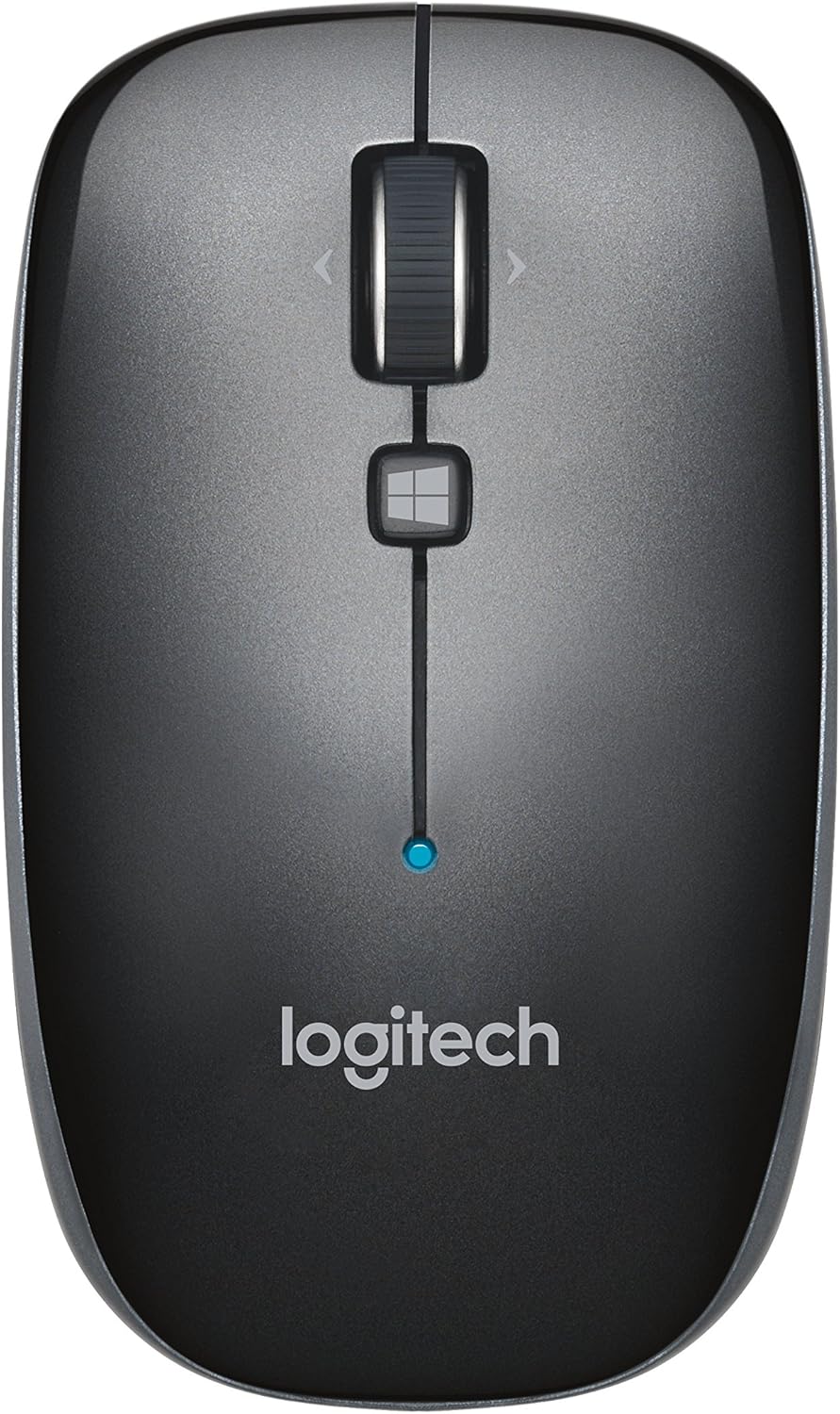
Figure 1: Top view of the Logitech M557 Bluetooth Mouse, showing the scroll wheel, Windows button, and Logitech logo.
2. Package Contents
Verify that your package contains the following items:
- Logitech M557 Bluetooth Mouse
- 1 AAA Battery (pre-installed or included separately)
- Quick Start Guide (this manual serves as a detailed guide)
3. Setup
3.1. Battery Installation
- Locate the battery compartment on the underside of the mouse.
- Slide the battery compartment cover open.
- Insert the included AAA battery, ensuring correct polarity (+/-).
- Close the battery compartment cover.

Figure 2: Underside of the Logitech M557 mouse, showing the ON/OFF switch, Connect button, and optical sensor. The battery compartment is typically located here.
3.2. Connecting via Bluetooth
The Logitech M557 connects wirelessly via Bluetooth, requiring no USB receiver.
- Power On: Slide the ON/OFF switch on the bottom of the mouse to the "ON" position. A small LED indicator on the top of the mouse may light up briefly.
- Activate Pairing Mode: Press and hold the Connect button on the bottom of the mouse for a few seconds until the LED indicator on the top of the mouse begins to blink rapidly. This indicates the mouse is in pairing mode.
- Enable Bluetooth on Your Device:
- Windows: Go to Settings > Devices > Bluetooth & other devices. Ensure Bluetooth is turned on.
- macOS: Go to System Settings > Bluetooth. Ensure Bluetooth is turned on.
- Chrome OS/Android: Go to Settings > Connected devices > Bluetooth. Ensure Bluetooth is turned on.
- Pair the Mouse: In your device's Bluetooth settings, look for "Logitech M557" in the list of available devices. Select it to initiate the pairing process.
- Confirmation: Once paired, the LED indicator on the mouse will stop blinking and remain solid for a few seconds, then turn off. Your mouse is now ready for use.
Note: If the connection is lost or you wish to pair with a different device, repeat steps 2-5.
4. Operating Your Mouse
4.1. Basic Functions
- Left-Click Button: Primary selection and activation.
- Right-Click Button: Accesses contextual menus.
- Scroll Wheel: Scrolls vertically through documents and web pages.
- Tilt Wheel: The scroll wheel can also be tilted left or right for horizontal scrolling (if supported by your operating system/application).
- Scroll Wheel Button: Pressing the scroll wheel acts as a middle-click button, often used for opening links in new tabs or activating specific application functions.
- Windows Button: Located below the scroll wheel. By default, this button opens the Start Menu or Search function on Windows. Its function may be customizable using Logitech Options software (if available for your OS).

Figure 3: Angled view of the Logitech M557 mouse, highlighting its ergonomic design and button placement.
4.2. Customizing Your Mouse (Optional)
For advanced customization of button functions and scroll behavior, Logitech may offer software such as Logitech Options. Visit the official Logitech support website for your product model to check for compatible software downloads.
5. Maintenance
5.1. Cleaning
To maintain optimal performance, clean your mouse periodically:
- Use a soft, lint-free cloth slightly dampened with water or an electronics-safe cleaning solution.
- Avoid harsh chemicals or abrasive materials.
- Clean the optical sensor area on the bottom of the mouse to ensure accurate tracking.
5.2. Battery Replacement
The Logitech M557 uses one AAA battery. The average battery life is approximately 12 months, but actual life may vary based on usage.
- When the battery is low, the LED indicator on the mouse may flash red.
- Turn off the mouse using the ON/OFF switch on the bottom.
- Open the battery compartment.
- Remove the old AAA battery and dispose of it according to local regulations.
- Insert a new AAA battery, observing correct polarity.
- Close the battery compartment and turn the mouse back on.
6. Troubleshooting
6.1. Mouse Not Connecting or Disconnecting
- Check Battery: Ensure the battery is correctly installed and has sufficient charge. Replace if necessary.
- Power Cycle: Turn the mouse off and then on again.
- Re-pair: Remove "Logitech M557" from your device's Bluetooth list and repeat the pairing process (Section 3.2).
- Device Bluetooth: Ensure Bluetooth is enabled on your computer or tablet.
- Interference: Bluetooth can be affected by other wireless devices (e.g., Wi-Fi routers, other Bluetooth devices). Try moving closer to your device or away from potential sources of interference.
- Operating System Updates: Ensure your device's operating system and Bluetooth drivers are up to date.
6.2. Cursor Movement is Erratic or Non-Responsive
- Clean Sensor: Clean the optical sensor on the bottom of the mouse.
- Surface: Ensure you are using the mouse on a suitable surface. Highly reflective or transparent surfaces may affect tracking. A mouse pad is recommended.
- Battery: Low battery can affect performance. Replace the battery.
6.3. Buttons or Scroll Wheel Not Functioning
- Re-pair: Try re-pairing the mouse with your device.
- Software: If using customization software, ensure it is correctly installed and configured. Temporarily uninstalling and reinstalling the software might resolve issues.
- Test on Another Device: If possible, test the mouse on another Bluetooth-enabled device to determine if the issue is with the mouse or the original device.
7. Specifications
| Feature | Detail |
|---|---|
| Brand | Logitech |
| Model | M557 (P/N: 910-003971) |
| Connectivity Technology | Bluetooth |
| Movement Detection | Optical |
| Operating System Compatibility | Windows 10, 11 or later, macOS, Chrome OS, Android |
| Power Source | Battery Powered |
| Battery Type | 1 AAA battery (included) |
| Average Battery Life | 12 months |
| Color | Gray |
| Item Weight | 2.16 ounces (approx. 61 grams) |
| Product Dimensions (LxWxH) | 3.93 x 2.28 x 1.34 inches (approx. 10 x 5.8 x 3.4 cm) |

Figure 4: Logitech M557 mouse displaying its physical dimensions.
8. Warranty and Support
For warranty information and technical support, please refer to the official Logitech website. You can find detailed support resources, FAQs, and contact information by visiting support.logi.com and searching for "Logitech M557".
Note: Product specifications and warranty terms are subject to change without notice. Please consult the official Logitech website for the most current information.


