
Introduction
Thank you for choosing the MTX Margaritaville Audio MIX1-BLACK High Fidelity Headphones. These headphones are designed to provide a superior audio experience with high-fidelity sound and effective noise isolation. This manual will guide you through the setup, operation, and maintenance of your new headphones.
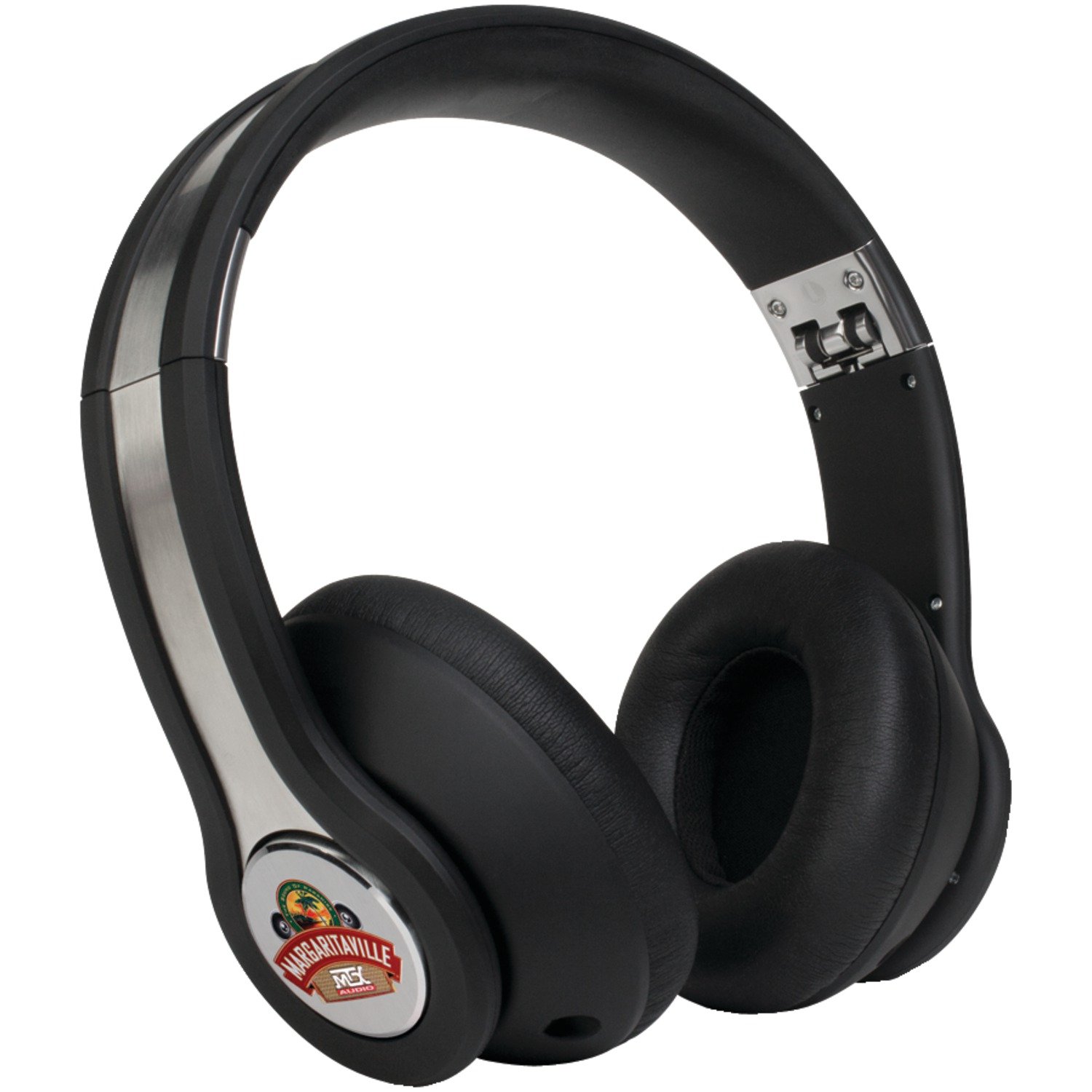
Figure 1: Margaritaville Audio MIX1-BLACK High Fidelity Headphones.
What's in the Box
Your package should contain the following items:
- Margaritaville Audio MIX1-BLACK High Fidelity Headphones
- Protective Drawstring Carrying Case
- Two (2) 3.5mm Male to Male Audio Cables
Setup
1. Connecting the Audio Cable
- Locate one of the provided 3.5mm audio cables.
- Insert one end of the 3.5mm audio cable into the audio input jack located on the left ear cup of the headphones.
- Insert the other end of the 3.5mm audio cable into the audio output jack of your device (e.g., smartphone, tablet, computer, MP3 player).
2. Adjusting for Comfort
The headphones feature an adjustable headband and comfortable foam ear cups. Gently extend or retract the headband slides until the ear cups rest comfortably over your ears, ensuring a snug fit for optimal sound isolation and bass depth.

Figure 2: Adjustable headband and ear cup detail.
3. Audio Sharing Feature
The MIX1 headphones include a second 3.5mm auxiliary input/output jack on the right ear cup. This allows multiple MIX1 units to share an audio source. To share audio, connect a second 3.5mm audio cable from the auxiliary jack of the first MIX1 unit to the audio input jack of another MIX1 unit.
Operating Instructions
1. Basic Audio Playback
Once connected to your audio source, begin playback on your device. The headphones will reproduce the audio. Adjust the volume using your device's controls or the in-line remote.
2. Using the In-Line Microphone/Remote
The audio cable features an in-line microphone and remote control for convenient management of music and calls.

Figure 3: In-line microphone/remote control.
- Play/Pause: Press the center button once to play or pause audio.
- Next Track: Press the center button twice quickly to skip to the next track.
- Previous Track: Press the center button three times quickly to go to the previous track.
- Answer/End Call: Press the center button once to answer an incoming call or end an active call.
- Reject Call: Press and hold the center button for approximately two seconds to reject an incoming call.
- Volume Control: Use the '+' and '-' buttons to adjust the volume.
3. Noise Isolation
The large, sealed, and comfortable foam ear cups are designed to provide passive noise isolation, reducing ambient sounds for a more immersive listening experience. Ensure a proper fit to maximize this feature.
Maintenance
1. Cleaning
- Ear Cups: Gently wipe the microfiber ear cups with a soft, dry, lint-free cloth. For stubborn dirt, a slightly damp cloth with mild soap can be used, but ensure no moisture enters the speaker grilles. Allow to air dry completely before use.
- Headband and Exterior: Wipe the headband and other exterior surfaces with a soft, dry cloth.
- Do not use harsh chemicals, solvents, or abrasive cleaners.
2. Storage and Transport
The headphones feature a folding design for easy storage and transport. Fold the ear cups inward towards the headband. Store the headphones in the provided protective drawstring carrying case when not in use to prevent damage from dust, scratches, and impacts.
3. Cable Care
The included audio cables are designed to be tangle-free. Avoid excessive bending, twisting, or pulling on the cables, especially near the connectors, to prolong their lifespan.
Troubleshooting
- No Sound:
- Ensure the audio cable is securely plugged into both the headphones and your audio source.
- Check the volume level on your audio source and the in-line remote.
- Test with a different audio source or cable to rule out device or cable issues.
- Poor Sound Quality (Distortion, Low Volume):
- Verify the audio cable connections are firm.
- Ensure the audio source's volume is not set too high, causing distortion.
- Check if the ear cups are properly seated over your ears to ensure optimal sound isolation and bass response.
- Microphone Not Working:
- Ensure the audio cable with the in-line microphone is used and fully inserted.
- Check your device's settings to ensure the correct microphone input is selected.
- Test the microphone functionality with a different application or device.
- Discomfort During Use:
- Adjust the headband to find a comfortable fit that does not exert excessive pressure.
- Take breaks during extended listening sessions.
Specifications
| Feature | Specification |
|---|---|
| Brand | MTX (Margaritaville) |
| Model Number | MIX1 BLACK |
| Color | Black Sand |
| Ear Placement | On Ear |
| Noise Control | Sound Isolation |
| Frequency Response | 25000 Hz |
| Connectivity Technology | Wired |
| Headphone Jack | 3.5 mm Jack |
| Material | Microfiber (ear cups) |
| Item Weight | 1.55 Pounds |
| Additional Features | Tangle-Free Cord, In-line Microphone/Remote, Audio Sharing Capability |
Warranty and Support
For warranty information and customer support, please refer to the documentation included with your purchase or visit the official MTX Audio website. Keep your proof of purchase for warranty claims.
If you encounter issues not covered in this manual, please contact MTX Audio customer service for assistance.