
VIZIO M602i-B3
VIZIO M602i-B3 60-inch 1080p Smart LED TV
User Manual
Introduction
This manual provides essential information for setting up, operating, and maintaining your VIZIO M602i-B3 60-inch 1080p Smart LED TV. Please read this manual thoroughly before using your television to ensure proper operation and to maximize your viewing experience. Keep this manual for future reference.
The VIZIO M602i-B3 features a 60-inch Full-Array LED display with 1080p resolution, VIZIO Internet Apps Plus for streaming, and Clear Action 720 for enhanced motion clarity. It includes built-in Wi-Fi and multiple connectivity options.
What's in the Box
Verify that all items are present in the packaging:
- Vizio 60" Class 1080P Led Smart Hdtv - M602I-B3
- Remote Control: Xrt500
- 2 AAA Batteries
Setup
1. Unpacking and Placement
Carefully remove the TV from its packaging. It is recommended that two people handle the TV due to its size and weight. Place the TV on a stable, flat surface or mount it on a wall using a compatible VESA mount (sold separately).

Figure 1: Front view of the VIZIO M602i-B3 Smart LED TV. The screen shows a blue geometric pattern, and app icons for iHeartRadio, Hulu Plus, Spotify, Netflix, YouTube, Vudu, and Amazon Instant Video are visible along the bottom edge of the screen.
2. Connecting Power
Plug the power cord into the AC IN port on the back of the TV, then plug the other end into a wall outlet. Ensure the power outlet is easily accessible.
3. Connecting Devices
The VIZIO M602i-B3 offers multiple input options:
- HDMI: 4 ports (3 down, 1 side) for high-definition devices like Blu-ray players, game consoles, and cable/satellite boxes.
- Component: 1 port (side) for older video devices.
- Composite: 1 port (side) for standard definition devices.
- USB: 1 port (side) for media playback from USB drives.
- Ethernet: 1 port (down) for wired network connection.
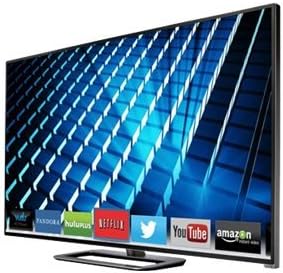
Figure 2: Angled view of the VIZIO M602i-B3 Smart LED TV, highlighting its slim design and the display of various streaming app icons.
4. Initial Setup Wizard
Upon first power-on, the TV will guide you through an initial setup wizard. This includes language selection, channel scanning (if connecting an antenna), and network setup.
5. Network Connection (Wi-Fi)
To access Smart TV features, connect your TV to the internet:
- From the setup wizard or the TV menu, navigate to Network Settings.
- Select "Wireless" and choose your Wi-Fi network from the list.
- Enter your Wi-Fi password using the on-screen keyboard and the remote control.
- Confirm the connection.
Operating Your TV
Remote Control (XRT500)
The included XRT500 remote control allows you to navigate menus, change channels, adjust volume, and access Smart TV features. Insert the two AAA batteries into the remote, ensuring correct polarity.
VIZIO Internet Apps Plus (VIA Plus)
Access a world of entertainment with VIZIO Internet Apps Plus. Press the "VIA" button on your remote to launch the app interface. You can browse and launch popular streaming services like Netflix, Hulu Plus, Amazon Instant Video, YouTube, and Pandora.
Input Selection
To switch between connected devices (e.g., cable box, Blu-ray player), press the "INPUT" button on your remote and select the desired input from the on-screen list.
Picture and Audio Settings
Customize your viewing and listening experience:
- Picture Mode: Select from various preset modes (e.g., Standard, Vivid, Movie, Game) or customize settings like brightness, contrast, color, and sharpness.
- Aspect Ratio: Adjust the screen's aspect ratio (e.g., 16:9, Zoom, Panoramic) to fit the content.
- Audio Settings: Adjust bass, treble, balance, and enable features like DTS StudioSound and DTS TruVolume for enhanced audio.
Maintenance
Cleaning Your TV
To clean the screen, gently wipe it with a soft, lint-free cloth. For stubborn marks, dampen the cloth with water or a mild, non-abrasive screen cleaner. Do not spray cleaner directly onto the screen. Clean the TV frame with a soft, dry cloth.
Software Updates
Your VIZIO TV may receive automatic software updates when connected to the internet. These updates improve performance and add new features. Ensure your TV remains connected to the internet for these updates.
Troubleshooting
If you encounter issues with your TV, refer to the following common solutions:
| Problem | Solution |
|---|---|
| No Power | Ensure the power cord is securely plugged into the TV and a working electrical outlet. Try a different outlet. |
| No Picture/Sound | Verify the correct input source is selected. Check all cable connections to external devices. Try restarting the TV by unplugging it for 30 seconds. |
| No Internet Connection | Check your router and modem. Ensure Wi-Fi password is correct. Try restarting your router/modem and the TV. |
| Remote Not Working | Replace the batteries in the remote control. Ensure there are no obstructions between the remote and the TV's IR sensor. |
Specifications
| Feature | Detail |
|---|---|
| Brand | VIZIO |
| Model Number | M602i-B3 |
| Screen Size (Diagonal) | 60 inches (153 cm) |
| Display Technology | Full-Array LED |
| Resolution | 1920 x 1080 (1080p Full HD) |
| Refresh Rate | 240Hz Clear Action 720 |
| Active LED Zones | 32 |
| Smart TV Platform | VIZIO Internet Apps Plus |
| Built-in Wi-Fi | 802.11n |
| HDMI Inputs | 4 |
| USB Ports | 1 |
| Ethernet Port | 1 |
| Audio Output | 10W x 2 Speakers, DTS StudioSound, DTS TruVolume |
| Dimensions (with stand) | Approx. 53.59 x 33.38 x 10.4 inches |
| Weight (with stand) | Approx. 68.5 pounds |
Warranty and Support
For warranty information and technical support, please refer to the warranty card included with your product or visit the official VIZIO support website. You can also contact VIZIO customer service directly for assistance with product registration, troubleshooting, and service requests.
Online Support: www.vizio.com/support
Customer Service: Refer to VIZIO's official website for current contact numbers and hours of operation.