
1. Introduction
This manual provides instructions for the Rii i8 Mini Bluetooth Keyboard with Touchpad. This compact wireless keyboard is designed for convenient control of various devices, including PCs, laptops, tablets, smartphones, Android TV Boxes, Google TV Boxes, Xbox360, PS3, HTPC/IPTV, and Raspberry Pi.
It features a full QWERTY keyboard, a multi-touch touchpad, and multimedia control keys, offering a versatile input solution.
2. Package Contents
- 1 x Rii i8 Mini Wireless Keyboard
- 1 x Charging Data Cable
- 1 x User Manual
- 1 x USB Receiver (2.4GHz Wireless Dongle)
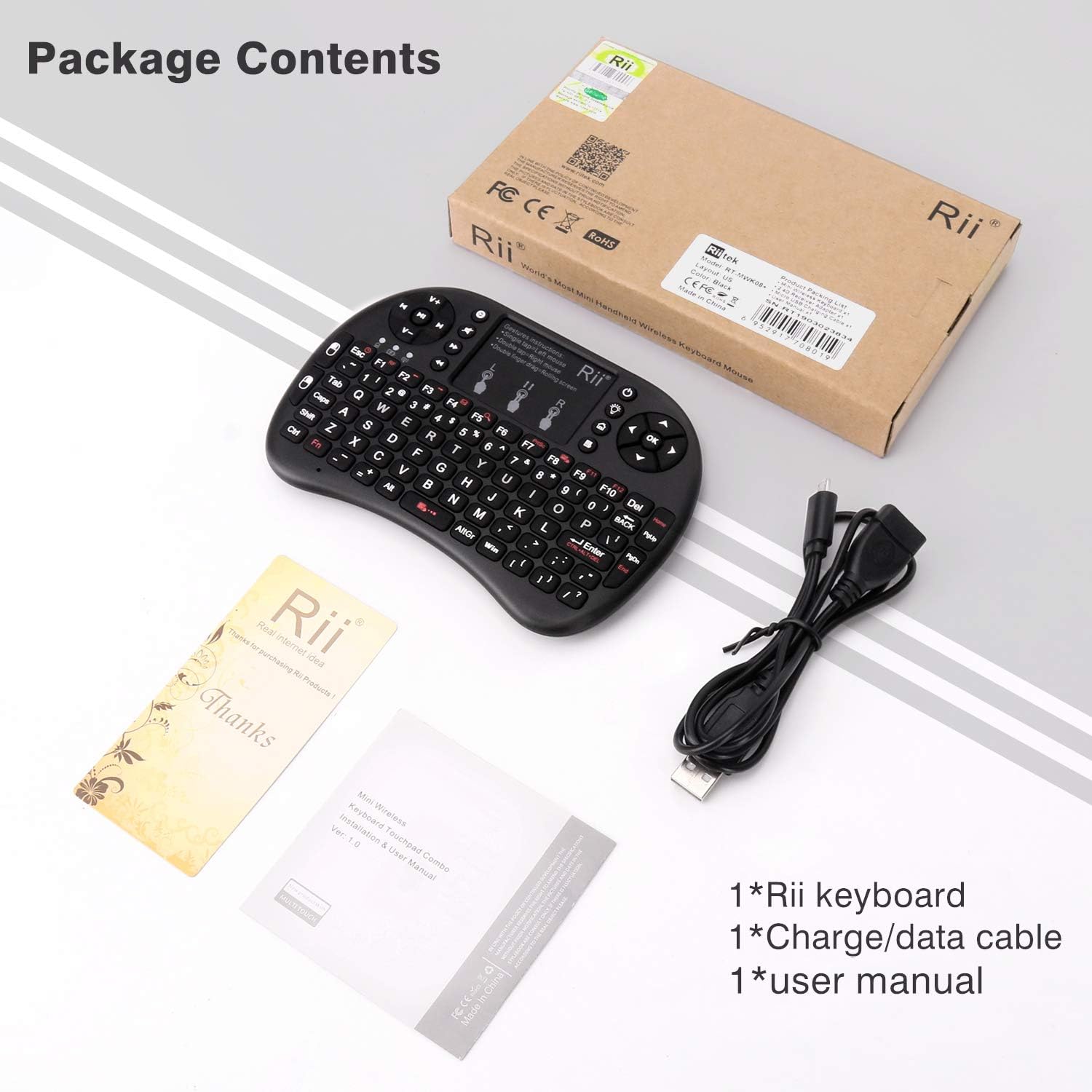
Image: Package contents including the keyboard, charging cable, user manual, and USB receiver.
3. Product Overview
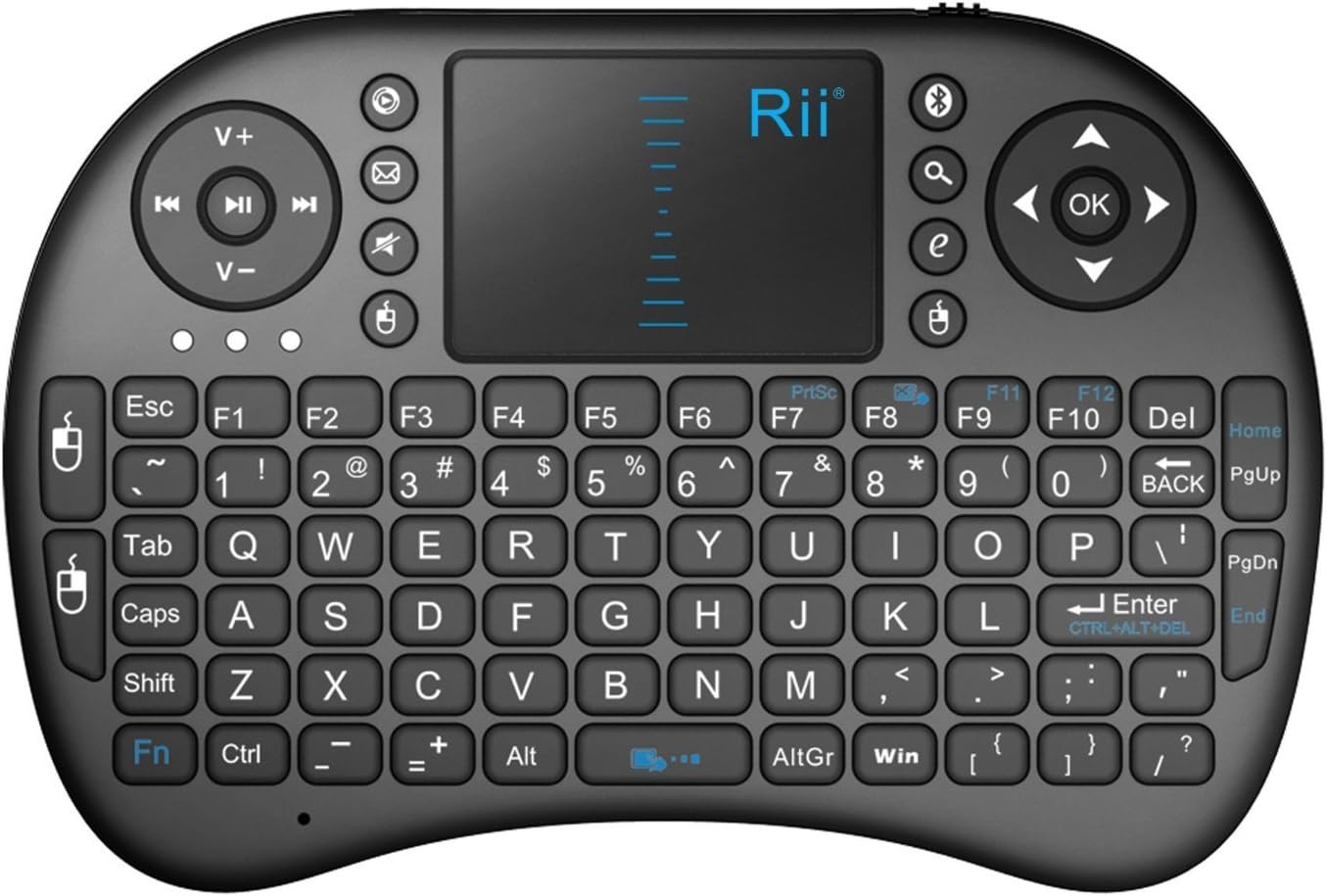
Image: Rii i8 Mini Bluetooth Keyboard layout.
3.1 Key Features
- QWERTY Keyboard: 92 keys for standard typing.
- Touchpad: High-sensitive smart touchpad with 360-degree flip design and adjustable DPI functions.
- Multimedia Control Keys: Dedicated keys for media playback.
- PC Gaming Control Keys: Integrated controls for gaming.
- Ergonomic Design: Handheld design for comfortable operation.
- Rechargeable Battery: Built-in removable Li-ion battery.
3.2 Touchpad Gestures

Image: Touchpad gesture instructions.
- Single Finger Tap: Left mouse click.
- Two Fingers Tap: Right mouse click.
- Two Fingers Drag: Scroll up/down the page.
4. Setup
4.1 Charging the Keyboard
- Locate the Micro USB charging port on the side of the keyboard.
- Connect the provided charging data cable to the keyboard and a USB power source (e.g., computer USB port, USB wall adapter).
- The charging indicator light will illuminate. It will be steady red during charging and turn off when fully charged.
4.2 Connecting via 2.4GHz USB Receiver
- Open the battery compartment cover on the back of the keyboard.
- Remove the USB receiver (dongle) from its storage slot.
- Plug the USB receiver into an available USB port on your device (PC, TV Box, etc.).
- Slide the power switch on the keyboard to the 'ON' position.
- The keyboard should automatically connect to your device. The indicator light will stop blinking once connected.
4.3 Connecting via Bluetooth
This keyboard supports Bluetooth 4.0 connectivity.
- Ensure your device has Bluetooth enabled and is in pairing mode.
- Slide the power switch on the keyboard to the 'ON' position.
- Press and hold the Bluetooth pairing button (often indicated by a Bluetooth icon) on the keyboard until the Bluetooth indicator light starts blinking rapidly.
- On your device, search for available Bluetooth devices. Select 'Rii i8' or a similar name from the list.
- Follow any on-screen prompts to complete the pairing process. The indicator light will stop blinking once successfully paired.
5. Operating Instructions
5.1 Basic Operation
- Typing: Use the QWERTY keys for text input.
- Mouse Control: Use the touchpad to move the cursor.
- Navigation: Use the directional pad (D-pad) for menu navigation.
5.2 Function Keys (Fn + Key Combinations)
Many keys have secondary functions accessed by holding the 'Fn' key and pressing the desired key.
- Fn + Space: Adjusts the sensitivity (DPI) of the cursor.
- Fn + F6: Locks or unlocks the letter keys and the touchpad.
- Fn + F8: Locks or unlocks the touchpad independently.
- Fn + Touchpad: Activates scroll mode on the touchpad (use two fingers to scroll).
- Multimedia Keys: Control media playback (play/pause, next/previous track, volume up/down, mute).
5.3 Power Management
- Auto Sleep Mode: The keyboard will enter sleep mode after 3 minutes of inactivity to conserve battery.
- Wake Up: Press any key for approximately 1 second to wake the keyboard from sleep mode.
6. Specifications
| Feature | Description |
|---|---|
| Operating Range | Up to 15 meters (without signal disturbance) |
| Frequency Range | 2.403GHz ~ 2.480GHz |
| Operational Voltage | 3.3V |
| Charge Voltage | 4.4V ~ 5.25V |
| Modulation | GFSK |
| Channels | 78 channels |
| TX Power | Less than +5dBm |
| Transmission Rate | 1M bit/sec |
| Frequency Tolerance | +/-30ppm |
| Power Consumption | 55mA (on), 1mA (sleep) |
| Color | Black |
| Battery Type | Built-in Lithium-ion battery |
| Dimensions (LxWxH) | 7 x 4 x 1 inches |
| Item Weight | 3.98 ounces |
7. Troubleshooting
- Keyboard not responding:
- Ensure the keyboard is powered on.
- Check battery level; recharge if low.
- Verify the USB receiver is securely plugged into the device.
- For Bluetooth connection, ensure it is paired correctly and within range.
- Try restarting both the keyboard and the connected device.
- Cursor movement is erratic or slow:
- Adjust the touchpad DPI sensitivity using Fn + Space.
- Ensure the touchpad is clean and free of debris.
- Keys are not working:
- Check if the letter keys are locked (Fn + F6).
- Ensure the keyboard is properly connected.
- Low power indicator blinking:
- This indicates low battery. Connect the keyboard to a power source using the charging cable.
8. Maintenance
- Keep the keyboard away from liquids and extreme temperatures.
- Clean the surface and touchpad with a soft, dry cloth. Avoid abrasive cleaners.
- Store the USB receiver in its designated slot when not in use to prevent loss.
9. Warranty and Support
For warranty information or technical support, please refer to the contact details provided with your product packaging or visit the official Rii website. Keep your purchase receipt for warranty claims.


