Introduction
The Das Keyboard 4 Professional is a high-performance mechanical keyboard designed for an exceptional typing experience. It features Cherry MX Brown mechanical switches, a 2-port USB 3.0 hub, dedicated media controls with an oversized volume knob, and a durable aluminum top panel. This manual provides essential information for setting up, operating, maintaining, and troubleshooting your keyboard.

Figure 1: Top-down view of the Das Keyboard 4 Professional, showcasing its full layout including the numeric keypad and media controls.
Setup
Follow these steps to set up your Das Keyboard 4 Professional:
- Unpack the Keyboard: Carefully remove the keyboard and its accessories from the packaging. Ensure all components, including the USB cable and the magnetic footbar ruler, are present.
- Connect the USB Cable: The keyboard features an extra-long 6.5ft (201cm) USB cable with a single USB-A connector. Plug this connector into an available USB port on your computer. For optimal performance and to utilize the integrated USB 3.0 hub, connect it to a USB 3.0 port.
- Attach the Footbar Ruler: The keyboard includes a magnetically detachable footbar ruler. This ruler can be attached to the underside of the keyboard to elevate it to an optimal 4-degree typing angle. Align the ruler with the magnetic points on the bottom of the keyboard and allow it to snap into place.
- Driver Installation (Automatic): The Das Keyboard 4 Professional is a plug-and-play device. Your operating system (Windows, Linux, Chrome OS) should automatically detect and install the necessary drivers upon connection. No manual driver installation is typically required.

Figure 2: The Das Keyboard 4 Professional shown with its magnetic footbar ruler, which can be attached to elevate the keyboard for ergonomic typing.
Operating Instructions
This section details the various functionalities of your Das Keyboard 4 Professional.
Cherry MX Brown Mechanical Switches
The keyboard is equipped with Cherry MX Brown mechanical switches, known for their soft tactile bump and quiet operation. This provides a responsive typing experience without the loud click of other switch types. The switches are designed for durability, rated for up to 50 million keystrokes.
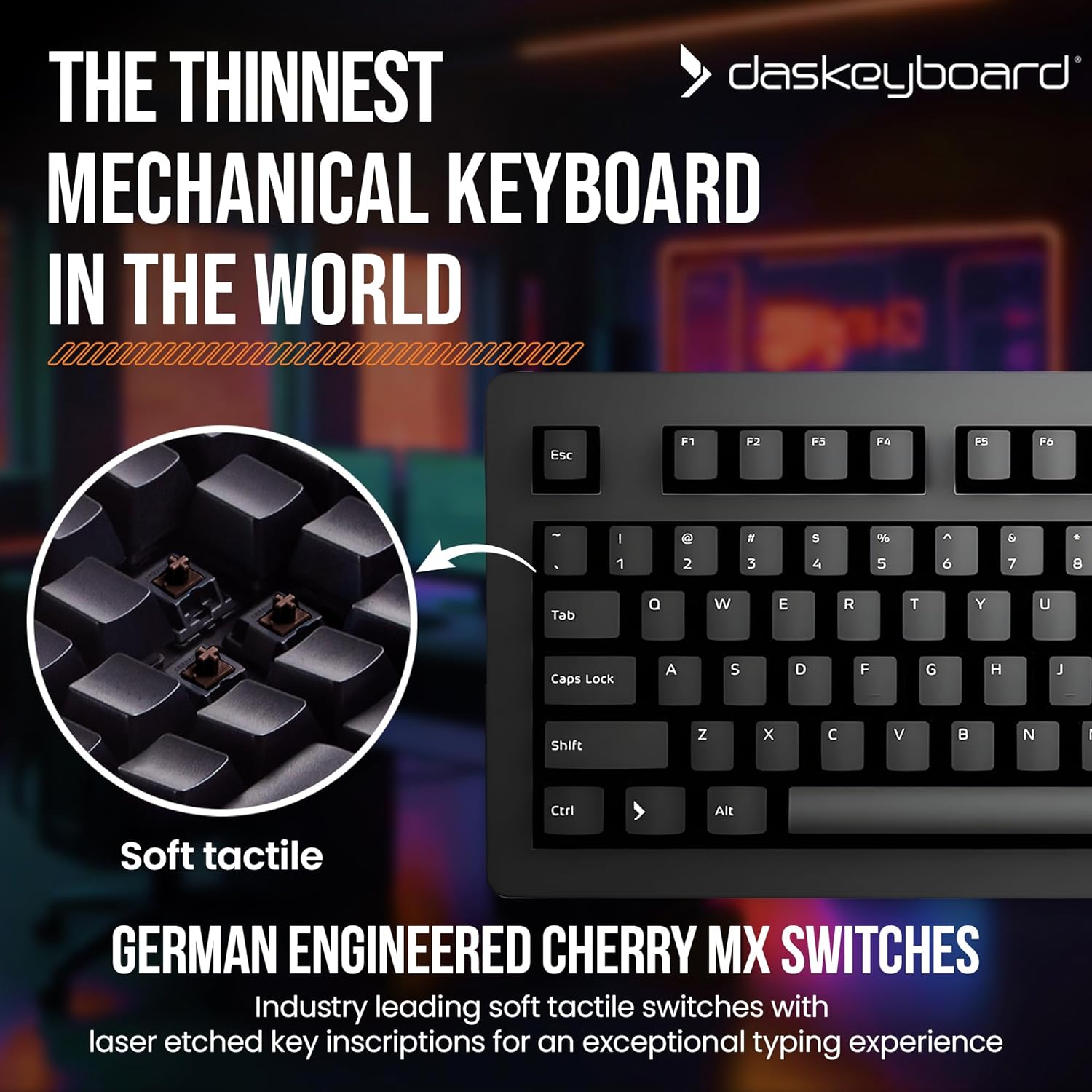
Figure 3: A close-up view of the Cherry MX Brown mechanical switches, illustrating their internal mechanism and tactile design.
Dedicated Media Controls and Volume Knob
Located on the top right of the keyboard are dedicated media control buttons and an oversized volume knob. These allow for quick and convenient control of your audio and media playback.
- Volume Knob: Rotate clockwise to increase volume, counter-clockwise to decrease. The knob provides tactile feedback for precise adjustments.
- Mute Button: Press the circular button in the center of the volume knob to instantly mute or unmute audio.
- Play/Pause: Controls media playback.
- Previous Track: Skips to the beginning of the current track or the previous track.
- Next Track: Skips to the next track.
- Sleep Button: The button next to the media controls puts your computer into sleep mode.

Figure 4: Detail of the oversized volume knob and dedicated media control buttons on the Das Keyboard 4 Professional, designed for easy access.

Figure 5: An angled view highlighting the integrated 2-port USB 3.0 hub and the media control section of the keyboard.
2-Port USB 3.0 Hub
The keyboard features a built-in 2-port USB 3.0 hub, located on the top edge. This hub allows you to connect and charge USB devices or transfer data at speeds up to 5Gb/second, which is 10 times faster than USB 2.0. Ensure your keyboard is connected to a USB 3.0 port on your computer to utilize the full speed of the hub.
Full N-Key Rollover (NKRO)
The Das Keyboard 4 Professional supports full N-Key Rollover (NKRO) over USB. This means that every key press is registered, regardless of how many keys are pressed simultaneously. This feature is particularly beneficial for fast typists and gamers. To toggle NKRO mode (works with Windows and Linux), press Shift + Mute simultaneously.

Figure 6: A user demonstrating comfortable and efficient typing on the Das Keyboard 4 Professional, highlighting the benefit of full N-key rollover for fast input.
Maintenance
Proper maintenance will extend the lifespan and maintain the performance of your keyboard.
- General Cleaning:
To clean the keyboard surface, use a soft, lint-free cloth slightly dampened with water or a mild, non-abrasive cleaning solution. Avoid spraying liquids directly onto the keyboard. Ensure the keyboard is disconnected from your computer before cleaning.
- Keycap Cleaning:
For deeper cleaning, keycaps can be carefully removed using a keycap puller (not included). Once removed, keycaps can be washed with mild soap and water. Ensure keycaps are completely dry before reattaching them to the switches. When reattaching, align the keycap with the switch stem and press down gently until it clicks into place.
- Dust Removal:
Use compressed air to remove dust and debris from between the keycaps and around the switches. Hold the can upright and spray in short bursts.
Troubleshooting
If you encounter issues with your Das Keyboard 4 Professional, refer to the following common problems and solutions:
| Problem | Possible Cause | Solution |
|---|---|---|
| Keyboard is not responding. | Loose USB connection, faulty USB port, driver issue. |
|
| USB 3.0 hub devices are not detected or slow. | Keyboard connected to a USB 2.0 port, insufficient power, faulty device. |
|
| N-Key Rollover (NKRO) is not working. | NKRO mode not activated, operating system limitation. |
|
| Media keys or volume knob not functioning. | Software conflict, driver issue, operating system settings. |
|
Specifications
| Feature | Detail |
|---|---|
| Model Number | DASK4MKPROSIL |
| Switch Type | Cherry MX Brown Mechanical Switches (Soft Tactile) |
| Key Rollover | Full N-Key Rollover (NKRO) over USB |
| USB Hub | 2-Port USB 3.0 Hub |
| Connectivity | Wired USB (USB 3.0 compatible) |
| Cable Length | 6.5 ft (201 cm) |
| Keycaps | Laser-etched |
| Media Controls | Dedicated volume knob, mute, play/pause, previous/next track, sleep button |
| Construction | Aluminum top panel |
| Dimensions (LxWxH) | 18 x 6.8 x 1.3 inches (45.7 x 17.3 x 3.3 cm) |
| Weight | 2.87 pounds (1.3 kg) |
| Compatible Operating Systems | Windows, Linux, Chrome OS |
| Power Source | USB powered |
| What's in the Box | Das Keyboard 4 Professional, USB Cable |
Warranty Information
Specific warranty terms and conditions for the Das Keyboard 4 Professional are provided by the manufacturer. Please refer to the warranty card included with your product packaging or visit the official Das Keyboard website for detailed information regarding warranty coverage, duration, and claims procedures.
Support
For further assistance, technical support, or frequently asked questions, please visit the official Das Keyboard support page. Contact information for customer service, including email and phone support, can typically be found on their website.
Official Website: www.daskeyboard.com


