
1. Introduction
The Grandstream GXP2130 is an enterprise-grade IP telephone designed for business communication. It supports up to 3 lines and 3 SIP accounts, offering a comprehensive suite of features for efficient call management.
Key features include a 2.8-inch color LCD display, dual Gigabit Ethernet ports with integrated Power over Ethernet (PoE), HD audio, and support for 4-way voice conferencing. The phone also incorporates 8 dual-colored BLF/speed-dial keys and 4 programmable soft keys for enhanced functionality.

Image 1.1: Front view of the Grandstream GXP2130 IP Phone, showcasing its color display, keypad, and programmable buttons.
Package Contents
Verify that your package contains the following items:
- GXP2130 IP Phone unit
- Handset with coiled cord
- Phone base stand
- Universal power supply
- Network cable (Ethernet)
- Quick Start Guide
2. Setup
2.1 Attaching the Base Stand
- Locate the base stand and the main phone unit.
- Align the tabs on the base stand with the corresponding slots on the back of the phone.
- Slide the stand upwards until it clicks securely into place. The stand allows for two angle positions.

Image 2.1: The detachable base stand for the GXP2130 IP Phone.
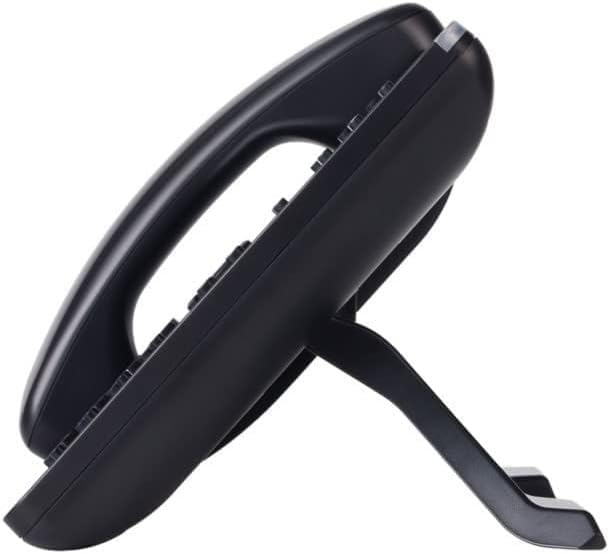
Image 2.2: Side view of the GXP2130 IP Phone with the base stand attached, showing the phone's angled position.
2.2 Connecting the Phone
Refer to the back panel of the phone for port identification.

Image 2.3: Rear view of the GXP2130 IP Phone, showing the various connection ports including PC, LAN, DC 12V, Headset, and Handset.
- Connect the Handset: Plug one end of the coiled cord into the handset and the other end into the HANDSET port on the back of the phone.
- Connect the Network:
- If using Power over Ethernet (PoE): Connect one end of the Ethernet cable to the LAN port on the phone and the other end to a PoE-enabled switch or injector. The phone will power on automatically.
- If not using PoE: Connect one end of the Ethernet cable to the LAN port on the phone and the other end to a network switch/router.
- Connect Power (if not using PoE): Plug the DC 12V power adapter into the DC 12V power jack on the phone and then into a power outlet.
- Connect to PC (Optional): If you wish to connect a computer through the phone, connect an Ethernet cable from the PC port on the phone to your computer's Ethernet port.
Once connected, the phone will begin its boot-up sequence. The display will show the Grandstream logo, followed by network and account status information.
3. Operating Instructions
3.1 Basic Call Functions
- Making a Call:
- Pick up the handset, press the Speaker button, or press an available Line button.
- Dial the desired number.
- Press the SEND button or wait a few seconds for the call to connect automatically.
- Answering a Call:
- Pick up the handset.
- Press the Speaker button.
- Press the corresponding flashing Line button.
- Ending a Call: Hang up the handset, press the Speaker button, or press the END CALL soft key.
3.2 Using Programmable Keys
The GXP2130 features 8 dual-colored BLF/speed-dial keys and 4 programmable soft keys located below the display. These keys can be configured for various functions such as speed dial, Busy Lamp Field (BLF), call park, or other custom features as defined by your system administrator.

Image 3.1: Close-up of the GXP2130's 2.8-inch color display, showing call status and soft key labels.
3.3 Voice Conferencing
The phone supports 4-way voice conferencing:
- Establish a call with the first party.
- Press the CONF (Conference) button. The first party will be put on hold.
- Dial the second party's number and press SEND.
- Once the second party answers, press the CONF button again to establish the 3-way conference.
- Repeat steps 2-4 to add a fourth party.
3.4 Bluetooth Functionality
The GXP2130 features integrated Bluetooth for pairing with compatible headsets. To pair a Bluetooth headset:
- Access the phone's menu and navigate to the Bluetooth settings.
- Enable Bluetooth and set the phone to discoverable mode.
- Put your Bluetooth headset into pairing mode.
- Select your headset from the list of discovered devices on the phone's display and follow the on-screen prompts to complete pairing.
4. Maintenance
4.1 Cleaning the Phone
- Use a soft, dry, anti-static cloth to clean the phone's surfaces.
- For stubborn marks, lightly dampen the cloth with water or a mild, non-abrasive cleaner.
- Avoid using harsh chemicals, abrasive cleaners, or solvents, as these can damage the phone's finish and electronic components.
- Do not spray cleaning liquids directly onto the phone.
4.2 General Care
- Keep the phone away from direct sunlight, heat sources, and excessive moisture.
- Ensure proper ventilation around the phone to prevent overheating.
- Avoid dropping the phone or subjecting it to strong impacts.
- Do not attempt to disassemble the phone; this will void the warranty.
5. Troubleshooting
This section addresses common issues you might encounter with your GXP2130 IP Phone.
5.1 No Power / Phone Does Not Turn On
- Check Power Connection: Ensure the power adapter is securely plugged into the phone's DC 12V port and a working electrical outlet.
- Check PoE Connection: If using PoE, verify that the Ethernet cable is connected to a PoE-enabled switch/injector and that the switch port is active.
- Test Outlet/Port: Try plugging another device into the power outlet or connecting the Ethernet cable to a different PoE port to rule out issues with the power source or network port.
5.2 No Dial Tone / Cannot Make or Receive Calls
- Check Network Cable: Ensure the Ethernet cable is firmly connected to the phone's LAN port and your network.
- Verify SIP Registration: Check the phone's display for SIP account registration status. If it shows "Unregistered" or an error, contact your VoIP service provider or system administrator.
- Reboot Phone: Disconnect the power adapter (or Ethernet cable if using PoE) for 10 seconds, then reconnect it.
- Check Handset/Headset: Ensure the handset cord is properly connected. If using a headset, verify its connection and functionality.
5.3 Display Issues
- Blank Screen: Refer to "No Power / Phone Does Not Turn On" section.
- Garbled Text/Graphics: Reboot the phone. If the issue persists, it may indicate a hardware problem.
5.4 Poor Audio Quality
- Check Network Connection: A stable network connection is crucial for good audio quality. Ensure your network is not experiencing high latency or packet loss.
- Adjust Volume: Use the volume buttons on the phone to adjust handset, speakerphone, or headset volume.
- Test Different Handset/Headset: If possible, try a different handset or headset to determine if the issue is with the accessory.
6. Specifications
| Feature | Detail |
|---|---|
| Model Number | GXP2130 |
| Lines Supported | 3 Lines, 3 SIP Accounts |
| Display | 2.8 inch (320x240) Color-Screen LCD |
| Network Interfaces | Dual Gigabit Ethernet ports with Integrated PoE |
| Programmable Keys | 8 dual-colored BLF/speed-dial keys, 4 programmable soft-keys |
| Audio Features | HD audio on speakerphone and handset, 4-way voice conferencing |
| Bluetooth | Integrated Bluetooth |
| Headset Support | Electronic Hook Switch (EHS) support for Plantronics headsets |
| Product Dimensions | 11.1 x 10.4 x 4.2 inches |
| Item Weight | 1.79 pounds |
| Power | PoE (Power Over Ethernet) or Universal Power Supply (included) |
| Manufacturer | Grandstream |
7. Warranty and Support
7.1 Product Warranty
The Grandstream GXP2130 IP Phone is covered by a limited warranty provided by Grandstream. For detailed information regarding warranty terms, conditions, and duration, please refer to the warranty card included with your product or visit the official Grandstream website.
Please retain your proof of purchase for warranty claims.
7.2 Technical Support
For technical assistance, troubleshooting beyond this manual, or further inquiries, please contact Grandstream support:
- Online Support: Visit the official Grandstream support portal for FAQs, documentation, and support tickets.
- Contact Information: Refer to the Grandstream website for regional contact numbers and email addresses.
Before contacting support, it is recommended to have your product model (GXP2130) and serial number readily available.


