
Introduction
This manual provides instructions for the Rocketek RT-CR3A USB 3.0 Memory Card Reader/Writer. This device facilitates high-speed data transfer between various memory card types and your computer via a USB 3.0 interface.
Product Features
- Two media slots: one for standard SD/MMC cards and one for Micro SD cards.
- Supports SDXC up to 2TB, SDHC, SD, MMC, RS-MMC, Micro SDXC, Micro SD, Micro SDHC card, and UHS-I cards.
- Built-in card cover design for secure storage of inserted cards.
- Plug and play functionality; supports hot swapping.
- USB powered (no external power or battery required).
- Super speed USB 3.0, backward compatible with USB 2.0/1.1.
- Automatic memory card detection.
- LED status indicator: solid when connected, flashing during data transfer.

Image: The Rocketek RT-CR3A card reader showing its compact design and a blue LED indicator when connected.
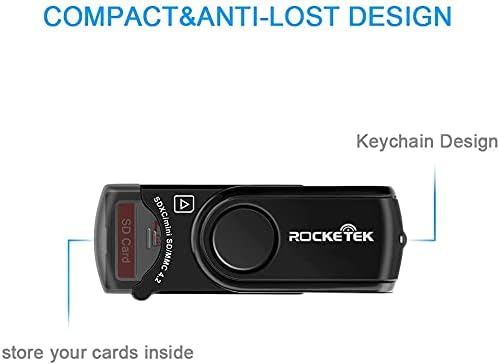
Image: The Rocketek RT-CR3A card reader illustrating its 360-degree rotatable protective cover for the USB connector.
Setup
- Connect to Computer: Insert the USB 3.0 connector of the RT-CR3A into an available USB port on your computer. For optimal performance, use a USB 3.0 port. The device is backward compatible with USB 2.0 and 1.1 ports.
- Driver Installation: The device is plug-and-play and typically does not require additional driver installation on most operating systems (Windows, Mac OS). Your computer should automatically detect and configure the device.
- LED Indicator: A blue LED light will illuminate when the device is successfully connected and powered.

Image: The Rocketek RT-CR3A card reader connected to a laptop, demonstrating its use for high-speed data transfer.
Operating Instructions
Inserting a Memory Card
The RT-CR3A features two card slots: one for standard SD/MMC cards and one for Micro SD cards.
- For SD/MMC Cards: Open the built-in card cover. Gently insert your SD, SDHC, SDXC, MMC, or RS-MMC card into the larger slot with the contacts facing down until it clicks into place. Close the cover for secure storage.
- For Micro SD Cards: Gently insert your Micro SD, Micro SDHC, or Micro SDXC card into the smaller slot with the contacts facing down until it clicks into place.
The LED indicator will flash when data is being accessed or transferred.
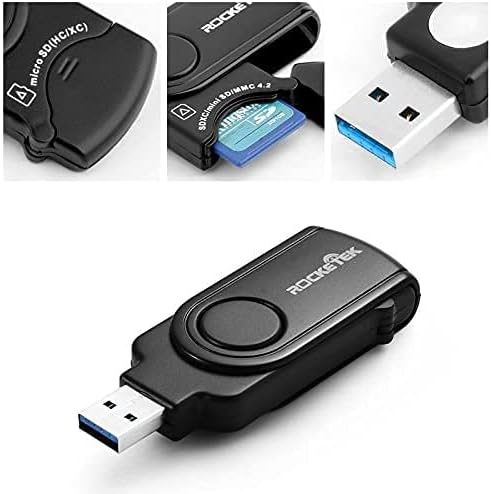
Image: A close-up view of the Rocketek RT-CR3A, illustrating an SD card partially inserted into its slot with the protective cover open.
Data Transfer
Once a memory card is inserted and detected, it will appear as a removable drive in your computer's file explorer. You can then drag and drop files, copy, paste, or cut data between your computer and the memory card.
Note: While the device has two slots, it may only read one card at a time. If both are inserted, remove one and reinsert the device if only one card is detected.
Supported Card Types
The Rocketek RT-CR3A supports a wide range of memory card formats:
- SD Card (Secure Digital)
- SDHC (Secure Digital High Capacity)
- SDXC (Secure Digital eXtended Capacity) up to 2TB
- UHS-I SD cards
- MMC (MultiMediaCard)
- RS-MMC (Reduced Size MultiMediaCard)
- Micro SD Card
- Micro SDHC
- Micro SDXC
- Mini SD (requires an adapter, not included)
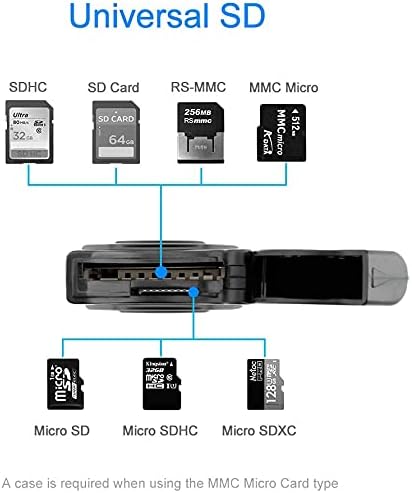
Image: A visual representation of the different types of SD and Micro SD cards compatible with the Rocketek RT-CR3A card reader.
Maintenance
- Cleaning: Use a soft, dry cloth to clean the exterior of the device. Avoid using liquid cleaners or solvents.
- Storage: When not in use, keep the card reader in a clean, dry place. Utilize the built-in card cover to protect inserted cards and the USB connector.
- Handling: Avoid dropping the device or exposing it to extreme temperatures or moisture.

Image: The Rocketek RT-CR3A highlighting its compact and anti-lost design, including a keychain loop for portability.
Troubleshooting
Device Not Detected
- Ensure the card reader is fully inserted into a functional USB port.
- Try a different USB port on your computer.
- If using a USB hub, try connecting the reader directly to the computer.
- Restart your computer.
Memory Card Not Detected
- Ensure the memory card is correctly inserted into the appropriate slot with contacts facing down.
- Try removing and reinserting the memory card.
- Test the memory card in another device to confirm it is functional.
- If multiple cards are inserted, remove one and reinsert the card reader into the USB port.
Slow Data Transfer
- Ensure the card reader is connected to a USB 3.0 port on your computer for optimal speed. USB 2.0/1.1 ports will result in slower transfer rates.
- The speed of data transfer also depends on the speed class of your memory card.
Specifications
| Feature | Specification |
|---|---|
| Model | RT-CR3A |
| Interface | USB 3.0 (backward compatible with USB 2.0/1.1) |
| Supported Card Types | SD, SDHC, SDXC, UHS-I, MMC, RS-MMC, Micro SD, Micro SDHC, Micro SDXC |
| Max Capacity | SDXC up to 2TB |
| Operating System | Mac OS, Windows |
| Dimensions (LxWxH) | 4.72 x 2.56 x 0.71 inches (approx. 120 x 65 x 18 mm) |
| Item Weight | 1.44 ounces (approx. 40.8 grams) |
| Special Features | Plug & Play, Built-in Card Cover, LED Status Indicator |

Image: A diagram illustrating the physical dimensions of the Rocketek RT-CR3A card reader.
Warranty and Support
Rocketek provides a 24-month manufacturer's warranty for this product.
For technical support or warranty claims, please contact Rocketek customer service. Refer to the product packaging or the official Rocketek website for contact information.
Free lifetime technical support is also available.
Safety Information
- Do not attempt to disassemble or modify the device.
- Keep out of reach of children.
- Avoid exposure to water or other liquids.
- Dispose of the device responsibly according to local electronic waste regulations.