
Alesis V49
Contents
Alesis V49 USB MIDI Keyboard Controller
User Manual
Introduction
The Alesis V49 is a powerful and intuitive MIDI keyboard controller designed for music production and performance. Featuring 49 full-sized, velocity-sensitive keys, 8 velocity- and pressure-sensitive backlit pads, and 4 assignable knobs and buttons, the V49 provides comprehensive control over your virtual instruments and digital audio workstations (DAWs). Its USB connectivity ensures seamless integration with your computer, making it an essential tool for any modern musician or producer.
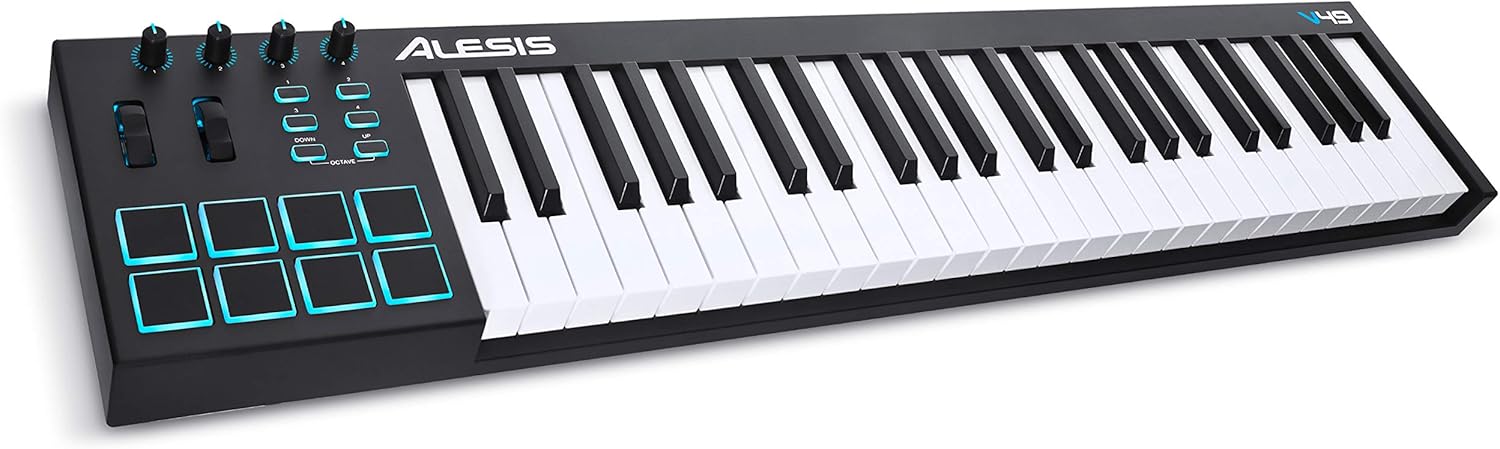
Figure 1: Alesis V49 USB MIDI Keyboard Controller
Features
- 49 Full-Sized Keys: Velocity-sensitive square-front keys for expressive playing.
- 8 Backlit Pads: Velocity- and pressure-sensitive pads for beat production and clip launching.
- 4 Assignable Knobs: Control parameters in your music software with visual feedback.
- 4 Assignable Buttons: Trigger functions or commands within your DAW.
- Octave Up/Down Buttons: Access the full melodic range of the keyboard.
- Pitch and Modulation Wheels: Add expressive control to your performances.
- USB-Powered: Simple plug-and-play connectivity with your computer.
- Software Suite Included: Comes with Ableton Live Lite, Xpand!2 by Air Music Tech, and MPC Beats.

Figure 2: Included Software Suite
Setup
1. Unpacking
Carefully remove the Alesis V49 from its packaging. Ensure all components are present: the V49 controller and a USB cable.
2. Connecting to Your Computer
- Locate the USB port on the rear panel of the V49.
- Connect one end of the included USB cable to the V49's USB port.
- Connect the other end of the USB cable to an available USB port on your computer.
- The V49 is USB-powered and does not require an external power adapter.

Figure 3: USB and Sustain Pedal Ports
3. Software Installation
The Alesis V49 is a class-compliant MIDI device, meaning it does not require special drivers for basic functionality on most modern operating systems (Windows and macOS). However, to utilize the included software suite:
- Visit the Alesis website (www.alesis.com) and navigate to the V49 product page.
- Register your product to gain access to software downloads and activation codes for Ableton Live Lite, Xpand!2, and MPC Beats.
- Follow the instructions provided on the Alesis website and within the software installers to complete the installation process.

Figure 4: V49 Integrated with a Digital Audio Workstation
Operating the V49
Keys
The 49 full-sized keys are velocity-sensitive, meaning the volume or intensity of the sound produced will vary based on how hard you strike the key. This allows for dynamic and expressive performances.
Pads
The 8 backlit pads are both velocity- and pressure-sensitive. They are ideal for triggering drum samples, one-shot sounds, or launching clips in your DAW. The backlighting provides visual feedback, often indicating pad status or clip state.
Knobs and Buttons
The 4 assignable knobs and 4 assignable buttons can be mapped to various parameters within your music software. This allows for hands-on control of virtual instrument parameters, mixer levels, effects, and more. Refer to your DAW's manual for instructions on MIDI mapping.

Figure 5: Control Section (Pads, Knobs, Buttons)
Octave Up/Down Buttons
Use the Octave Up and Octave Down buttons to shift the keyboard's pitch range up or down in full octave increments. This allows you to access the entire 128-note MIDI range, even with 49 keys.
Pitch and Modulation Wheels
The Pitch Bend wheel allows you to smoothly bend the pitch of notes up or down, while the Modulation wheel can be assigned to control various parameters like vibrato, filter cutoff, or volume, adding dynamic expression to your sounds.
Maintenance
- Cleaning: Use a soft, dry cloth to clean the surface of the V49. For stubborn dirt, a slightly damp cloth can be used, but ensure no moisture enters the unit. Avoid abrasive cleaners or solvents.
- Storage: When not in use, store the V49 in a clean, dry environment away from direct sunlight, extreme temperatures, and excessive dust.
- Handling: Avoid dropping the unit or subjecting it to strong impacts. Do not place heavy objects on the V49.
Troubleshooting
No Sound from Virtual Instrument
- Check USB Connection: Ensure the USB cable is securely connected to both the V49 and your computer.
- Verify MIDI Input in DAW: Open your DAW's preferences or settings and confirm that the Alesis V49 is recognized and enabled as a MIDI input device.
- Arm Track for Recording: Make sure the track in your DAW that contains the virtual instrument is armed for recording or set to receive MIDI input.
- Check Instrument Settings: Ensure the virtual instrument itself is loaded correctly and its volume is turned up.
Pads or Knobs Not Responding
- MIDI Mapping: Confirm that the pads, knobs, or buttons are correctly MIDI-mapped to the desired functions within your software. Refer to your software's manual for MIDI mapping instructions.
- Software Compatibility: Ensure your software is compatible with general MIDI controllers.
Intermittent Connection
- Try Different USB Port: Connect the V49 to a different USB port on your computer.
- Avoid USB Hubs: If possible, connect the V49 directly to your computer's USB port rather than through an unpowered USB hub.
- Replace USB Cable: A faulty USB cable can cause connection issues. Try using a different, high-quality USB A-to-B cable.
Specifications
| Feature | Description |
|---|---|
| Model Name | V49 |
| Number of Keys | 49 |
| Key Type | Full-sized, velocity-sensitive, square-front |
| Pads | 8 velocity- and pressure-sensitive, backlit |
| Knobs | 4 assignable |
| Buttons | 4 assignable, Octave Up/Down |
| Wheels | Pitch Bend, Modulation |
| Connectivity | USB (Type B), Sustain Pedal Input (1/4" TS) |
| Power | USB-powered |
Warranty and Support
For warranty information, technical support, and additional resources, please visit the official Alesis website or contact their customer support directly.
Alesis Official Website: www.alesis.com
Alesis Store on Amazon: Alesis Store
Documents and downloads
Ask a question about this manual
Ask about setup, troubleshooting, compatibility, parts, safety, or missing instructions. Manuals+ will review the question and use this page’s manual context to help answer it.