
Alesis V25
Contents
Alesis V25 - 25-Key USB MIDI Keyboard Controller
User Manual
Introduction
The Alesis V25 is a powerful, intuitive MIDI controller designed to give you command over your music software. Featuring 25 full-size, velocity-sensitive keys, it allows for playing bass lines, chords, and melodies across the full melodic range using Octave Up/Down buttons. The V25 also includes four assignable knobs and buttons for manipulating effect plugins and virtual instruments, enabling control over filters, volume levels, effects, and parameters. Eight velocity-sensitive, backlit pads provide exceptional response for beat production and clip launching. Pitch and modulation wheels further expand the expressive capabilities for your performances.
Setup
1. Connecting Your V25
The Alesis V25 is a class-compliant USB MIDI controller, meaning it does not require special drivers for most operating systems (Windows, macOS). Simply connect the V25 to your computer using a standard USB cable. The device will be powered via the USB connection.
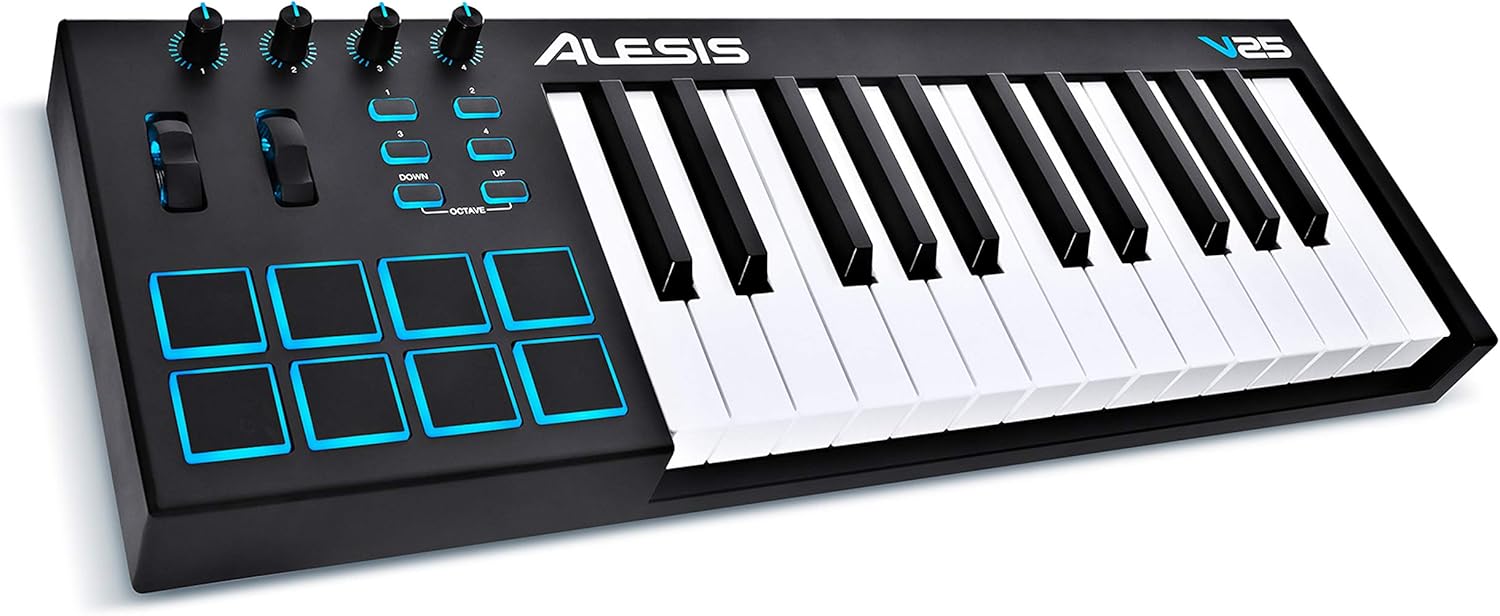
Image: The Alesis V25 MIDI Keyboard Controller, showcasing its compact design and key features.

Image: Close-up of the USB port on the Alesis V25, illustrating how to connect it to a computer.
2. Software Installation
Your Alesis V25 includes a professional software suite to get you started with music production. This suite typically includes:
- Ableton Live Lite: A powerful digital audio workstation (DAW) for composing, recording, remixing, and performing.
- Xpand!2 by AIR Music Tech: A versatile multitimbral virtual instrument with a vast collection of sounds.
- MPC Beats: A beat-making software based on Akai Professional's legendary MPC hardware.
To access and install this software, register your V25 on the Alesis website using the provided serial number. Follow the instructions on the Alesis product registration page to download and activate your software licenses.

Image: Graphic indicating the included software: MPC Beats, Ableton Live Lite, and Xpand!2.
Operating the V25
1. Keyboard Keys
The V25 features 25 full-size, velocity-sensitive keys. Velocity sensitivity means the volume or intensity of the sound produced depends on how hard you press the key. This allows for expressive performances. Use the Octave Up/Down buttons to shift the keyboard's range and access the full melodic spectrum.

Image: A user playing the Alesis V25 MIDI controller, connected to a computer running music software.
2. Performance Pads
The eight velocity- and pressure-sensitive backlit pads are ideal for finger drumming, triggering samples, or launching clips in your DAW. The backlighting provides visual feedback, indicating pad status or activity.

Image: A close-up view of a hand interacting with the backlit performance pads on the Alesis V25.
3. Assignable Knobs and Buttons
The V25 includes four assignable knobs and four assignable buttons. These can be mapped to various parameters within your music software, such as filter cutoff, volume, effects send, or triggering specific functions. Refer to your DAW's manual for instructions on MIDI mapping.

Image: A hand adjusting one of the assignable knobs on the Alesis V25, which feature blue backlighting.
4. Pitch and Modulation Wheels
The Pitch Bend wheel allows for smooth pitch variations, while the Modulation wheel can be assigned to control various expressive parameters like vibrato, filter sweeps, or tremolo, adding dynamic control to your performances.
5. DAW Integration (Example: FL Studio)
While the V25 is plug-and-play, proper setup in your Digital Audio Workstation (DAW) is crucial for full functionality. For FL Studio, navigate to the MIDI settings in the main menu. Ensure the V25 is listed under inputs and that the 'Enable' option is selected. Once enabled, you can add any virtual instrument, and it will automatically be controlled by your Alesis V25.

Image: The Alesis V25 integrated into a home studio setup, connected to a computer with studio monitors.
Maintenance
To ensure the longevity and optimal performance of your Alesis V25, follow these maintenance guidelines:
- Cleaning: Use a soft, dry cloth to wipe down the surface of the controller. For stubborn dirt, a slightly damp cloth can be used, but ensure no moisture enters the device. Avoid abrasive cleaners or solvents.
- Storage: Store the V25 in a cool, dry place away from direct sunlight, extreme temperatures, and high humidity.
- Handling: Avoid dropping the unit or subjecting it to strong impacts. Do not place heavy objects on top of the controller.
- Connectivity: Always handle USB cables by the connector, not the cable itself, to prevent damage to the cable or the port.
Troubleshooting
- No Sound/No Response:
- Ensure the V25 is properly connected via USB and powered on (indicated by backlit pads/buttons).
- Verify that your DAW's MIDI settings recognize and enable the V25 as an input device.
- Check that a virtual instrument or track is armed for recording/playback and is receiving MIDI input.
- Confirm that the correct audio output is selected in your DAW and that your speakers/headphones are connected and functioning.
- Keys/Pads Not Responding Correctly (Velocity Issues):
- The V25 has velocity-sensitive keys and pads. Adjust your playing technique.
- Some DAWs or virtual instruments allow for adjusting velocity curves. Consult your software's manual.
- Ensure no physical debris is obstructing the keys or pads.
- Knobs/Buttons Not Controlling Software:
- These controls are assignable. You need to map them to parameters within your DAW or virtual instrument. Refer to your software's MIDI learn or mapping functions.
- Intermittent Connection:
- Try a different USB port on your computer.
- Try a different USB cable.
- Avoid connecting via unpowered USB hubs.
For more detailed troubleshooting or technical support, please refer to the official Alesis V25 User Manual PDF available on the Alesis website or via the link provided in the product listing.
Specifications
| Feature | Detail |
|---|---|
| Item Weight | 3.85 pounds |
| Product Dimensions | 9.6 x 24.6 x 4.53 inches |
| Model Number | V25 |
| Color Name | Black |
| Compatible Devices | Laptop, Desktop PC |
| Connector Type | USB |
| Hardware Interface | USB |
| Supported Software | Ableton Live Lite |
| Material Type | Metal, Plastic |
| Number of Keyboard Keys | 25 |
| Special Feature | Keyboard Controller, Velocity Sensitive Key |
Warranty and Support
Alesis products are designed for reliability and performance. For information regarding warranty coverage, product registration, and technical support, please visit the official Alesis website or refer to the documentation included with your product.
You can also find the official User Manual (PDF) for the Alesis V25 via this link: Alesis V25 User Manual PDF
For further assistance, please contact Alesis customer support or visit the product page on Amazon.com.
Documents and downloads
Ask a question about this manual
Ask about setup, troubleshooting, compatibility, parts, safety, or missing instructions. Manuals+ will review the question and use this page’s manual context to help answer it.