
Introduction
The M-Audio Keystation Mini 32 is a compact USB MIDI controller designed for music production and performance. This manual provides essential information to help you set up, operate, and maintain your device.

Figure 1: M-Audio Keystation Mini 32 USB MIDI Controller.
Setup
Box Contents
- M-Audio Keystation Mini 32
- USB Cable
- Ignite Card (for software activation)
- Quickstart Guide
- Safety & Warranty Manual
Connecting to Your Computer
The Keystation Mini 32 is a class-compliant, USB-powered device. This means it does not require separate drivers for most operating systems and draws power directly from the USB connection.
- Connect one end of the supplied USB cable to the USB port on the Keystation Mini 32.
- Connect the other end of the USB cable to an available USB port on your computer (Mac or PC).
- Your computer should automatically recognize the device.
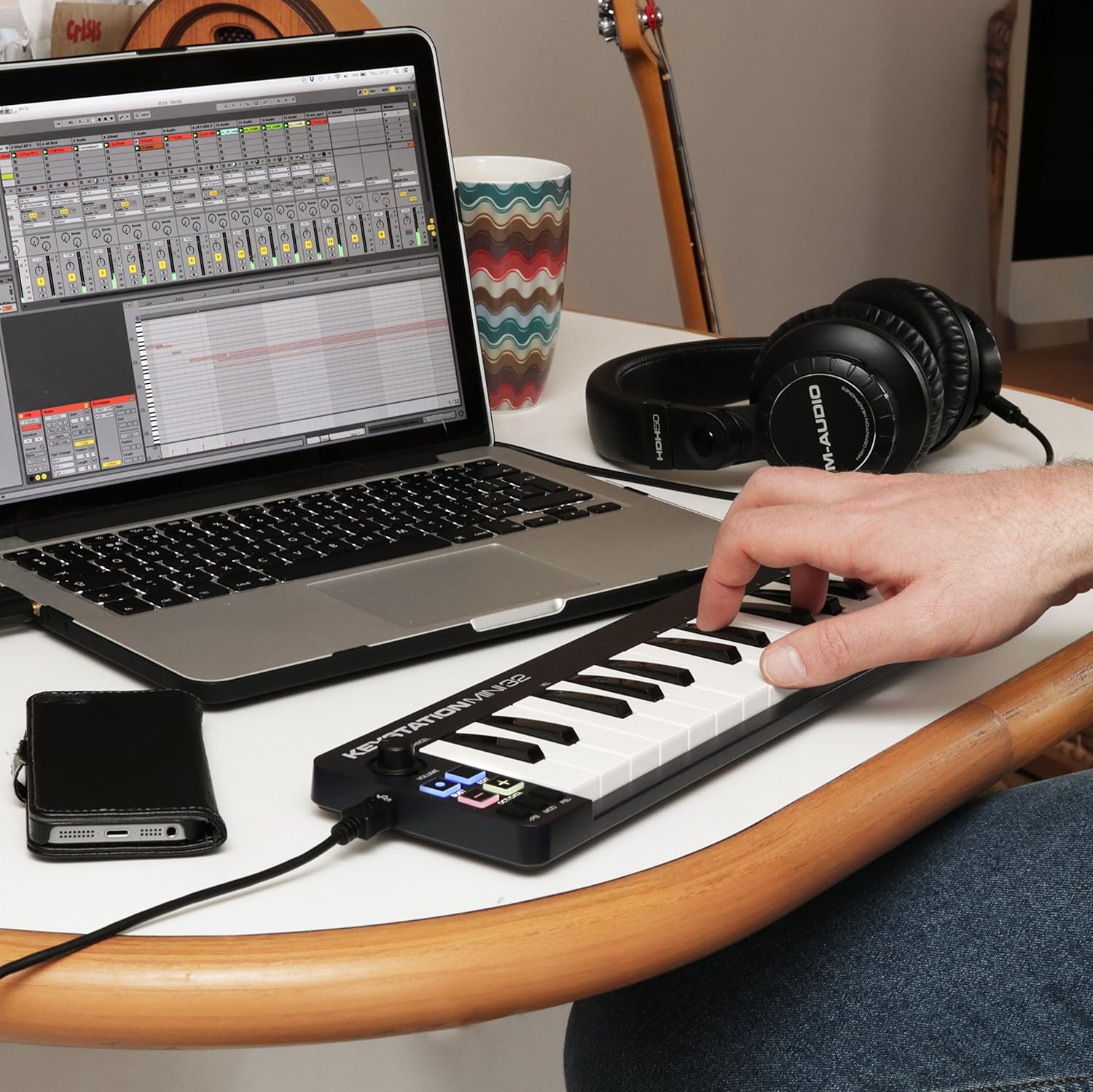
Figure 2: Keystation Mini 32 connected to a laptop, demonstrating a typical setup for music production.
iOS Connectivity
For iOS device connectivity, the Apple iPad Camera Connection Kit (sold separately) is required. This allows you to use the Keystation Mini 32 with audio applications on your iPad and other iOS devices.
Software Installation
The Keystation Mini 32 includes bundled software:
- AIR Music Technology's Ignite: Over 275 instrument sounds. Use the provided Ignite Card for activation.
- Ableton Live Lite: A popular performance and production program.
Refer to the Quickstart Guide and the Ignite Card for detailed instructions on downloading and activating the included software.
Operation
The Keystation Mini 32 features 32 velocity-sensitive, synth-action mini keys and several controls for expressive performance.
Key Features and Controls

Figure 3: Top view of the Keystation Mini 32, highlighting the various controls and keys.
- 32 Velocity-Sensitive Mini Keys: These keys respond to how hard you play them, allowing for dynamic musical expression.
- Octave/Data Buttons: Use these to shift the keyboard's octave range up or down, providing access to the full melodic keyboard range. These buttons can also function as data entry controls in certain modes.
- Pitch Bend Buttons: These buttons allow you to bend the pitch of notes up or down for expressive effects.
- Modulation Button: Engages modulation effects, often used for vibrato or other tonal changes.
- Sustain Button: Functions like a sustain pedal, holding notes after the key is released. Some users note a mode where pressing and holding sustains, and releasing stops sustain.
- Volume Knob: Adjusts the output volume.
- Edit Button: Used to access advanced functions and settings. Refer to the full user guide for detailed information on edit mode.
Playing the Instrument
Once connected and your software is running, select the Keystation Mini 32 as your MIDI input device within your Digital Audio Workstation (DAW) or virtual instrument software. You can then play virtual instruments, sequence music, and control various parameters using the keyboard and its dedicated controls.
Maintenance
To ensure the longevity and optimal performance of your Keystation Mini 32, follow these maintenance guidelines:
- Cleaning: Use a soft, dry cloth to clean the surface of the controller. Avoid abrasive cleaners, solvents, or waxes.
- Storage: Store the device in a cool, dry place away from direct sunlight, extreme temperatures, and high humidity.
- Handling: Handle the controller with care. Avoid dropping it or subjecting it to strong impacts.
- USB Port: The USB port is a critical component. Connect and disconnect the USB cable gently to prevent damage. Avoid excessive force or bending the cable while connected.
Troubleshooting
If you encounter issues with your Keystation Mini 32, consider the following common solutions:
- No Power/Not Recognized:
- Ensure the USB cable is securely connected to both the Keystation Mini 32 and your computer.
- Try a different USB port on your computer.
- If using a USB hub, try connecting directly to the computer.
- Verify that your computer's operating system is up to date.
- No Sound Output:
- Check your DAW or virtual instrument software settings to ensure the Keystation Mini 32 is selected as the MIDI input device.
- Confirm that the volume knob on the Keystation Mini 32 is turned up.
- Ensure your software instruments are loaded and active.
- Keys Not Responding or Incorrect Velocity:
- The keys are velocity-sensitive. Ensure you are pressing them with sufficient force if you expect a louder sound.
- Check your software's velocity curve settings, as these can often be adjusted to match your playing style.
- Ensure no debris is lodged under the keys.
- Software Activation Issues:
- Refer to the instructions on the Ignite Card for software download and activation.
- Visit the M-Audio support website for assistance with software registration.
Specifications
| Item Weight | 1.01 pounds |
| Product Dimensions | 5.38 x 17.5 x 2.25 inches |
| Model Number | 102432 |
| Date First Available | April 14, 2014 |
| Color Name | Black |
| Compatible Devices | Laptop, Tablet |
| Connector Type | USB |
| Hardware Interface | USB |
| Supported Software | Ableton Live |
| Material Type | Lead |
| Musical Style | Electronic |
| Instrument Key | Any |
| Number of Keyboard Keys | 32 |
| Size | 32 mini-key |
| Hardware Platform | x86_64, ARM |
| Brand | M-AUDIO |
| Connectivity Technology | USB |
| Special Feature | Portable |
| Model Name | Keystation Mini II |
Warranty & Support
For detailed warranty information, please refer to the "Safety & Warranty Manual" included in your product box. This document outlines the terms and conditions of your product warranty.
For technical support, software assistance, or further inquiries, please visit the official M-Audio website. Their support section typically provides FAQs, driver downloads, and contact information.
Note: This product is an International Version and may not include a U.S. Warranty. Please check your specific purchase details for warranty coverage.


