1. Introduction
This manual provides comprehensive instructions for the safe and efficient use of your Portronics Scanny 6 WiFi Portable Document Scanner. Please read this manual thoroughly before operating the device and retain it for future reference. This device is designed for scanning documents and images into digital formats.
2. Product Overview
2.1 Key Features
- Direct image scanning from mobile devices or PC via Wi-Fi connectivity.
- Integrated 1.44-inch color display for scanned image playback.
- Rechargeable lithium polymer battery for portable use.
- Supports microSD and microSDHC memory cards up to 32 GB for storage.
- Selectable scan quality: 300 dpi (low), 600 dpi (medium), and 1050 dpi (high).
2.2 Device Components
Familiarize yourself with the main components of your Scanny 6 WiFi scanner:
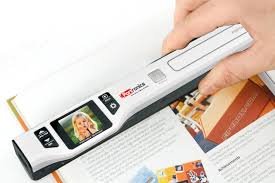
Figure 1: Portronics Scanny 6 WiFi Portable Document Scanner. This image shows the overall design of the handheld scanner, featuring a display screen and control buttons.
- Scanning Head: The part that reads the document.
- Display Screen: 1.44-inch color LCD for previewing scans and navigating menus.
- Control Buttons: Power, Scan, Mode, Resolution, and Wi-Fi buttons.
- MicroSD Card Slot: For inserting memory cards.
- USB Port: For charging and data transfer.
- Battery Compartment: Houses the rechargeable lithium polymer battery.

Figure 2: Close-up view of the Scanny 6 WiFi's display screen and control buttons, illustrating the user interface for operation.

Figure 3: Detailed view of the scanning slot on the Portronics Scanny 6 WiFi, where documents are fed or passed over for scanning.
3. Setup
3.1 Charging the Battery
- Connect the scanner to a USB power source (e.g., computer USB port or USB wall adapter) using the provided USB cable.
- The charging indicator light will illuminate.
- Allow the device to charge fully before first use. A full charge supports scanning up to 800 documents.
3.2 Inserting a MicroSD Card
- Locate the microSD card slot on the scanner.
- Insert a microSD or microSDHC card (up to 32 GB) into the slot with the gold contacts facing down, until it clicks into place.
- To remove, gently push the card until it springs out.
3.3 Powering On/Off
- To Power On: Press and hold the Power button until the display screen illuminates.
- To Power Off: Press and hold the Power button until the display screen turns off.
4. Operating Instructions
4.1 Basic Scanning
- Ensure the scanner is powered on and a microSD card is inserted.
- Place the document to be scanned on a flat surface.
- Select your desired scan settings using the Mode and Resolution buttons:
- Resolution: Choose between 300 dpi, 600 dpi, or 1050 dpi. Higher DPI results in better quality but larger file sizes.
- Mode: Select Color or Black & White.
- Position the scanner at the top edge of the document, ensuring the scanning head is aligned.
- Press the Scan button once to start scanning.
- Smoothly and steadily glide the scanner downwards over the document. Maintain even pressure and speed for optimal results.
- Press the Scan button again to stop scanning. The scanned image will be saved to the microSD card.
- Review the scan on the 1.44-inch display.
4.2 Wi-Fi Connectivity and File Transfer
- Activate Wi-Fi: Press the Wi-Fi button on the scanner. The Wi-Fi indicator will light up, and the display will show the Wi-Fi network name (SSID) and password.
- Connect Device: On your mobile device or computer, go to Wi-Fi settings and connect to the network broadcast by the scanner (e.g., "Scanny_6_XXXX"). Enter the password displayed on the scanner.
- Access Files: Open a web browser on your connected device and enter the IP address displayed on the scanner (typically 192.168.1.1).
- You will see a web interface displaying your scanned images. You can view, download, or delete files from here.
- Deactivate Wi-Fi: Press the Wi-Fi button again on the scanner to turn off the Wi-Fi hotspot.
4.3 Using OCR Software (Optional)
The Scanny 6 WiFi supports conversion of scanned JPG/PDF files to editable MS Word/Excel formats using compatible Optical Character Recognition (OCR) software, such as Abby OCR. This software is typically provided separately or can be acquired from third-party vendors. Refer to the OCR software's documentation for installation and usage instructions.
5. Maintenance
5.1 Cleaning the Scanner
- Ensure the scanner is powered off before cleaning.
- Use a soft, dry, lint-free cloth to wipe the exterior of the scanner.
- For the scanning head and rollers, use a specialized scanner cleaning kit or a soft cloth lightly dampened with isopropyl alcohol. Avoid excessive moisture.
- Do not use abrasive cleaners or solvents.
5.2 Battery Care
- Charge the battery regularly, even if the scanner is not in frequent use, to maintain battery health.
- Avoid exposing the device to extreme temperatures.
5.3 Storage
Store the scanner in a cool, dry place, away from direct sunlight and dust. Use the original packaging or a protective case if available.
6. Troubleshooting
| Problem | Possible Cause | Solution |
|---|---|---|
| Scanner does not power on. | Low battery; device malfunction. | Charge the battery. If problem persists, contact support. |
| Scanned images are blurry or distorted. | Uneven scanning speed; dirty scanning head; document movement. | Scan slowly and steadily. Clean the scanning head. Ensure document is flat. |
| Wi-Fi connection issues. | Incorrect password; device too far from scanner; Wi-Fi not activated. | Verify password. Ensure devices are close. Activate Wi-Fi on scanner. |
| Cannot save scans. | No microSD card; card full; card error. | Insert a microSD card. Delete old files or use a new card. Format the card if necessary (data will be lost). |
7. Specifications
| Feature | Detail |
|---|---|
| Brand | Portronics |
| Model Name | SCANNY 6 |
| Scanner Type | Document |
| Connectivity Technology | Wi-Fi |
| Resolution | 300 dpi, 600 dpi, 1050 dpi |
| Display | 1.44 inches color display |
| Storage | Supports microSD and microSDHC memory card up to 32 GB |
| Battery | Rechargeable Lithium Polymer (700mAh, 4 Watt Hours, 10 Grams) |
| Item Weight | 458 g |
| Package Dimensions | 35.6 x 14.4 x 5.4 cm |
8. Warranty and Support
8.1 Warranty Information
The Portronics Scanny 6 WiFi Portable Document Scanner comes with a 1 Year Manufacturer Warranty. Please retain your purchase receipt as proof of purchase for warranty claims. The warranty covers manufacturing defects under normal use conditions.
8.2 Customer Support
For technical assistance, troubleshooting beyond this manual, or warranty inquiries, please contact Portronics customer support. Refer to the official Portronics website for the most current contact information.
You can visit the Portronics Store on Amazon for more product information.


