Introduction
The Gingko GK08B10 Alarm Clock Cube is a modern, minimalist digital alarm clock designed to display time, date, and temperature. Its unique sound-activated display feature allows the numbers to appear only when a sound is made, such as a clap or tap, providing a clean aesthetic when not in use. This manual provides comprehensive instructions for setting up, operating, and maintaining your alarm clock.
Features
- Displays time, date, and temperature.
- Sound-activated display: Activates with a clap of fingers or gentle tap.
- Automatic display shut-off when the room is silent.
- Integrated alarm function.
- Snooze function for the alarm.
- Compact and elegant cube design.
Package Contents
Upon opening the package, you should find the following items:
- Gingko GK08B10 Alarm Clock Cube
- USB Power Cable (Note: Wall adapter is not included and must be supplied by the user or connected to a USB port on a computer/TV.)
Setup
Powering the Device
The Gingko GK08B10 can be powered via the included USB cable or by AAA batteries (not included).
- USB Power: Connect the USB cable to the DC 5V port on the back of the clock and plug the other end into a USB wall adapter (not supplied) or a powered USB port on a computer or other device. This is the recommended method for continuous operation.
- Battery Power: Open the battery compartment on the back of the clock. Insert 3x AAA batteries, ensuring correct polarity. Battery power is suitable for portability but may result in shorter display times to conserve energy.

Image: Rear view of the alarm clock with the battery compartment open, illustrating battery insertion.
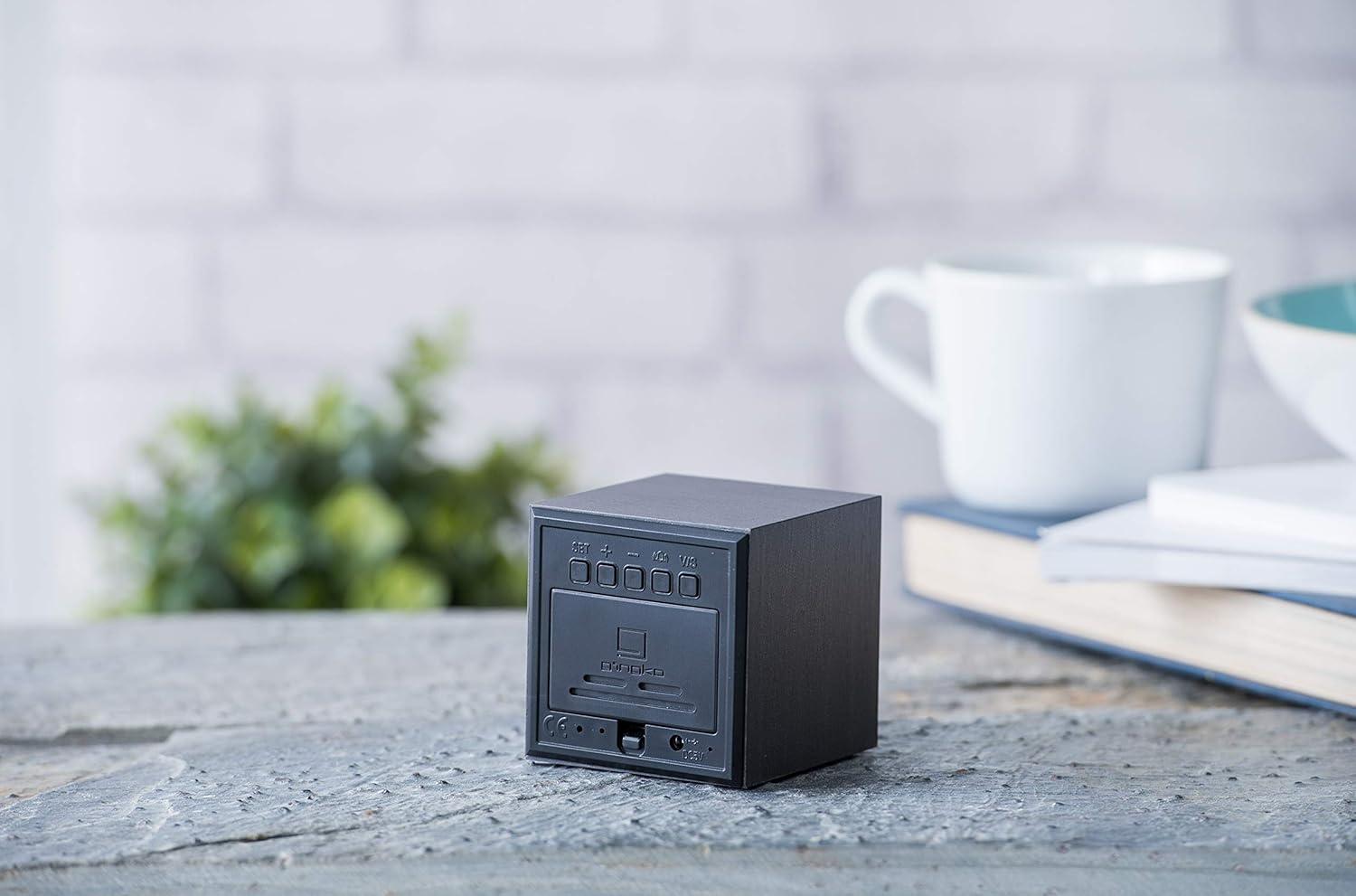
Image: Rear view of the alarm clock, highlighting the control buttons and USB power input.
Initial Time and Date Setting
Once powered on, the display will activate. Use the buttons on the back of the clock to set the time and date.
- Press the SET button to enter setting mode.
- Use the UP and DOWN buttons to adjust the values (e.g., hour, minute, year, month, day).
- Press SET again to confirm each setting and move to the next parameter.
- Continue until all settings (time, date, 12/24 hour format) are configured.
Operating Instructions
Display Activation
The display is sound-activated. To view the time, date, or temperature, simply make a sound such as a clap, tap the clock gently, or speak near it. The display will illuminate for a few seconds and then turn off automatically when the room is silent to conserve energy and maintain a minimalist appearance.

Image: The alarm clock displaying the current time.

Image: The alarm clock displaying the time in a room setting.
Display Modes (Time, Date, Temperature)
The clock can cycle through displaying time, date, and temperature. Use the UP button (or a dedicated mode button if present, check manual for specific model) to switch between these display modes.

Image: The alarm clock displaying the current temperature.
Setting the Alarm
To set the alarm:
- Press the ALARM button (if available, otherwise use SET and cycle through options).
- Use UP and DOWN to set the desired alarm time.
- Press SET to confirm.
- To activate or deactivate the alarm, look for an alarm icon or a specific button (refer to the detailed instructions provided with your product for exact button functions).
Snooze Function
When the alarm sounds, gently tap the top of the clock or press any button (except the alarm off button) to activate the snooze function. The alarm will temporarily stop and sound again after a set interval (typically 5-9 minutes).
Maintenance
Cleaning
To clean the clock, gently wipe the surface with a soft, dry cloth. Do not use abrasive cleaners, solvents, or spray directly onto the device, as this may damage the finish or internal components.
Battery Replacement
If using battery power, replace the AAA batteries when the display becomes dim or unresponsive. Ensure correct polarity when inserting new batteries.
Troubleshooting
| Problem | Possible Cause | Solution |
|---|---|---|
| Display does not light up. | No power, low batteries, or silent environment. | Ensure USB cable is securely connected or replace batteries. Make a sound (clap, tap) to activate the display. |
| Time/Date is incorrect after power loss. | No internal backup battery or main power disconnected. | Reconnect to USB power. If using batteries, ensure they are fresh. Reset time and date as per "Initial Time and Date Setting" section. |
| Alarm does not sound. | Alarm not set or deactivated. | Verify alarm settings and ensure the alarm function is enabled. |
| Display is too dim. | Low battery power. | Replace batteries or connect to USB power. |
Specifications
- Model Number: GK08B10
- Brand: Gingko
- Dimensions: 6.8 x 6.8 x 6.8 cm (2.68 x 2.68 x 2.68 inches)
- Weight: Approximately 4.54 grams (0.16 ounces)
- Display Type: Digital LED (Blue)
- Power Source: USB cable (DC 5V) or 3x AAA batteries (not included)
- Color: Black
- Special Feature: Snooze function
- Country of Origin: China
Warranty and Support
For warranty information or technical support, please refer to the official Gingko website or contact their customer service directly. Keep your purchase receipt as proof of purchase for any warranty claims.
Official Gingko Website: www.gingkodesign.com


