1. Introduction
This manual provides essential information for the safe and efficient operation of your Panasonic DVD-S500 Progressive Scan DVD Player. The DVD-S500 is designed to deliver high-quality video and audio playback from various media formats, including DVDs, CDs, and content stored on USB drives. It features progressive scan video output and 2-channel Dolby Digital sound decoding. Please read this manual thoroughly before using the product and retain it for future reference.
2. Safety Information
To ensure safe operation and prevent damage, observe the following precautions:
- Power Source: Connect the unit only to the specified power supply. Do not overload electrical outlets.
- Ventilation: Ensure adequate ventilation. Do not block ventilation openings. Avoid placing the unit on soft surfaces that may block vents.
- Liquids: Do not expose the unit to rain, moisture, or dripping or splashing liquids. Do not place objects filled with liquids, such as vases, on the unit.
- Heat: Keep the unit away from heat sources such as radiators, heat registers, stoves, or other apparatus (including amplifiers) that produce heat.
- Cleaning: Unplug the unit from the wall outlet before cleaning. Use a dry cloth for cleaning.
- Servicing: Do not attempt to service this product yourself. Refer all servicing to qualified service personnel.
3. Package Contents
Verify that all items are present in the package:
- Panasonic DVD-S500 Progressive Scan DVD Player
- Remote Control (requires 2 AAA batteries, not always included)
- Audio/Video Cable (Composite video and stereo RCA)
- User Manual
4. Product Overview
Front Panel

Image: Front view of the Panasonic DVD-S500 DVD Player, showing the disc tray, USB port, and control buttons.
- Disc Tray: Insert DVDs and CDs here.
- USB Port: Connect USB memory devices for media playback.
- Power Button: Turns the unit on or off.
- Open/Close Button: Opens and closes the disc tray.
- Play/Pause Button: Starts or pauses playback.
- Stop Button: Stops playback.
Rear Panel
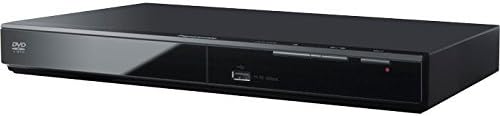
Image: Rear view of the Panasonic DVD-S500 DVD Player, displaying the composite video and stereo RCA audio output ports.
- Composite Video Output (Yellow): Connects to the video input of your TV.
- Stereo RCA Audio Output (Red/White): Connects to the audio inputs of your TV or audio system.
- AC Power Input: Connect the power cord here.
Note: This unit does not feature an HDMI port.
5. Setup
5.1 Connecting to a TV
- Locate the Composite Video (yellow) and Stereo RCA Audio (red and white) output ports on the rear of the DVD player.
- Connect the yellow plug of the supplied A/V cable to the yellow video input on your TV.
- Connect the red and white plugs of the A/V cable to the corresponding red (right audio) and white (left audio) input jacks on your TV or audio receiver.
- Ensure your TV is set to the correct input source (e.g., AV1, Video 1) that corresponds to the connection.
5.2 Power Connection
- Plug the power cord into the AC power input on the rear of the DVD player.
- Insert the other end of the power cord into a wall outlet.
5.3 Initial Power On
Press the Power button on the front panel or the remote control to turn on the unit. The Panasonic logo should appear on your TV screen.
6. Operating Instructions
6.1 Playing a DVD or CD
- Turn on your TV and select the correct input source.
- Press the Open/Close button on the front panel or remote control to open the disc tray.
- Place a DVD or CD onto the disc tray with the label side facing up.
- Press the Open/Close button again to close the disc tray.
- The player will automatically begin reading the disc. Playback should start shortly. If a menu appears, use the remote control's navigation buttons to select your desired option.
- Use the Play/Pause, Stop, Fast Forward, Rewind, and Skip buttons on the remote control to manage playback.
6.2 Playing Content from a USB Device
- Insert a USB memory device into the USB port on the front panel of the DVD player.
- The player should detect the USB device and display a menu for selecting media types (e.g., photos, music, videos).
- Use the remote control's navigation buttons to browse and select files for playback.
- Press the Play button to start playback of the selected file.
6.3 Audio Features
The DVD-S500 supports 2-channel Dolby Digital sound. Ensure your TV or audio system is properly connected via the stereo RCA outputs to experience the audio quality.
7. Maintenance
7.1 Cleaning the Unit
- Wipe the exterior of the unit with a soft, dry cloth.
- Do not use abrasive cleaners, waxes, or solvents as they can damage the finish.
7.2 Disc Care
- Handle discs by their edges to avoid fingerprints.
- Keep discs clean and free from scratches. Wipe discs from the center outwards with a soft, lint-free cloth if cleaning is necessary.
- Store discs in their cases when not in use.
8. Troubleshooting
If you encounter issues with your DVD player, refer to the following common problems and solutions:
| Problem | Solution |
|---|---|
| No power | Check if the power cord is securely plugged into the unit and the wall outlet. Ensure the outlet has power. |
| No picture on TV | Verify that the A/V cables are correctly connected to both the DVD player and the TV. Ensure your TV is set to the correct input source (e.g., AV1, Video 1). Remember, this unit does not have an HDMI output. |
| No sound | Check the red and white RCA audio cables are securely connected. Ensure the TV or audio system volume is not muted or too low. |
| Disc does not play | Ensure the disc is clean and free of scratches. Check that the disc is inserted correctly with the label side up. Verify the disc format is supported (DVD, CD). |
| USB device not recognized | Ensure the USB device is properly inserted. Check that the file formats on the USB device are supported by the player. |
9. Specifications
- Brand: Panasonic
- Model: DVD-S500
- Dimensions (W x D x H): Approximately 12.25 x 8 x 1.5 inches (31.1 x 20.3 x 3.8 cm)
- Weight: Approximately 2.43 pounds (1.1 kg)
- Media Type: CD, DVD
- Special Feature: Progressive Scan
- Resolution: 1080i (output via progressive scan)
- Connector Type: USB 2.0
- Connectivity Technology: USB
- Audio Output Mode: Stereo (Dolby Digital 2-channel decoding)
- Output Wattage: 10 Watts
- Color: Black
10. Warranty and Support
For warranty information and customer support, please refer to the warranty card included with your product or visit the official Panasonic support website. Keep your purchase receipt as proof of purchase for warranty claims.
For further assistance, you may contact Panasonic customer service through their official channels.


