
1. Introduction
This manual provides essential information for setting up, operating, and maintaining your BenQ GL2460HM 24-inch LED monitor. Please read this manual thoroughly before using the monitor to ensure proper functionality and to prevent damage.
2. Safety Information
Observe the following safety precautions to ensure safe operation and to extend the life of your monitor:
- Do not place the monitor on an unstable cart, stand, or table.
- Do not expose the monitor to rain or moisture to avoid fire or shock hazards.
- Do not block ventilation openings.
- Use only the power cord and adapter supplied with the monitor.
- Unplug the monitor from the wall outlet if it will not be used for an extended period.
3. Package Contents
Verify that all items are present in the package:
- BenQ GL2460HM 24-Inch Screen LED-Lit Monitor
- Product Information Guide
- Power Supply Cord
- HDMI Cable (may vary by region)
- VGA Cable (may vary by region)
4. Monitor Assembly
4.1 Attaching the Stand
Carefully place the monitor face down on a soft, clean surface to prevent scratches. Align the stand base with the stand neck and secure it. Then, attach the assembled stand to the back of the monitor until it clicks into place.

Image: Rear view of the BenQ GL2460HM monitor, showing the attached stand.
4.2 VESA Wall Mount Installation
The BenQ GL2460HM monitor supports VESA mounting. Remove the stand by pressing the release button and sliding it off. Attach your VESA-compatible wall mount or arm to the monitor's mounting holes using appropriate screws (not included).
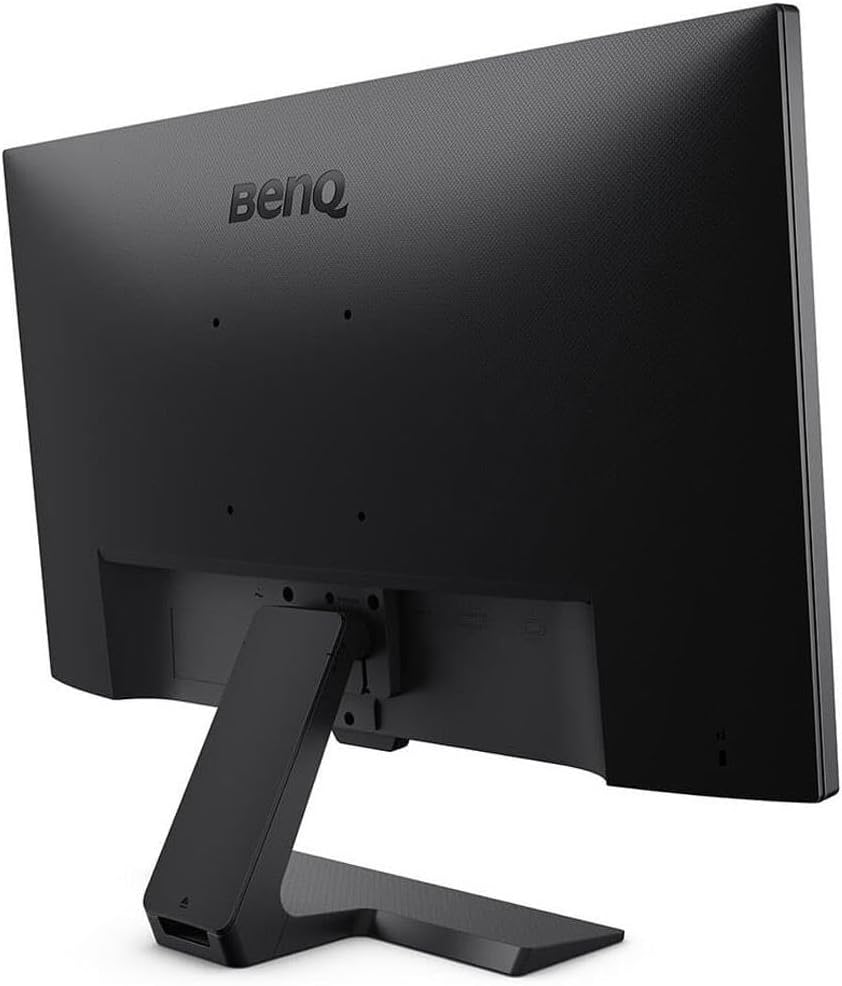
Image: Angled rear view of the BenQ GL2460HM monitor, highlighting the VESA mounting area once the stand is removed.
5. Connecting the Monitor
Connect the monitor to your computer or other devices using the appropriate cables.

Image: Rear view of the BenQ GL2460HM monitor, displaying the power input, HDMI, DVI, and VGA ports.
- Power Connection: Connect the power cord to the monitor's power input and then to a wall outlet.
- Video Connection: Choose one of the following options:
- HDMI: Connect an HDMI cable from your computer's HDMI output to the monitor's HDMI input.
- DVI: Connect a DVI cable from your computer's DVI output to the monitor's DVI input.
- VGA: Connect a VGA cable from your computer's VGA output to the monitor's VGA input.
- Audio Connection (if applicable): If using VGA or DVI and your source device requires separate audio, connect an audio cable from your computer's audio output to the monitor's audio input. HDMI carries both video and audio.
6. Powering On and Basic Operation
After connecting all necessary cables, you can power on your monitor.
- Press the power button located on the bottom right bezel of the monitor.
- The monitor will automatically detect the active input source. If multiple sources are connected, you may need to manually select the input using the OSD menu.

Image: Front view of the BenQ GL2460HM monitor, showcasing its display with a vibrant image.
7. On-Screen Display (OSD) Menu
The OSD menu allows you to adjust various monitor settings. Use the buttons on the bottom right bezel to navigate the menu.
7.1 OSD Menu Navigation
- Press any OSD button to bring up the menu.
- Use the navigation buttons (usually arrows) to move between options.
- Press the 'Enter' or 'OK' button to select an option or confirm a setting.
- Press the 'Exit' or 'Back' button to return to the previous menu or exit the OSD.
7.2 Key OSD Settings
- Picture: Adjust brightness, contrast, sharpness, and color temperature.
- Display: Select input source (HDMI, DVI, VGA), adjust aspect ratio.
- Audio: Control volume and mute settings.
- System: Access language settings, OSD timeout, and factory reset options.
Video: Official BenQ video showcasing the monitor's color capabilities and visual experience, demonstrating how the display can enhance content.
8. Key Features
8.1 Eye-Care Technology
The BenQ GL2460HM incorporates proprietary Eye-Care technology designed to reduce eye fatigue during extended use.
- Flicker-Free: Eliminates harmful flicker of traditional LCDs to prevent eye strain.
- Low Blue Light: Filters out harmful blue light emissions to reduce eye fatigue and improve sleep quality.
- Brightness Intelligence (B.I.): Automatically adjusts screen brightness based on ambient light conditions to optimize display performance and protect your vision.
8.2 Fast Response Time and Refresh Rate
- 2ms GTG Response Rate: Minimizes motion blur and ghosting for smooth video playback and gaming.
- 75Hz Refresh Rate: Provides a smoother visual experience compared to standard 60Hz monitors, reducing input lag.
9. Maintenance
Proper maintenance ensures the longevity and optimal performance of your monitor.
- Cleaning the Screen: Gently wipe the screen with a soft, lint-free cloth. For stubborn marks, use a monitor-specific cleaning solution applied to the cloth, not directly to the screen.
- Cleaning the Casing: Use a soft, dry cloth to wipe the monitor casing. Avoid abrasive cleaners.
- Storage: When not in use for extended periods, store the monitor in a cool, dry place, ideally in its original packaging.
10. Troubleshooting
If you encounter issues with your monitor, refer to the following common troubleshooting steps:
- No Power: Ensure the power cord is securely connected to both the monitor and the wall outlet. Check if the power outlet is functional.
- No Signal: Verify that the video cable (HDMI, DVI, or VGA) is securely connected to both the monitor and your computer. Ensure the correct input source is selected in the OSD menu.
- Flickering Screen: Check the video cable connection. Ensure the refresh rate is set correctly in your computer's display settings. Enable Flicker-Free mode in the OSD if available.
- Image Distortion/Incorrect Colors: Perform a factory reset via the OSD menu. Check your graphics card drivers.
For more detailed troubleshooting or persistent issues, please refer to the official BenQ support website or the comprehensive User Manual (PDF) available for download: BenQ GL2460HM User Manual PDF.
11. Specifications
Detailed technical specifications for the BenQ GL2460HM monitor (Model: GL2480).

Image: Diagram showing the dimensions of the BenQ GL2460HM monitor.
| Feature | Specification |
|---|---|
| Brand | BenQ |
| Model Number | GL2480 |
| Screen Size | 24 inches |
| Resolution | FHD 1080p (1920 x 1080) |
| Aspect Ratio | 1.78:1 |
| Refresh Rate | 75 hertz |
| Response Time | 2 milliseconds (GtG) |
| Display Type | LED |
| Contrast Ratio | 1000:1 |
| Brightness | 250 cd/m² |
| Viewing Angle | 170 degrees |
| Connectivity | HDMI, DVI, VGA |
| Adaptive Sync | FreeSync |
| Additional Features | Flicker-Free, Brightness Intelligence |
| Mounting Type | VESA Compatible |
| Item Dimensions (D x W x H) | 7.6"D x 17.1"W x 22.2"H |
| Item Weight | 16 ounces |
12. Warranty and Support
Your BenQ GL2460HM monitor comes with a manufacturer's warranty.
- Warranty Period: 3 Years Manufacturer Warranty.
- Support: For technical assistance, warranty claims, or further information, please visit the official BenQ support website or contact their customer service.
Legal Disclaimer: Not responsible for shipping damage. Warranty supplied by AMAZON.