
1. Introduction
Welcome to the user manual for your new Salora SM508 mobile phone. This guide provides essential information to help you set up, operate, maintain, and troubleshoot your device. Please read this manual carefully to ensure proper use and to maximize the performance and longevity of your phone.
2. Product Overview
The Salora SM508 is a compact and reliable basic mobile phone designed for essential communication. It features a color display, a comfortable keypad, and dual SIM support.
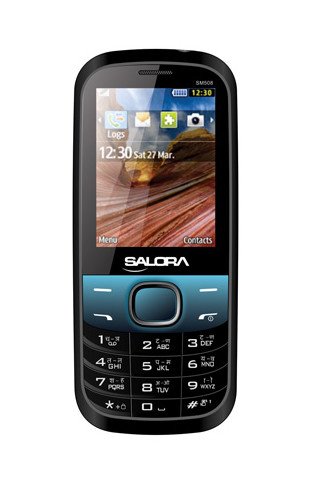
This image displays the front view of the Salora SM508 mobile phone. It features a color display at the top, a central navigation button, and a standard alphanumeric keypad below. The phone has a black body with blue accents around the navigation cluster.
3. Setup
3.1 Inserting SIM Card(s)
- Turn off the phone and remove the back cover.
- Carefully remove the battery.
- Locate the SIM card slots. The Salora SM508 supports dual SIM cards.
- Insert your SIM card(s) into the designated slot(s) with the gold contacts facing down. Ensure they are securely seated.
3.2 Inserting Battery
- Align the battery contacts with the contacts in the phone's battery compartment.
- Gently press the 1800 mAh Li-Ion battery into place until it clicks.
- Replace the back cover, ensuring it is securely fastened.
3.3 Inserting Memory Card (Optional)
- With the back cover and battery removed, locate the memory card slot.
- Insert a microSD card (up to 8GB) into the slot with the gold contacts facing down.
- Replace the battery and back cover.
3.4 Charging the Device
- Connect the charger to the charging port on your phone.
- Plug the charger into a power outlet.
- The battery indicator on the screen will show the charging status. Charge the phone fully before first use.
3.5 Initial Power On/Off
- To Power On: Press and hold the Power/End Call button until the screen lights up.
- To Power Off: Press and hold the Power/End Call button until the power-off options appear, then select 'Power off'.
4. Operating Instructions
4.1 Basic Navigation
- Use the navigation keys (up, down, left, right) to move through menus and options.
- Press the central 'OK' or 'Select' button to confirm a selection.
- Use the 'Back' or 'Clear' button to return to the previous screen or delete characters.
4.2 Making and Receiving Calls
- To Make a Call: Enter the phone number using the keypad and press the Green Call button.
- To Receive a Call: When the phone rings, press the Green Call button to answer.
- To End a Call: Press the Red End Call button.
4.3 Sending and Receiving SMS
- Navigate to the 'Messages' menu.
- Select 'Write Message' or 'New SMS'.
- Enter your message using the keypad.
- Add the recipient's number or select from contacts.
- Press 'Send'.
4.4 Camera Usage
- Access the camera application from the main menu.
- The phone features a 1.3 MP primary (rear) camera.
- Frame your shot using the display.
- Press the 'OK' or 'Capture' button to take a photo.
4.5 Multimedia and Connectivity
- Audio Jack: The phone includes a 3.5 mm audio jack for connecting headphones or external speakers.
- Bluetooth: Enable Bluetooth from the settings menu to connect to compatible devices for file transfer or hands-free communication.
- GPRS: The phone supports GPRS for basic internet connectivity. Consult your network provider for data plan details.
5. Maintenance
5.1 Cleaning Your Device
- Use a soft, dry, lint-free cloth to clean the phone's screen and body.
- Avoid using harsh chemicals, cleaning solvents, or strong detergents.
- Do not allow water or liquids to enter the phone.
5.2 Battery Care
- Avoid exposing the battery to extreme temperatures (hot or cold).
- Do not puncture, disassemble, or short-circuit the battery.
- If the battery is damaged or swollen, discontinue use immediately and replace it with an authorized Salora battery.
5.3 Storage
- Store the phone in a cool, dry place away from direct sunlight and moisture.
- If storing for an extended period, ensure the battery is partially charged (around 50%) to preserve its lifespan.
6. Troubleshooting
If you encounter issues with your Salora SM508, please refer to the following common solutions:
- Phone not turning on:
Ensure the battery is charged. Connect the charger and wait a few minutes before attempting to power on. Check if the battery is properly inserted. - No network signal:
Check if your SIM card is correctly inserted. Ensure you are in an area with network coverage. Try restarting the phone. - Cannot make/receive calls:
Verify that your SIM card is active and has sufficient balance/plan. Check network signal strength. Ensure call barring or flight mode is not enabled. - Charging issues:
Ensure the charger is properly connected to both the phone and the power outlet. Try using a different compatible charger. Check the charging port for any debris. - Keypad unresponsive:
Restart the phone. If the issue persists, ensure no physical damage to the keypad.
If the problem persists after trying these steps, please contact Salora customer support.
7. Specifications
Below are the detailed technical specifications for the Salora SM508 mobile phone:
| Feature | Specification |
|---|---|
| Brand | Salora |
| Model | SM508 |
| Operating System | Android 5.1, Android v5 1 OS (Note: This specification appears to be an error in the source data for a basic phone with a keypad interface. The phone operates on a proprietary feature phone OS.) |
| Screen Size | 6.1 Centimetres (2.4" TFT Screen) |
| Resolution | 320 x 240 pixels |
| Primary Camera | 1.3 MP (Rear) |
| Battery | 1800 mAh, Li-Ion |
| Memory Storage Capacity | Expandable up to 8GB |
| SIM Support | Dual SIM |
| Connectivity Technologies | Bluetooth, GPRS |
| Audio Jack | 3.5 mm |
| Device Interface - Primary | Keypad |
| Form Factor | Bar |
| Colour | Black, Blue |
| Item Weight | 140 g |
| Package Dimensions | 14 x 9.4 x 6.2 cm |
| Date First Available | 18 February 2014 |
8. Warranty and Support
8.1 Warranty Information
The Salora SM508 comes with a 1-year manufacturer warranty for the device from the date of purchase. In-box accessories, including batteries, are covered by a 6-month manufacturer warranty from the date of purchase. This warranty covers manufacturing defects and issues arising from normal use.
Please retain your purchase receipt as proof of purchase for warranty claims.
8.2 Customer Support
For any technical assistance, warranty claims, or further inquiries regarding your Salora SM508 mobile phone, please contact Salora customer support directly. Refer to the packaging or the official Salora website for the most current contact information.
