
Introduction
The Microsoft Wireless Mobile Mouse 1850 is designed for portability and ease of use, offering wireless freedom for your computing needs. Its compact design and ambidextrous shape make it suitable for various users and environments. This manual provides essential information for setting up, operating, maintaining, and troubleshooting your device.
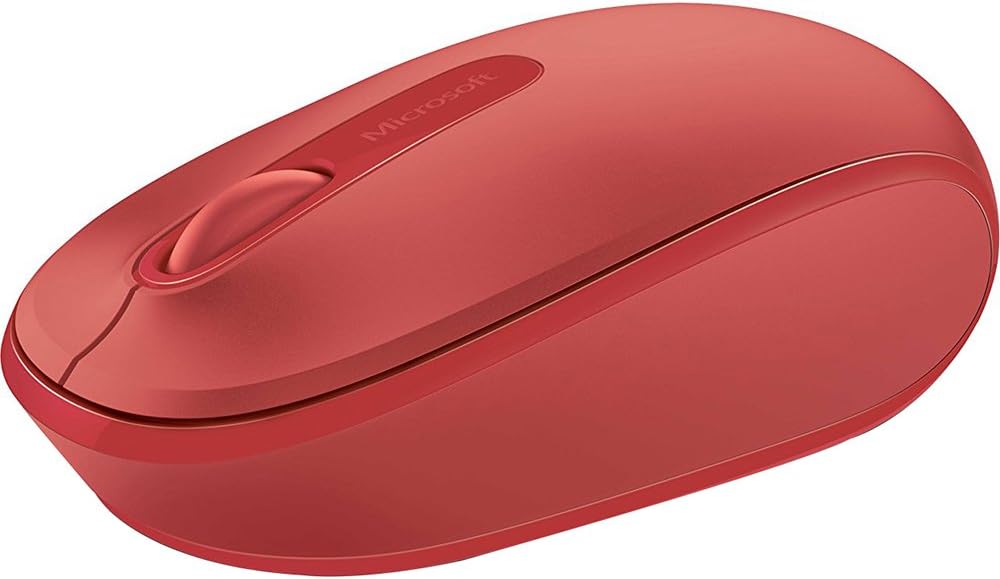
Image 1: The Microsoft Wireless Mobile Mouse 1850 in Flame Red. This image displays the top view of the mouse, highlighting its ergonomic shape, the scroll wheel, and the Microsoft logo.
Setup
- Install the Battery:
Locate the battery compartment on the underside of the mouse. Open the compartment cover and insert one AA battery, ensuring correct polarity. Close the cover securely. A single AA battery is included with your purchase.
- Connect the USB Nano Transceiver:
The USB nano transceiver is typically stored inside the battery compartment or provided alongside the mouse. Remove the transceiver. Plug the transceiver into an available USB port on your PC, laptop, or desktop computer. The mouse should be automatically detected by your operating system.
- System Compatibility:
The Microsoft Wireless Mobile Mouse 1850 is compatible with various operating systems, including Windows 8, Windows 10, Windows 11, and Mac computers.
Operating Instructions
The Wireless Mobile Mouse 1850 features a standard three-button layout with a scroll wheel for intuitive navigation.
- Left Click: Press the left button to select items, open files, or activate functions.
- Right Click: Press the right button to access contextual menus or specific options.
- Scroll Wheel: Roll the wheel up or down to scroll through documents and web pages. The scroll wheel can also be pressed down for a middle-click function, depending on software configuration.
- Ambidextrous Design: The mouse is designed for comfortable use with either the left or right hand.
Maintenance
- Battery Replacement:
When the mouse performance degrades or stops responding, it is likely time to replace the AA battery. Follow the battery installation steps outlined in the Setup section.
- Cleaning:
To clean your mouse, gently wipe the exterior with a soft, damp cloth. Avoid using harsh chemicals or abrasive materials. Ensure no liquid enters the device.
- Transceiver Storage:
For ultimate portability and to prevent loss, the USB nano transceiver can be stored securely within the mouse's dedicated storage slot, usually located near the battery compartment.
Troubleshooting
| Problem | Solution |
|---|---|
| Mouse is not responding. |
|
| Cursor movement is erratic or slow. |
|
| Wireless connection issues. |
|
Specifications
- Model Number: U7Z-00031
- Wireless Type: 2.4 GHz Radio Frequency
- Movement Detection Technology: Optical
- Connectivity Technology: Infrared (via USB transceiver)
- Hardware Platform: Laptop, PC
- Operating System Compatibility: Windows 8, Windows 10, Windows 11, Mac
- Power Source: Battery Powered
- Batteries: 1 AA battery (included)
- Item Weight: 3.17 ounces
- Product Dimensions (LxWxH): 5.51 x 4.92 x 2.36 inches
- Color: Flame Red
- First Available: February 18, 2014
Warranty and Support
For detailed warranty information and technical support, please refer to the official Microsoft support website or the documentation included with your product packaging. Microsoft provides resources to assist with product inquiries, troubleshooting, and service requests.
You can visit the official Microsoft Store for additional product information and support resources: Microsoft Store on Amazon.


