
1. Introduction
The Whistler WS1025 is a desktop analog scanner designed for monitoring various radio communications, including police, fire, weather, and other public safety frequencies. This manual provides essential information for the setup, operation, and maintenance of your device. The scanner features 200 channels, PC updatable database capabilities, and dedicated Skywarn Storm Spotter functionality.
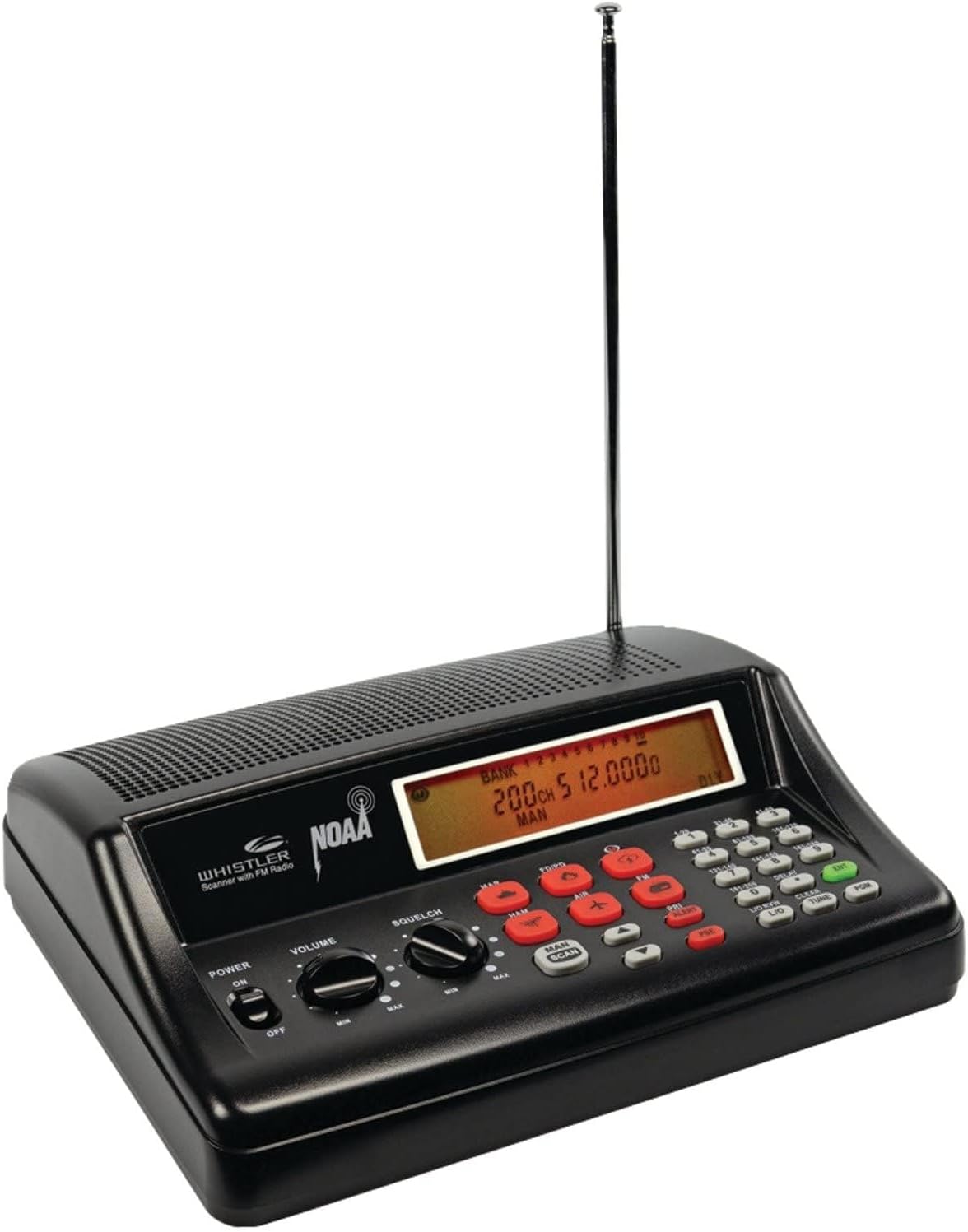
Figure 1: Front view of the Whistler WS1025 Analog Desktop Scanner, showing the backlit LCD display, control knobs, and keypad.
2. Setup
2.1 Unpacking
Carefully remove all components from the packaging. The box should contain the scanner unit and the instruction manual.
2.2 Power Connection
Connect the provided AC adapter to the scanner's power input jack and then plug it into a standard electrical outlet. Ensure the power switch on the scanner is in the 'OFF' position before connecting power.
2.3 Antenna Connection
Attach the included telescopic antenna to the antenna connector on the back of the scanner. For optimal reception, extend the antenna fully and position the scanner in an area with minimal obstructions.

Figure 2: Side view of the Whistler WS1025 Analog Desktop Scanner, illustrating its compact dimensions of 6.87 x 8.25 x 2.37 inches.
3. Operating Instructions
3.1 Power On/Off
To power on the scanner, rotate the POWER/VOLUME knob clockwise until it clicks. To power off, rotate it counter-clockwise until it clicks.
3.2 Volume and Squelch Adjustment
Adjust the audio output level using the VOLUME knob. The SQUELCH knob controls the background noise. Rotate it clockwise until the static disappears, then slightly further to ensure clear reception of weaker signals.
3.3 Scanning Frequencies
Press the SCAN button to initiate scanning through programmed channels. The scanner will pause on active frequencies.
3.4 Priority Channel
The priority channel feature allows the scanner to check a designated channel every two seconds while scanning. This ensures you do not miss important transmissions on a critical frequency.
3.5 Scan Delay
The scan delay function pauses scanning for two seconds after a transmission ends on a channel before moving to the next. This allows you to hear any replies on the same frequency.
3.6 Tune Function
Use the TUNE function to find new and unlisted frequencies. You can start tuning from a specified frequency to explore the airwaves.
3.7 Skywarn Storm Spotter Functionality
The WS1025 provides instant access to frequencies used by storm spotter networks. This feature allows users to monitor storm conditions as they occur, providing awareness of dangerous weather conditions before official announcements.

Figure 3: The scanner supports NOAA SAME Weather Alert and SKYWARN features for critical weather information.
4. Programming
The Whistler WS1025 offers 200 channels for storing your preferred frequencies. These channels are organized into service banks, which enable you to easily locate specific types of calls. Service banks include categories such as marine, fire/police, aircraft, ham, and weather frequencies.
4.1 PC Updatable Database & Data Cloning
The scanner supports PC updatable database capabilities, allowing you to manage and update your frequency lists using a computer. Data Cloning enables the transfer of programmed data from one WS1025 scanner to another, simplifying setup for multiple units.
Video 1: An overview of the Whistler WS1025 Analog Desktop Scanner, demonstrating its features and basic operation.
5. Maintenance
To ensure the longevity and optimal performance of your Whistler WS1025 scanner, follow these general maintenance guidelines:
- Cleaning: Use a soft, dry cloth to clean the exterior of the scanner. Avoid using abrasive cleaners or solvents, as these can damage the finish and electronic components.
- Storage: Store the scanner in a cool, dry place away from direct sunlight and extreme temperatures when not in use for extended periods.
- Antenna Care: Handle the telescopic antenna with care to prevent bending or breakage.
6. Troubleshooting
If you encounter issues with your Whistler WS1025 scanner, consider the following common troubleshooting steps:
- No Power: Ensure the AC adapter is securely connected to both the scanner and a working electrical outlet. Check the power switch position.
- No Reception/Poor Audio: Verify the antenna is properly connected and fully extended. Adjust the SQUELCH knob to reduce static. Ensure the VOLUME knob is turned up. Check if you are within range of active analog transmissions.
- Cannot Hear Digital Transmissions: The Whistler WS1025 is an analog scanner and cannot receive digital radio signals. If local agencies have switched to digital systems, this scanner will not be able to monitor those frequencies.
- Programming Difficulties: Refer to the detailed programming instructions in the full user manual or consult online resources for PC programming guidance.
7. Specifications
| Feature | Detail |
|---|---|
| Model Number | WS1025 |
| Scanner Type | Analog Radio Scanner |
| Channels | 200 |
| Product Dimensions | 6.87 x 8.25 x 2.37 inches |
| Item Weight | 1.54 pounds |
| Power Source | AC Adapter (2 Lithium Ion batteries required for memory backup) |
| Display | Backlit LCD |
| Special Features | Skywarn, NOAA Weather Alert, Data Cloning, PC Programmable |
| Minimum System Requirements (for PC programming) | Windows 7 |
8. Warranty and Support
For warranty information or technical support regarding your Whistler WS1025 Analog Desktop Scanner, please refer to the warranty card included with your product or visit the official Whistler website. You may also contact Whistler customer service for assistance with product operation, troubleshooting, or parts replacement.


