
1. Introduction
This manual provides essential instructions for the safe and efficient operation of your Haier LED TV, models LE22T1000 and LE24T1000. Please read this manual thoroughly before using your television and retain it for future reference.
2. Safety Information
To ensure safe operation and prevent damage, observe the following precautions:
- Power Source: Connect the TV only to an AC power outlet of the specified voltage.
- Ventilation: Ensure adequate ventilation. Do not block ventilation openings.
- Water and Moisture: Do not expose the TV to rain or moisture. Do not place objects filled with liquids on the TV.
- Heat Sources: Keep the TV away from radiators, heat registers, stoves, or other heat-producing appliances.
- Cleaning: Unplug the TV from the wall outlet before cleaning. Use a soft, dry cloth.
- Servicing: Do not attempt to service this product yourself. Refer all servicing to qualified service personnel.
3. What's in the Box
Upon unpacking, verify that all the following items are included:
- Haier LED TV Unit
- TV Stand
- Remote Control (with batteries)
- Power Cord
- User Manual (this document)
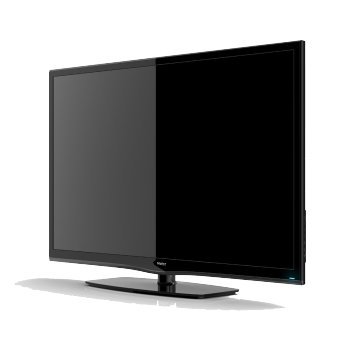
Image 1: Haier LED TV (Model LE24T1000H) with its included stand. The television features a black bezel and a central stand.
4. Setup
4.1 Unpacking and Placement
- Carefully remove the TV from its packaging.
- Place the TV on a stable, level surface or mount it on a wall using a compatible VESA mount (sold separately).
- Ensure there is sufficient space around the TV for ventilation.
4.2 Attaching the Stand
If using the included stand:
- Place the TV face down on a soft, clean cloth to prevent screen damage.
- Align the stand with the mounting holes on the bottom of the TV.
- Secure the stand using the provided screws. Do not overtighten.
4.3 Connecting Power
Connect the power cord to the TV's power input, then plug the other end into a wall outlet.
4.4 Connecting External Devices
Your Haier LED TV supports various input sources:
- HDMI: For high-definition audio and video from devices like Blu-ray players, gaming consoles, or set-top boxes.
- USB: For playing media files from USB storage devices. The TV has 1 USB port.
- Antenna/Cable: Connect an antenna or cable TV feed for broadcast channels.
5. Operating Your TV
5.1 Basic Controls
- Power: Press the power button on the remote or TV to turn it on/off.
- Volume: Use the VOL +/- buttons to adjust the volume.
- Channel: Use the CH +/- buttons to change channels.
- Input: Press the INPUT/SOURCE button to select connected devices (HDMI, USB, TV).
5.2 Picture Settings
Your TV offers various picture adjustments to optimize your viewing experience:
- Picture Mode Settings: Choose from 5 predefined picture modes (e.g., Standard, Dynamic, Movie).
- Wide Mode Settings: Select from 5 wide modes to adjust the aspect ratio.
- Noise Reduction: Enable or disable noise reduction for clearer images.
- Comb Filter: Utilizes a comb filter for improved picture quality.
- Color Tone: Adjust the color tone with 6 available settings.
5.3 Audio Settings
The TV supports stereo audio output and MP3 audio formats via USB.
5.4 Android Operating System
This TV runs on the Android operating system, providing access to various smart features and applications. Navigate the smart interface using your remote control.
6. Maintenance
6.1 Cleaning the TV
- Always unplug the TV before cleaning.
- Use a soft, dry cloth to wipe the screen and cabinet.
- For stubborn marks, lightly dampen the cloth with water or a mild, non-abrasive cleaner specifically designed for electronics.
- Never spray cleaner directly onto the screen or cabinet.
6.2 Storage
If storing the TV for an extended period, disconnect it from power, pack it in its original packaging (if available), and store it in a cool, dry place away from direct sunlight and extreme temperatures.
7. Troubleshooting
Before contacting customer support, try the following solutions for common issues:
| Problem | Possible Solution |
|---|---|
| No power | Check if the power cord is securely plugged into both the TV and the wall outlet. Ensure the outlet has power. |
| No picture, but sound is present | Ensure the correct input source is selected. Check cable connections to external devices. |
| No sound, but picture is present | Check the volume level and mute status. Ensure audio cables are correctly connected. |
| Remote control not working | Replace batteries. Ensure there are no obstructions between the remote and the TV's IR sensor. |
| Poor picture quality | Adjust picture settings (brightness, contrast, sharpness). Check antenna or cable connection. |
8. Specifications
| Feature | Detail |
|---|---|
| Brand | Haier |
| Model | LE22T1000 & LE24T1000 |
| Model Name | 24t1000h |
| Operating System | Android |
| Tuner Technology | DVB T2 |
| Special Features | Flat |
| Mounting Hardware | Stand, TV |
| Display Technology | LED |
| Viewing Angle | 178 Degrees |
| Screen Resolution | 1920 x 1080 pixel |
| Audio Input | HDMI, USB |
| Audio Output Mode | Stereo |
| Supported Audio Formats | MP3 |
| Total USB Ports | 1 |
9. Warranty and Support
For warranty information and customer support, please refer to the warranty card included with your product or visit the official Haier website. Do not attempt to repair the TV yourself, as this may void your warranty.
For technical assistance or service inquiries, please contact Haier customer service.
10. Product Videos
No official product videos from the seller were found in the provided data for this model.


