APC Smart-UPS X 2000 Rack/Tower LCD (SMX2000LV) User Manual
Model Number: SMX2000LV
1. Introduction
The APC Smart-UPS X 2000 Rack/Tower LCD is an Uninterruptible Power Supply (UPS) designed to provide reliable power protection for servers, storage, and network equipment. It delivers clean and stable network-grade power, safeguarding critical data and hardware from power disturbances. This manual provides essential information for the safe and efficient operation of your UPS.
2. Safety Information
Please read and understand all instructions before installing or operating this UPS. Failure to follow these instructions may result in electric shock, fire, or serious injury.
This UPS contains internal batteries. Do not attempt to service the batteries yourself. Refer all servicing to qualified service personnel.
Ensure proper grounding. The UPS must be connected to a grounded AC power outlet.
Do not operate the UPS in direct sunlight, near heat sources, or in environments with excessive humidity or dust.
The unit is heavy (approximately 104.6 pounds). Use proper lifting techniques and ensure adequate support when installing or moving the UPS.
Do not connect non-computer-related items such as medical equipment, life support equipment, microwave ovens, or vacuum cleaners to the UPS.
Always disconnect the UPS from the AC power supply before performing any maintenance or battery replacement.
3. Setup Instructions
3.1 Unpacking
Carefully unpack the UPS and inspect it for any shipping damage. Retain the packaging for future use or transport.
3.2 Placement
Place the UPS in a clean, dry, and temperature-controlled environment. Ensure adequate airflow around the unit to prevent overheating. This model supports both rack-mount and tower configurations. When rack-mounting, ensure proper ventilation within the rack.
3.3 Battery Connection
The UPS is shipped with the internal battery disconnected for safety. Connect the internal battery pack as shown in the diagram below. Ensure the connectors are fully seated.
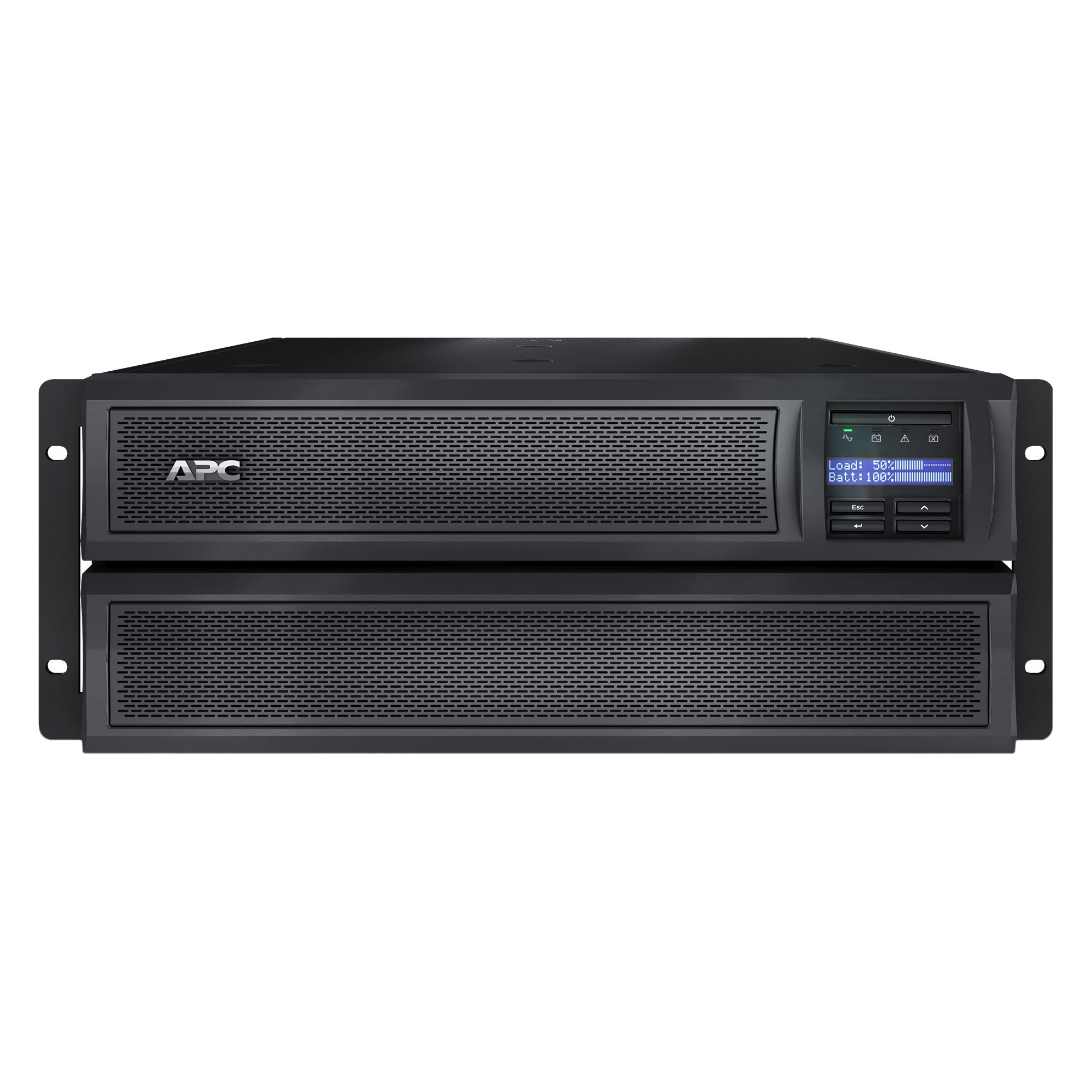
Image description: Front view of the APC Smart-UPS X 2000 Rack/Tower LCD unit, showing the LCD panel and general chassis design. This image illustrates the overall product for context.
Note: For detailed battery connection steps, refer to the quick start guide included with your product.
3.4 Power Connection
Connect the UPS power cord to a grounded AC power outlet. Do not connect the UPS power cord to itself or to a surge protector. Allow the UPS to charge for at least 3 hours before connecting equipment to ensure full battery capacity.
3.5 Connecting Equipment
Connect your critical equipment to the UPS output receptacles. The UPS has 10 output outlets. Prioritize essential devices that require battery backup. Devices that do not require battery backup (e.g., printers) can be connected to surge-only outlets if available on your specific model, or directly to a wall outlet.
4. Operating Instructions
4.1 Powering On/Off
To Power On: Press and hold the power button on the front panel until the LCD screen illuminates and the UPS begins its startup sequence.
To Power Off: Ensure all connected equipment is safely shut down. Press and hold the power button until the UPS shuts down completely.
4.2 LCD Display
The intuitive LCD display provides real-time information on UPS status, battery charge level, load level, and various operational settings. Use the navigation buttons (typically up/down arrows and an enter button) to cycle through menus, view status, and adjust configurable parameters such as output voltage, sensitivity, and alarm settings.
4.3 Self-Test
It is recommended to perform a self-test periodically to ensure the UPS battery and internal components are functioning correctly. This can usually be initiated via the LCD menu. During a self-test, the UPS briefly switches to battery power to test its capacity and transfer capabilities.
5. Maintenance
5.1 Battery Replacement
The UPS batteries are user-replaceable. The typical battery life is 3-5 years, depending on usage and environmental conditions. When the UPS indicates a battery fault or low runtime, it's time to replace the battery cartridge. Always power off the UPS, disconnect it from AC power, and follow the specific instructions provided with the replacement battery cartridge (RBC) for safe replacement. Refer to the APC website or contact support for compatible replacement battery cartridges.
5.2 Cleaning
Keep the UPS free from dust and debris. Use a dry, soft cloth to clean the exterior surfaces. Do not use liquid cleaners, solvents, or abrasive materials, as these can damage the unit.
6. Troubleshooting
This section provides solutions to common issues you may encounter with your UPS.
Problem
Possible Cause
Solution
UPS not turning on
No AC input power; Battery not connected
Check power cord connection and wall outlet. Ensure internal battery is properly connected.
Short battery runtime
UPS is overloaded; Battery is old or needs charging
Reduce the load connected to the UPS. Allow the UPS to charge for 3 hours. Replace the battery if it's old.
Check the LCD for specific error codes. Reduce connected load. Allow battery to charge. If fault persists, contact support.
Connected equipment not receiving power
UPS is off; Circuit breaker tripped; Output receptacles disabled
Ensure UPS is powered on. Check and reset the circuit breaker on the UPS. Verify output settings via the LCD.
7. Technical Specifications
Brand: APC
Model: SMX2000LV
Output Wattage: 1800 Watts
Input Voltage: 120 Volts (AC)
Output Voltage: 120 Volts (AC)
Number of Outlets: 10
Battery Cell Composition: Lead Acid
Charging Time: 3 Hours
Runtime (at half load): Approximately 11 minutes
Item Weight: 104.6 Pounds
Item Dimensions (H x W x D): 7.01 x 19.02 x 17.01 inches
Form Factor: Rack/Tower
Frequency Range: 50/60 Hz
Power Plug Type: Type B - 3 pin (North American & Japanese)
8. Warranty and Support
This APC Smart-UPS X 2000 Rack/Tower LCD comes with a standard manufacturer's warranty. For detailed warranty information, technical support, or service inquiries, please visit the official APC website or contact APC customer service directly.
Ask about setup, troubleshooting, compatibility, parts, safety, or missing instructions. Manuals+ will review the question and use this page’s manual context to help answer it.