
Introduction
This manual provides detailed instructions for the installation, operation, and maintenance of your Netis WF2190 Wireless AC1200 Dual Band USB Adapter. The WF2190 is designed to provide high-speed wireless connectivity, supporting the latest 802.11ac standard and dual-band operation (2.4GHz and 5GHz). It is compatible with Windows, Mac, and Linux operating systems.

Image: The Netis WF2190 Wireless AC1200 Dual Band USB Adapter, featuring two high-gain antennas and a USB 3.0 cradle for flexible placement.
Package Contents
Verify that your package contains the following items:
- Netis WF2190 Wireless AC1200 Dual Band USB Adapter
- Two 5dBi Detachable Antennas
- USB Cradle (with USB 3.0 cable)
- Driver CD
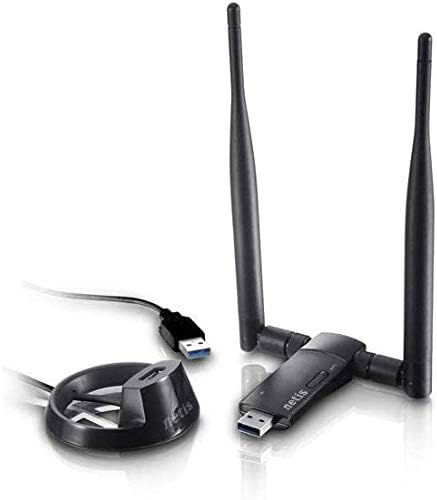
Image: Contents of the Netis WF2190 package, including the adapter, two antennas, and the USB cradle.
Setup
1. Driver Installation
Before connecting the adapter to your computer, install the necessary drivers. For Windows 10, the adapter may be plug-and-play. For other operating systems or if automatic installation fails, follow these steps:
- Insert the provided Driver CD into your computer's CD-ROM drive.
- Follow the on-screen instructions to complete the driver installation.
- If you do not have a CD-ROM drive or encounter issues, download the latest drivers from the official Netis website: www.netis-systems.com.
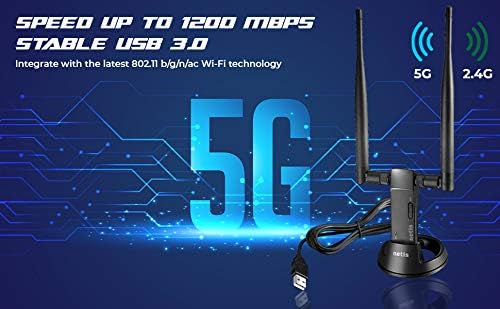
Image: Step-by-step visual guide for installation, starting with driver installation from the CD.
2. Hardware Connection
After driver installation, connect the adapter to your computer:
- Attach the two 5dBi detachable antennas to the adapter's connectors. Ensure they are securely fastened.
- For optimal signal reception, adjust the antennas to an upright position or angle them as needed.
- Connect the USB cradle's cable to an available USB 3.0 port on your computer.
- Insert the Netis WF2190 USB adapter into the USB port on the cradle. Alternatively, you can plug the adapter directly into a USB 3.0 port on your computer. The cradle offers more flexibility for placement to achieve better signal strength.
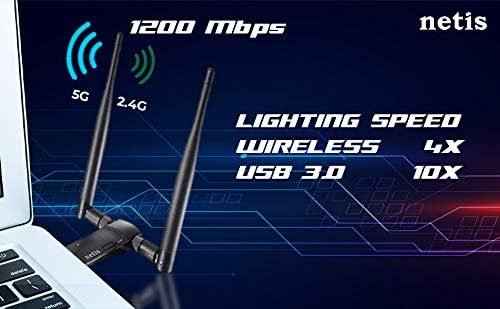
Image: The Netis WF2190 adapter with its two antennas and the separate USB cradle, ready for connection.
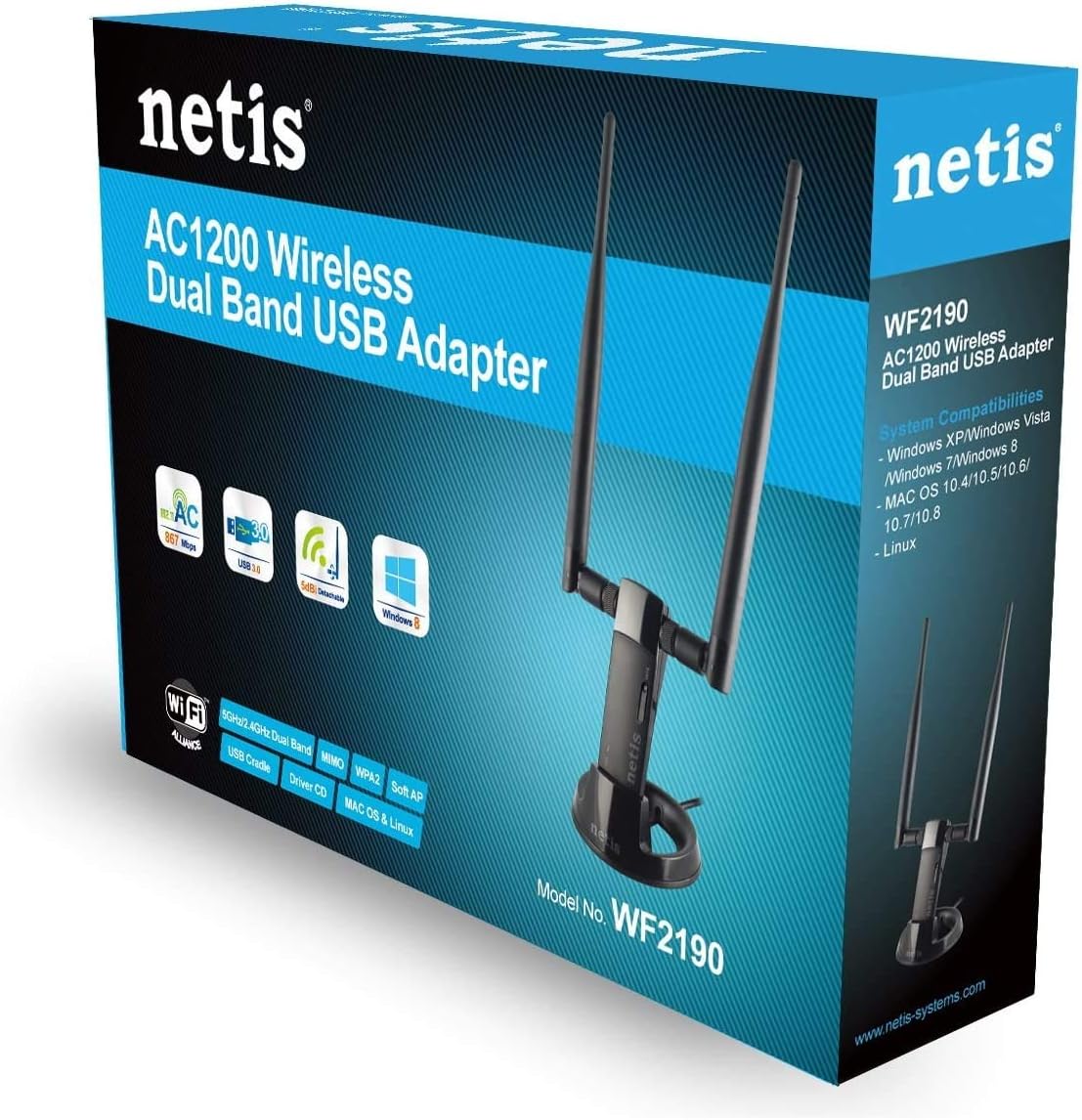
Image: Illustration demonstrating the 180-degree adjustable range of the 5dBi high-gain dual-band antennas for optimized signal reception.
Operating Instructions
1. Connecting to a Wireless Network
Once the adapter is connected and drivers are installed, you can connect to a wireless network:
- Locate the wireless network icon in your computer's system tray (Windows) or menu bar (Mac/Linux).
- Click the icon to view available wireless networks.
- Select your desired network (SSID) from the list. The WF2190 supports both 2.4GHz and 5GHz bands. Choose the 5GHz band for higher speeds if your router supports it and you are within range.
- If prompted, enter the network security key (password).
- Click "Connect" to establish the wireless connection.

Image: Visual representation of the final step in the setup process: scanning for and connecting to an available internet network.
2. Using Access Point (Soft-AP) Mode
The Netis WF2190 adapter supports Soft-AP mode, allowing you to turn your computer into a Wi-Fi hotspot to share your internet connection with other devices. This feature is typically enabled through the adapter's utility software or your operating system's network settings.
- Refer to the adapter's utility software (usually installed with the drivers) for specific instructions on enabling and configuring Soft-AP mode.
- Ensure your computer has an active internet connection (e.g., via Ethernet) to share.

Image: An overview of the adapter's key features, including its Soft-AP capability for creating a Wi-Fi hotspot.
Maintenance
To ensure the longevity and optimal performance of your Netis WF2190 adapter, consider the following maintenance tips:
- Keep Clean: Regularly clean the adapter and cradle with a soft, dry cloth. Avoid using liquid cleaners or solvents.
- Environmental Conditions: Operate the adapter within recommended temperature and humidity ranges. Avoid exposing it to extreme heat, cold, or moisture.
- Ventilation: Ensure the adapter is placed in a location with adequate airflow to prevent overheating.
- Driver Updates: Periodically check the Netis website (www.netis-systems.com) for updated drivers to ensure compatibility and performance improvements.
- Secure Connection: Ensure antennas are always securely attached to the adapter.
Troubleshooting
If you encounter issues with your Netis WF2190 adapter, try the following troubleshooting steps:
- No Wireless Connection:
- Verify that the adapter is securely plugged into a USB port.
- Check if the drivers are correctly installed. Reinstall if necessary.
- Ensure your wireless network (router/access point) is powered on and broadcasting.
- Confirm you have selected the correct network and entered the password accurately.
- Slow Connection Speed:
- Reposition the adapter and its antennas for better signal reception. The USB cradle can help with flexible placement.
- Ensure you are connected to the 5GHz band if your router supports it and you are close enough. The 5GHz band offers higher speeds but has a shorter range than 2.4GHz.
- Check for interference from other electronic devices.
- Update your adapter drivers to the latest version.
- Frequent Disconnections:
- Try connecting the adapter to a different USB port on your computer.
- Ensure the adapter is not overheating.
- Check for conflicting software or network settings on your computer.
- Verify that your router's firmware is up to date.
For further assistance, visit the Netis support website or consult your computer's operating system documentation.
Specifications
| Feature | Description |
|---|---|
| Model | WF2190 |
| Wireless Type | 802.11ac, 802.11b, 802.11g, 802.11n |
| Data Transfer Rate | Up to 1200 Mbps (867Mbps at 5GHz + 300Mbps at 2.4GHz) |
| Antennas | Two 5dBi detachable antennas |
| Hardware Interface | USB 3.0 (backward compatible with USB 2.0) |
| Operating System Support | Windows XP, Vista, 7, 8, 10; Mac OS 10.4-10.8; Linux |
| Security Features | WPA-PSK/WPA2-PSK, WPA/WPA2, WEP |
| Dimensions (LxWxH) | 8.75 x 6.25 x 2 inches (approximate, adapter only) |
| Item Weight | 3.87 ounces (approximate) |
Warranty and Support
Netis products are covered by a limited warranty. For detailed warranty information, please refer to the warranty card included with your product or visit the official Netis website. For technical support, driver downloads, and frequently asked questions, please visit:
When contacting support, please have your product model number (WF2190) and a detailed description of your issue ready.


